00197725-12_GS_SE3.11_EN.pdf - 第58页
3 SIPLACE Explorer Runtime Environment Getting Started SIPLACE E xplorer Edition 11/2020 EN from 3.11 (R20-2) 58 3.7.2 Converting the Dat abase Due to the changed d ata stru ctur e in the SIPLACE Explorer 3.1 1 database,…
Getting Started SIPLACE Explorer 3 SIPLACE Explorer Runtime Environment
from 3.11 (R20-2) Edition 11/2020 EN
57
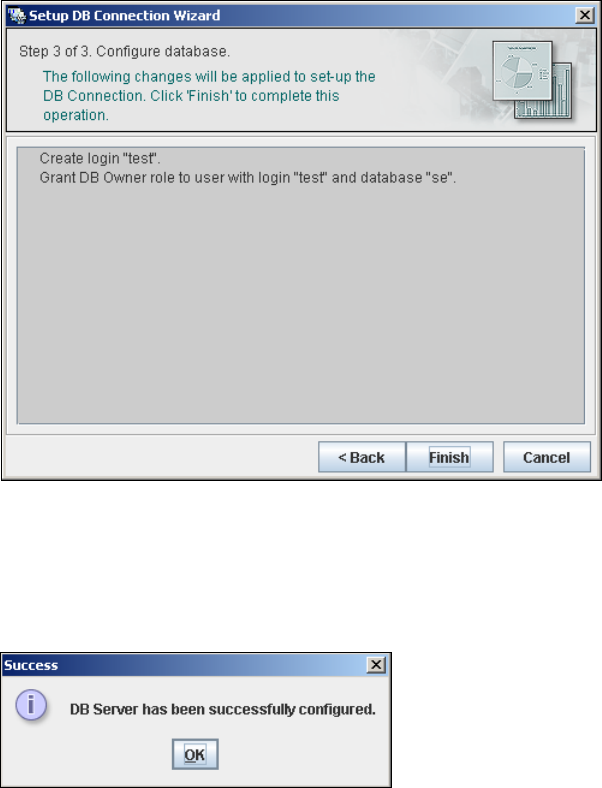
– Step 3 - Configure Database
Step 3 takes your modifications from Step 2 and uses them to configure the database
connection.
3
Fig. 3 - 36 Step 3 - database connection wizard
Click on Finish and the wizard will carry out the required configuration. The DB settings are
now correctly specified for your project. The database and set user will be created.
You will receive a success message.
3
Fig. 3 - 37 Step 3 - database connection wizard
Click OK. You can now configure your system database.

3 SIPLACE Explorer Runtime Environment Getting Started SIPLACE Explorer
Edition 11/2020 EN from 3.11 (R20-2)
58
3.7.2 Converting the Database
Due to the changed data structure in the SIPLACE Explorer 3.11 database, existing databases
with data from SIPLACE Explorer 2.0 - 3.10 need to be converted. 3
Always perform the conversion when you need to access a database which does not yet have the
SIPLACE Explorer 3.11 database format. This could occur in the following cases: 3
– Using the SE database
– Runtime Environment:
Step 5 - Configure System Database page 38
– Development Environment:
Step 7 - Configure System Database page 38
– Using the factory database
– Factory Configuration Utility
Loading the DB settings on Factory Configuration Utility start, page 78
Database conversion can only be performed if a connection has already been established to the
database. 3
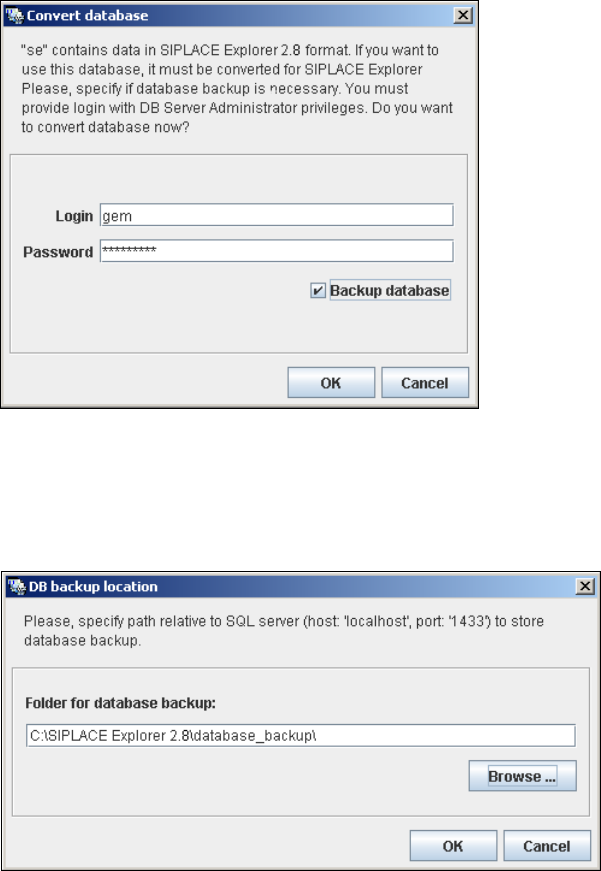
The Convert database dialog box will open.
NOTE
Consider the following for database conversion:
- You will need database administrator rights.
- If you have started the conversion, this process can not be stopped.
- The conversion time depends on the size of the database and on the performance of the
computer. It may take up to an hour. 3
Getting Started SIPLACE Explorer 3 SIPLACE Explorer Runtime Environment
from 3.11 (R20-2) Edition 11/2020 EN
59
3
Fig. 3 - 38 Convert database
Specify the access data for the database administrator and enable the Backup database
option.
Confirm your entries with OK. The DB backup location dialog box will open.
3
Fig. 3 - 39 DB backup location
Before performing the conversion, the system creates a backup file of the database. Specify
the folder for this file in the Folder for database backup field. Click on the Browse ... button
to select an existing folder.
Confirm your choice with OK. The database will be converted. This may take up to one hour.
The conversion time depends on the size of the database and on the performance of the
computer.
After successful conversion of the database, the following information window will open: