00197725-12_GS_SE3.11_EN.pdf - 第81页
Getting Started SIPLACE Explorer 4 SIPLACE Explorer Factor y Conf iguration Utility from 3.11 (R20-2) Edition 11/2020 EN 8 1 4.2.1 How to Configure Production Lines and Their Properties Select the Production Lines t ab…

4 SIPLACE Explorer Factory Configuration Utility Getting Started SIPLACE Explorer
Edition 11/2020 EN from 3.11 (R20-2)
80
4.2 Configuring Production Lines
SIPLACE Explorer Factory Configuration Utility can be used to add production lines to an existing
list of lines to be monitored. This is achieved by calling up the relevant production line data from
the SIPLACE Explorer host. A list of the lines already configured in SIPLACE Explorer will be pro-
vided via the connection to the SIPLACE Explorer host. 4
If you have already configured a production line with the Line Configuration and generated a web-
site, the configured production line will automatically be added to the Factory Configuration Utility
and to the factory website. 4
NOTE
We do not recommend that you change the production line data in SIPLACE Explorer Factory
Configuration Utility. If you do so, you must also synchronize this data in the SIPLACE Explorer
host, by clicking on the Refresh lines icon. 4
After editing the data in Factory Configuration Utility, save the modified data in the factory data-
base in which all Factory Configuration Utility data are stored. During data backup, data is sent
between the SIPLACE Explorer line host and the factory host. To be more exact, data is trans-
ferred from the SIPLACE Explorer factory host to the line host and from the SIPLACE Explorer
line host to the SIPLACE Explorer factory host. 4
Transfer of data from SIPLACE Explorer factory host to SIPLACE Explorer line host: 4
– Factory calendar
– Factory database settings
– SMTP server settings
– User with password and e-mail address
Transfer of data from SIPLACE Explorer line host to SIPLACE Explorer factory host: 4
– Line names
– Line URLs
Getting Started SIPLACE Explorer 4 SIPLACE Explorer Factory Configuration Utility
from 3.11 (R20-2) Edition 11/2020 EN
81
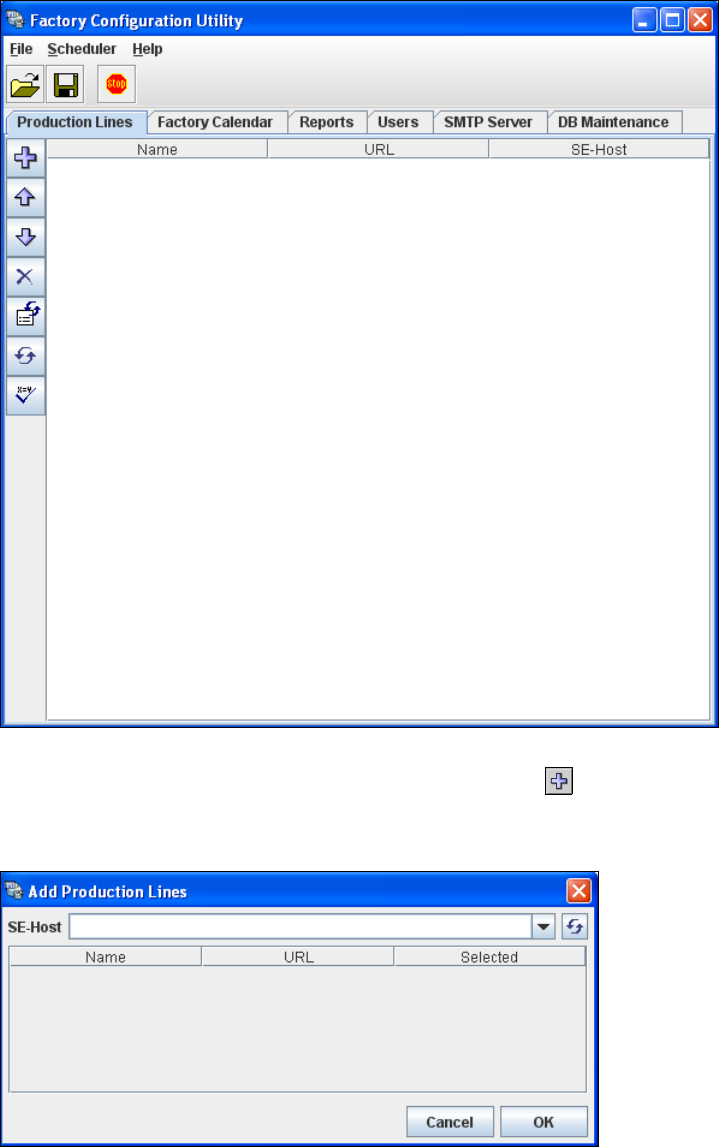
4.2.1 How to Configure Production Lines and Their Properties
Select the Production Lines tab.
4
Fig. 4 - 5 Factory configuration utility - production lines
Now add the production lines, by clicking on the Add Line icon.
The Add Production Lines dialog box will open: 4
4
Fig. 4 - 6 Factory configuration utility - add production lines
4 SIPLACE Explorer Factory Configuration Utility Getting Started SIPLACE Explorer
Edition 11/2020 EN from 3.11 (R20-2)
82
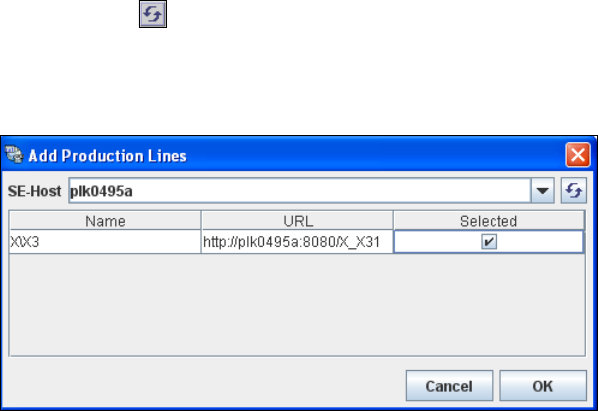
Enter the name or IP address of the SIPLACE Explorer host in the SE-Host field and click on
the Refresh icon.
If a connection to the specified host can be established, a list of all available production lines
will be shown. The Name and URL will be shown for each line. 4
4
Fig. 4 - 7 Factory configuration utility - add production lines
Now select the required production lines, by enabling the relevant checkbox(es) in the
Selected column.
Confirm your choice with OK.
The selected production lines will be added to the list and shown in the Factory Configuration
Utility dialog box. 4