00197725-12_GS_SE3.11_EN.pdf - 第67页
Getting Started SIPLACE Explorer 3 SIPLACE Explorer Runtime Envi ronment from 3.11 (R20-2) Edition 11/2020 EN 6 7 Equipment S tatus tab This is wher e an overv iew of events can be presen ted, for each piece of equipme…
3 SIPLACE Explorer Runtime Environment Getting Started SIPLACE Explorer
Edition 11/2020 EN from 3.11 (R20-2)
66
3
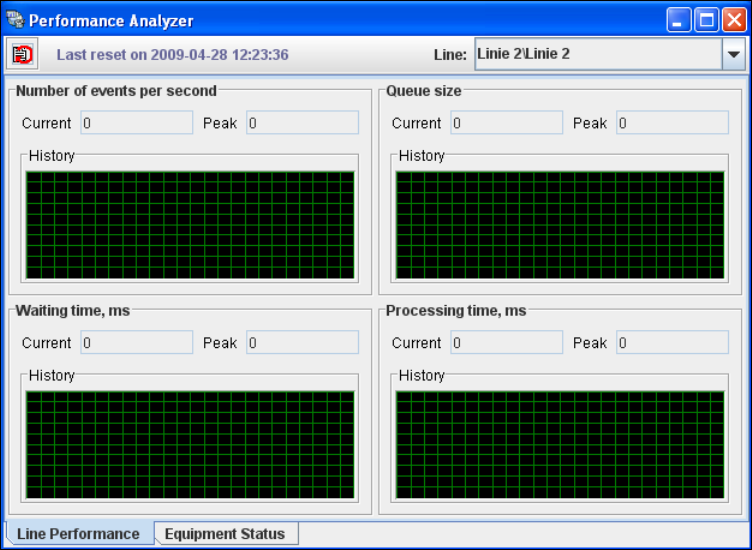
Fig. 3 - 47 RTE - performance analyzer - line performance
Getting Started SIPLACE Explorer 3 SIPLACE Explorer Runtime Environment
from 3.11 (R20-2) Edition 11/2020 EN
67
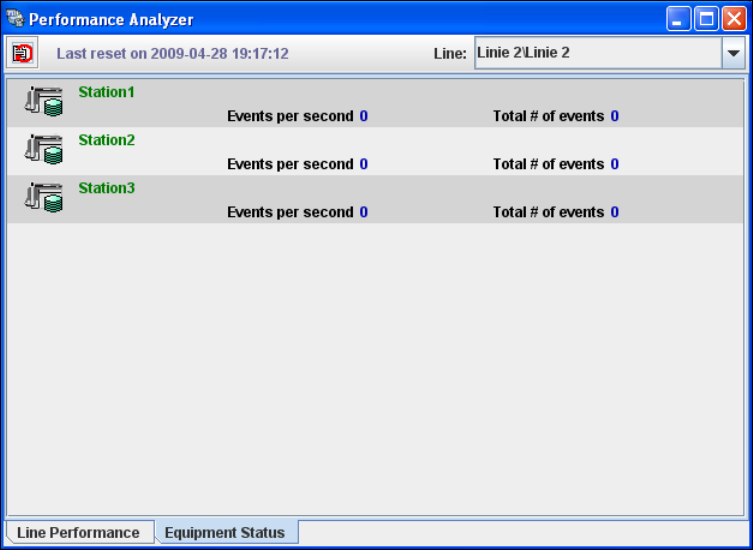
Equipment Status tab
This is where an overview of events can be presented, for each piece of equipment in the
production line. 3
3
Fig. 3 - 48 RTE - performance analyzer - equipment status
3.10 Archive Browser Wizard
The DB maintenance procedure is started automatically. During maintenance operation 'old' data
are archived and stored in the specified folder. To allow users to view this 'old' data, a stand-alone
utility - the Archive Browser Wizard - will perform the opposite operation. Archive Browser is a
wizard that guides a user step-by step through the recovery and viewing of 'old' data. 3
The Archive Browser performs two processes for the user: 3
– Recovers the data from the relevant archive for the specified period and stores this
recovered data in the required database.
– Generates a website. This website is a typical SIPLACE Explorer tool for viewing the data
stored in the database specified above.
3 SIPLACE Explorer Runtime Environment Getting Started SIPLACE Explorer
Edition 11/2020 EN from 3.11 (R20-2)
68
NOTE
The archive browser will only recover data from the specified archive folder. Effectively this means
that only data relevant to one DB maintenance schedule can be recovered during one recovery
operation. You must ensure that the DB maintenance schedule has been defined and enabled in
Line Configuration, otherwise data recovery will not work, see “Step 5 - Configure System
Database” on page 38. 3
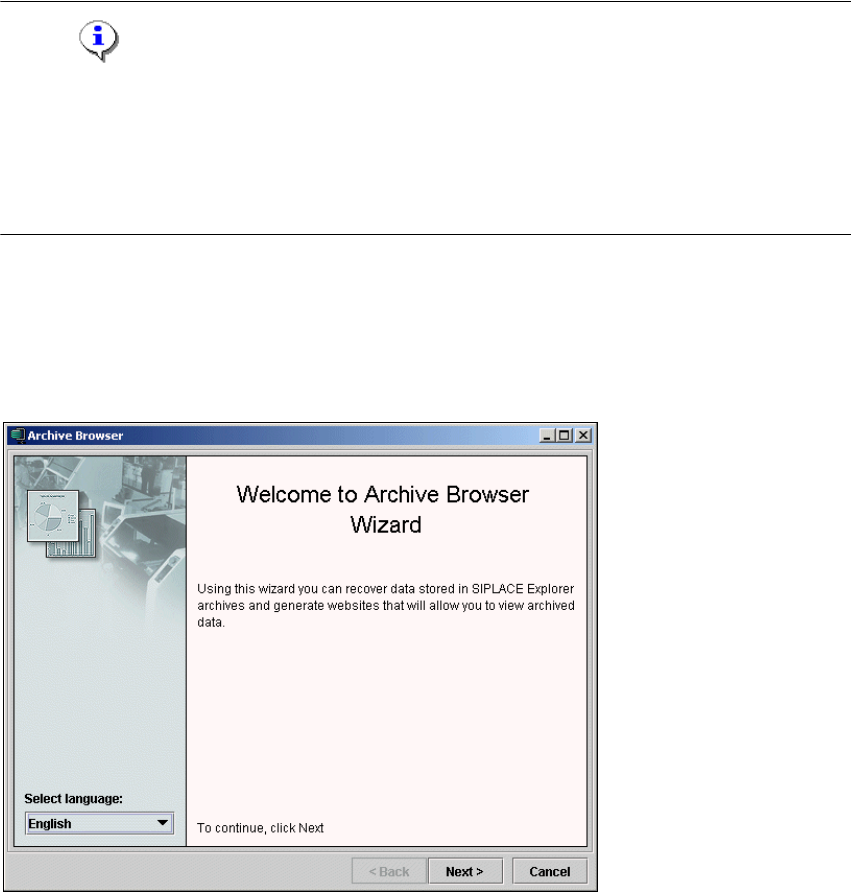
3.10.1 Starting the Archive Browser
Start the Archive Browser via the Programs SIPLACE Explorer Archive Browser
menu in Windows. The Welcome dialog box will appear.
3
Fig. 3 - 49 Archive browser
Click on Next to continue. This is the first step of the Archive Browser process.