00197725-12_GS_SE3.11_EN.pdf - 第55页
Getting Started SIPLACE Explorer 3 SIPLACE Explorer Runtime Envi ronment from 3.11 (R20-2) Edition 11/2020 EN 5 5 – Step 1 - Connection to Dat abase At S tep 1 you will need to speci fy your login and password to a cce…
3 SIPLACE Explorer Runtime Environment Getting Started SIPLACE Explorer
Edition 11/2020 EN from 3.11 (R20-2)
54
3.7 Database Settings
This section will describe the following actions: 3
– “Database Connection Wizard” on page 54
– “Converting the Database” on page 58
– “Compressing the Database” on page 60
3.7.1 Database Connection Wizard
The Database Connection Wizard will be started if the system is unable to establish a connection
to the database. This could occur in the following cases: 3
– Runtime Environment:
Step 5 - Configure System Database page 38
– Development Environment:
Step 7 - Configure System Database page 38
– Factory Configuration Utility
Loading the DB settings on Factory Configuration Utility start, page 78
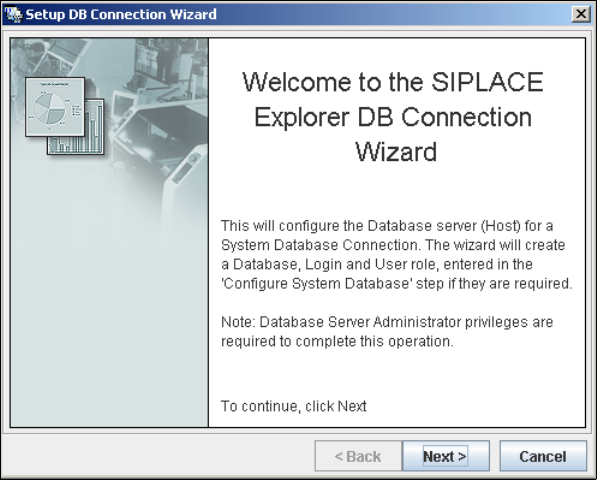
Setup and configuration of the system database consists of a simple three-step procedure.
Click on Next to continue.
3
Fig. 3 - 33 Welcome screen - database connection wizard
Getting Started SIPLACE Explorer 3 SIPLACE Explorer Runtime Environment
from 3.11 (R20-2) Edition 11/2020 EN
55
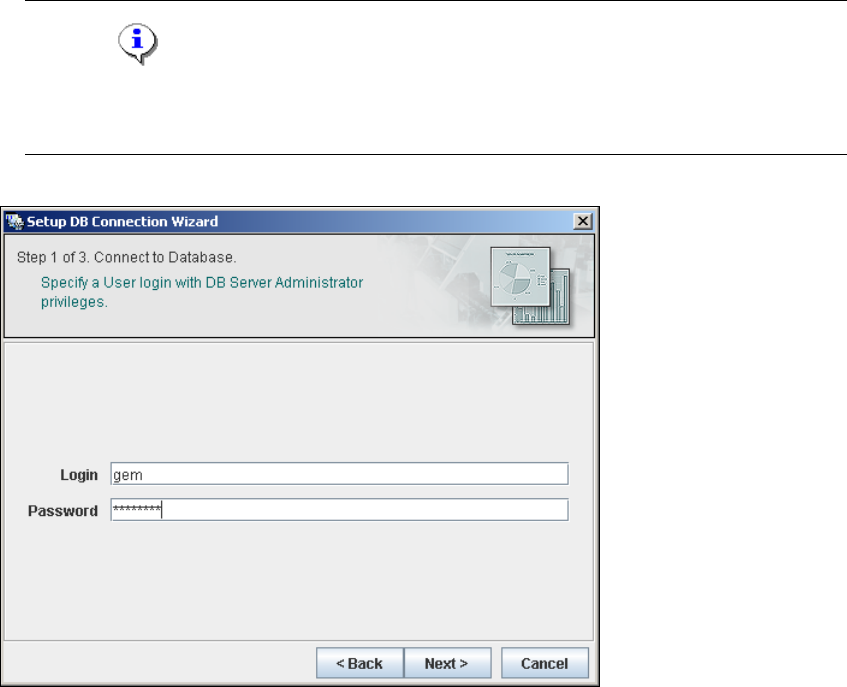
– Step 1- Connection to Database
At Step 1 you will need to specify your login and password to access the Microsoft SQL
Server. Click on Next to continue.
NOTE
Please note that users must have DB administrator privileges to perform the necessary tests
and configuration. 3
3
Fig. 3 - 34 Step 1- database connection wizard
At this point, the wizard will connect to the Microsoft SQL Server and run tests to identify
whether the specified database, login and user roles exist. You will see a list of changes
that the wizard will undertake, to perform setup and configure the system database. 3
3 SIPLACE Explorer Runtime Environment Getting Started SIPLACE Explorer
Edition 11/2020 EN from 3.11 (R20-2)
56
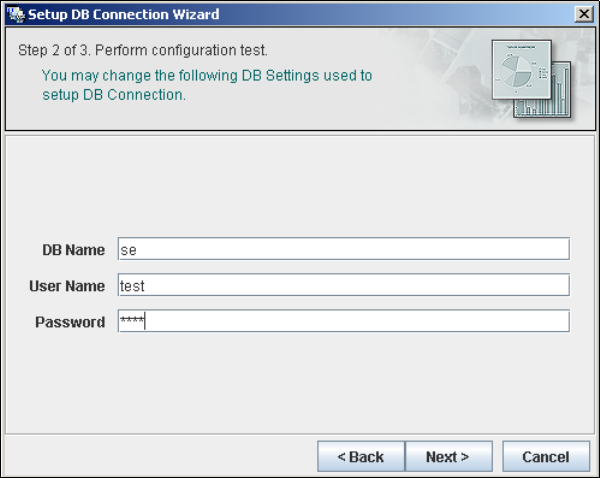
– Step 2 - Perform Configuration Test
At Step 2 you can change your settings. This is also where you define the name of the SE
system database for the line and where you specify the user (and password) who is to have
access to this database.
3
Fig. 3 - 35 Step 2 - database connection wizard
Once you have made and checked all entries, click on Next to continue.