00197725-12_GS_SE3.11_EN.pdf - 第97页
Getting Started SIPLACE Explorer 4 SIPLACE Explorer Factor y Conf iguration Utility from 3.11 (R20-2) Edition 11/2020 EN 9 7 4.8.1.5 W ebsites Clean-up Options This is where you can define the properties of the clean-up …
4 SIPLACE Explorer Factory Configuration Utility Getting Started SIPLACE Explorer
Edition 11/2020 EN from 3.11 (R20-2)
96
4
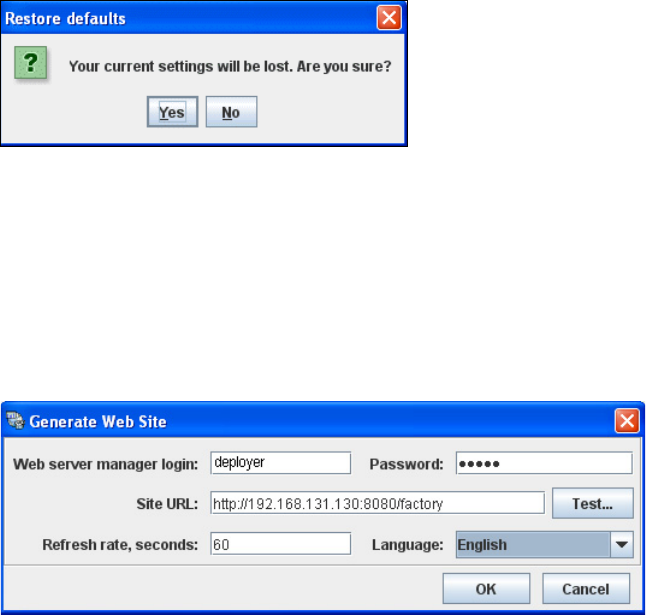
Fig. 4 - 23 Factory configuration utility - restore defaults in
4.8.1.4 Generate Website ...
This is where you can generate a website on which to view a summary of the factory settings. For
this purpose, you require web server manager privileges (Tomcat website generator, deployer)
and the corresponding password. 4
Select Generate Website ... from the File menu.
4
Fig. 4 - 24 Factory configuration utility - generate website
Specify the access data for the Tomcat website generator. If you entered admin and an empty
password during Tomcat configuration, this data will be automatically used as a default login.
If this is not the case, use the data you specified during Tomcat configuration.
Enter the following information:
– URL site
This URL contains a port number, which applies to the web server (Tomcat) e.g. "8080". If
you change the port number here, you will also need to update the port number of the web
server. For a detailed description, please see the installation instructions.
– Refresh rate
For capacity purposes, we recommend a refresh rate of at least one minute (60000 ms).
– Factory website language
Check your entries and confirm with OK. Factory website generation will begin. For a detailed
description of the factory website, please refer to SIPLACE Explorer SMA User Guide.
Getting Started SIPLACE Explorer 4 SIPLACE Explorer Factory Configuration Utility
from 3.11 (R20-2) Edition 11/2020 EN
97
4.8.1.5 Websites Clean-up Options
This is where you can define the properties of the clean-up options for line websites and factory
websites. 4
Select Websites clean-up ... from the File menu.
4
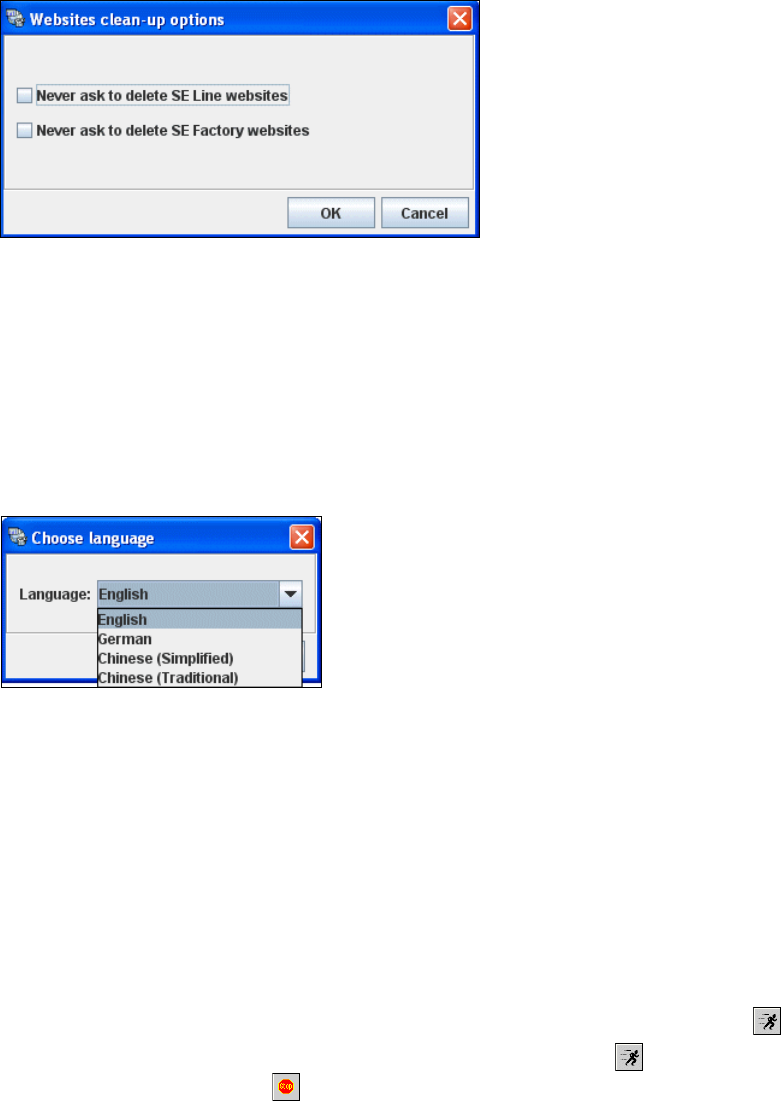
Fig. 4 - 25 Factory configuration utility - websites clean-up
Enable the necessary options.
Check your entries and confirm with OK.
4.8.1.6 Language
The language for the Factory Configuration Utility can be set here. 4
In the File menu, select Language...
4
Fig. 4 - 26 Factory configuration utility - select language
Select the required language and confirm your choice with OK.
4.8.2 Menu Scheduler
To generate the configured factory reports, start the scheduler here. You have already defined the
generation of the factory reports in the Reports tab, see ”Reports”, page - 85. When started, the
scheduler automatically creates a scheduled task. This scheduled task instructs the system to
read factory report data out of the line databases and to create factory reports in the form of Excel
files. 4
In the Scheduler menu, select Start Scheduler... or click on the Start Scheduler icon.
Generation of the specified report will begin. The Start Scheduler icon in the toolbar will
change to Stop Scheduler .
4 SIPLACE Explorer Factory Configuration Utility Getting Started SIPLACE Explorer
Edition 11/2020 EN from 3.11 (R20-2)
98
4.9 How To Use the Factory Website
The factory website is the so-called "Single Entry Point" for all production line websites. This
means that you can navigate directly from the factory website to all other production line websites
which have been configured with the Factory Configuration Utility. 4
The following tabs can be accessed via the Factory Website: 4
– Factory Website - Overview Tab
Using the main page as the "Single Entry Point" for production line websites
– Factory Website - Reports Tab
Defining reports to specify when and what to generate and how often.
– Factory Website - Consumption Tab
Overview of the component consumption data. Users can choose to view all lines or one
specific line.
– Factory Website - Configuration Tab
Shows addition or removal of a production line / station.
For stations with station software version SW 703, stations or placement heads are shown if
they are set in SIPLACE Pro to the "PCB bypass" mode.
For SIPLACE SX machines addition or removal of the gantry is shown.
4.9.1 How to Start the Factory Website
Start the Microsoft Internet Explorer. Enter the HTTP address of the factory website in the
Address field.
The login page will open.
For a detailed description, please refer to SIPLACE Explorer SMA User Guide. 4
4