00197725-12_GS_SE3.11_EN.pdf - 第69页
Getting Started SIPLACE Explorer 3 SIPLACE Explorer Runtime Envi ronment from 3.11 (R20-2) Edition 11/2020 EN 6 9 3.10.1.1 Step 1 - Define DB Settings S pecify the database in which the recovered a rchive dat a is to b…
3 SIPLACE Explorer Runtime Environment Getting Started SIPLACE Explorer
Edition 11/2020 EN from 3.11 (R20-2)
68
NOTE
The archive browser will only recover data from the specified archive folder. Effectively this means
that only data relevant to one DB maintenance schedule can be recovered during one recovery
operation. You must ensure that the DB maintenance schedule has been defined and enabled in
Line Configuration, otherwise data recovery will not work, see “Step 5 - Configure System
Database” on page 38. 3
3.10.1 Starting the Archive Browser
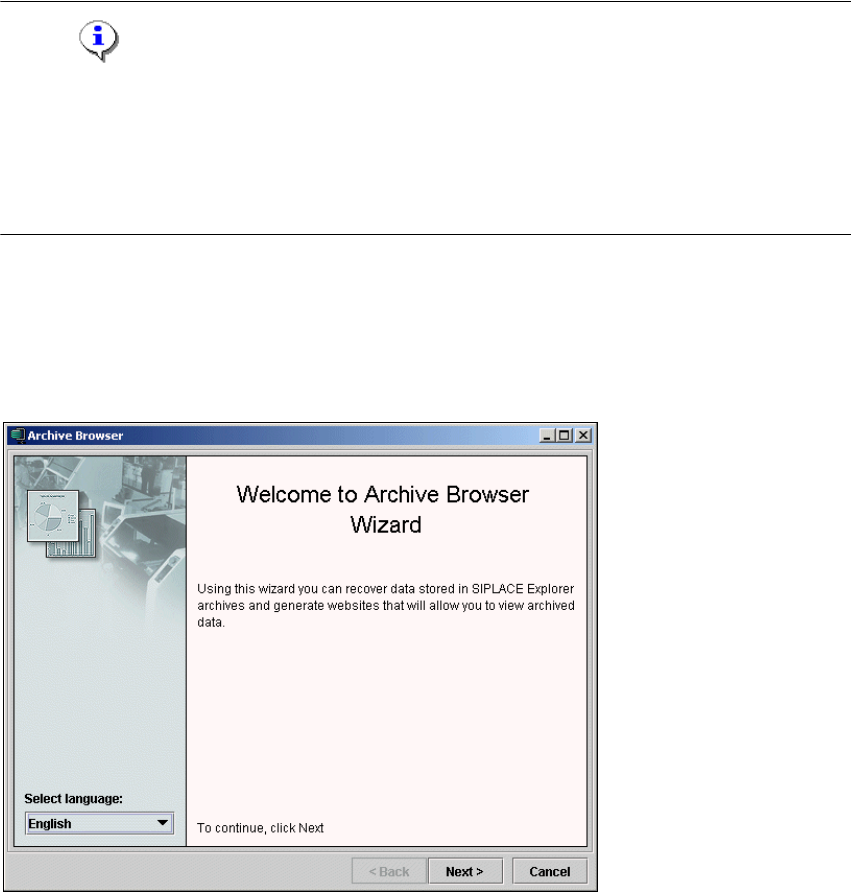
Start the Archive Browser via the Programs SIPLACE Explorer Archive Browser
menu in Windows. The Welcome dialog box will appear.
3
Fig. 3 - 49 Archive browser
Click on Next to continue. This is the first step of the Archive Browser process.
Getting Started SIPLACE Explorer 3 SIPLACE Explorer Runtime Environment
from 3.11 (R20-2) Edition 11/2020 EN
69
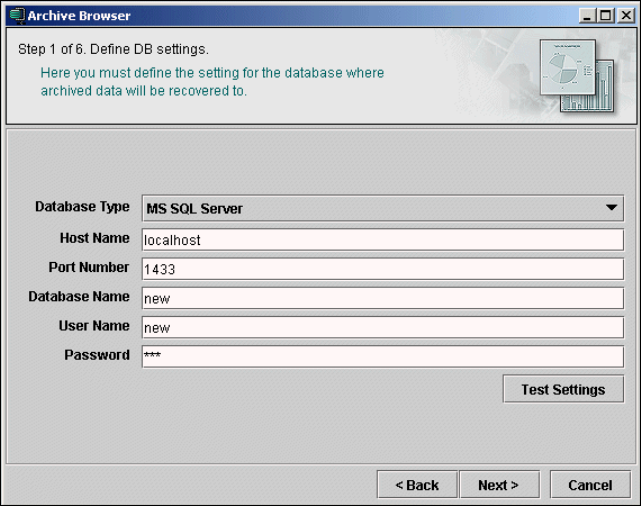
3.10.1.1 Step 1 - Define DB Settings
Specify the database in which the recovered archive data is to be saved.
3
Fig. 3 - 50 Archive browser
After you have made all entries, check these and then test the connection to the database. To
do this, click on the Test Settings button. If you are unable to establish the connection, you
will need to configure it: Follow the instructions at “Database Connection Wizard” on page 54.
Click on Next to continue with the next step.
3 SIPLACE Explorer Runtime Environment Getting Started SIPLACE Explorer
Edition 11/2020 EN from 3.11 (R20-2)
70
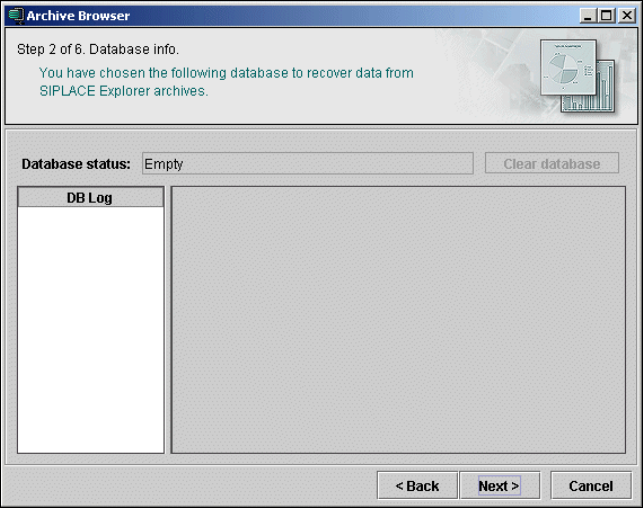
3.10.1.2 Step 2 - Database Info
The selected database will be shown.
3
Fig. 3 - 51 Archive browser
Click on Next to continue with the next step.