00197725-12_GS_SE3.11_EN.pdf - 第66页
3 SIPLACE Explorer Runtime Environment Getting Started SIPLACE E xplorer Edition 11/2020 EN from 3.11 (R20-2) 66 3 Fig. 3 - 47 RTE - performance analyzer - line performance
Getting Started SIPLACE Explorer 3 SIPLACE Explorer Runtime Environment
from 3.11 (R20-2) Edition 11/2020 EN
65
3.9 Performance Analyzer
The Performance Analyzer tool can be used to evaluate the communication between the pro-
duction line and SIPLACE Explorer. It shows real-time data. 3
NOTE
The performance analyzer tool functions only when the application is running, see “Using the SE
Manager” on page 21 3
3.9.1 How to Use the Performance Analyzer
Start the Performance Analyzer via the Programs SIPLACE Explorer Performance
Analyzer menu in Windows. The Performance Analyzer window will open, showing the Line
Performance and Equipment Status tabs.
Select the production line for which you wish to view the communication, from the Line menu.
NOTE
The system only displays those production lines which have already been configured with
Line Configuration. 3
Reset icon
All views will be set to zero. Communication recording will start again. 3
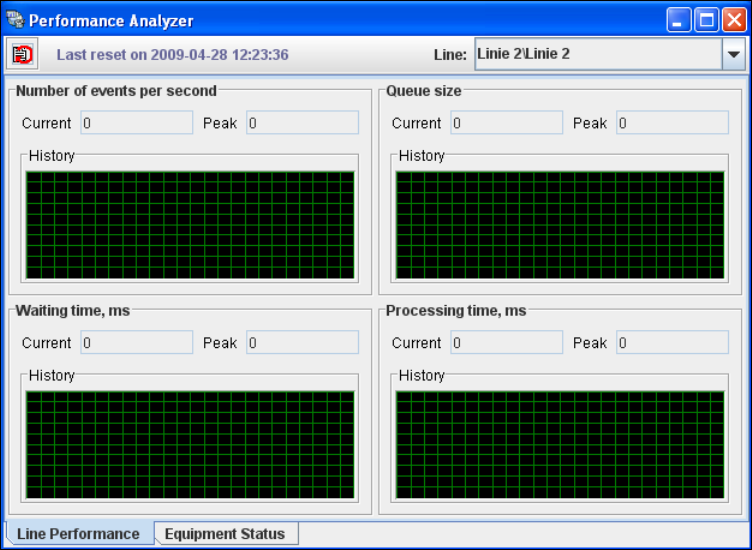
Line Performance tab
This is where, for example, users can view the number of events per minute or the waiting time
in ms. The tool always shows the most recent value and displays the highest value as a
"peak". 3
3 SIPLACE Explorer Runtime Environment Getting Started SIPLACE Explorer
Edition 11/2020 EN from 3.11 (R20-2)
66
3
Fig. 3 - 47 RTE - performance analyzer - line performance
Getting Started SIPLACE Explorer 3 SIPLACE Explorer Runtime Environment
from 3.11 (R20-2) Edition 11/2020 EN
67
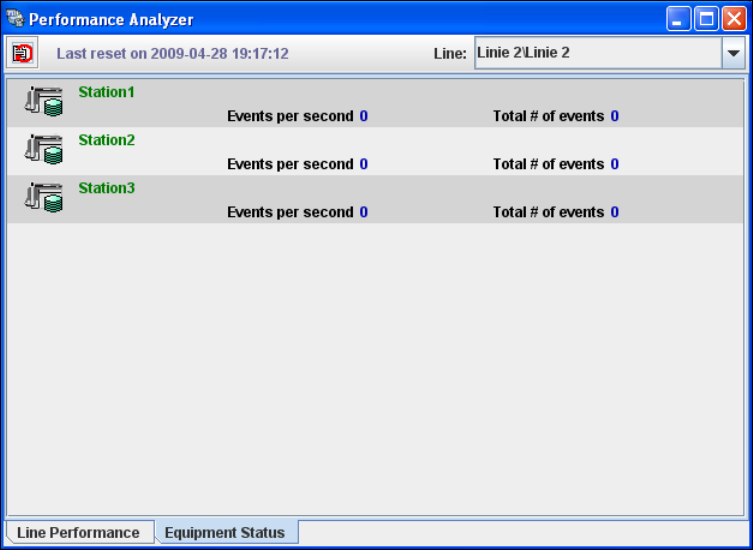
Equipment Status tab
This is where an overview of events can be presented, for each piece of equipment in the
production line. 3
3
Fig. 3 - 48 RTE - performance analyzer - equipment status
3.10 Archive Browser Wizard
The DB maintenance procedure is started automatically. During maintenance operation 'old' data
are archived and stored in the specified folder. To allow users to view this 'old' data, a stand-alone
utility - the Archive Browser Wizard - will perform the opposite operation. Archive Browser is a
wizard that guides a user step-by step through the recovery and viewing of 'old' data. 3
The Archive Browser performs two processes for the user: 3
– Recovers the data from the relevant archive for the specified period and stores this
recovered data in the required database.
– Generates a website. This website is a typical SIPLACE Explorer tool for viewing the data
stored in the database specified above.