00197725-12_GS_SE3.11_EN.pdf - 第20页
3 SIPLACE Explorer Runtime Environment Getting Started SIPLACE E xplorer Edition 11/2020 EN from 3.11 (R20-2) 20 – Database password After entering this information, click on the OK button. The SE Security Manager will…
Getting Started SIPLACE Explorer 3 SIPLACE Explorer Runtime Environment
from 3.11 (R20-2) Edition 11/2020 EN
19
3
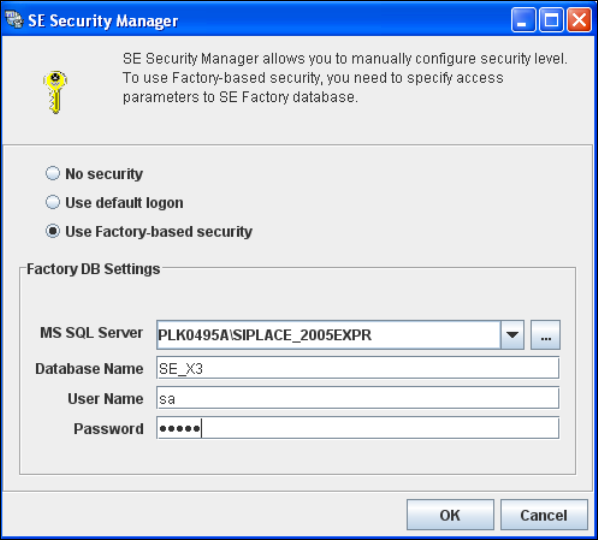
Fig. 3 - 4 RTE - SE security manager
Select the relevant security level from the following options:
– No security
Any user can start any of the SIPLACE Explorer Runtime Environment tools without the
login dialog.
– Use default logon
Only the two default users with empty passwords ("Admin" and "Operator") can start the
SIPLACE Explorer Runtime Environment tools. When a tool is started for the first time, the
login dialog will appear.
– Use factory-based security
Only users who have been defined in the User Management feature of the Factory
Configuration Utility can start the SIPLACE Explorer Runtime Environment tools. For more
details, please refer to Section “User Management” on page 86. When a tool is started for
the first time, the login dialog will appear.
If you have enabled the security level Use factory-based security, you will need to specify the
data for establishing a connection to the factory database. Specify the following information:
– Microsoft SQL Server:port number
You can add the port number to the SQL Server instance, separated by a colon, for
example: PLK0495A\SIPLACE_2005EXPR:12345.
– Database name
– User name
3 SIPLACE Explorer Runtime Environment Getting Started SIPLACE Explorer
Edition 11/2020 EN from 3.11 (R20-2)
20
– Database password
After entering this information, click on the OK button. The SE Security Manager will try to
establish a connection to the database, using the specified parameters.
NOTE
If you have enabled the security level Use default logon or Use factory-based security, the
login dialog will appear when a tool is started. Specify your correct user name and password to
use the tool. 3
NOTE
If you have enabled the security level Use factory-based security, a connection will be
established to the factory database at login and tool start, in order to authenticate the user. If
SIPLACE Explorer is unable to establish a connection to the factory database, the tool will not be
started. 3
NOTE
You only need to log in when you start a SIPLACE Explorer Runtime Environment tool for the first
time. After successfully starting this tool, other tools can be started without the 'login' dialog. This
setting remains active until you restart SIPLACE Explorer Runtime Environment. 3
3.5 SE Manager
The SE Manager is used to select one or more production lines to be monitored. With the SE
Manager, monitoring can be started and stopped for the selected production line and SIPLACE
Explorer applications can be initialized. 3
The SE Manager can also be used to manually check if there are line configuration deviations in
OIS/SIS and SIPLACE Explorer. 3
This section will describe the following actions: 3
– “Using the SE Manager” on page 21
– “Starting Production Line Monitoring in SIPLACE Explorer” on page 25
– “Manually Checking the SIPLACE Explorer Configuration for Problems” on page 26
Getting Started SIPLACE Explorer 3 SIPLACE Explorer Runtime Environment
from 3.11 (R20-2) Edition 11/2020 EN
21
3.5.1 Using the SE Manager
Start the SE Manager via the Programs SIPLACE Explorer SE Manager menu in
Windows.
Select the production line for which you wish to start or end monitoring, from the Line menu.
NOTE
The system only displays those production line check setting which have already been
configured with Line Configuration. 3
If you want to work with multiple production lines, you will need to select, start, stop, initialize
or check the configuration of each of these, one after the other.
Start
Click on the Start icon to start monitoring the selected production line. Monitoring will be
initialized and the data will be saved in the production line database. 3
The Start icon will become a Stop icon. Click on this icon to stop monitoring the
selected production line. This icon will only be enabled if production line monitoring has already
been started with the Start icon. 3
Auto-start SIPLACE Explorer when OS starts
– Checkbox enabled:
SIPLACE Explorer Runtime runs as a Windows NT service and is started whenever you
reboot your computer.
– Checkbox disabled:
SIPLACE Explorer Runtime Environment needs to be manually restarted after you reboot
your computer.
This checkbox is enabled as a default. 3
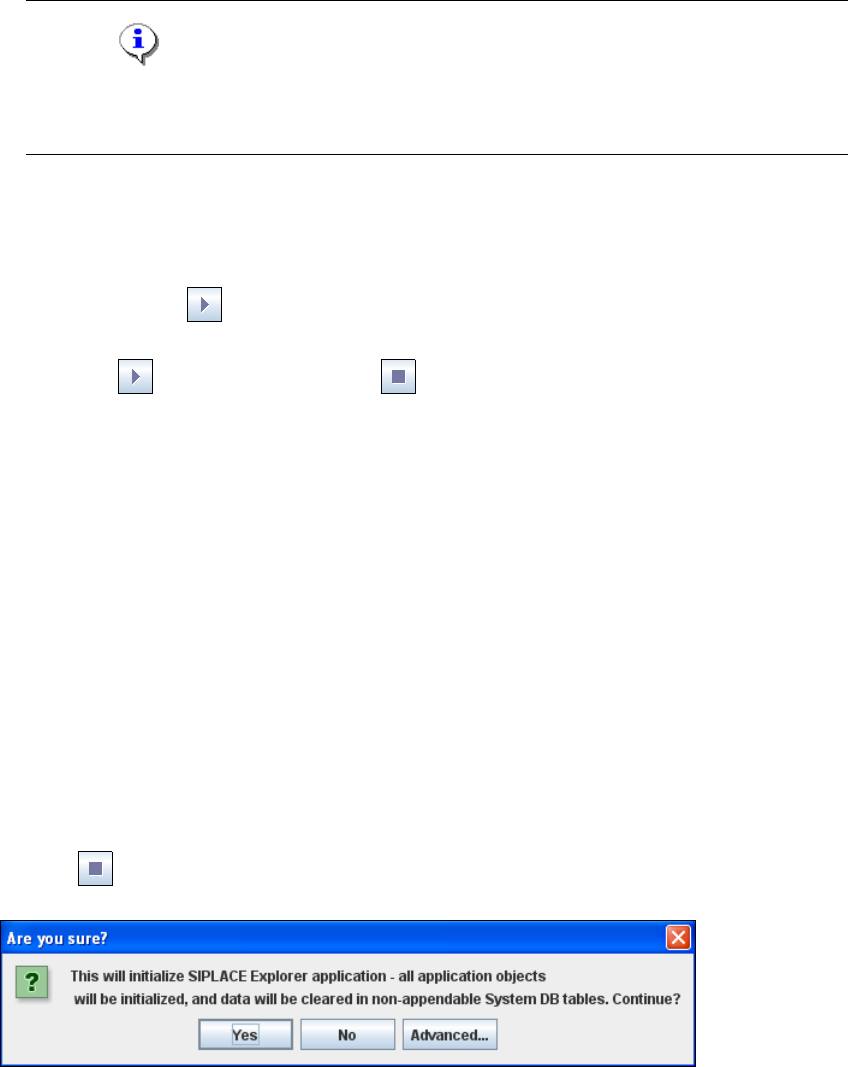
Initialize ...
The SIPLACE Explorer application will be initialized for the selected production line. This
button will only be enabled if production line monitoring has previously been stopped with the
Stop icon. The following dialog box will appear: 3
3
Fig. 3 - 5 RTE - initializing the SIPLACE Explorer application