00197725-12_GS_SE3.11_EN.pdf - 第26页
3 SIPLACE Explorer Runtime Environment Getting Started SIPLACE E xplorer Edition 11/2020 EN from 3.11 (R20-2) 26 3.5.3 Manually Checking the SIPLACE Explorer Configuration for P roblems The configuration check can be per…
Getting Started SIPLACE Explorer 3 SIPLACE Explorer Runtime Environment
from 3.11 (R20-2) Edition 11/2020 EN
25
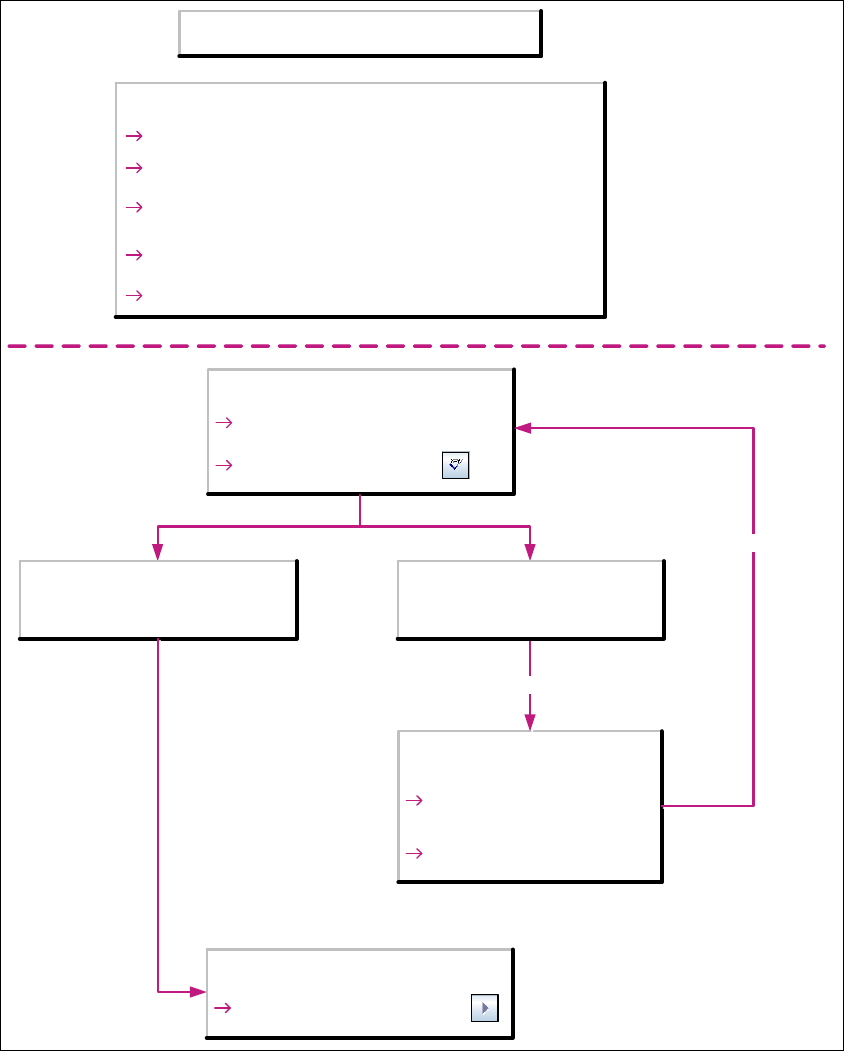
3.5.2 Starting Production Line Monitoring in SIPLACE Explorer
3
Fig. 3 - 7 Starting production line monitoring in SIPLACE Explorer
SE Manager
Select the production line
Check setting with Check
There are no deviations in the line
configuration in OIS/SIS and in
SIPLACE Explorer
There are deviations in the line
configuration in OIS/SIS and in
SIPLACE Explorer
Line Configuration
Step 2:
Change configuration of the
production line accordingly
Re-check of the settings
Correction of the problem required
Step 7:
Rebuild the application
Starting Monitoring in SIPLACE Explorer
SE Manager
Start the monitoring procedure
with Start
Preconditions
MS SQL Server is started (Windows service)
Apache Tomcat is started (Windows service)
SIPLACE Explorer Runtime Environment is started
(Windows service )
Database must have been created in MS SQL Server and
the connection to the database must have been established
Production line must have been configured in SIPLACE Explorer
3 SIPLACE Explorer Runtime Environment Getting Started SIPLACE Explorer
Edition 11/2020 EN from 3.11 (R20-2)
26
3.5.3 Manually Checking the SIPLACE Explorer Configuration for Problems
The configuration check can be performed both when production line monitoring is running and
when it has been stopped. 3
NOTE
Before you begin to monitor a production line with SIPLACE Explorer, always perform a
configuration check with the SE Manager. 3
3
Select the production line for which you wish to perform a configuration check, from the Line
menu of the SE Manager.
NOTE
The system only displays those production lines which have already been configured with
Line Configuration. 3
Click on the Check icon. A configuration check will be performed for the selected
production line.
– Configuration of production line OK:
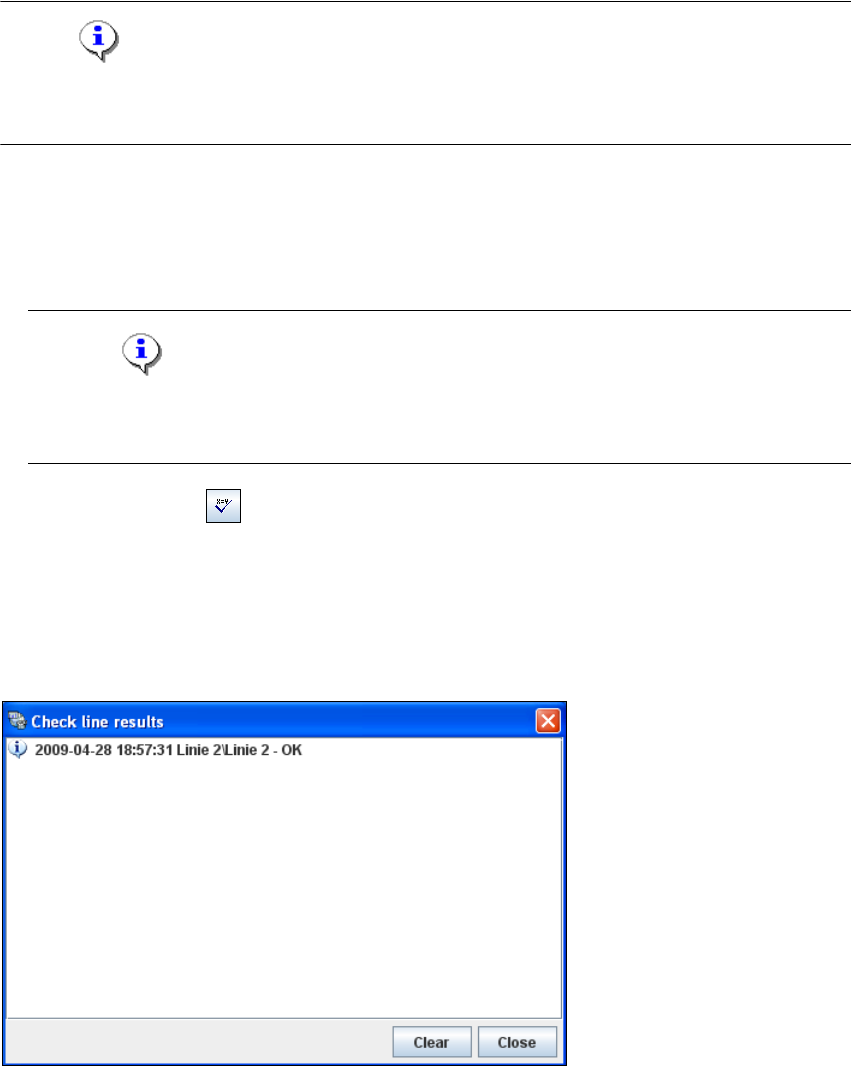
If no problems were detected during the configuration check, you will see the following
information:
3
Fig. 3 - 8 Check line results
Getting Started SIPLACE Explorer 3 SIPLACE Explorer Runtime Environment
from 3.11 (R20-2) Edition 11/2020 EN
27
Click on Close. You can now continue or start production line monitoring in SIPLACE
Explorer.
– Incorrect configuration of production line:
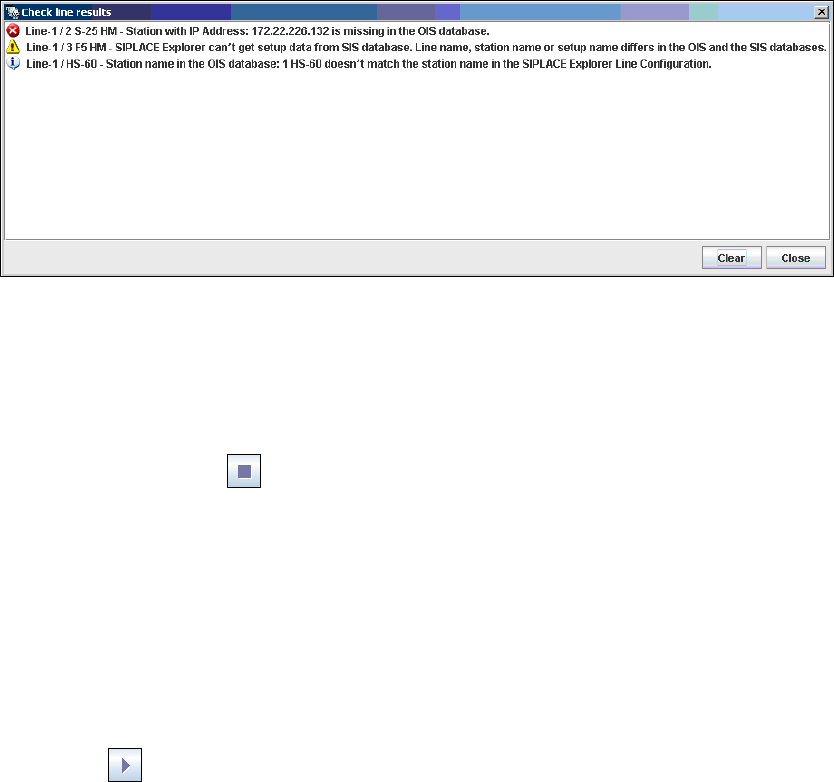
If an incorrect configuration of the production line was detected, you will see the following
information:
3
Fig. 3 - 9 Check line results
To ensure that production line monitoring brings correct and consistent data, make sure that
all the problems shown are fixed.
If you performed the configuration check during monitoring, you will need to stop the monitoring
procedure for the selected production line.
Just click on the Stop icon. 3
Fix the problems with the help of Line Configuration and regenerate the application. Follow the
instructions at “How to Edit an Existing SMA with Line Configuration” on page 51.
Perform the configuration check again, via the SE Manager.
– Configuration of production line OK:
You can now continue or start production line monitoring in SIPLACE Explorer.
To start monitoring the selected production line, click on the
Start icon. 3
– Incorrect configuration of production line:
Fix all displayed problems and then regenerate the application.
Repeat the configuration check until no more incorrect configurations are shown.You can
now continue production line monitoring.