00197725-12_GS_SE3.11_EN.pdf - 第34页
3 SIPLACE Explorer Runtime Environment Getting Started SIPLACE E xplorer Edition 11/2020 EN from 3.11 (R20-2) 34 3 Fig. 3 - 16 Step 2 - configure production line – Select the equipm ent description and edit the name for …
Getting Started SIPLACE Explorer 3 SIPLACE Explorer Runtime Environment
from 3.11 (R20-2) Edition 11/2020 EN
33
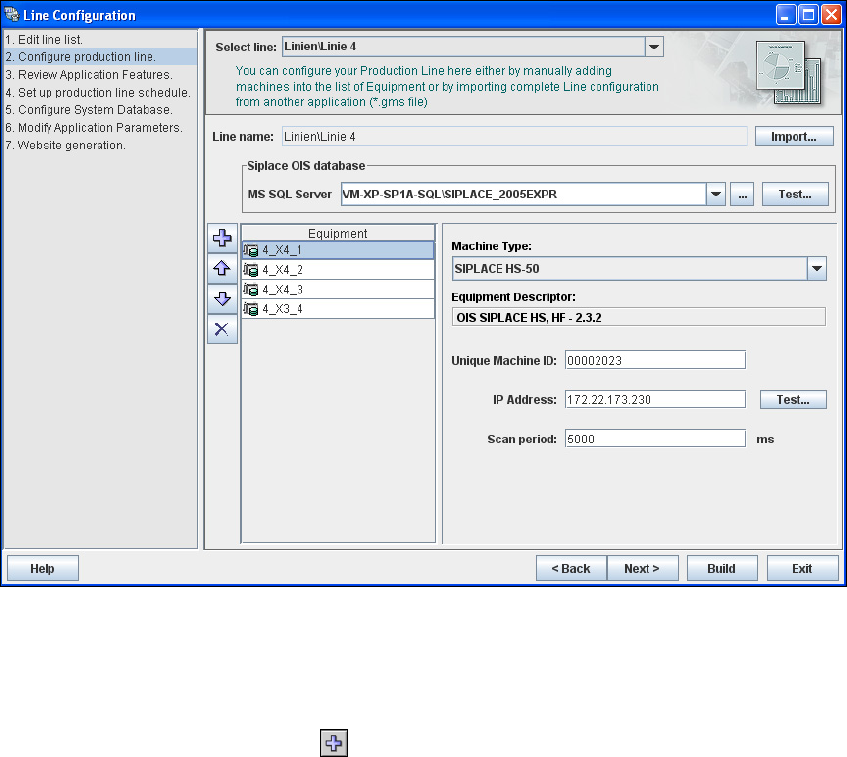
3.6.1.3 Step 2 - Configure Production Line
This is where you can configure your production line. Select the relevant production line with
Select Line and specify the parameters for access to the SIPLACE OIS database.
If you have already configured another application for your production line, you can import the
production line configuration from that existing application (.gms file). The equipment
information will be adopted from this imported data.
The data is automatically adopted if you import a production line from the OIS.
3
Fig. 3 - 15 Step 2 - configure production line
If you have not imported the production line configuration from OIS, you will need to manually
configure all machines in the production line. Repeat the procedure for each machine in the
line.
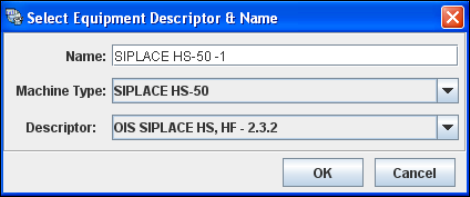
– Click on the Add Equipment icon. The Select Equipment Descriptor and Name
dialog box will appear.
3 SIPLACE Explorer Runtime Environment Getting Started SIPLACE Explorer
Edition 11/2020 EN from 3.11 (R20-2)
34
3
Fig. 3 - 16 Step 2 - configure production line
– Select the equipment description and edit the name for the selected machine.
If you have not imported the line configuration from OIS, you will need to configure the machine
properties for each machine in the production line, as follows:
– Select the machine from the Equipment list on the left.
– Specify the machine properties from the window on the right.
For each type of equipment, you will be presented with a different box of properties. You will
need to specify the following values:
– Unique Machine ID (MID)
Specify the MID for the equipment concerned. The MID can be found on the equipment
label.
The MID is automatically entered during OIS import and OIS. 3
– IP address
The IP address will be automatically entered during OIS import.
– The IP address and scan period for equipment available via the SIPLACE OIS database.
The scan period defines the frequency with which SIPLACE Explorer checks the data in the
OIS/SIS database in order to import new data from that database. We recommend a scan
period of 60 secs.
After specifying the equipment properties, check the data consistency of the equipment with
OIS. To do this, click on the Test button.
The system will check whether the specified MID and IP address already exist in OIS. 3
When all machines in the production line have been defined and the data consistency has
been checked with OIS, click on the Next button to continue with the next step.
Getting Started SIPLACE Explorer 3 SIPLACE Explorer Runtime Environment
from 3.11 (R20-2) Edition 11/2020 EN
35
NOTE
The standard SIPLACE Explorer delivery package includes support tools for SIPLACE machines
listed in the Software Version Description SIPLACE Explorer. SIPLACE Explorer is also capable
of connecting to other factory floor equipment (e.g. reflow oven and screen printer) and data
sources, and can be used for purposes such as reporting production performance with the
Standard Monitoring Application (SMA) or other applications.
Please contact your SIPLACE sales representative for further details relating to specific
equipment, and interface versions. 3
3.6.1.4 Step 3 - Review Application Features
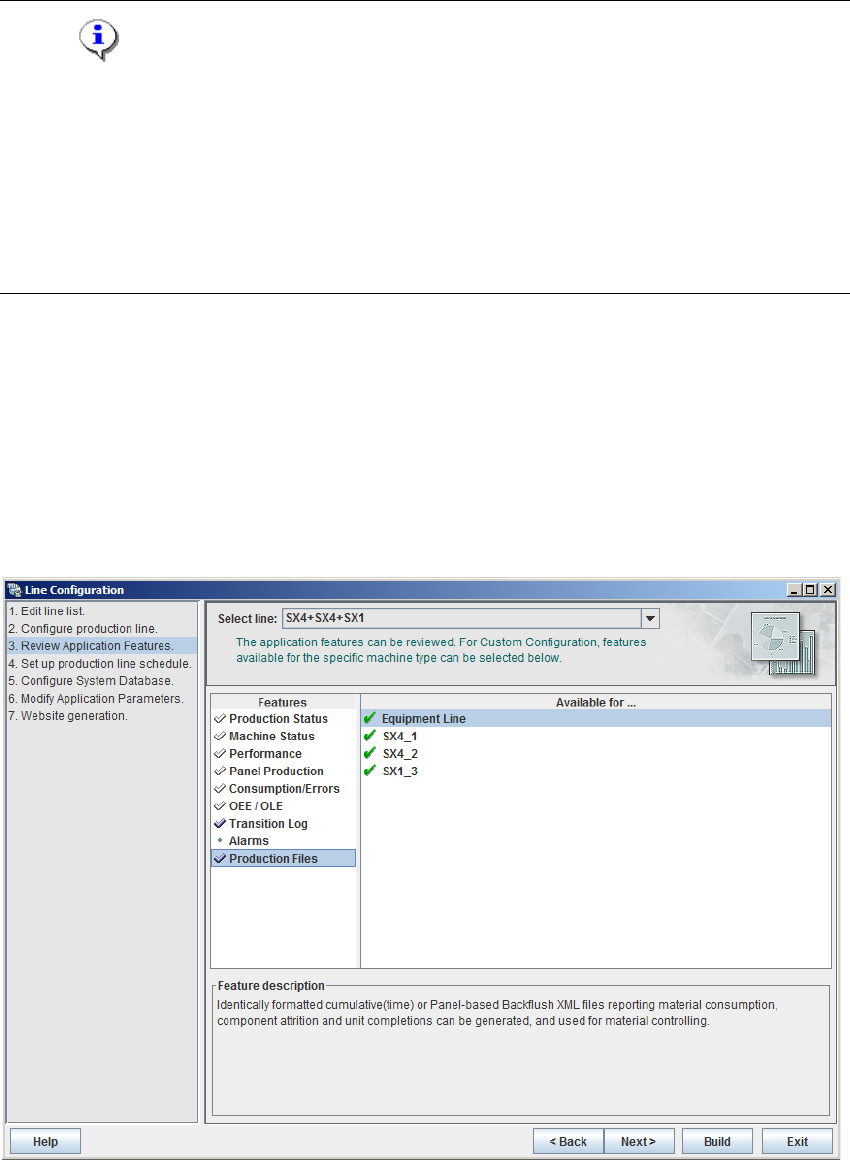
A list of Features will be presented in the left box. If you chose custom configuration, any feature
can be selected from the list. Otherwise, a minimum or maximum list of features will be shown. 3
A list of machines for the chosen feature will be shown in the Available for box on the right. An
icon next to the machine name indicates whether the selected feature is implemented for this
machine or not. The Feature Description window shows a comment for the selected feature. 3
3
Fig. 3 - 17 Step 3: review application features