00197725-12_GS_SE3.11_EN.pdf - 第40页
3 SIPLACE Explorer Runtime Environment Getting Started SIPLACE E xplorer Edition 11/2020 EN from 3.11 (R20-2) 40 If the connection functions properly , you will see the followin g information box: 3 Fig. 3 - 21 Success…
Getting Started SIPLACE Explorer 3 SIPLACE Explorer Runtime Environment
from 3.11 (R20-2) Edition 11/2020 EN
39
3
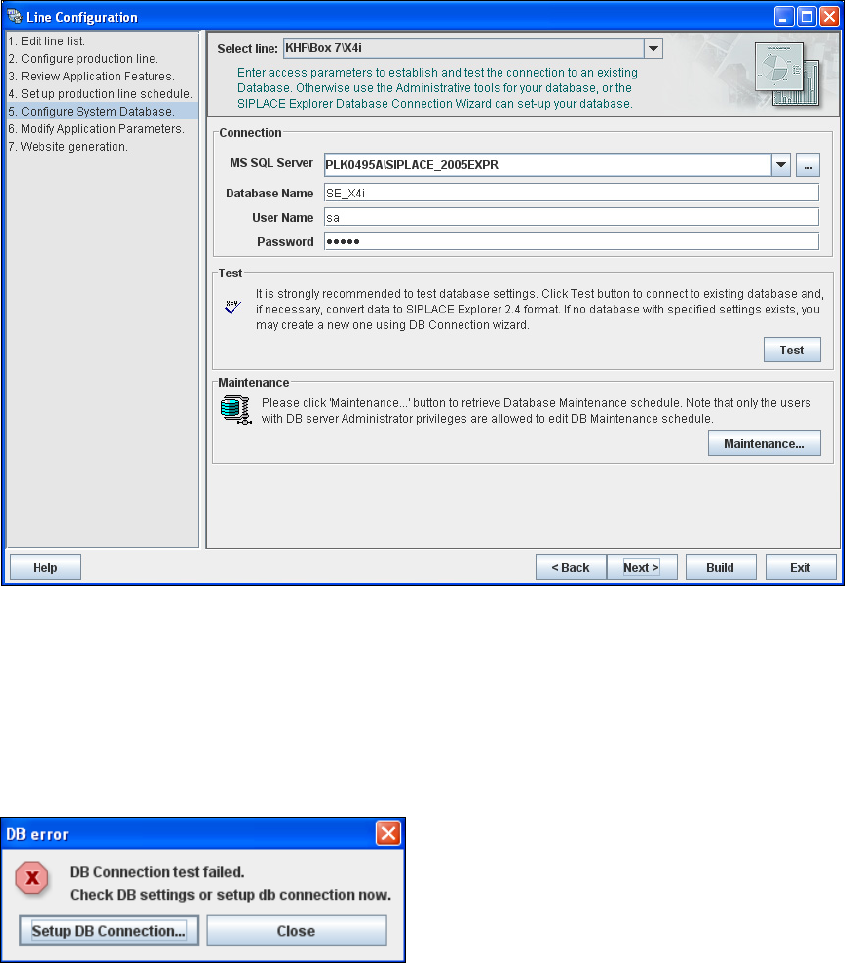
Fig. 3 - 19 Step 5: configure system database
After entering the database access parameters, we strongly recommend that you check the
connection to the database Click Test to check whether the connection to the database can be
established.
If the connection does not function properly or the database does not already exist, you will
see the following information box:
3
Fig. 3 - 20 DB error
Click on the Setup DB Connection button.
Start the DB Connection Wizard setup sequence, to configure the SIPLACE Explorer
system database. For a detailed description, please see “Database Connection Wizard” on
page 54. 3
3 SIPLACE Explorer Runtime Environment Getting Started SIPLACE Explorer
Edition 11/2020 EN from 3.11 (R20-2)
40
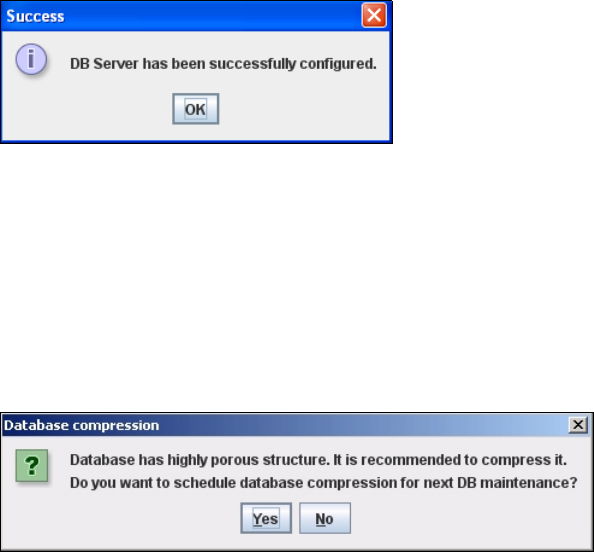
If the connection functions properly, you will see the following information box:
3
Fig. 3 - 21 Success
Click OK. The system will check the database data.
If the database has data from SIPLACE Explorer 2.0 - 3.10, you will need to convert the
database for SIPLACE 3.11, due to the changed data structure in the SIPLACE Explorer
3.11 database. Follow the instructions at “Converting the Database” on page 58. 3
Dependent of the database size, you can compress the database, the following information
window will open:
3
Fig. 3 - 22 Database compression
Follow the instructions at “Compressing the Database” on page 60.
After you have established the database connection and converted the database for SIPLACE
Explorer 3.11, you need to define the maintenance details for the system database, with the
Maintenance button.
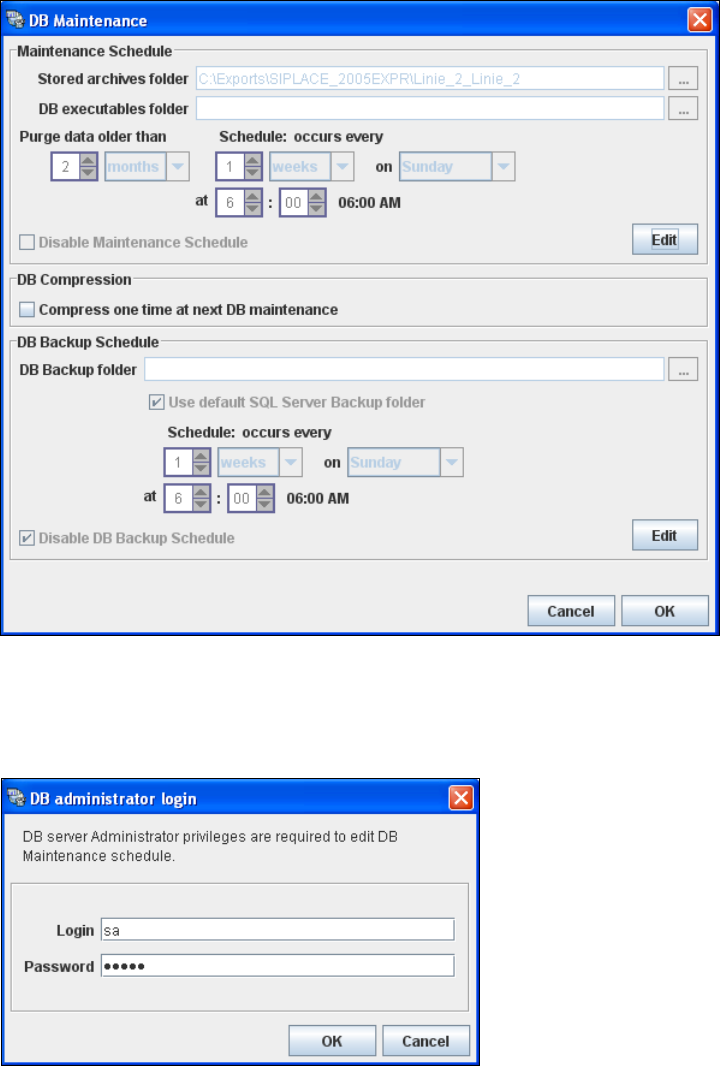
The DB Maintenance dialog box will open. In this dialog box the following functionalities
are available:
– create a new archiving schedule for the database
– edit the default maintenance schedule
– database compression
– automate the database backup
The archiving process involves taking data from the database and saving it in a file, so that
the size of the database can be controlled. 3
All input fields will be disabled. To start or edit a DB maintenance schedule, you must have
administrator privileges for the database and the database connection must already be
established. 3
Getting Started SIPLACE Explorer 3 SIPLACE Explorer Runtime Environment
from 3.11 (R20-2) Edition 11/2020 EN
41
3
Fig. 3 - 23 DB maintenance
In the Maintenance Schedule panel click on the Edit button.
The DB Administrator Login dialog box will open.
3
Fig. 3 - 24 DB administrator login
Enter the access data here and confirm your entries with OK.
The input fields in the DB Maintenance dialog box will be enabled. The following details
can be defined:
– The file and path for the archived data