00197725-12_GS_SE3.11_EN.pdf - 第38页
3 SIPLACE Explorer Runtime Environment Getting Started SIPLACE E xplorer Edition 11/2020 EN from 3.11 (R20-2) 38 3.6.1.6 Step 5 - Configure System Dat abase Now , you can configure the SIPL ACE Explorer System dat abas…
Getting Started SIPLACE Explorer 3 SIPLACE Explorer Runtime Environment
from 3.11 (R20-2) Edition 11/2020 EN
37
3
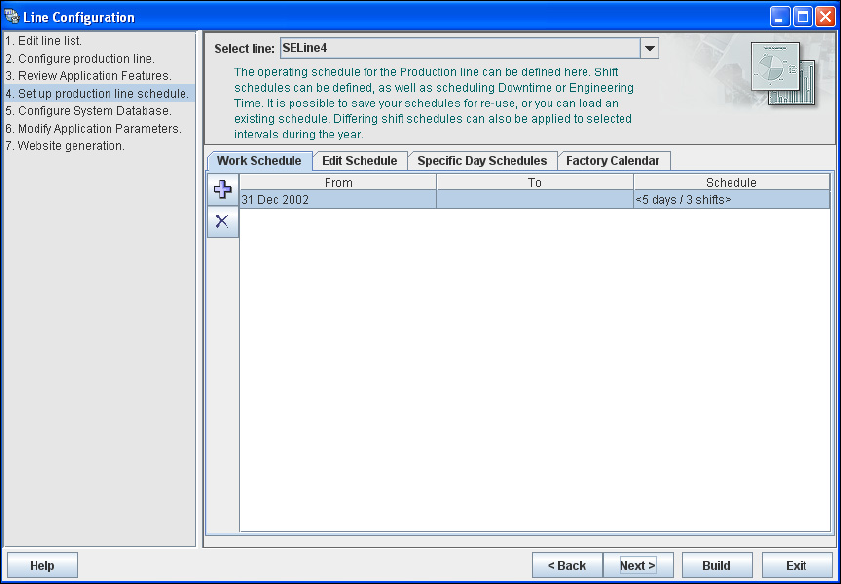
Fig. 3 - 18 Step 4: Set production line schedule
When the schedule for the production line as been defined, click on Next to continue with the
next step.

3 SIPLACE Explorer Runtime Environment Getting Started SIPLACE Explorer
Edition 11/2020 EN from 3.11 (R20-2)
38
3.6.1.6 Step 5 - Configure System Database
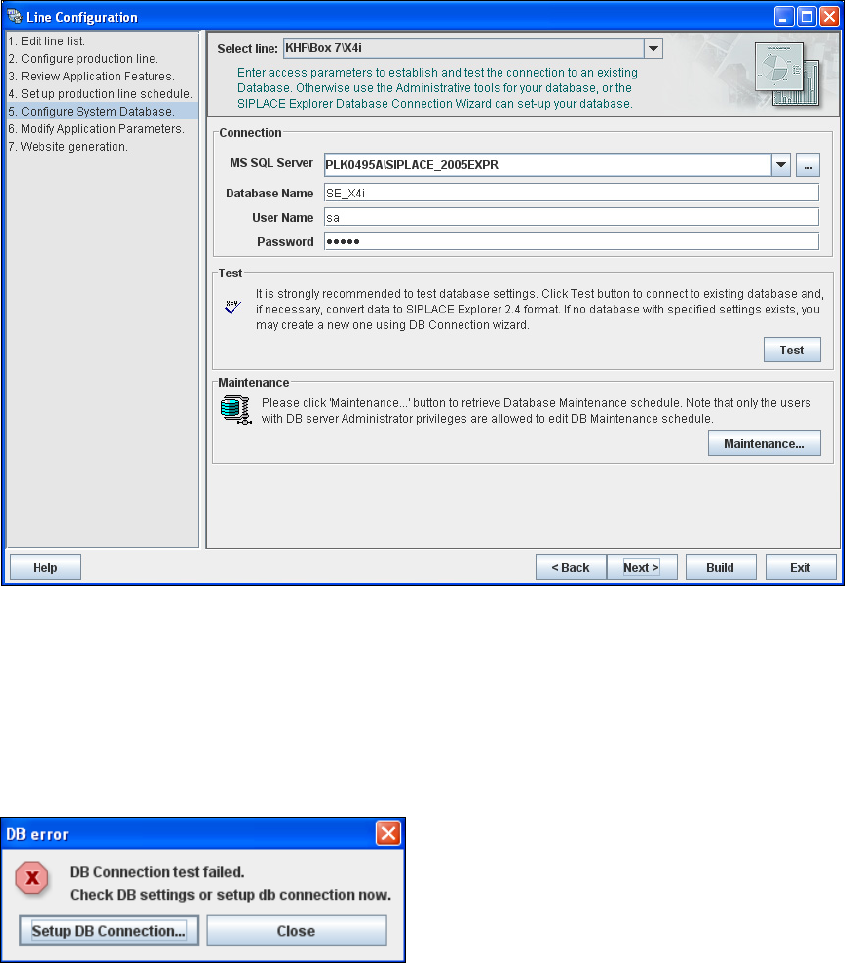
Now, you can configure the SIPLACE Explorer System database settings:
– Microsoft SQL Server instance:port number
You can add the port number to the SQL Server instance, separated by a colon, for
example: PLK0495A\SIPLACE_2005EXPR:12345.
– Database name
– User Name
– Password
f you have imported a production line from the OIS the SIPLACE Explorer database settings
are automatically adopted.
NOTE
Click on the Browse for SQL instances icon. All SQL server instances available will be
shown in the Select SQL Server instance dialog box.
If the Select SQL Server instance dialog box shows no entries, you need to specify the SQL
server instance manually in the MS SQL Server field. 3
Getting Started SIPLACE Explorer 3 SIPLACE Explorer Runtime Environment
from 3.11 (R20-2) Edition 11/2020 EN
39
3
Fig. 3 - 19 Step 5: configure system database
After entering the database access parameters, we strongly recommend that you check the
connection to the database Click Test to check whether the connection to the database can be
established.
If the connection does not function properly or the database does not already exist, you will
see the following information box:
3
Fig. 3 - 20 DB error
Click on the Setup DB Connection button.
Start the DB Connection Wizard setup sequence, to configure the SIPLACE Explorer
system database. For a detailed description, please see “Database Connection Wizard” on
page 54. 3