00197725-12_GS_SE3.11_EN.pdf - 第87页
Getting Started SIPLACE Explorer 4 SIPLACE Explorer Factor y Conf iguration Utility from 3.11 (R20-2) Edition 11/2020 EN 8 7 4.5.1 How to Use the User Management Select the Users tab. 4 Fig. 4 - 12 Factory configuratio…

4 SIPLACE Explorer Factory Configuration Utility Getting Started SIPLACE Explorer
Edition 11/2020 EN from 3.11 (R20-2)
86
To generate the configured factory reports, start the scheduler and follow the instructions at
“Menu Scheduler” on page 97.
4.5 User Management
The User Management feature is used to define the users and their duties/privileges for each pro-
duction line. 4
The following user privileges are available in the Factory Configuration Utility: 4
– Access Factory Website
The user has read privileges for the SIPLACE Explorer factory website.
– Configure Line Host
The user may start all SIPLACE Explorer Runtime Environment tools.
– Monitor Production Line
The user has read privileges for the SIPLACE Explorer production lines.
– Edit Logbook entries
The user may edit the logbook for certain SIPLACE Explorer production line websites.
– Modify Application settings
The user may edit the SMA settings for certain production lines.
NOTE
Only users with Configure Line Host privileges can start the Runtime Environment tools, such
as Line Configuration, SE Manager, Performance Analyzer, etc. Furthermore, the Use Factory-
based security option must be enabled in the SE Security Manager. For further information,
please refer to the Section “SE Security Manager” on page 18. 4
Getting Started SIPLACE Explorer 4 SIPLACE Explorer Factory Configuration Utility
from 3.11 (R20-2) Edition 11/2020 EN
87
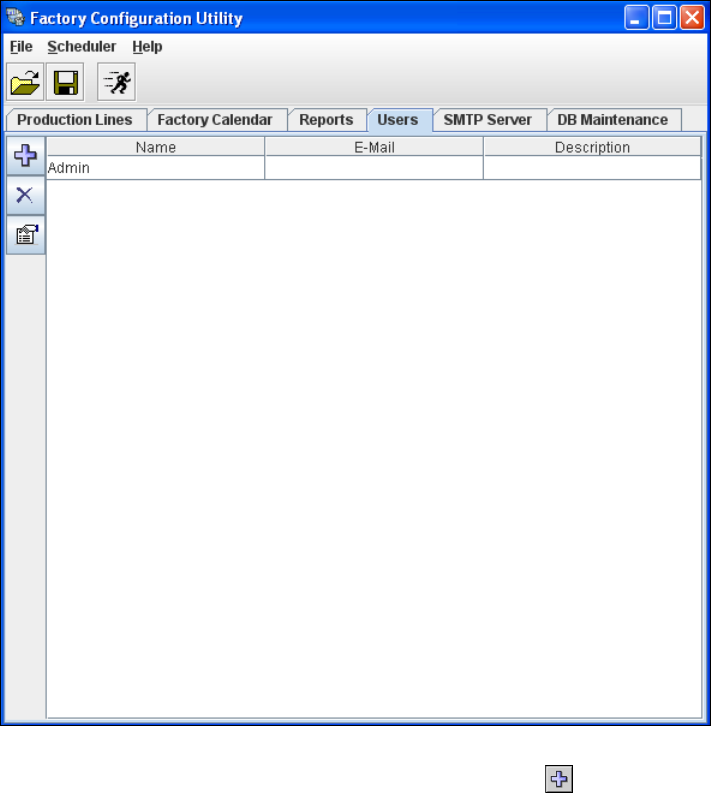
4.5.1 How to Use the User Management
Select the Users tab.
4
Fig. 4 - 12 Factory configuration utility - users
Now add the individual users, by clicking on the Add User icon.
4 SIPLACE Explorer Factory Configuration Utility Getting Started SIPLACE Explorer
Edition 11/2020 EN from 3.11 (R20-2)
88
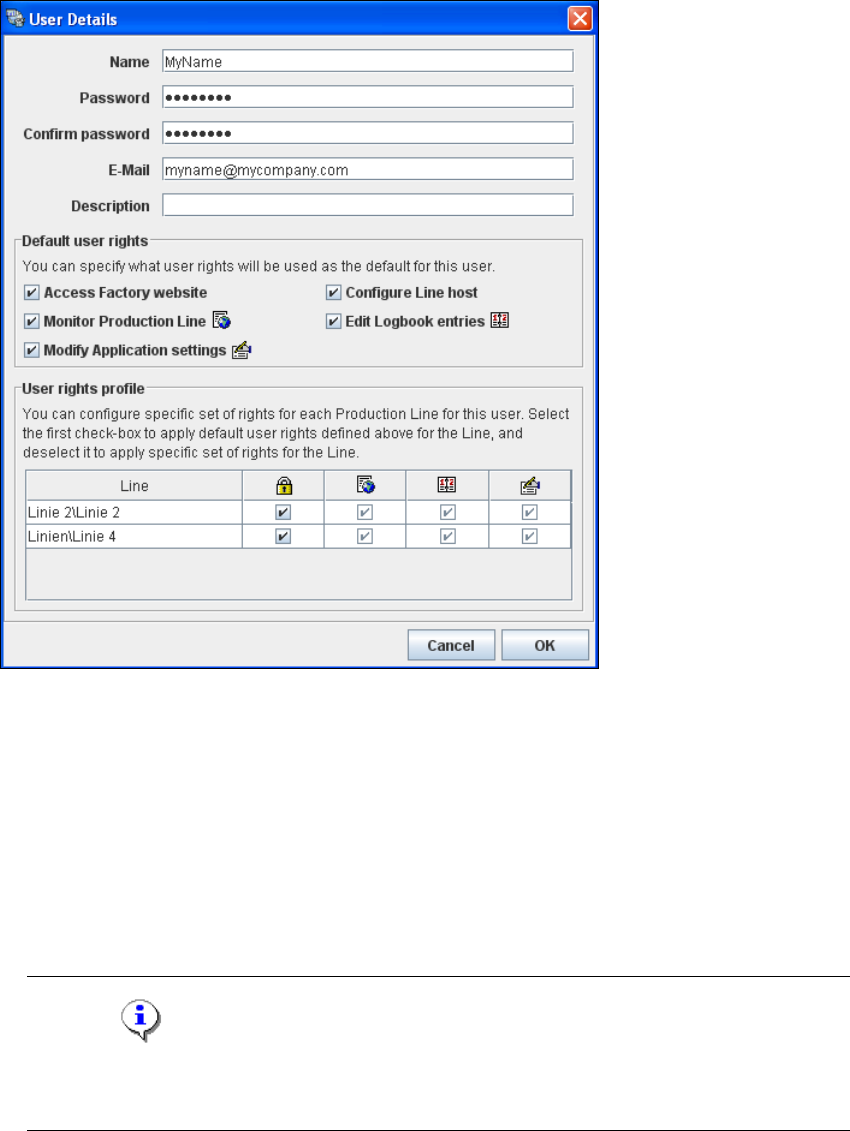
The User Details dialog box will open. Enter the user-specific details, such as access data and
user privileges, here. 4
4
Fig. 4 - 13 Factory configuration utility - user details
Enter the user name in the Login field.
Enter the user login password in the Password field.
In the Confirm Password field, reenter (confirm) the password you specified in the Password
field.
Enter the user's e-mail address in the E-Mail field. The generated reports will be sent to this e-
mail address.
Enter a user description e.g. administrator, in the Description field.
NOTE
If you define the default users "Admin" and "Operator" from Runtime Environment in this
Description field, these default users will become invalid in the Runtime Environment. 4