00197725-12_GS_SE3.11_EN.pdf - 第83页
Getting Started SIPLACE Explorer 4 SIPLACE Explorer Factor y Conf iguration Utility from 3.11 (R20-2) Edition 11/2020 EN 8 3 4 Fig. 4 - 8 Factory configur ation utility - production lines After the data for the s elect…
4 SIPLACE Explorer Factory Configuration Utility Getting Started SIPLACE Explorer
Edition 11/2020 EN from 3.11 (R20-2)
82
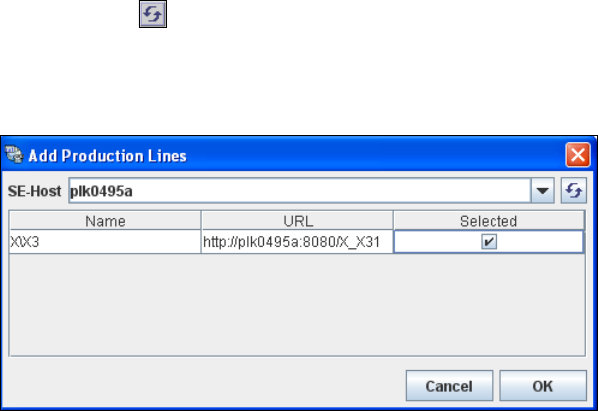
Enter the name or IP address of the SIPLACE Explorer host in the SE-Host field and click on
the Refresh icon.
If a connection to the specified host can be established, a list of all available production lines
will be shown. The Name and URL will be shown for each line. 4
4
Fig. 4 - 7 Factory configuration utility - add production lines
Now select the required production lines, by enabling the relevant checkbox(es) in the
Selected column.
Confirm your choice with OK.
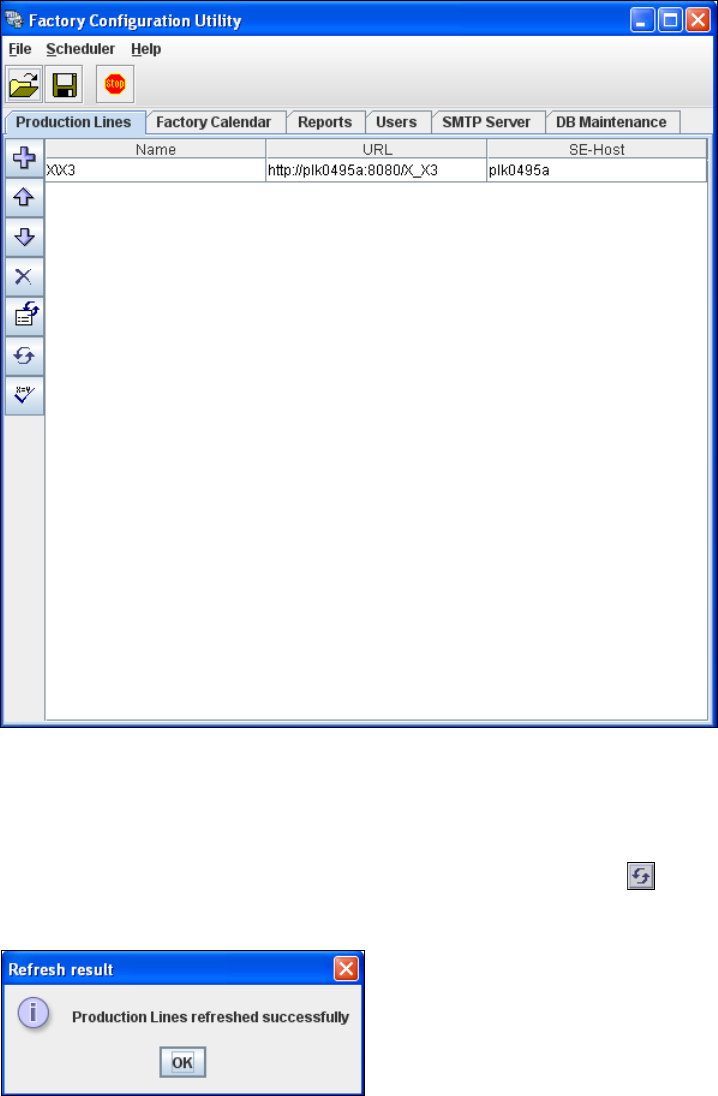
The selected production lines will be added to the list and shown in the Factory Configuration
Utility dialog box. 4
Getting Started SIPLACE Explorer 4 SIPLACE Explorer Factory Configuration Utility
from 3.11 (R20-2) Edition 11/2020 EN
83
4
Fig. 4 - 8 Factory configuration utility - production lines
After the data for the selected production line has been transferred, the line name, line URL
and host name can no longer be changed.
If you have made changes to the other tabs, you will need to synchronize this data with the
data in the SIPLACE Explorer host, by clicking on the Refresh lines icon. If the data have
been successfully synchronized, you will see the following information box:
4
Fig. 4 - 9 Factory configuration utility - refresh result
4 SIPLACE Explorer Factory Configuration Utility Getting Started SIPLACE Explorer
Edition 11/2020 EN from 3.11 (R20-2)
84
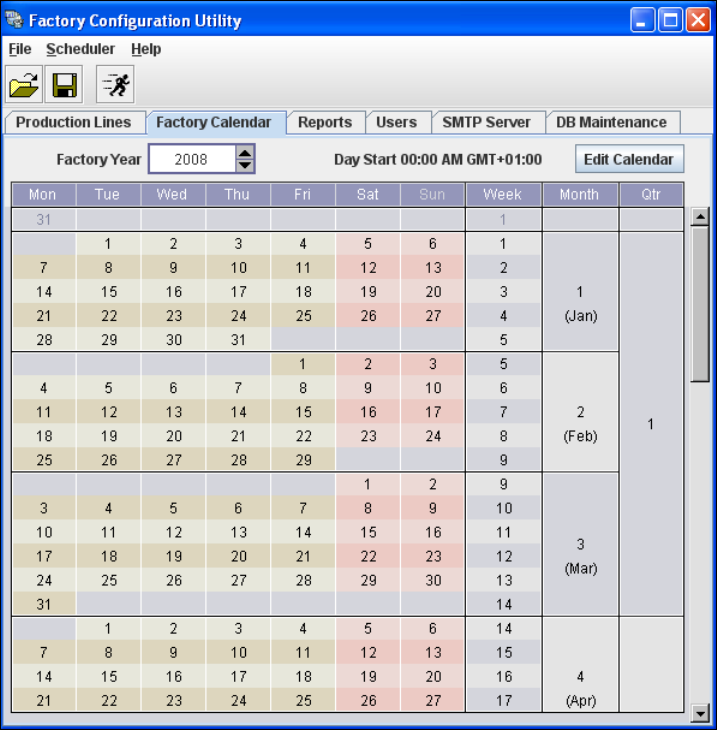
4.3 Factory Calendar
This is where you can create a calendar with details of working times e.g. on which day the work-
ing week begins, at which time a shift begins etc. 4
Select the Factory Calendar tab.
4
Fig. 4 - 10 Factory configuration utility - factory calendar