00197725-12_GS_SE3.11_EN.pdf - 第62页
3 SIPLACE Explorer Runtime Environment Getting Started SIPLACE E xplorer Edition 11/2020 EN from 3.11 (R20-2) 62 Confirm your choice with OK . Y ou will be taken back to the Compress System Dat abase dialog box. In t…
Getting Started SIPLACE Explorer 3 SIPLACE Explorer Runtime Environment
from 3.11 (R20-2) Edition 11/2020 EN
61
3
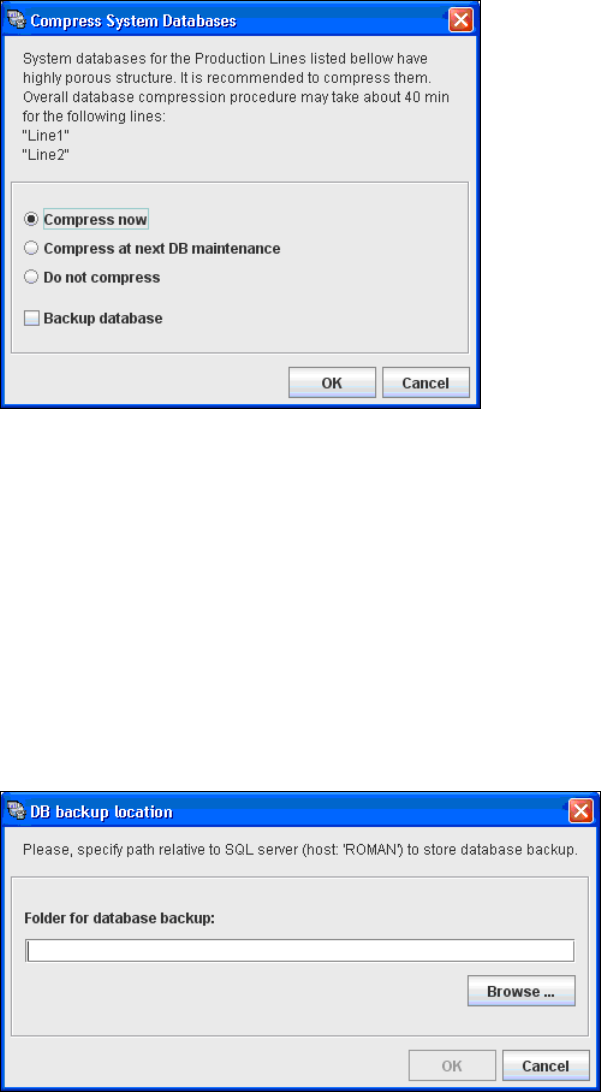
Fig. 3 - 42 Compress DB
Select one of the following options:
– Compress now
The database will be compressed now.
– Compress at next DB maintenance
The database will be compressed with the next execution of the defined DB maintenance.
– Do not compress
The database will not be compressed.
If you have enabled the Backup database option, the DB backup location dialog box will
open.
3
Fig. 3 - 43 DB backup location
If enabled, before performing the compression, the system creates a backup file of the
database. Specify the folder for this file in the Folder for database backup field. Click on the
Browse ... button to select an existing folder.
3 SIPLACE Explorer Runtime Environment Getting Started SIPLACE Explorer
Edition 11/2020 EN from 3.11 (R20-2)
62
Confirm your choice with OK. You will be taken back to the Compress System Database
dialog box.
In the Compress System Database dialog box confirm with OK. The DB compression will be
started. The DB compression may take up to one hour, this time depends on the size of the
database and the performance of the computer.
3.8 Console
The Console feature can be used to call up various types of log reports for a certain production
line. 3
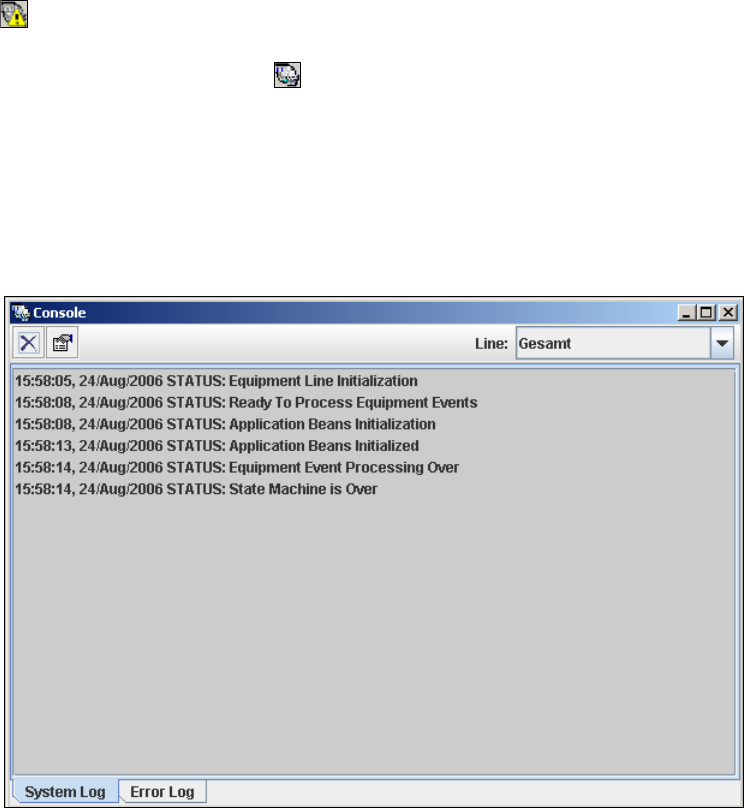
If SIPLACE Explorer generates an error or warning during production line monitoring, the icon in
the Windows console of SIPLACE Explorer Runtime Environment will change to a warning symbol
. Double-click on this symbol to start the console. You will then see the corresponding log report
for the line in which the error or warning occurred. When you close the console, the Windows con-
sole will again display the icon for SIPLACE Explorer Runtime Environment. 3
3.8.1 Using the Console
Start the Console via the Programs SIPLACE Explorer Console menu in Windows. The
Console dialog box will open and you will see the system and error log report for the selected
production line.
3
Fig. 3 - 44 RTE - console
Select the production line for which you wish to view log reports, from the Line menu.
Getting Started SIPLACE Explorer 3 SIPLACE Explorer Runtime Environment
from 3.11 (R20-2) Edition 11/2020 EN
63
NOTE
The system only displays those production lines which have already been configured with
Line Configuration. 3
Clear icon
The system or error log report for the selected production line will be deleted. 3
Log options icon
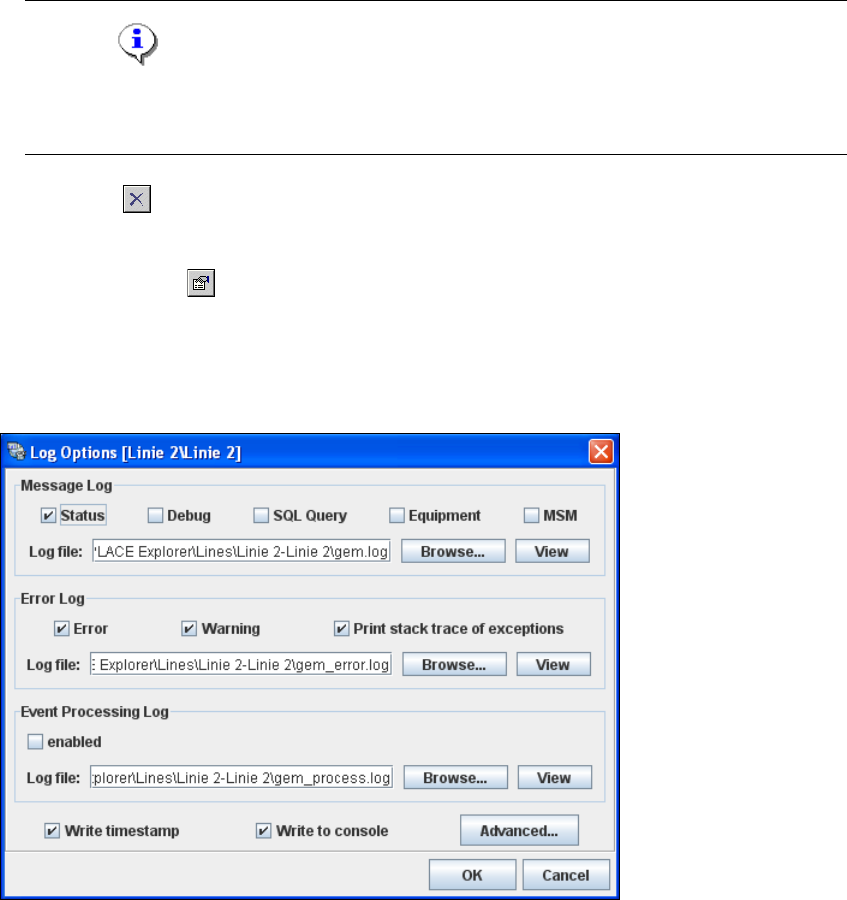
The Log options dialog box will open. Select the type of notification messages and errors to
be recorded. Specify the file names and path for the log files. You can also select options which
write a time stamp and place these in the console. 3
3
Fig. 3 - 45 Log options
Message Log
Information messages are collected and stored in the specified log file, in line with your
selections.
The following message types are available: 3
– Status
– Debug
– SQL Query
– Equipment