1OM-1086-002.pdf - 第114页
1.7 Shut-Down Operation 0509-006 Chapter 1 3 - 24 Tg0582-PM-D1 1.7 Shut-Down Operation 1.7.1 Shut-Down Procedure The following explains how to shut down the power to the machine. Be sure to log out from an operation wind…
1.6 End of Automatic Operation
0211-005 Chapter 1 3-23 Tg0582-PM-D1
1.6 End of Automatic Operation
Described in this session is how to end the automatic operation of the
machine.
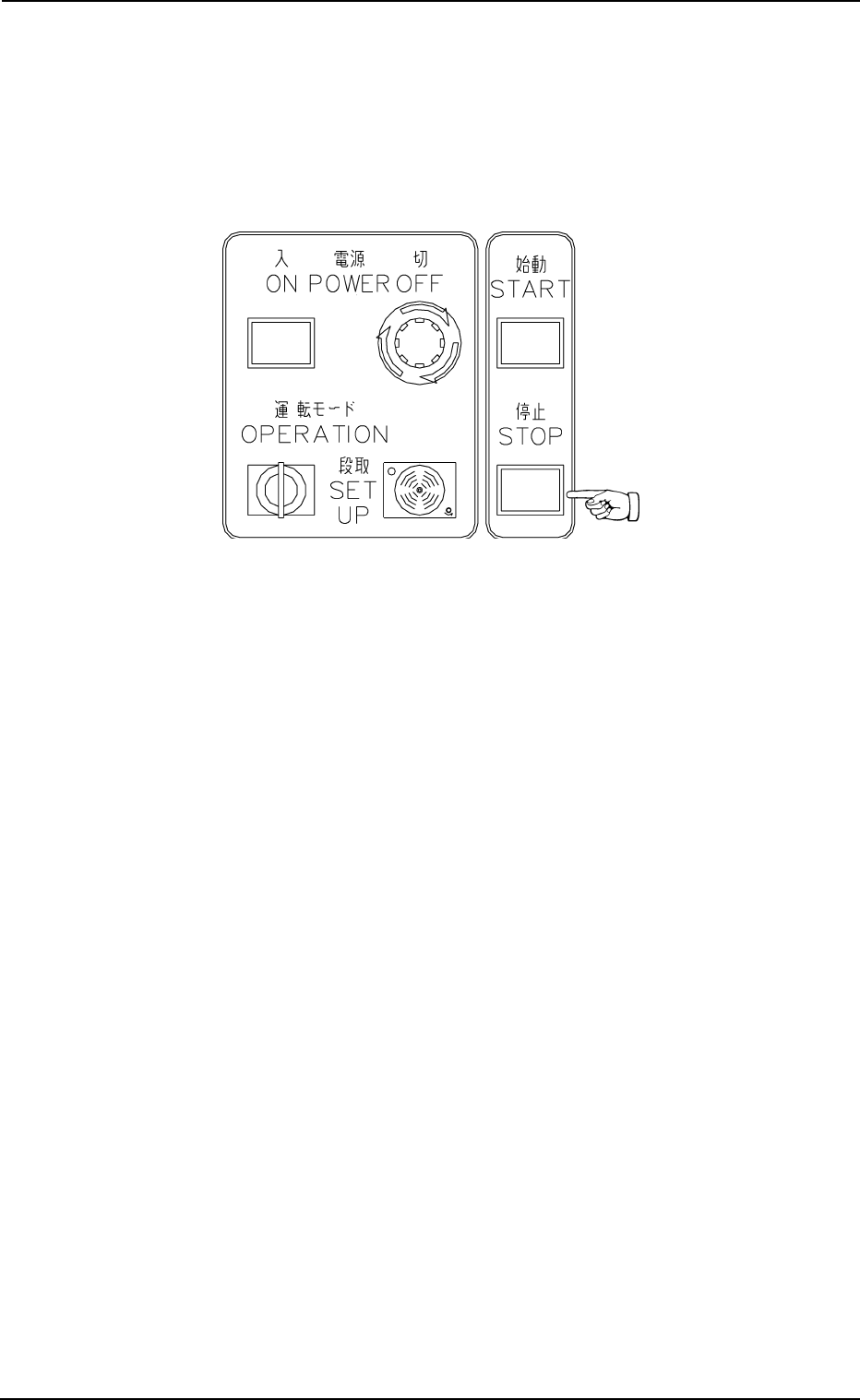
(1) Press the [STOP] button on the front operation panel.
Fig. 1C33
After printing solder paste on the P.C.B.’s (already loaded onto the
machine), each device returns to its stationary position and stops
there.
The LED of the [START] button extinguishes.
The green lamp of the light tower extinguishes.
1.7 Shut-Down Operation
0509-006 Chapter 1 3-24 Tg0582-PM-D1
1.7 Shut-Down Operation
1.7.1 Shut-Down Procedure
The following explains how to shut down the power to the machine.
Be sure to log out from an operation window to open
the "Log In Type Selection" window and go through
the shutdown procedure by pressing the [SHUT
DOWN] button before turning off the power to the
machine.
• When the power is turned off without going through
the shutdown procedure, the saved data may be
lost and/or the hard disk and the main body of the
machine may be damaged.
Operation Procedure
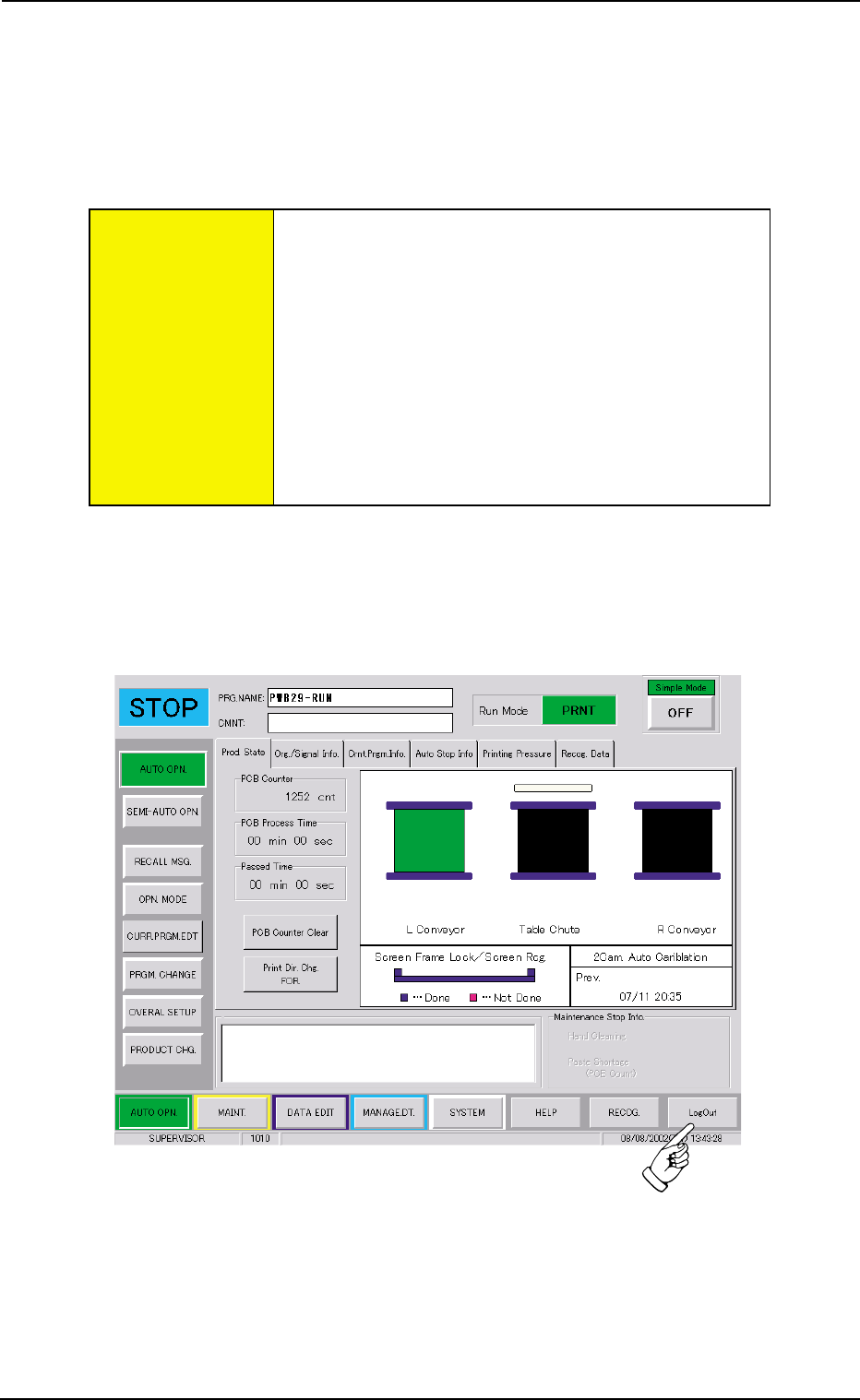
(1) Press the [LogOut] button on the main menu bar.
Fig. 1C34
CAUTION
1.7 Shut-Down Operation
0509-006 Chapter 1 3-25 Tg0582-PM-D1
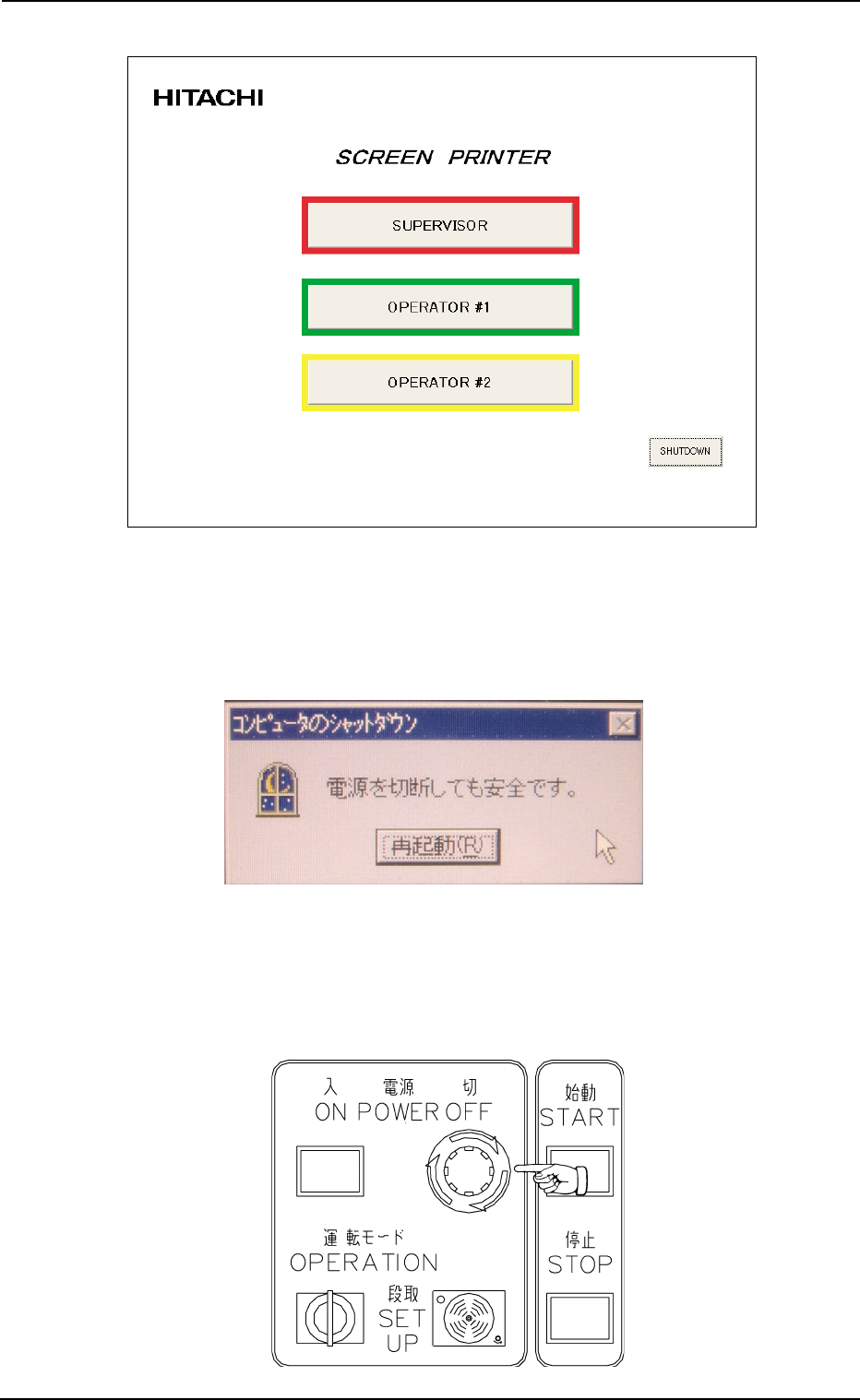
(2) The "Log In Type Selection" window opens.
Fig. 1C35
(3) Press the [SHUT DOWN] button in the "Log In Type Selection"
window.
The confirmation dialog box opens, asking the operator if the power
to the machine must really be shut down or not.
Fig. 1C36 "Shut Down Confirmation" Dialog Box
(4) Press the [POWER OFF] button of the front operation panel while
the "Shut Down Confirmation" dialog box appears.
The lighting for [POWER ON] button is extinguished.
Press the [REBOOT] button to cancel the shutdown operation.
Fig. 1C37