1OM-1086-002.pdf - 第82页
1.1 Window for "Log In" T ype Selection 021 1-005 Chapter 1 2 - 2-1 Tg0582-PM-D1 (2) Enter a password and press the [OK] button. The "AUT O OPERA TION" window (main menus) opens on the touch screen. R…
1. Basic knowledge of Operation Screen
1.1 Window for "Log In" Type Selection
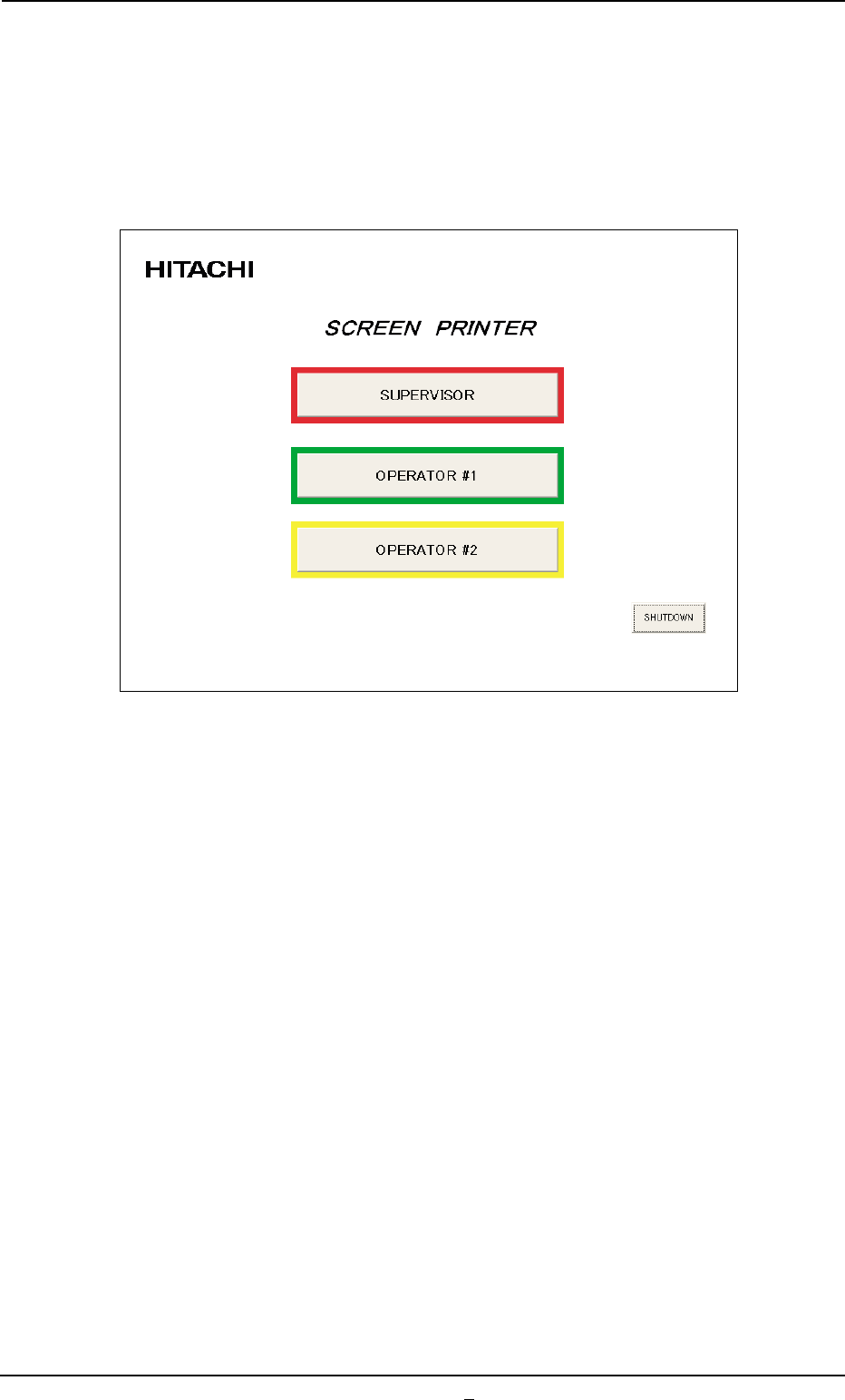
When the [POWER ON] button on the front operation panel is pressed,
the following window opens.
Fig. 1B1 Window for "Log In" Type Selection
(1) Press the [SUPERVISOR], the [OPERATOR #1] or the [OPERA-
TOR #2] button according to the given authority.
The "PasswordDlg" dialog box opens.
Ref.: This machine is provided with a password function which
prevents various types of data groups from being deleted by
mistake and keeps unauthorized user (third party) from op-
erating the machine.
The following three kinds of passwords are available and
each gives individually approved user’s access to the com-
puter system of the machine.
(Refer to "2.1 "Password" Tab" (Section 4 of Chapter 1 in
Vol. 2) for details.)
[SUPERVISOR] : Access can be gained by only the person iden-
tified as "Supervisor".
[OPERATOR #1] : Access can be gained by only the person iden-
tified as "Operator #1". For example, the per-
son identified as "Operator #1" is given a per-
mission to all machine operations including data
editing.
[OPERATOR #2] : Access can be gained by only the person iden-
tified as "Operator #2". For example, the per-
son identified as "Operator #2" is limited to only
machine operations.
1.1 Window for "Log In" Type Selection
0509-006 Chapter 1 2-2 Tg0582-PM-D1

1.1 Window for "Log In" Type Selection
0211-005 Chapter 1 2-2-1 Tg0582-PM-D1
(2) Enter a password and press the [OK] button.
The "AUTO OPERATION" window (main menus) opens on the touch
screen.
Refer to "1.2.1 Menus for Automatic Operation" (Section 4 of Chap-
ter 2) for the detailed information on the menus for automatic op-
eration.
1.2 "AUTO OPERATION" Window (Main Menus)
Various functions can be set for automatic operation in this "AUTO
OPERATION" window.
1.2.1 Initial Window
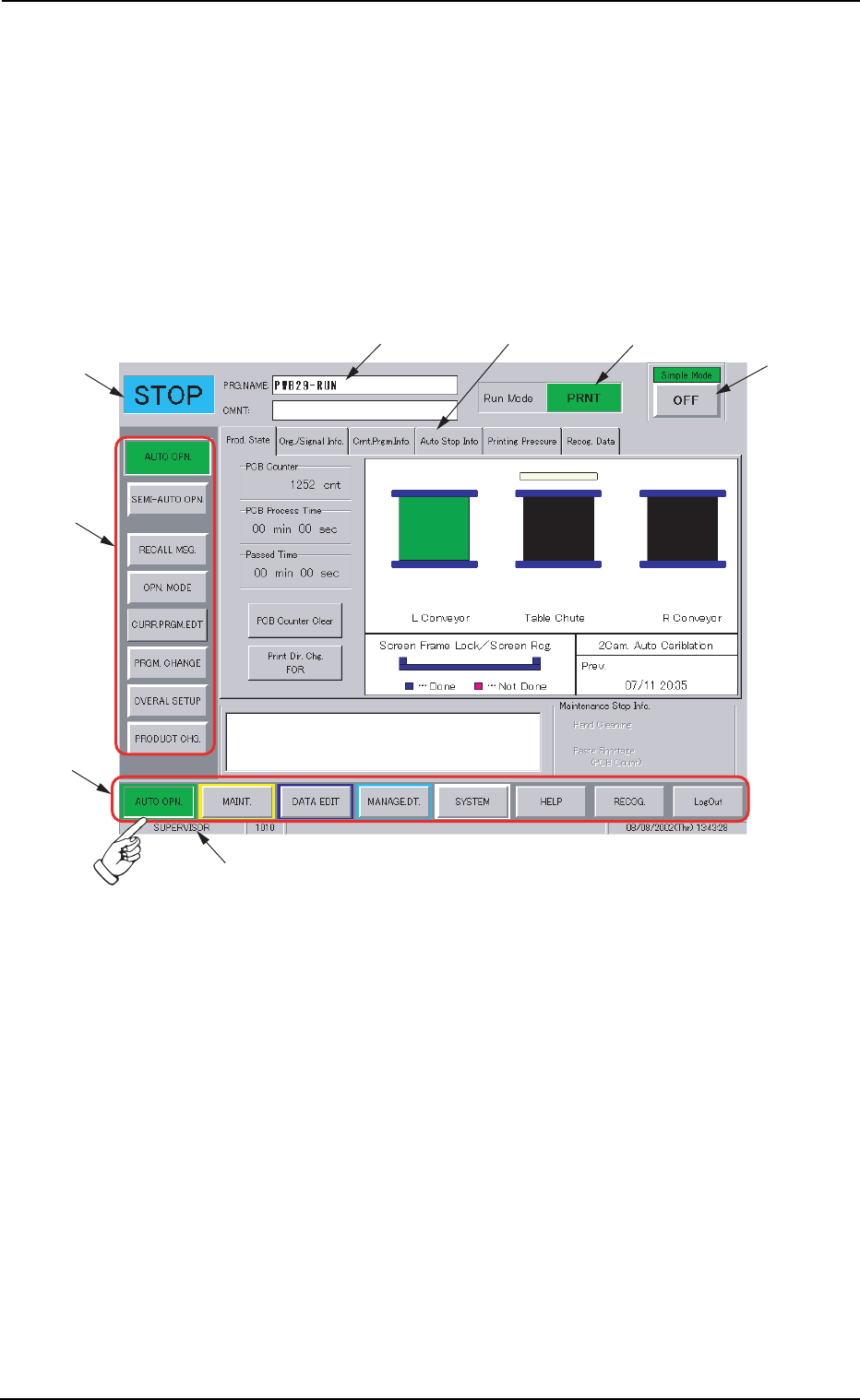
When the [AUTO OPN.] button on the main menu bar is pressed, the
following window opens.
Fig. 1B2 AUTO OPERATION Window (Main Menus)
• Window Structure
*1 Indication of Machine Status
The machine status is indicated at real time.
RUN : This indicates that the machine is running.
PAUSE : This indicates that the machine is stopped temporarily.
WAIT : This indicates that the machine is in the standby mode.
STOP : This indicates that the machine is stopped.
1.2 "AUTO OPERATION" Window (Main Menus)
0211-005 Chapter 1 2-3 Tg0582-PM-D1
*3
*2
*7
*1
*5
*6
*4
CURR. PRGM. EDT.
*8