1OM-1086-002.pdf - 第265页
3. "ZEROING OPERA TION" Window (Submenu) This window can be used to perform the zeroing operation for each unit. • Window Layout When the [ZEROING OPN.] button is pressed in the "MAINTE- NANCE" submen…
2.3 "Version Information" Tab
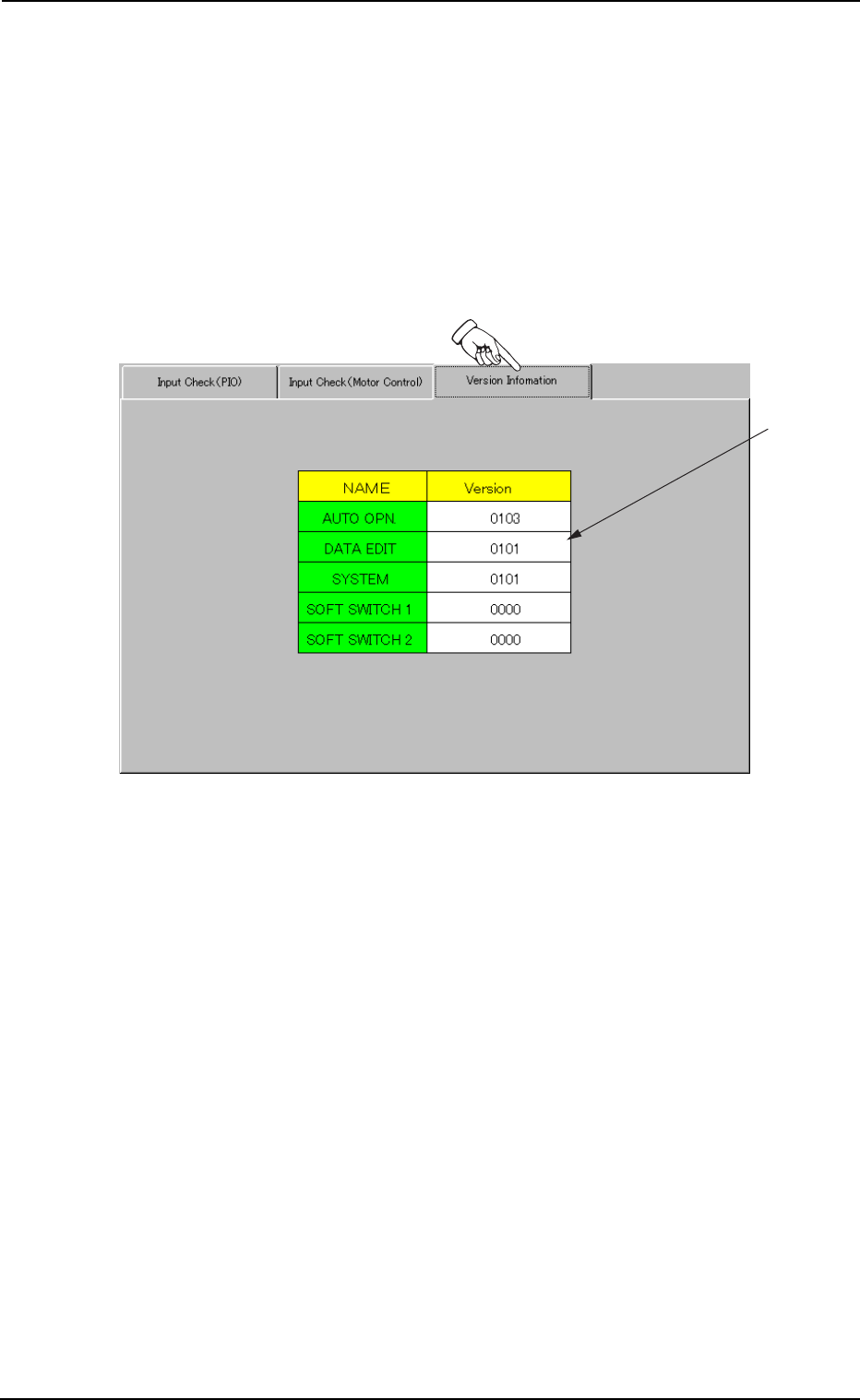
When this tab is pressed, the corresponding tab sheet appears inside
the window, enabling the operator to check the versions of the pro-
grams related to the control system of the machine.
• Sheet Layout
When the [Version Information] tab is pressed in the "DEVICE
CHECK" window (submenu), the following tab sheet appears.
Fig. 2F6 "Version Information" Tab Sheet
• Sheet Composition
*1 Version Information
Displayed are the names of the following software and their ver-
sion Nos.
"AUTO OPN." Software
"DATA EDIT" Software
"SYSTEM" Software
"SOFT SWITCH 1" Application
"SOFT SWITCH 2" Application
2.3 "Version Information" Tab
*1
0211-005 Chapter 2 6-7 Tg0582-PM-D1
3. "ZEROING OPERATION" Window (Submenu)
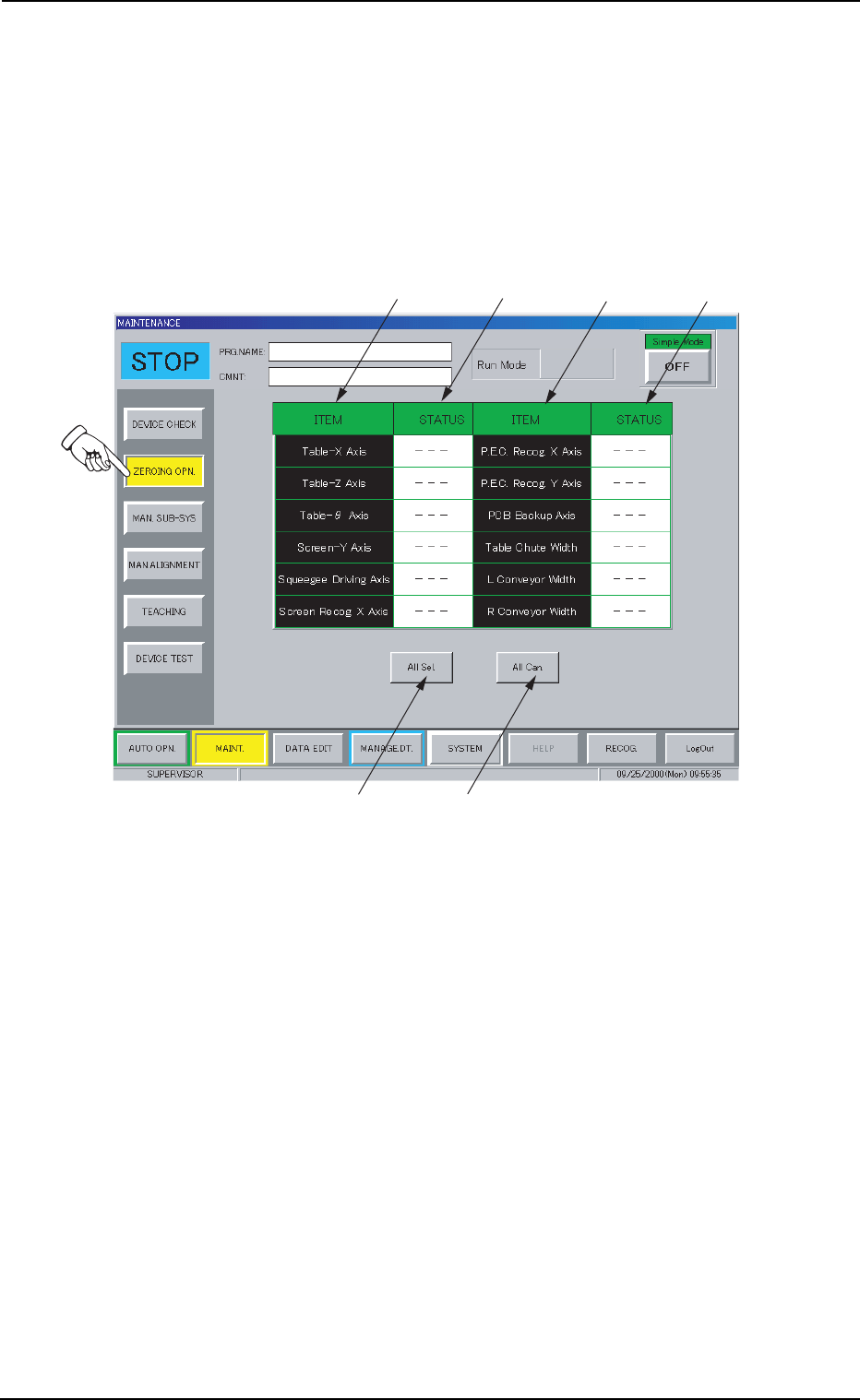
This window can be used to perform the zeroing operation for each
unit.
• Window Layout
When the [ZEROING OPN.] button is pressed in the "MAINTE-
NANCE" submenu bar, the following window opens.
Fig. 2F7 "ZEROING OPERATION" Window (Submenu)
• Window Composition
*1 ITEM
Displayed is the axis name of each unit that represents the direc-
tion in which each unit should be moved.
When each name box is pressed, the background color turns blue,
indicating that the unit is selected.
When the [START] button on the front operation panel is pressed
subsequently, the selected unit is zeroed.
3. "ZEROING OPERATION" Window (Submenu)
*3
*4
*1 *2 *1 *2
0211-005 Chapter 2 6-8 Tg0582-PM-D1

*2 STATUS
Displayed is the origin status of each unit.
• Status Display
ORIGIN : This indicates that the device is already zeroed and
located at its origin.
------
------
---
: This indicates that the device is not zeroed completely.
DONE : This indicates that the device is already zeroed but
not located at its origin.
*3 [All Sel.] Button
All units except for "Table Chute Width", "L Conveyor Width", and
"R Conveyor Width" are selected.
When the [All Sel.] button is selected and the [START] button on
the front operation panel is pressed, the selected units are zeroed.
*4 [All Can.] Button
When this button is pressed, the selection of each unit (axis that
represents the direction of movement) is canceled.
3. "ZEROING OPERATION" Window (Submenu)
0211-005 Chapter 2 6-9 Tg0582-PM-D1