1OM-1086-002.pdf - 第239页
7. "PROGRAM CHANGE" Submenu This window can be used to change the object model (pattern program) for production. • Window Layout When the [PRGM. CHANGE] button is pressed in the "AUTO OP- ERA TION" su…
6. "RECOVERY" Submenu
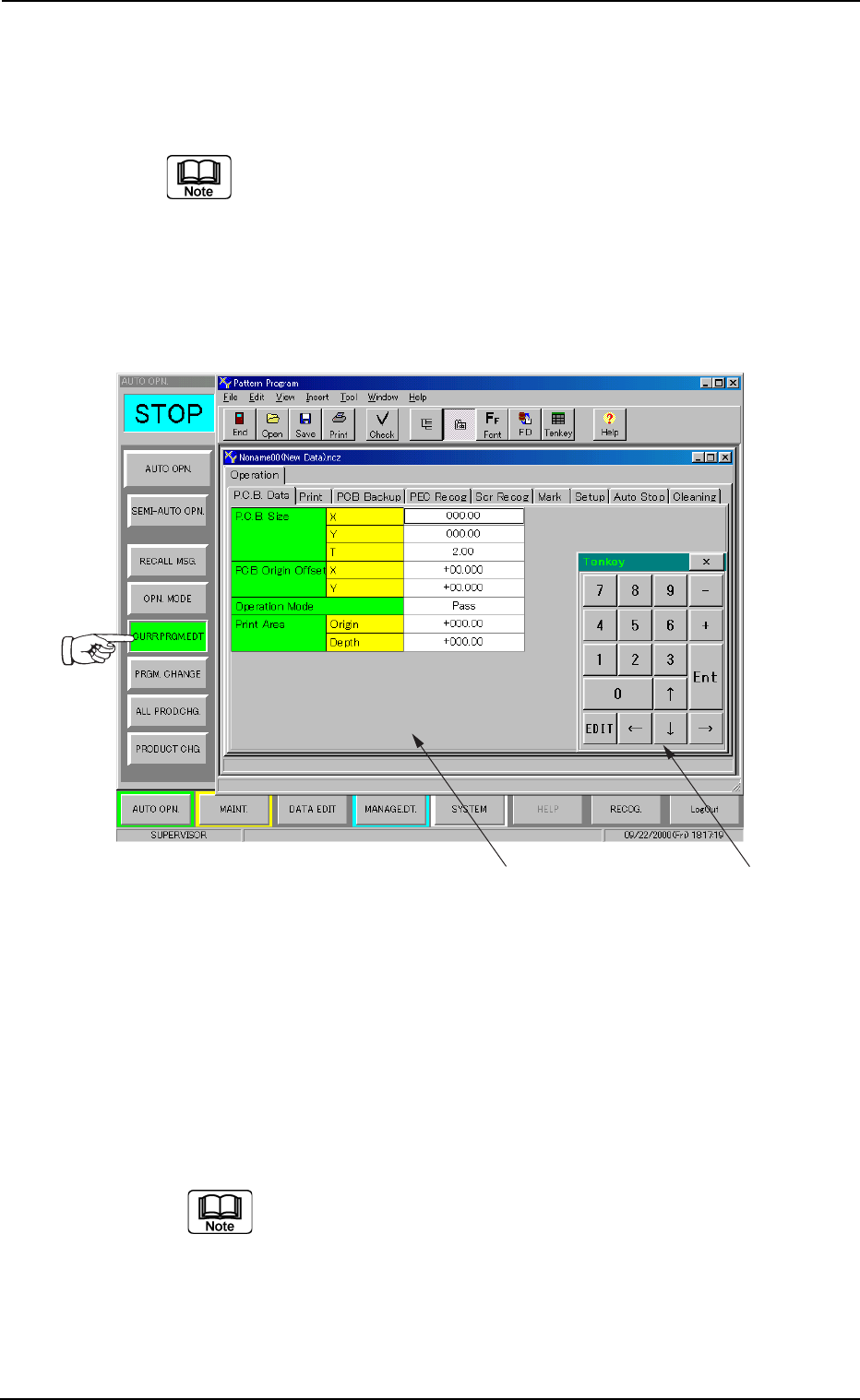
This window can be used to correct the current pattern program data.
The data can be corrected regardless of the state of the
automatic operation but cannot be saved during operation.
• Window Layout
When the [RECOVERY] button is pressed in the "AUTO OPERA-
TION" submenu bar, the following window opens.
Fig. 2E20 "RECOVERY" Window (Submenu)
• Window Composition
*1 "Pattern Program" Edit Sheet
This sheet can be used to correct the current pattern program data.
*2 Ten-Key Window
This window can be used to enter numerical values.
Refer to "Section 2 Pattern Program in Chapter 1 Pro-
gramming of Volume 2" for the detailed information on
how to correct (edit) and save the data.
6. "RECOVERY" Submenu
*1
*2
0211-005 Chapter 2 5-31 Tg0582-PM-D1
7. "PROGRAM CHANGE" Submenu
This window can be used to change the object model (pattern program)
for production.
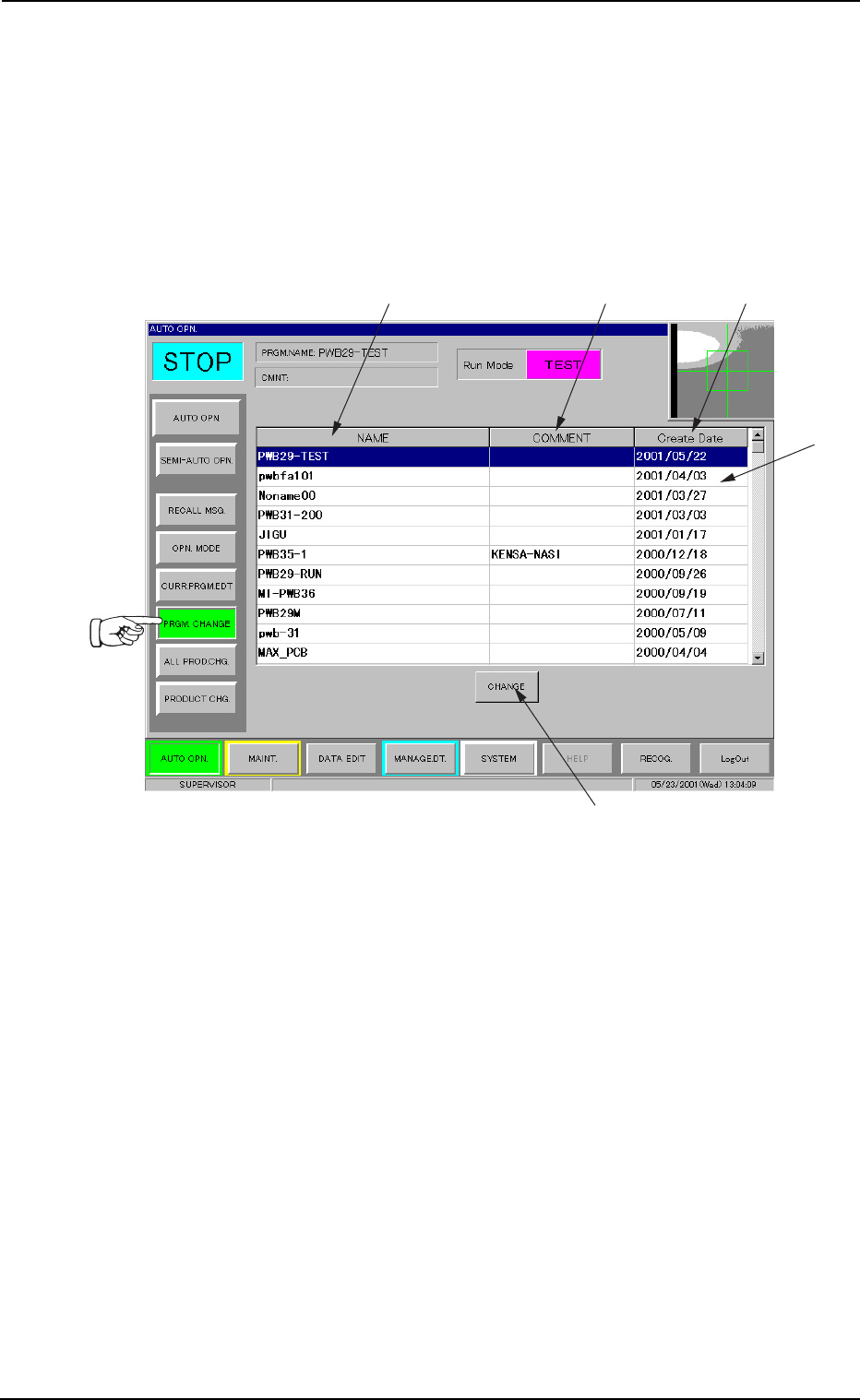
• Window Layout
When the [PRGM. CHANGE] button is pressed in the "AUTO OP-
ERATION" submenu bar, the following window opens.
Fig. 2E21 "PROGRAM CHANGE" Window (Submenu)
• Window Composition
*1 List of Model Names
Listed are the registered model names (pattern program names).
When one (the line) of the model name is selected from the list, it
is highlighted in blue.
*2 [NAME] Button
When this button is pressed, the model names in the list *1 are
arranged in ascending or descending order (alphabetical order).
*3 [COMMENT] Button
When this button is pressed, the comments on the models in the
list *1 are arranged in ascending or descending order (alphabetical
order).
7. "PROGRAM CHANGE" Submenu
0211-005 Chapter 2 5-32 Tg0582-PM-D1
*2 *3 *4
*5
*1
*4 [Create Date] Button
When this button is pressed, the dates when the data was revised
related to the models are arranged in ascending or descending
order and shown in the "List of Model Names".
*5 [CHANGE] Button
When this button is pressed, the current model (pattern program)
is changed to another one.
• Procedure for Model Change Operation
(1) You can access any hidden model names if any by pressing the
above-described buttons *2 through *4 such that the model names
are re-arranged.
(2) Select the name of the model to be produced from the list.
The selected line is highlighted in blue.
(3) When the [CHANGE] button *5 is pressed, the current model is
changed to the selected one.
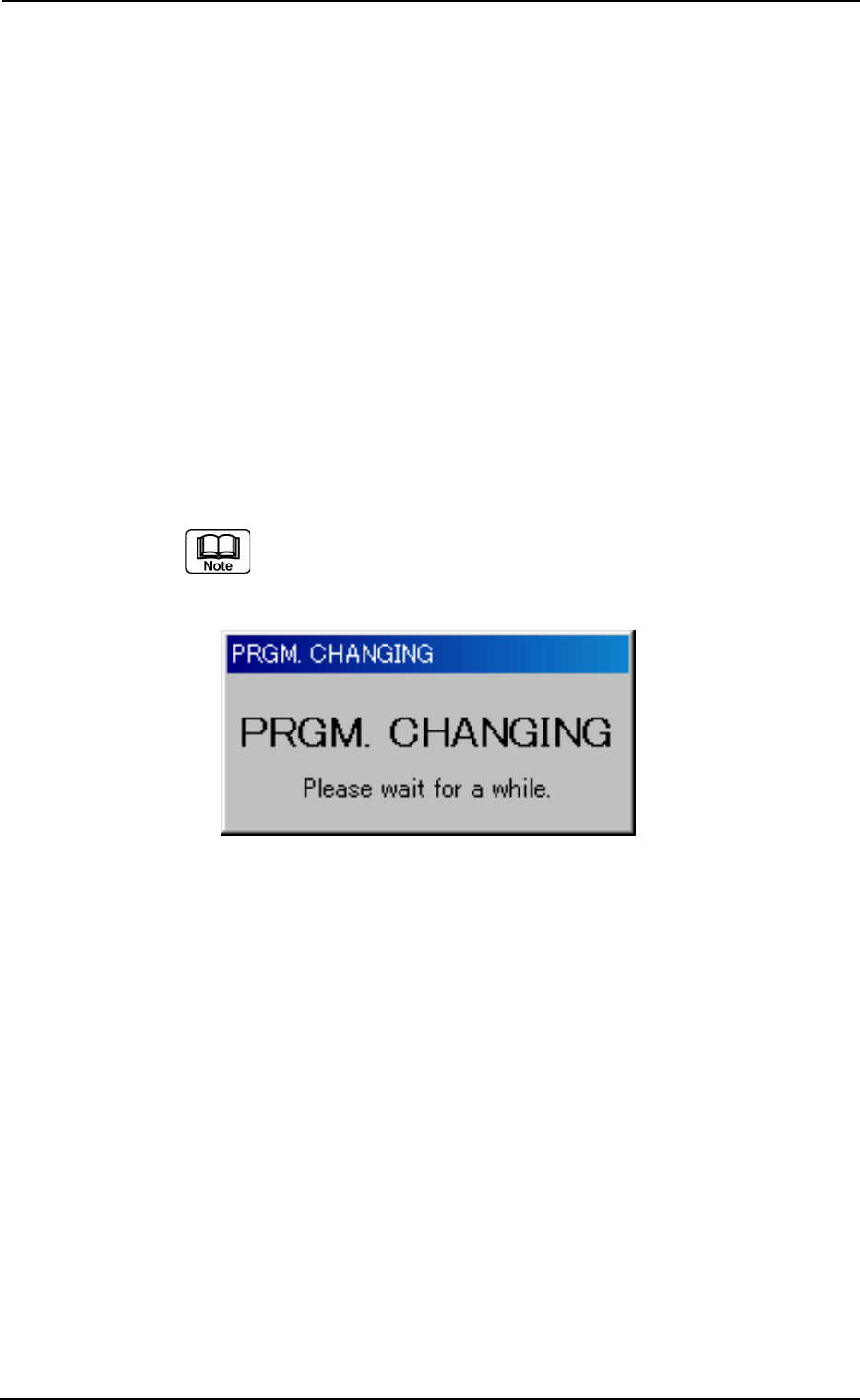
When a model name is selected and the [CHANGE] but-
ton is pressed, the "PRGM. CHANING" dialog box opens.
Wait for a while until the processing is over.
Fig. 2E22
7. "PROGRAM CHANGE" Submenu
0211-005 Chapter 2 5-33 Tg0582-PM-D1