1OM-1086-002.pdf - 第83页
1. 2 "AUTO OPERA TION" Window (Main Menus) V arious functions can be set for automatic operation in this "AUTO OPERA TION" window . 1.2.1 Initial Window When the [AUTO OPN.] button on the main menu ba…

1.1 Window for "Log In" Type Selection
0211-005 Chapter 1 2-2-1 Tg0582-PM-D1
(2) Enter a password and press the [OK] button.
The "AUTO OPERATION" window (main menus) opens on the touch
screen.
Refer to "1.2.1 Menus for Automatic Operation" (Section 4 of Chap-
ter 2) for the detailed information on the menus for automatic op-
eration.
1.2 "AUTO OPERATION" Window (Main Menus)
Various functions can be set for automatic operation in this "AUTO
OPERATION" window.
1.2.1 Initial Window
When the [AUTO OPN.] button on the main menu bar is pressed, the
following window opens.
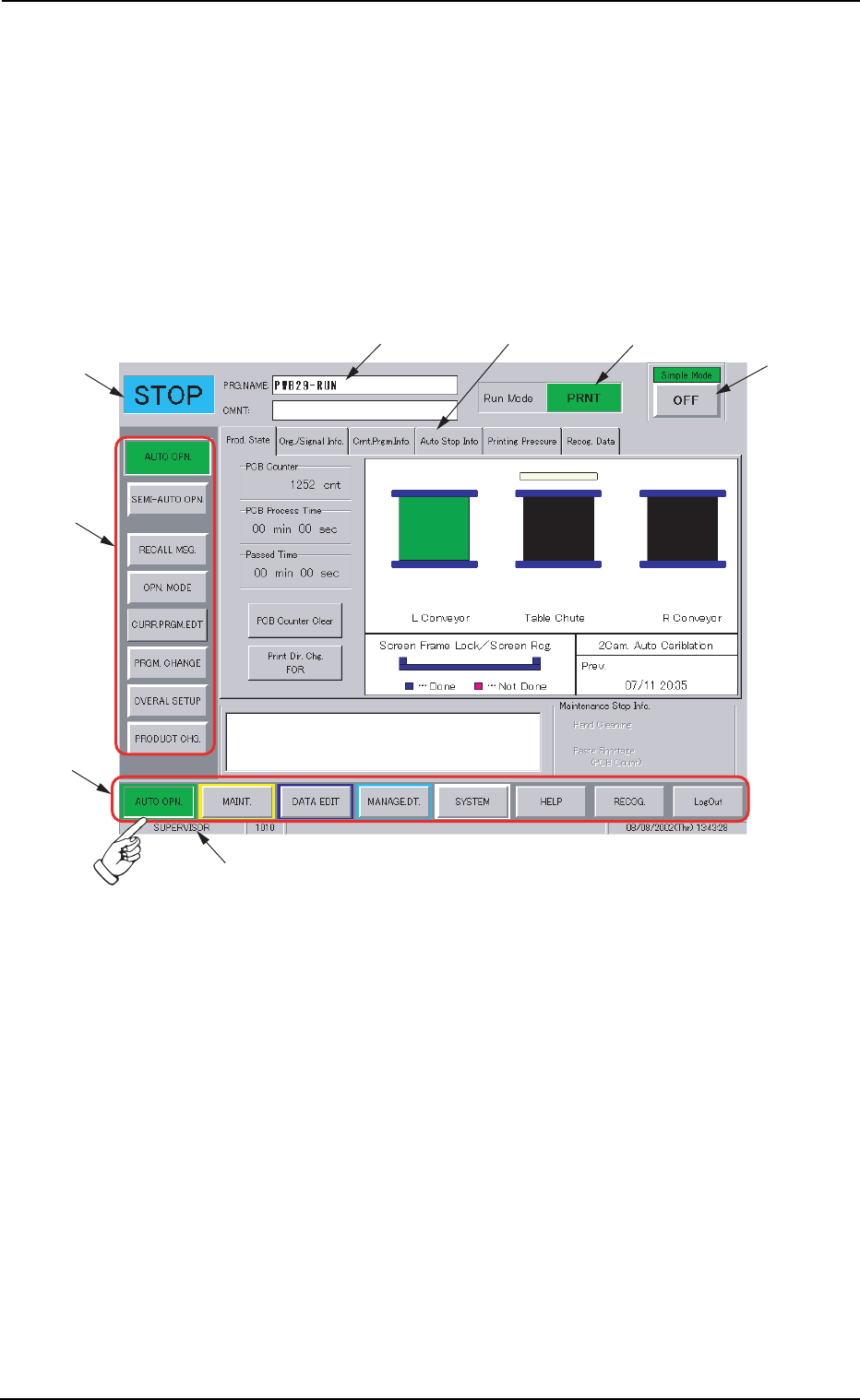
Fig. 1B2 AUTO OPERATION Window (Main Menus)
• Window Structure
*1 Indication of Machine Status
The machine status is indicated at real time.
RUN : This indicates that the machine is running.
PAUSE : This indicates that the machine is stopped temporarily.
WAIT : This indicates that the machine is in the standby mode.
STOP : This indicates that the machine is stopped.
1.2 "AUTO OPERATION" Window (Main Menus)
0211-005 Chapter 1 2-3 Tg0582-PM-D1
*3
*2
*7
*1
*5
*6
*4
CURR. PRGM. EDT.
*8

*2 Run Mode
The running mode is displayed.
PRINT : The mode enables the machine to print solder paste on
P.C.B.’s.
PASS : This mode enables the machine to carry P.C.B.’s over to
the output conveyor without printing any solder paste.
*3 Current Program Name and Comment
Indicated are the current program name and comment.
*4 Supplementary Explanation
Indicated are the window No., date & time, etc.
*5 Main Menu Bar
This main menu bar is provided with the main menu buttons which
appear commonly in all windows.
[AUTO OPN.] Button : Pressing this button opens the "AUTO
OPERATION" window.
[MAINT.] Button : Pressing this button opens the "MAINTE-
NANCE" window.
[DATA EDIT] Button : Pressing this button opens the "Pattern
Program" edit window.
[MANAGE. DT.] Button : Pressing this button opens the "MANAGE-
MENT DATA" window.
[SYSTEM] Button : Pressing this button opens the "SYSTEM"
window.
[HELP] Button : Pressing this button opens the "HELP"
window related to the active window.
[RECOG.] Button : Pressing this button opens or closes the
"RECOG." window.
[LogOut] Button : Pressing this button resumes the "Login
Type Selection" window.
*6 Submenu Bar
The submenu bar is provided with some buttons related to the item
selected from the main menus.
*7 Various Data Fields
Operational information is given according to the item selected from
the submenus.
*8 Simple Mode
This mode does not display the menus and buttons that will not be
used frequently for normal production, simplifying the display layout
and improving the operation efficiency.
It is recommended that "ON" is set for "Simple Mode" in normal cases.
When the detailed menus are required, just press the button (labeled
"ON") under "Simple Mode". The label of the button changes to "OFF"
and the detailed menus are displayed.
0211-005
Chapter 1 2-4 Tg0582-PM-D1
1.2 "AUTO OPERATION" Window (Main Menus)