1OM-1086-002.pdf - 第244页
T able 2E5 T abs Description Paste Scrap This tab sheet enables the operator to perform paste knead- ing operation and move each unit to the printing position. Conv . Wd. This tab sheet enables the operator to change the…
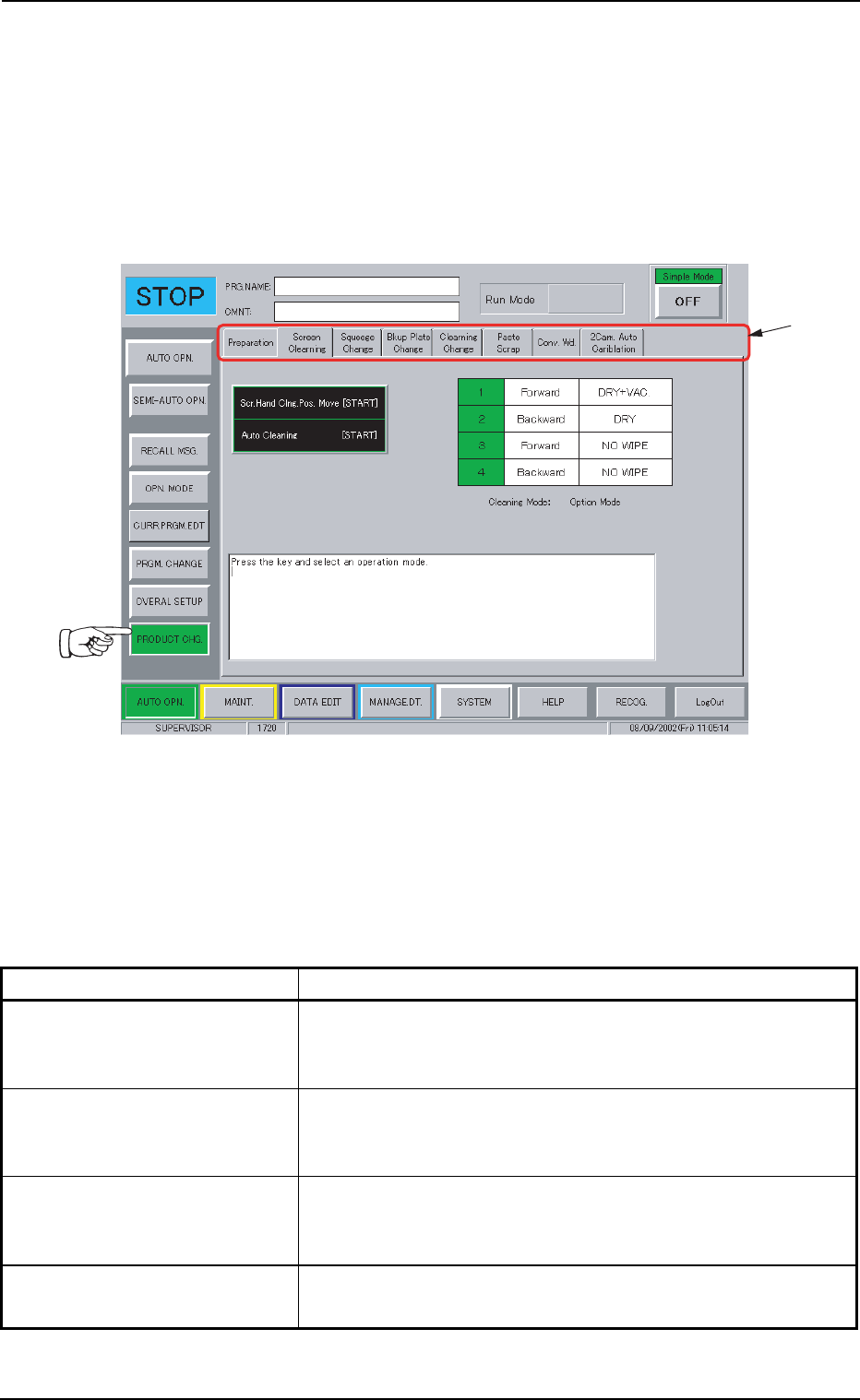
9. "PRODUCT CHANGE" Submenu
This window can be used to perform various setup operations.
• Window Layout
When the [PRODUCT CHG.] button is pressed in the "AUTO OP-
ERATION" submenu bar, the following window opens.
Fig. 2E25 "PRODUCT CHANGE" Window (Submenu)
• Window Composition
*1 Tabs
The "PRODUCT CHANGE" window is provided with 8 tab sheets.
When a tab is pressed, the corresponding tab sheet appears.
Table 2E4
Tabs Description
Screen Cleaning This tab sheet enables the operator to move the screen frame
and the squeegees for manual cleaning or perform the start
operation for automatic cleaning.
Squeegee Change This tab sheet enables the operator to move the squeegees
and the screen for squeegee cleaning or replacement and
perform the paste removal operation.
Bkup Plate Change This tab sheet enables the operator to move each unit for
detachment/attachment of the backup jig, move each unit to
the printing position, and set a jig replacement mode.
Cleaning Change This tab sheet enables the operator to move each unit for
replacement of the cleaning paper and holder.
9. "PRODUCT CHANGE" Submenu
*1
0211-005 Chapter 2 5-36 Tg0582-PM-D1
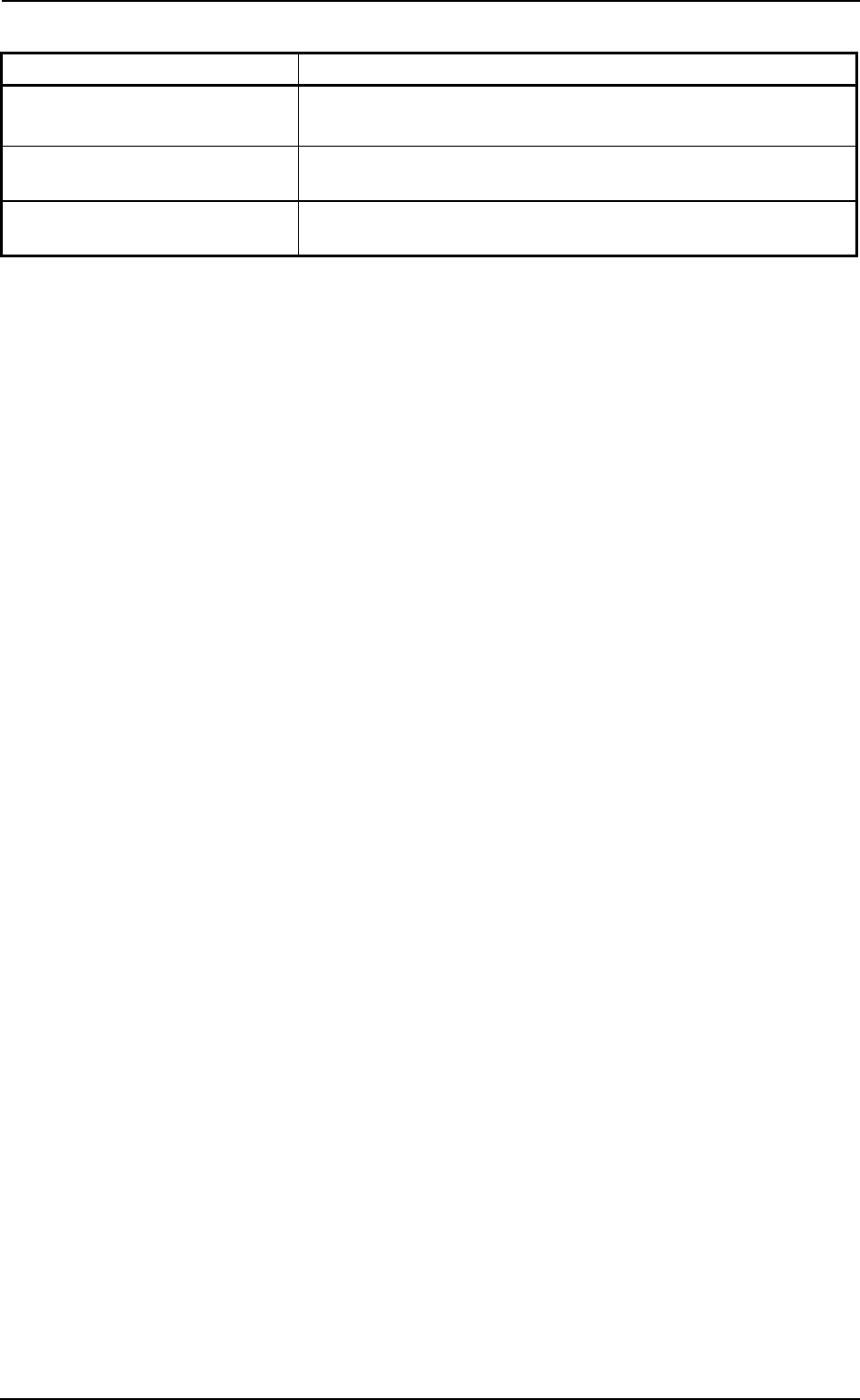
Table 2E5
Tabs Description
Paste Scrap This tab sheet enables the operator to perform paste knead-
ing operation and move each unit to the printing position.
Conv. Wd. This tab sheet enables the operator to change the conveyor
width to the target value and perform the inching operation.
2Cam. Auto Calibration This tab sheet enables the operator to perform the dual cam-
era automatic calibration.
9. "PRODUCT CHANGE" Submenu
0211-005 Chapter 2 5-37 Tg0582-PM-D1
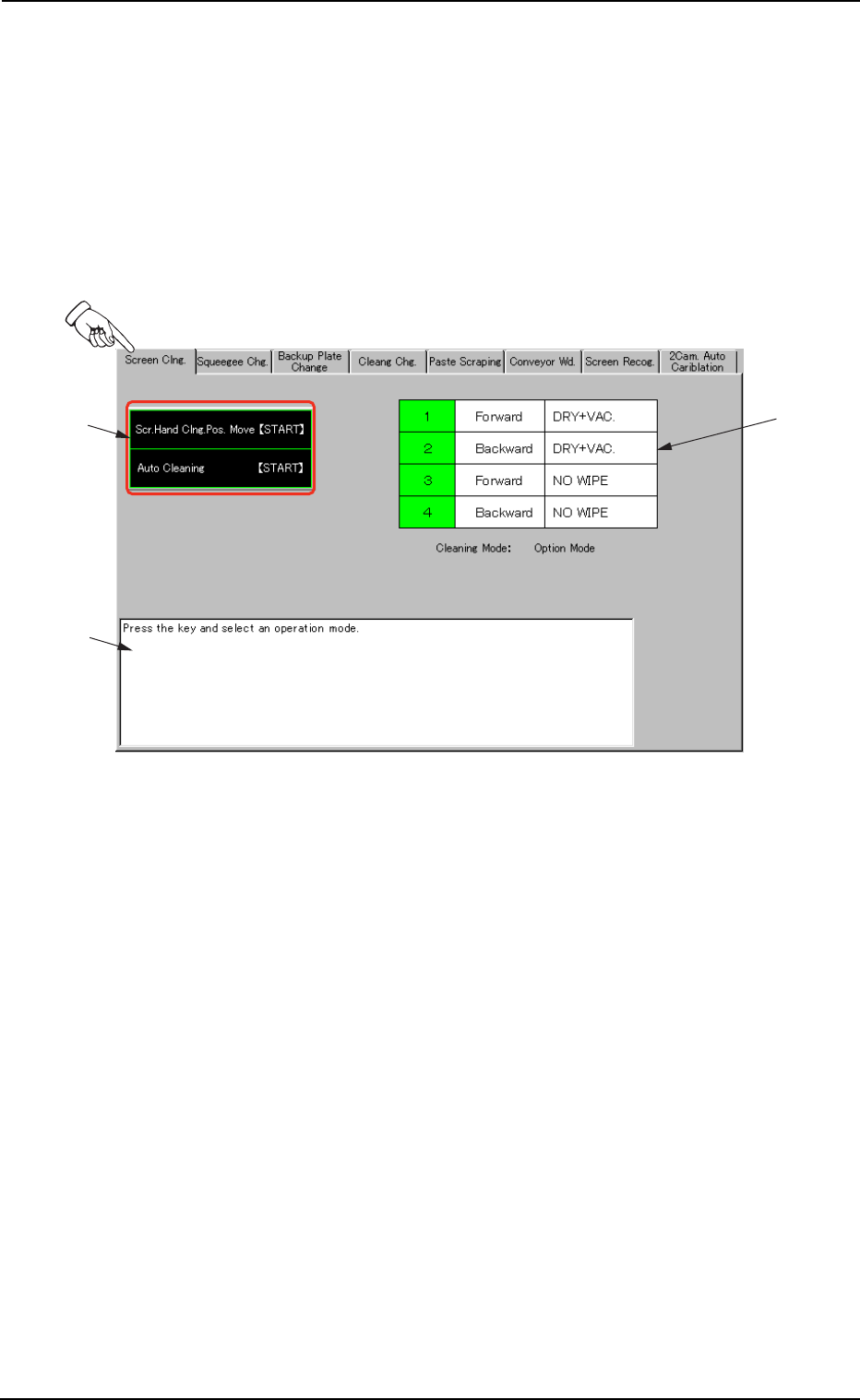
9.1 "Screen Cleaning" Tab
This tab sheet can be used to move the screen frame and the squee-
gees for manual cleaning and perform the start operation of automatic
cleaning.
• Sheet Layout
When the [Screen Clng.] tab is pressed in the "PRODUCT CHANGE"
window (submenu), the following tab sheet appears.
Fig. 2E26 "Screen Cleaning" Tab Sheet
• Sheet Composition
*1 Operation Buttons
The "Screen Clng" tab sheet is provided with the following opera-
tion buttons.
[Scr.Hand Clng.Pos. Move (START)] Button
When this button is pressed, the background color turns blue.
When the [START] button on the operation panel is pressed sub-
sequently, the screen frame moves forward (front side) to secure a
space for manual cleaning and the squeegees move backward
(rear side).
[Auto Cleaning (START)] Button
When this button is pressed, the background color turns blue.
When the [START] button on the operation panel is pressed sub-
sequently, the cleaning operation starts.
*2 Message
A message is issued, giving a guideline of the operations related
to the above-described buttons *1.
*3 Cleaning Mode
Displayed are the cleaning modes and sequences.
9.1 "Screen Cleaning" Tab
*1
*2
*3
0211-005 Chapter 2 5-38 Tg0582-PM-D1