1OM-1086-002.pdf - 第273页
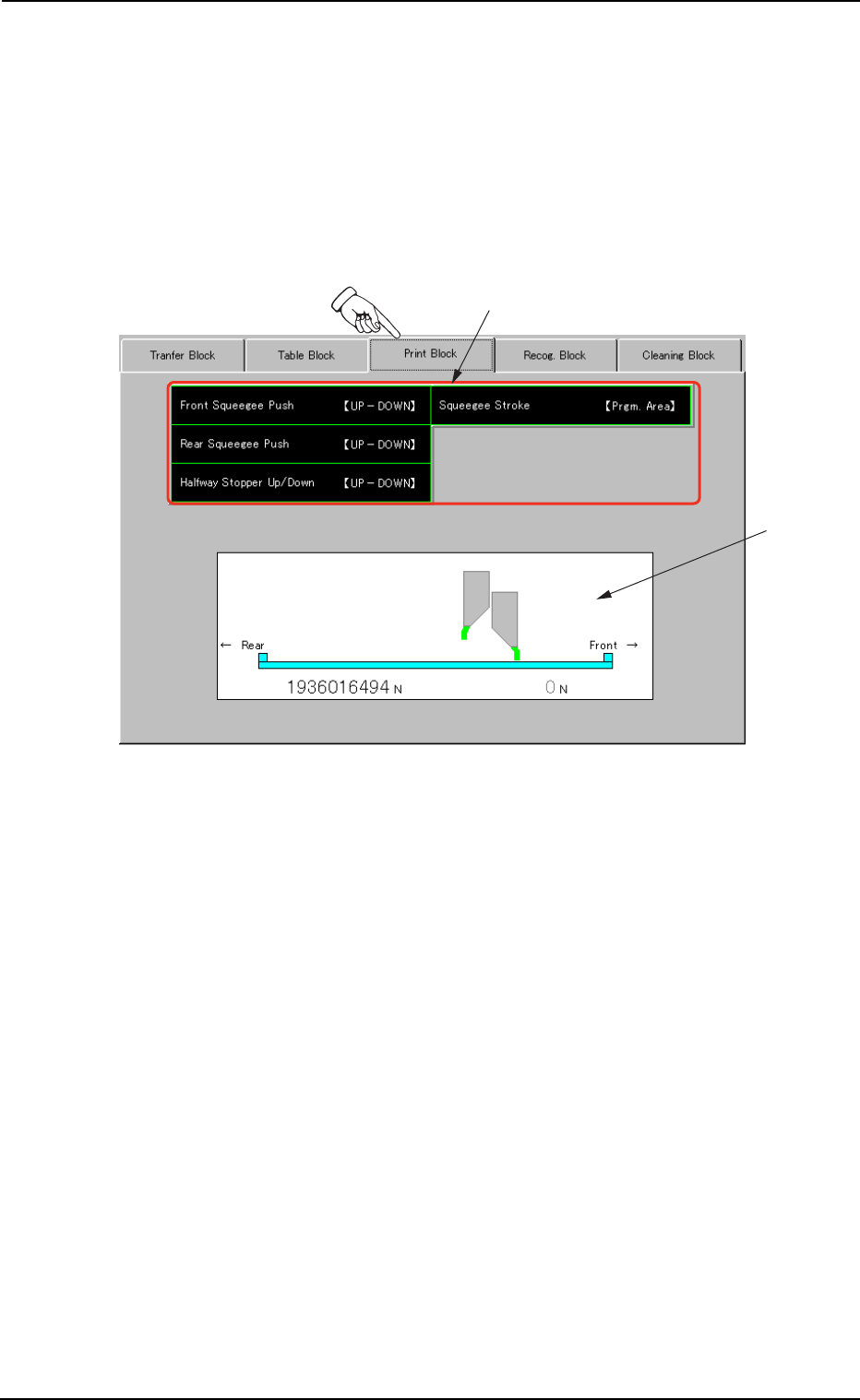
[Halfway Stopper Up/Down (UP-DOWN)] Button When this button is pressed, the squeegee holder starts moving up or down between the origin and halfway positions. [Squeegee Stroke (Prgm. Area)] Button When this button is pre…
4.3 "Print Block" Tab
This tab sheet can be used to perform the manual operation of the
printing section.
• Sheet Layout
When the [Print Block] tab is pressed in the "MANUAL SUB-SYS-
TEM" window (submenu), the following tab sheet appears.
Fig. 2F11 "Print Block" Tab Sheet
• Sheet Composition
*1 Unit Select Buttons
When a button is pressed, the background color turns blue, indi-
cating that the unit is selected.
When the [START] button on the front operation panel is pressed,
the selected unit starts moving. When the button is released, the
unit stops moving and is reset to the original position.
[Front Squeegee Push (UP-DOWN)] Button
When this button is pressed, the front squeegee starts moving up
or down between the origin and temporary origin positions.
[Rear Squeegee Push (UP-DOWN)] Button
When this button is pressed, the rear squeegee starts moving up
or down between the origin and temporary origin positions.
4.3 "Print Block" Tab
*1
*2
0211-005 Chapter 2 6-15 Tg0582-PM-D1

[Halfway Stopper Up/Down (UP-DOWN)] Button
When this button is pressed, the squeegee holder starts moving
up or down between the origin and halfway positions.
[Squeegee Stroke (Prgm. Area)] Button
When this button is pressed, the squeegees start moving forward
or backward according to the settings of the pattern program.
*2 Status
Displayed is how each unit is working.
4.3 "Print Block" Tab
0211-005 Chapter 2 6-16 Tg0582-PM-D1
4.4 "Recognition Block" Tab
This tab sheet can be used to perform the manual operation of the
recognition section.
• Sheet Layout
When the [Recog. Block] tab is pressed in the "MANUAL SUB-SYS-
TEM" window (submenu), the following tab sheet appears.
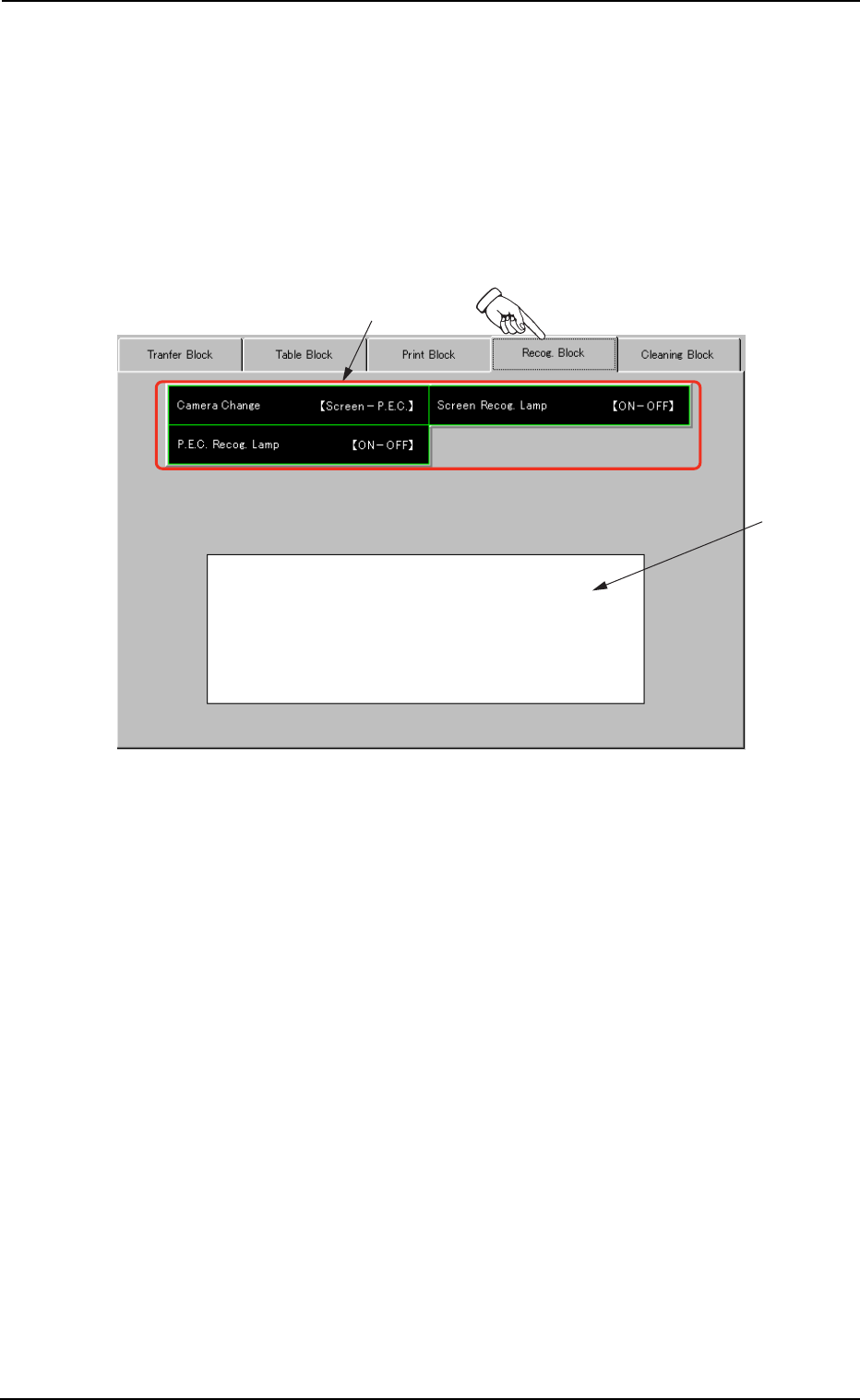
Fig. 2F12 "Recog. Block" Tab Sheet
• Sheet Composition
*1 Unit Select Buttons
When a button is pressed, the background color turns blue, indi-
cating that the unit is selected.
When the [START] button on the front operation panel is pressed,
the selected unit starts moving. When the button is released, the
unit stops moving and is reset to the original position.
[Camera Change (Screen-P.E.C.)] Button
When this button is pressed, the screen or the P.C.B. recognition
camera can be selected to recognize an image on the recognition
monitor.
[P.E.C. Recog. Lamp (ON-OFF)] Button
When this button is pressed, the lighting for P.E.C. recognition is
turned on or off.
4.4 "Recognition Block" Tab
*1
*2
0211-005 Chapter 2 6-17 Tg0582-PM-D1