1OM-1086-002.pdf - 第264页
2.3 "V ersion Information" T ab When this tab is pressed, the corresponding tab sheet appears inside the window , enabling the operator to check the versions of the pro- grams related to the control system of t…
2.2 "Input Check (Motor Control)" Tab
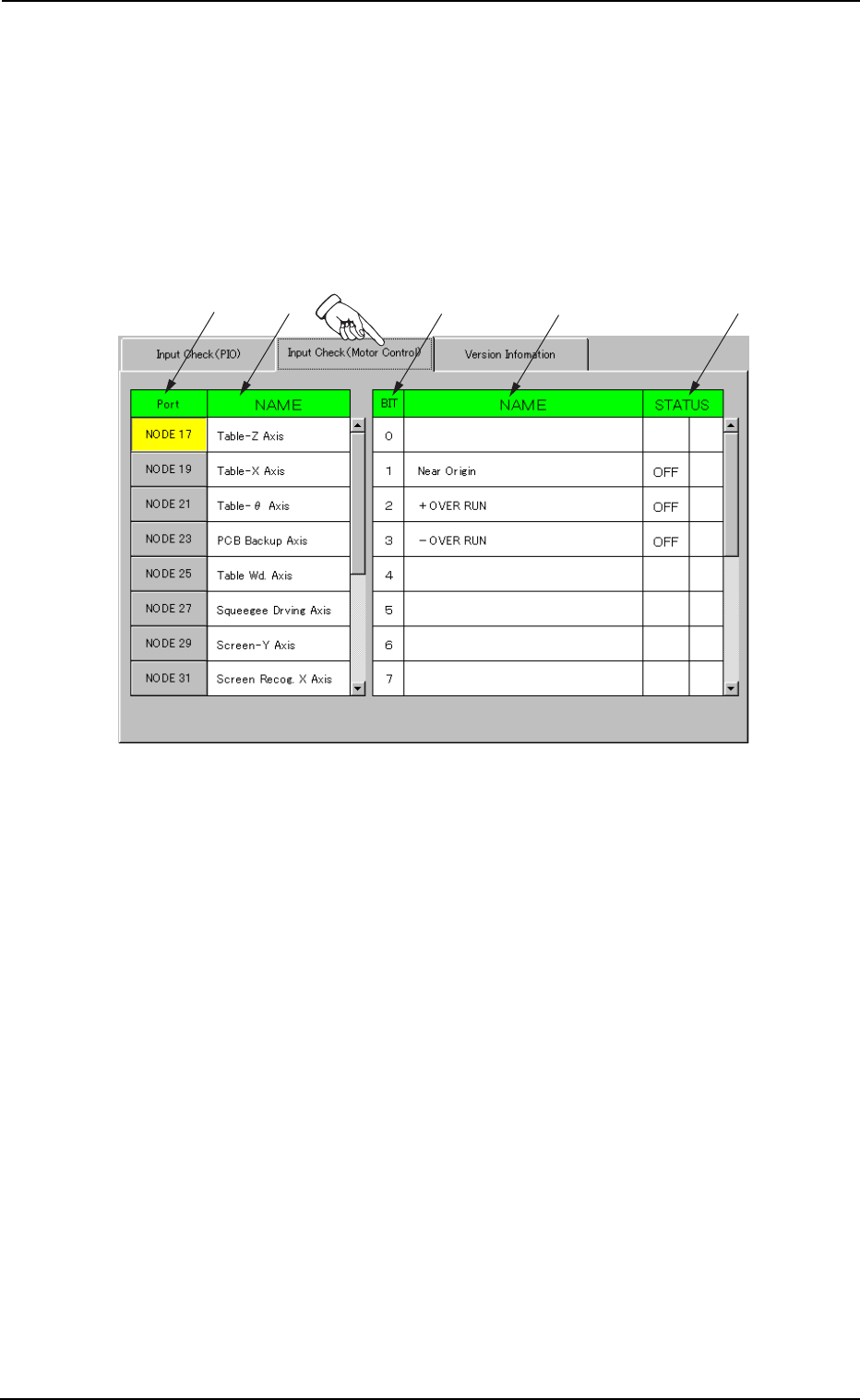
This tab sheet can be used to check the input status of the motor con-
troller.
• Sheet Layout
When the [Input Check (Motor Control)] tab is pressed in the "DE-
VICE CHECK" window (submenu), the following tab sheet appears.
Fig. 2F5 "Input Check (Motor Control)" Tab Sheet
• Sheet Composition
*1 Port
Displayed are the node Nos. of the ports.
*2 NAME
Displayed are the port names.
*3 BIT
Displayed is the bit No. of each port.
*4 NAME
Displayed are the bit names.
*5 STATUS
Displayed are the status and name of each bit.
*1 *2 *3 *4
*5
0211-005 Chapter 2 6-6 Tg0582-PM-D1
2.2 "Input Check (Motor Control)" Tab
2.3 "Version Information" Tab
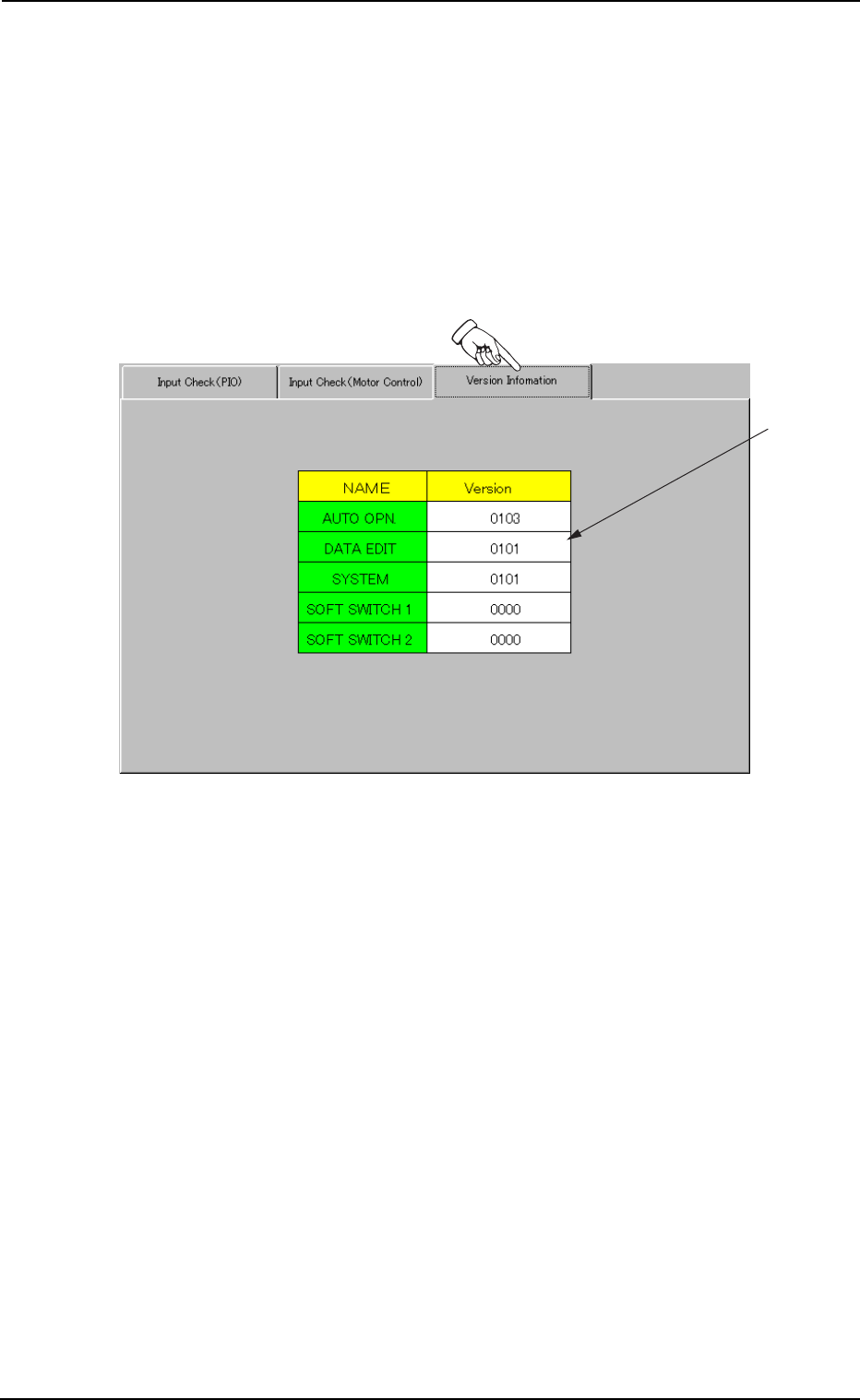
When this tab is pressed, the corresponding tab sheet appears inside
the window, enabling the operator to check the versions of the pro-
grams related to the control system of the machine.
• Sheet Layout
When the [Version Information] tab is pressed in the "DEVICE
CHECK" window (submenu), the following tab sheet appears.
Fig. 2F6 "Version Information" Tab Sheet
• Sheet Composition
*1 Version Information
Displayed are the names of the following software and their ver-
sion Nos.
"AUTO OPN." Software
"DATA EDIT" Software
"SYSTEM" Software
"SOFT SWITCH 1" Application
"SOFT SWITCH 2" Application
2.3 "Version Information" Tab
*1
0211-005 Chapter 2 6-7 Tg0582-PM-D1
3. "ZEROING OPERATION" Window (Submenu)
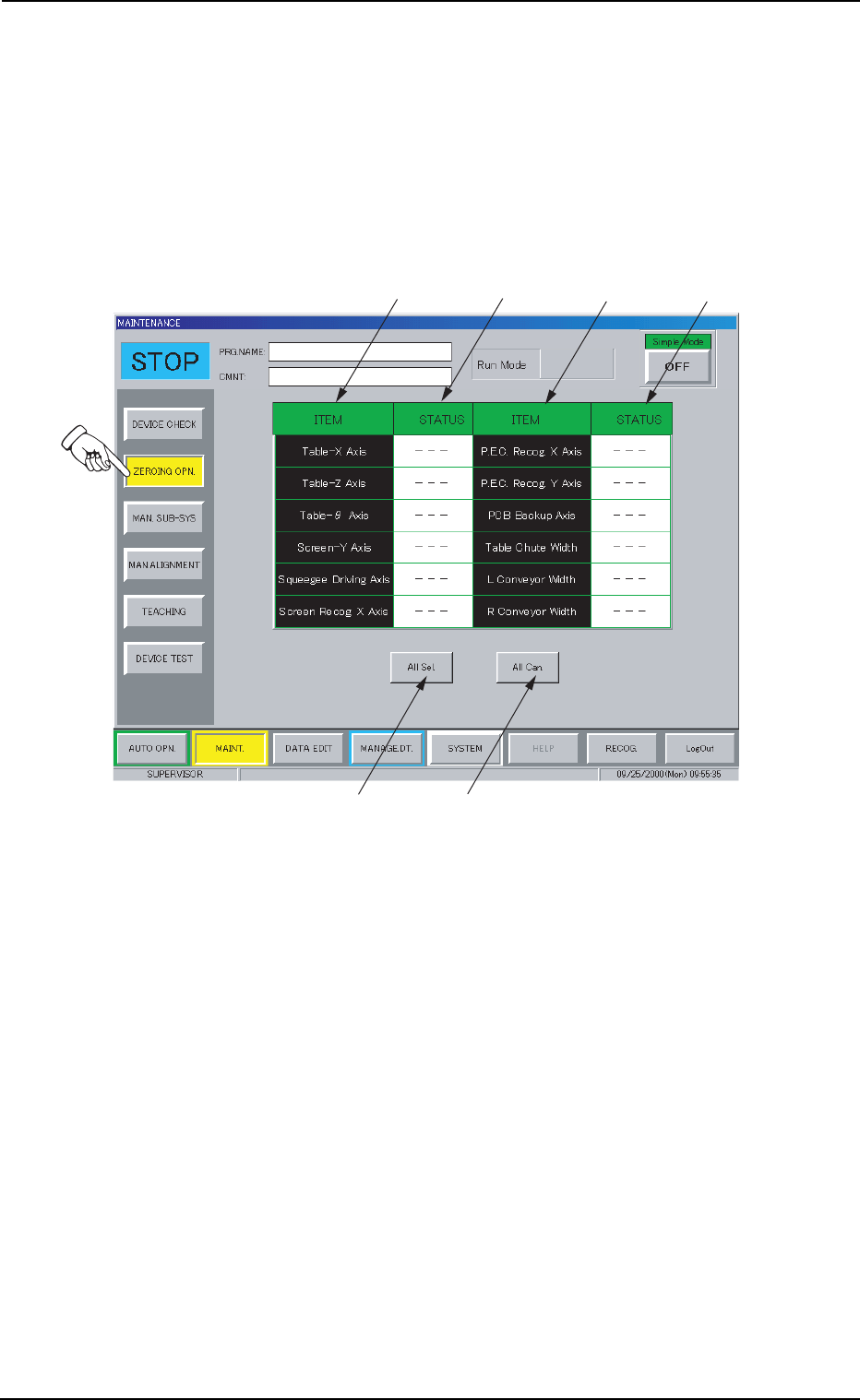
This window can be used to perform the zeroing operation for each
unit.
• Window Layout
When the [ZEROING OPN.] button is pressed in the "MAINTE-
NANCE" submenu bar, the following window opens.
Fig. 2F7 "ZEROING OPERATION" Window (Submenu)
• Window Composition
*1 ITEM
Displayed is the axis name of each unit that represents the direc-
tion in which each unit should be moved.
When each name box is pressed, the background color turns blue,
indicating that the unit is selected.
When the [START] button on the front operation panel is pressed
subsequently, the selected unit is zeroed.
3. "ZEROING OPERATION" Window (Submenu)
*3
*4
*1 *2 *1 *2
0211-005 Chapter 2 6-8 Tg0582-PM-D1