1OM-1086-002.pdf - 第185页
1. 2 Using the Menus 1.2.1 Menus for Automatic Operation • Menu Selection (1) When the [AUT O OPN.] button on the main menu bar is pressed, the "AUTO OPN." window opens. The "AUT O OPN." window is pro…
*3 [DATA EDIT] Button
When this button is pressed, the "Pattern Program" window opens,
enabling you to edit the data. (Vol. 2, Chapter 1, Section 2)
*4 [MANAGE DT.] Button
When this button is pressed, the "MANAGE. DATA" window opens.
(Vol. 2, Chapter 1, Section 3)
*5 [SYSTEM] Button
When this button is pressed, the "SYSTEM" window opens, en-
abling you to set up the system. (Vol. 2, Chapter 1, Section 4)
1.1.2 Other Operation Buttons
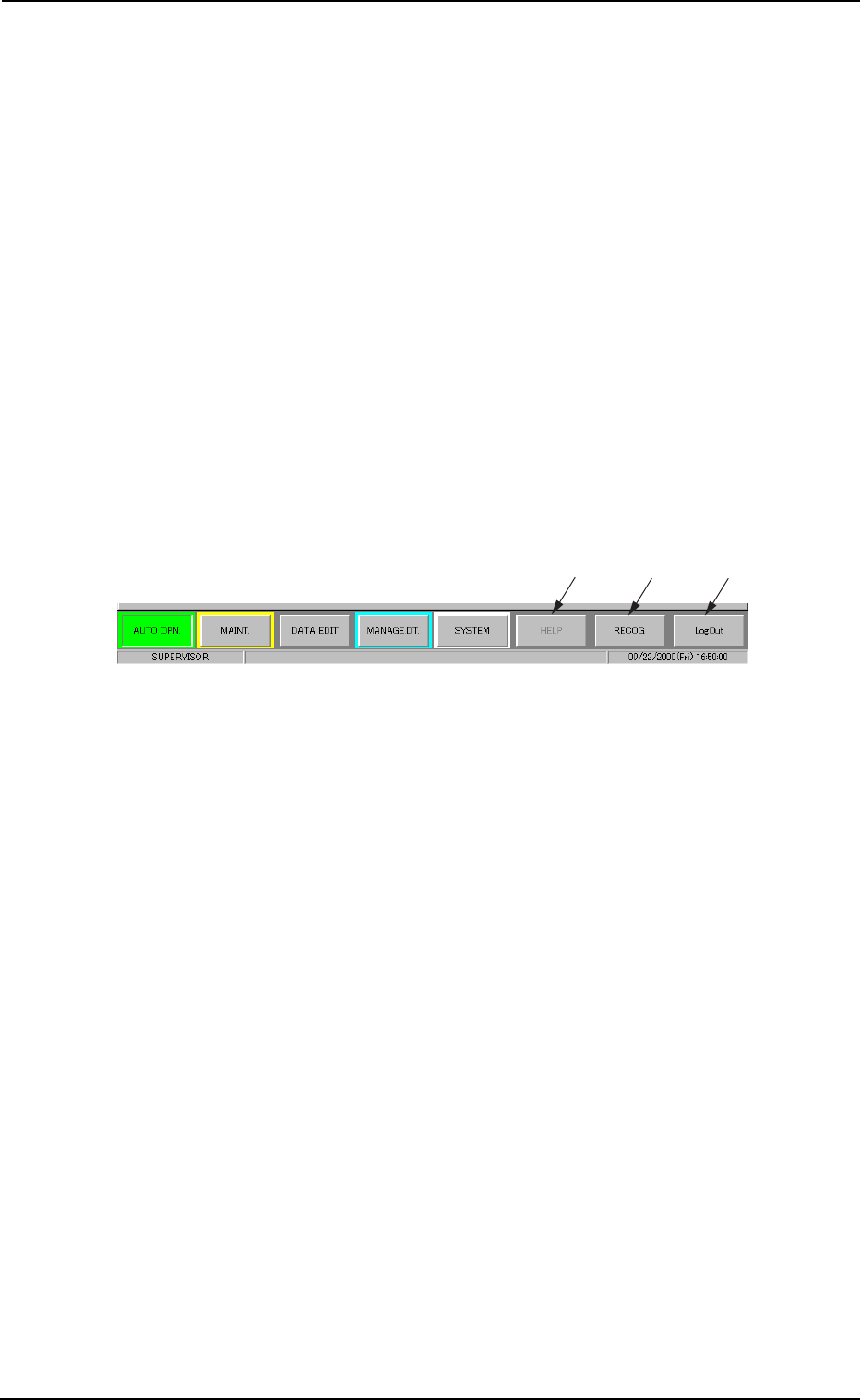
The main menu bar is also provided with the following operation but-
tons in addition to the main menu selection buttons.
Fig. 2D1-2
*1 [HELP] Button
When this button is pressed, the "HELP" window opens.
*2 [RECOG.] Button
When this button is pressed, the "RECOG." window opens, en-
abling you to select a display pattern of the recognized image.
("1.2.6" in Section 4)
*3 [LogOut] Button
When this button is pressed, the system exits from window naviga-
tions and the "Login Type Selection" window opens. ("1.7" in Sec-
tion 3 of Chapter 1)
0211-005
Chapter 2 4-3 Tg0582-PM-D1
1. 1 About the Main Menu Bar
*1
*3*2
1.2 Using the Menus
1.2.1 Menus for Automatic Operation
• Menu Selection
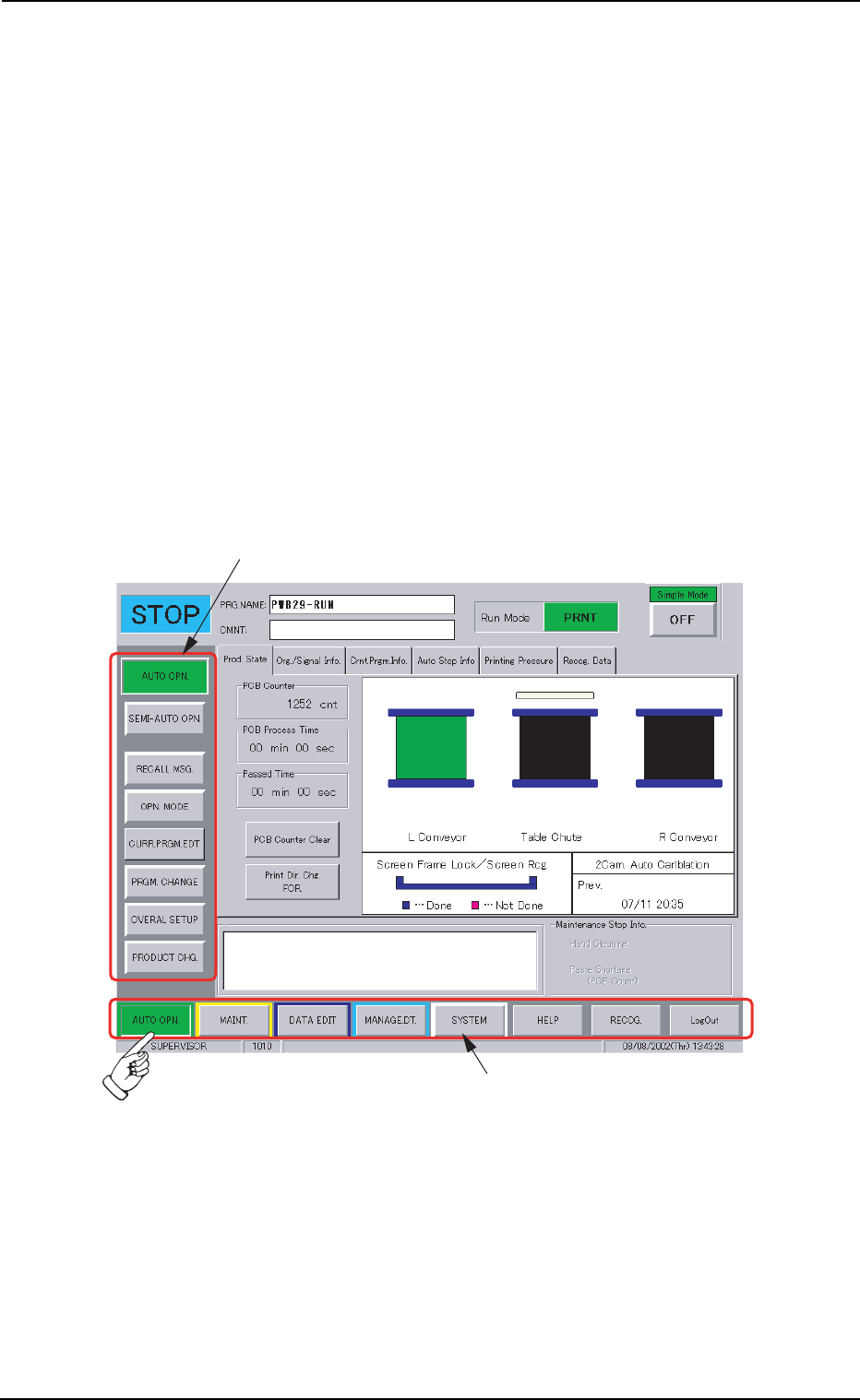
(1) When the [AUTO OPN.] button on the main menu bar is pressed,
the "AUTO OPN." window opens. The "AUTO OPN." window is
provided with a submenu bar.
(2) When one of the buttons on the submenu bar is pressed, the cor-
responding sheet (submenu) or tab sheets appear inside the "AUTO
OPN." window.
This window is provided with main menus related to the automatic op-
eration of the machine. All operations required for automatic operation
are included in this window.
Fig. 2D2 Selection of Menus for Automatic Operation
1. 2 Using the Menus
Main Menu Bar
"AUTO OPN." Submenu Bar
0211-005 Chapter 2 4-4 Tg0582-PM-D1
• Composition of Menus for Automatic Operation
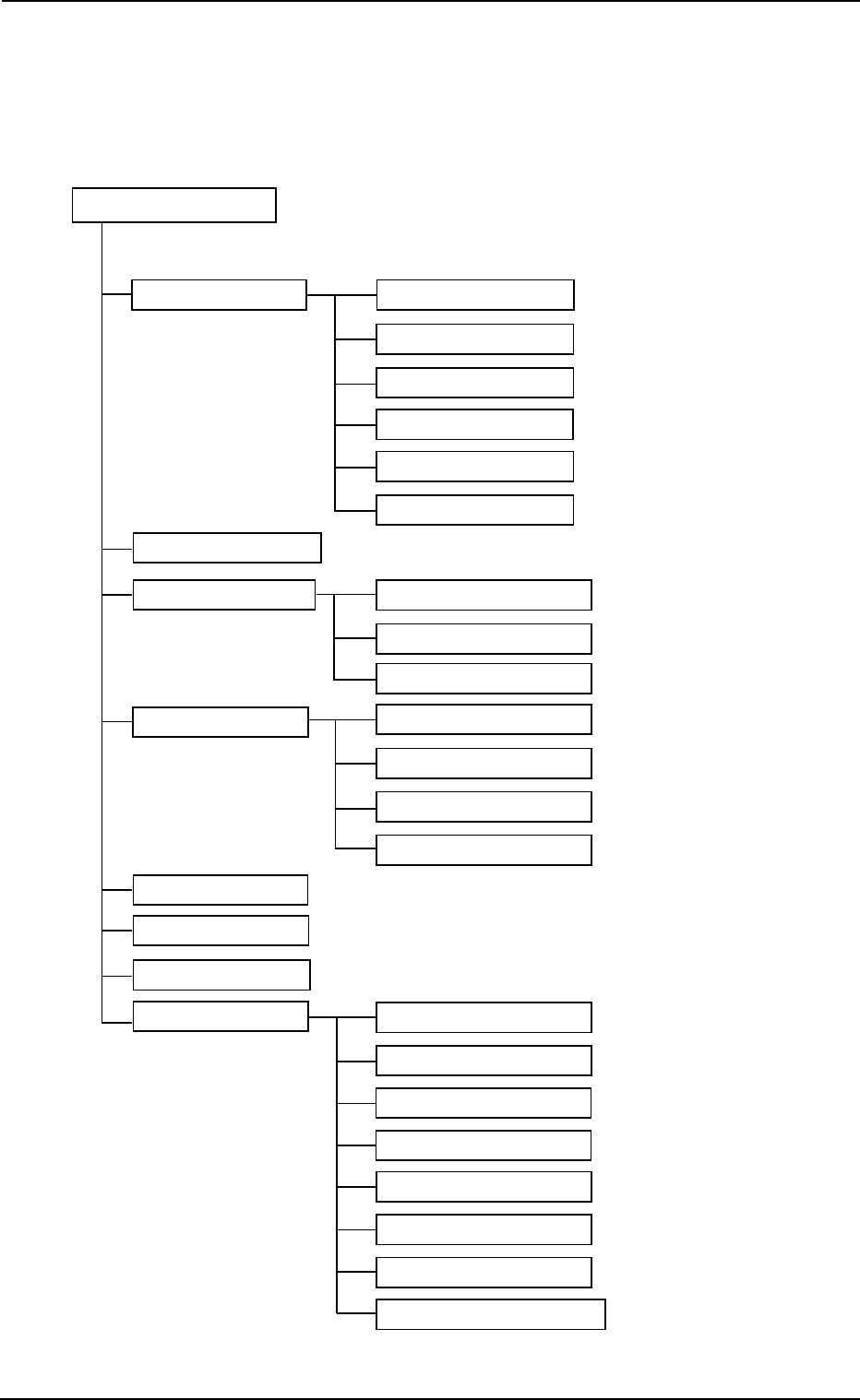
The menus for automatic operation are composed of the following
submenus.
Refer to "2.1 Tabs" in Section 4 for tabs and tab sheets.
AUTO OPN.
Submenus Tabs (Tab Sheets) Reference Item Nos.
AUTO OPN. Prod. State 2.1 in Section 5
Org./Signal Info. 2.2 in Section 5
Crnt. Prgm. Info. 2.3 in Section 5
Auto Stop Info 2.4 in Section 5
Printing Pressure 2.5 in Section 5
Recog. Data 2.6 in Section 5
SEMI-AUTO OPN. 3. in Section 5
RECALL MSG. Machine Error Recall 4.1 in Section 5
Information Recall 4.2 in Section 5
System Info. 4.3 in Section 5
OPN. MODE TEST Opn. Mode 5.1 in Section 5
Operation Mode 5.2 in Section 5
Printing Condition 5.3 in Section 5
Auto Stop Setting 5.4 in Section 5
RECOVERY 6. in Section 5
PRGM. CHANGE 7. in Section 5
ALL PROD CHG. 8. in Section 5
PRODUCT CHG. Screen Clng. 9.1 in Section 5
Squeegee Chg. 9.2 in Section 5
Backup Plate Change 9.3 in Section 5
Cleang Chg. 9.4 in Section 5
Paste Scraping 9.5 in Section 5
Conveyor Wd. 9.6 in Section 5
Screen Recog. 9.7 in Section 5
2Cam. Auto Calibration 9.8 in Section 5
Fig. 2D2-1 Composition of Menus for Automatic Operation
0211-005
Chapter 2 4-5 Tg0582-PM-D1
1. 2 Using the Menus