1OM-1086-002.pdf - 第234页
*6 Ride PCB Detect (Overlapped PCB Detection) T o enable this function, turn on the "Use" check box. A mark ( 9 ) appears inside the box. Otherwise, keep the box blank or turn of f the check box. *7 [SA VE] But…
*3 Printing Press. Error Setting
This enables the operator to specify the printing pressures (peak
and mean values) which cause an error when the pressure reaches
out of the specified ones.
Press the up arrow on the right side of the spinner to make
the number change in increments of one. Pressing the
down arrow makes the number change in decrements of
one.
*4 Printing Press. Feedback
This function is used to reflect the difference between the printing
pressure registered in the pattern program and the actual printing
pressure upon the printing operation for the subsequent P.C.B.
To reflect the difference, turn on the "Use" check box. A
mark (9) appears inside the check box.
Otherwise, keep the box blank or turn off the check box.
*5 Action of Passed Time After Print
This enables the machine to perform the following when the
"PAUSE" time (time without printing) is prolonged.
Warning Disp. : Set the "PAUSE" time to issue a warning
message when the time reaches the speci-
fied one.
Two-Way Print : Set the "PAUSE" time for two-way printing
to be made when the printing operation is
re-started.
When the "PAUSE" time is prolonged, it is
recommended that "Two-Way Printing" be
selected to prevent solder paste from get-
ting dry.
Two-Way Print PCB : Set the number of P.C.B.’s to be printed
(two-way printing) when the printing opera-
tion is re-started.
Press the up arrow on the right side of the spinner to make
the number change in increments of one. Pressing the
down arrow makes the number change in decrements of
one.
0211-005
Chapter 2 5-26 Tg0582-PM-D1
5.2 "Operation Mode" Tab

*6 Ride PCB Detect (Overlapped PCB Detection)
To enable this function, turn on the "Use" check box. A mark (9)
appears inside the box.
Otherwise, keep the box blank or turn off the check box.
*7 [SAVE] Button
Press this button when the above-described settings *1 through *5
are completed.
The set values are saved on the machine side.
*8 Recog. Window
When it is checked, the recognition window is closed when the
automatic operation is started. When the recognition window is
closed, the reaction of the display indication in operation is quicker.
0211-005
Chapter 2 5-27 Tg0582-PM-D1
5.2 "Operation Mode" Tab
5.3 "Printing Condition" Tab
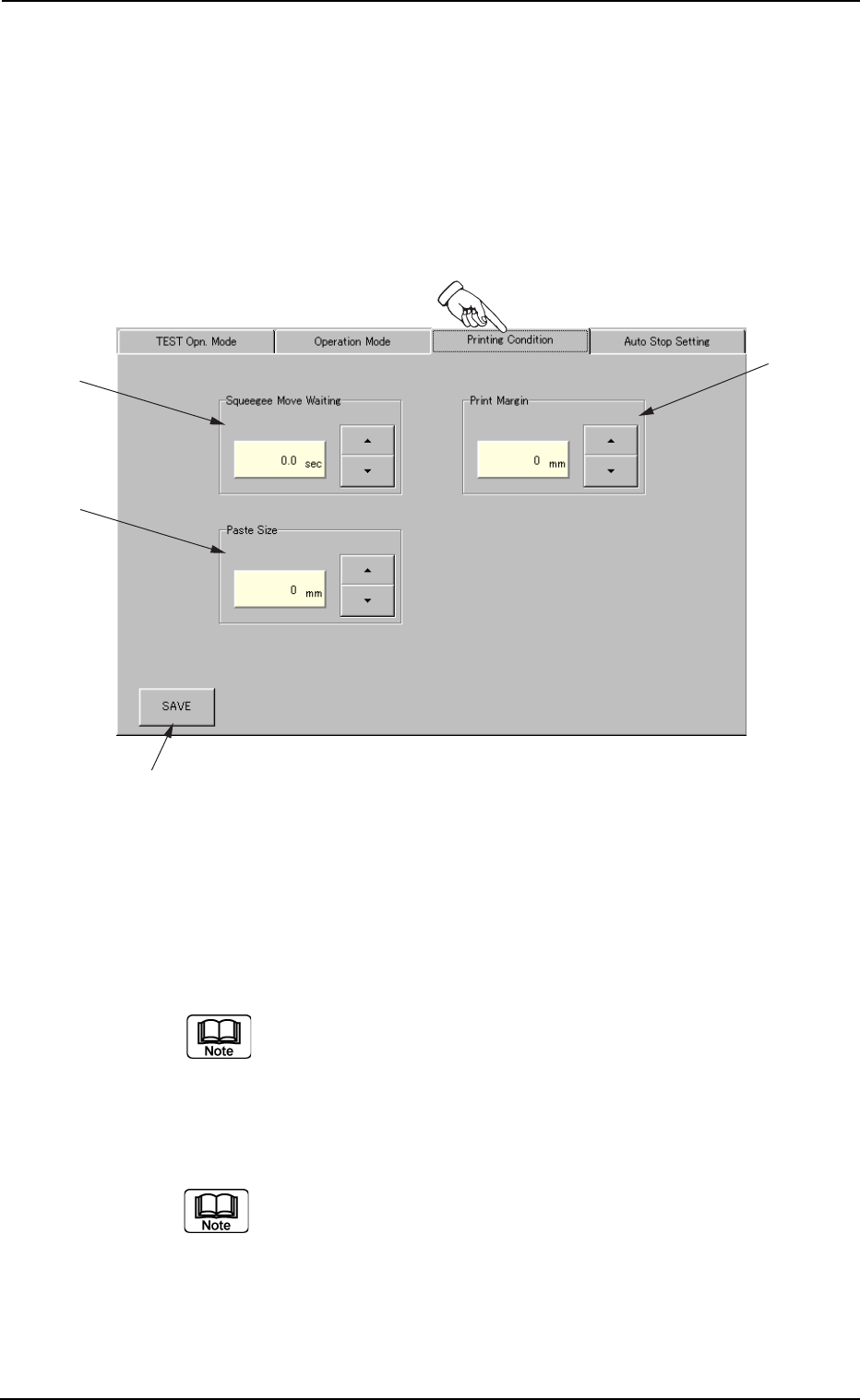
This tab sheet enables the operator to set the length of solder paste in
travelling direction of the squeegee and the margin for printing.
• Sheet Layout
When the [Printing Condition] tab is pressed in the "OPERATION
MODE" window (submenu), the following tab sheet appears.
Fig. 2E17 "Printing Condition" Tab Sheet
• Sheet Composition
*1 Squeegee Move Waiting
*2 Paste Size
Set the length of solder paste in travelling direction of the squee-
gee.
Press the up arrow on the right side of the spinner to make
the number change in increments of one. Pressing the
down arrow makes the number change in decrements of
one.
*3 Print Margin
Set the distance (overshoot) to move the squeegees out of the
printing range at the end of printing.
Press the up arrow on the right side of the spinner to make
the number change in increments of one. Pressing the
down arrow makes the number change in decrements of
one.
*4 [SAVE] Button
Press this button when the above-described settings *1 and *2 are
completed.
The set values are saved on the machine side.
0211-005
Chapter 2 5-28 Tg0582-PM-D1
*3
*1
*4
*2
5.3 "Printing Condition" Tab