00197723-12_UG_SE3.11_EN.pdf - 第101页
SMA Guide SIPLACE Explorer 5 Using the SMA from 3.11 (R20-2) Edition 11/2020 EN 1 0 1 5.9 V iew Further Det ails by Using the T racks with the Most Picku p Errors as an Example Select the Pickup Reliability websi te. …
5 Using the SMA SMA Guide SIPLACE Explorer
Edition 11/2020 EN from 3.11 (R20-2)
100
5.8 Specifying Lot Size
The lot size (number of boards in a recipe) can be entered here. If dual conveyor mode is being
used and if different recipes are being processed on the lanes, a separate lot size can be specified
for each lane. The lot size entered here will be shown on the factory website. If no line Takt is en-
tered, the value taken from SIPLACE Pro will be displayed on this page and on the factory website.5
5.8.1 How to Specify the Lot Size
Select the Production Summary website.
The value must be entered in the Lot Progress table.
In the row for the relevant conveyor, click on the Lot Size button in the Set Lot Size column.
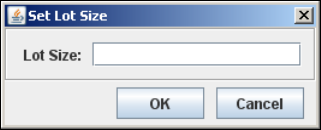
The Lot Size dialog box will open:
5
Fig. 5 - 8 Set lot size
Enter the number of boards in the recipe at Lot Size. Confirm your entry with OK.
The line for the relevant conveyor, in the Lot Size column, will now display the specified value.
If different recipes are to be produced on the individual lanes, repeat this procedure for each
conveyor lane.
SMA Guide SIPLACE Explorer 5 Using the SMA
from 3.11 (R20-2) Edition 11/2020 EN
101
5.9 View Further Details by Using the Tracks with the Most Pickup
Errors as an Example
Select the Pickup Reliability website.
Select and click on the required track from the example using the tracks with the most pickup
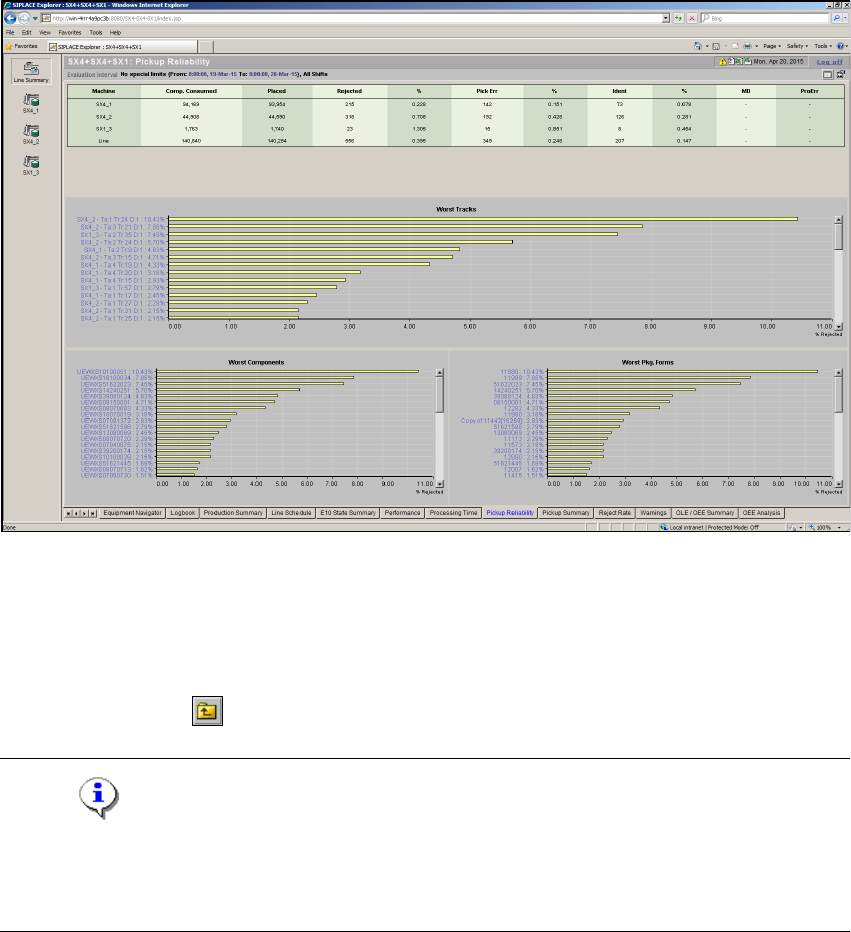
errors. The view will change as shown below:
5
Fig. 5 - 9 Pickup reliability
Select a display criterion for the pareto diagram from the Drill Down list. This example shows
by Component.
The pareto diagram will be adjusted accordingly. The component reject quantity for the
selected track will be shown as a percentage.
Click on the Back icon to return to an overview of all tracks.
NOTE
If data is recorded during the machine status "stand-alone", this data will not be taken into account
in the detailed views of the diagrams Worst Components and Worst Package Forms, although
it is shown in the diagram Worst Tracks. 5
5 Using the SMA SMA Guide SIPLACE Explorer
Edition 11/2020 EN from 3.11 (R20-2)
102
5.10 Defining Quality Factor
In SIPLACE Explorer there are two possibilities to apply a quality factor: 5
– Defining the quality factor in SIPLACE Explorer manually
– Importing the quality factor to SIPLACE Explorer from an xml file
5.10.1 How to define a quality factor in SIPLACE Explorer
Select the OLE/OEE Summary website.
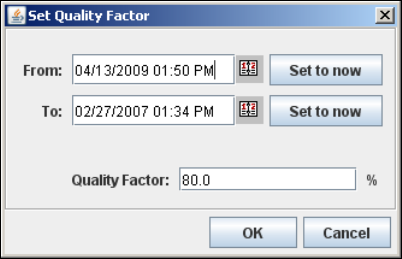
Click on the Set quality factor button. The Set Quality Factor dialog box will open:
5
Fig. 5 - 10 Set quality factor
Use the calendar to select an evaluation period.
In the Quality Factor field, specify the target quality value which is to be reached during the
evaluation period.
Check your entries and confirm with OK.
This quality factor will be shown as a line in the Display OLE/OEE diagram.