00197723-12_UG_SE3.11_EN.pdf - 第33页
SMA Guide SIPLACE Explorer 4 Functions Overview from 3.11 (R20-2) Edition 11/2020 EN 3 3 4.1.2 Logbook This is a repo rt page with bar chart, which yo u can use t o disp lay logbook entries for specific pe- riods. 4 The …
4 Functions Overview SMA Guide SIPLACE Explorer
Edition 11/2020 EN from 3.11 (R20-2)
32
4.1.1.2 Equipment Navigator - Logbook
4
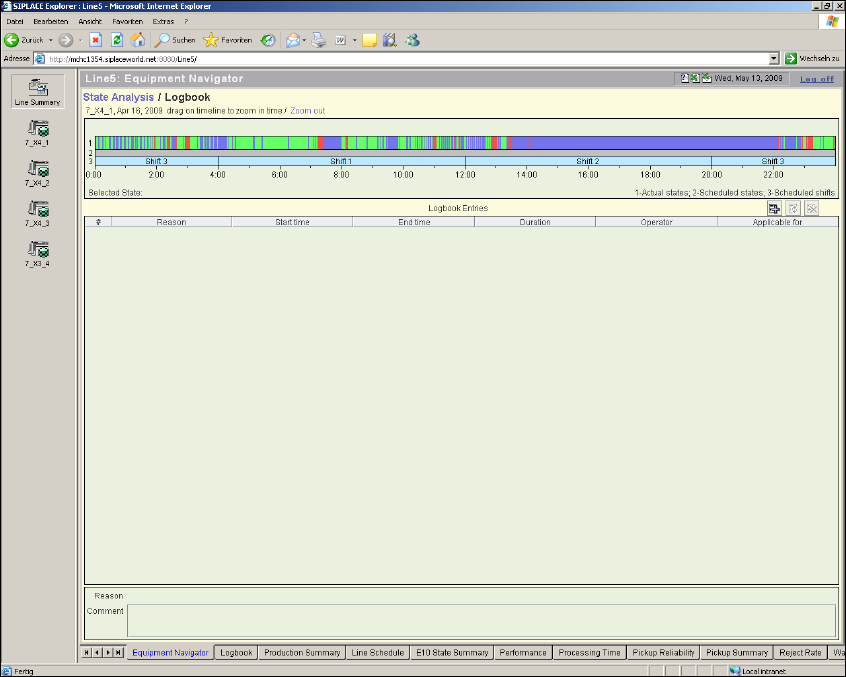
Fig. 4 - 2 Equipment navigator - logbook
– You can hide or display a particular period on this page
– Select a special period from the diagram shown, in which the start and end of the selected state
will be displayed, together with the status code and name.
– Once you have selected a period, and provided this period is one minute or longer, you can
enter a reference line and an additional description text.
– Once you have completed the logbook entry, a "flag" will be added to the specified period.
– The flag will be displayed on the timeline view of the Equipment Navigator page.
– The flag is added according to user rights.
The following procedures can be performed on this page and are described in this SMA
User Guide:
“How to Make a Logbook Entry” on page 98
“How to Specify the Generation of Line Reports” on page 90
SMA Guide SIPLACE Explorer 4 Functions Overview
from 3.11 (R20-2) Edition 11/2020 EN
33
4.1.2 Logbook
This is a report page with bar chart, which you can use to display logbook entries for specific pe-
riods. 4
The logbook page displays the data in Pareto form and table views. There is a current and histor-
ical bottleneck summary. 4
4
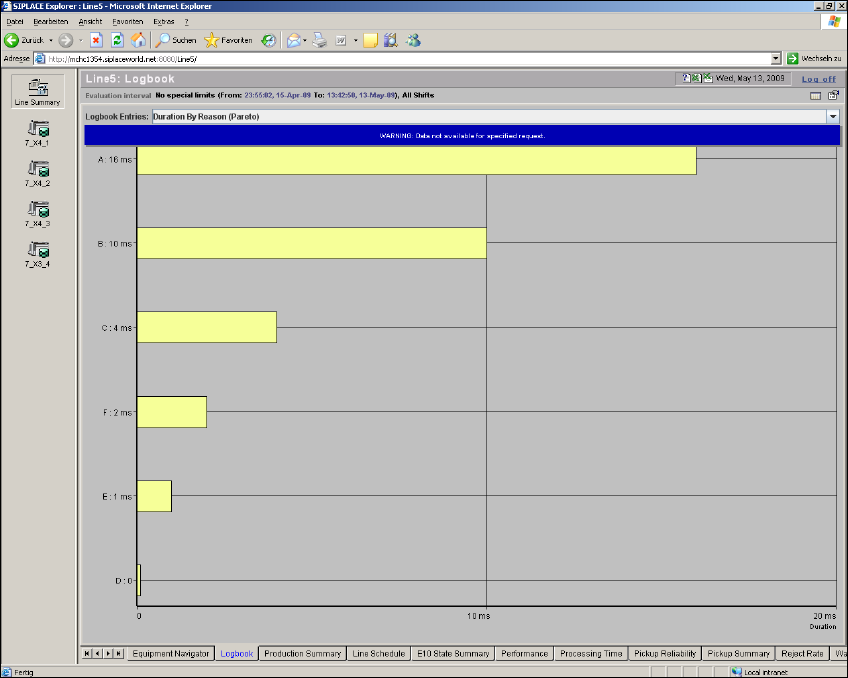
Fig. 4 - 3 Logbook, SMA
Select the items you wish to view from the drop-down menu list: 4
– All Logbook Entries (Tabular View):
A table is displayed showing the following information: 4
– line/machine
– the selected reason
– the Start/End time of the entry
– the overall duration specific to the entry
– the user that made the entry
4 Functions Overview SMA Guide SIPLACE Explorer
Edition 11/2020 EN from 3.11 (R20-2)
34
– any comment by the user
It is possible to sort the table in either ascending or descending order, of any column by a
double click on the top of the table in the corresponding column header. An arrow will be
displayed to show the "Sort By" column, as well as the sort order. 4
– Occurrences by Reason (Pareto):
A Pareto chart is displayed that shows in descending order: 4
– machine
– reason code
– number of occurrences of this reason within the logbook.
This is a useful chart to determine the most common reason entry. 4
– Duration by Reason (Pareto):
A Pareto chart is displayed that shows in descending order: 4
– machine
– reason code
– total duration related to this reason within the logbook.
In the case of line disruptions - this data is useful to identify utilization improvements that may
not otherwise be obvious without the user observations. 4
The following procedures can be performed on this page and are described in this SMA
User Guide:
“How to Specify the Generation of Line Reports” on page 90
“How to Sort Tables” on page 96
“How to Enable Legends” on page 96
4.1.3 Production Summary
This page shows the recipe currently being processed by the machine in operation. 4
You will be shown detailed information about what the machine is producing e.g. when the pro-
duction started and when it will finish. You also be told about production volumes. 4
Both current and historical data are available/can be shown. 4