00197723-12_UG_SE3.11_EN.pdf - 第25页
SMA Guide SIPLACE Explorer 3 Getting Started with the SMA from 3.11 (R20-2) Edition 11/2020 EN 2 5 – T otal T ime: Non-Scheduled a nd Operational T i me. Unknown tim e is not in clude d. – Operat ional Uptime %: The perc…
3 Getting Started with the SMA SMA Guide SIPLACE Explorer
Edition 11/2020 EN from 3.11 (R20-2)
24
(5) E10 Legend/Sub state Drilldown/Summary View
The definition of the machine states may also include defined sub states. Sub states are not
defined within SEMI E10. 3
As an example, E10 defines idle, but does not define "Starved" or "Blocked". If a sub state has
been defined for an E10 state, the legend will appear as a Hyperlink, with the possibility to drill
down into the sub states. Further refinement (additional sub states) in some cases is also
possible, in the case of Unscheduled Downtime, "Interrupted" and "Fault" are refined to detail
causes, such as "Cover Open". When a sub state has been selected - the Timeline View as
well as the Pie Chart summary will update to show the breakdown of the sub state. States other
than the sub state under study will be shown in black. 3
As an example, if Standby is under study, if the machine were productive during this interval,
the legend would display this time as black (Other). Started and Blocked would be illustrated
on the timeline and in the Pie chart. The legend and color assignment updates according to
the selected sub state. To return to the parent sub state or to the E10 State view - select the
Hyperlink above the legend. 3
– E10 States Breakdown Pie Chart
The Pie chart updates according to the interval in view. The chart will also change
dependant on the selection of sub states to illustrate the components of the selected state.
The legend illustrates the total duration of each state/sub state as well as the percentage of
the time interval in view. 3
(6) E10 Availability and Summary of Time
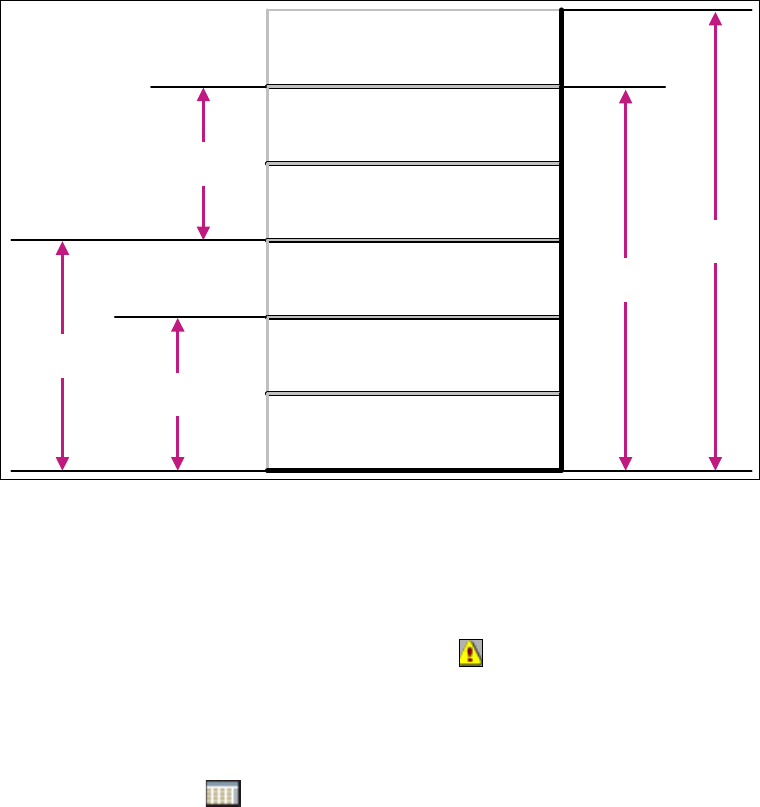
SEMI E10 defines several "State Stacks" or relationships of several states. They are
summarized within the bar chart, which updates according to the interval in view. The total of
the time, as well as the percentage, for the interval in view is displayed. 3
Brief Explanation of Categories: 3
– Downtime:
The sum of Scheduled and Unscheduled Downtime.
– Manufacturing Time:
The sum of Productive and Standby. The equipment is ready (Idle) or is producing. No
technical blocking factor. Engineering Time is not included.
–Uptime:
The equipment is available for use for either manufacturing or engineering. No technical
blocking factors are present.
– Operations Time:
The production line is staffed, for planned activity, whether the system is operational or not.
The Factory/Line is scheduled for activity. Unknown time is not included.
SMA Guide SIPLACE Explorer 3 Getting Started with the SMA
from 3.11 (R20-2) Edition 11/2020 EN
25
– Total Time:
Non-Scheduled and Operational Time. Unknown time is not included.
– Operational Uptime %:
The percentage of time that the equipment is technically available for engineering or
manufacturing use during the scheduled (Operations) time.
3
Fig. 3 - 10 State Stack
(7) Tabs
Use the tab to select the pages you wish to edit.
– Further functionalities
– An incorrect configuration has been detected . This icon will only appear on the pages
at line level.
Click on the icon on the relevant page, to open the Warnings page. For a detailed
description of this page, please see Section “Warnings” on page 54.
– Set time interval
Use the calendar to set the time interval.
Use the calendar to set the period in which you want the analysis to be active.
Click on icon on the relevant page, to open the factory calendar.
Select the time interval for each page for which data should be shown.
Operations
Time
NON-SCHEDULED TIME
UNSCHEDULED
DOWNTIME
SCHEDULED
DOWNTIME
ENGINEERING TIME
STANDBY TIME
PRODUCTIVE TIME
Total
Time
Manufacturing
Time
Equipment
Uptime
Equipment
Downtime

3 Getting Started with the SMA SMA Guide SIPLACE Explorer
Edition 11/2020 EN from 3.11 (R20-2)
26
– Set the report parameters
Set the report parameters for document generation.
Click on the icon on the relevant page, to open the Report parameters dialog box.
Specify the parameters, time and recipe for the report.
3.2.1 Relationship Between E10 State Summary and Performance
– E10 State Summary page
The E10 State Summary page shows a stacked bar chart providing the E10 State summary
for each machine within the line, as well as the Overall E10 State summary for the complete
line, for the selected duration. 3
The state "Unknown" occurs for example, when the network connection between the SIPLACE
Explorer runtime computer and the OIS DB computer has been interrupted. 3
As soon as the network connection has been restored, the state Unknown is replaced by the
real states based on the post-processed OIS data. 3
Availability = Availability1 + Availability2 3
– Performance page
The Performance page shows an overall summary of production line, for the evaluation
interval. Summary data for several Additionally "Shares of Time" as a Machine or Line
summary is provided. 3
The data provided on this page is MaDaMas data and does not show the E10 status module.
Use the displayed information to compare a Line Computer Unix production line with a
SIPLACE Explorer production line. 3
3
There is one important difference between the provided data of the E10 State Summary page and
the Performance page: 3
If only one processing area is processing and the other one is "Waiting" or "Blocked", the following
will be shown: 3
– E10 State Summary page
E10 state is "Productive" for 100%. 3
– Performance page
Only 50% are in state "Running" and the other 50% are in state "Waiting" or "Blocked", see
“Machines with one processing area” on page 27. 3
3