00197723-12_UG_SE3.11_EN.pdf - 第21页
SMA Guide SIPLACE Explorer 3 Getting Started with the SMA from 3.11 (R20-2) Edition 11/2020 EN 2 1 Head type T ype of the placement hea d whic h has been set to the "PCB byp as s" mode. 3.2 General Informatio…
3 Getting Started with the SMA SMA Guide SIPLACE Explorer
Edition 11/2020 EN from 3.11 (R20-2)
20
3.1.4.4 Factory Website - Configuration Tab - Bypassed Head
3
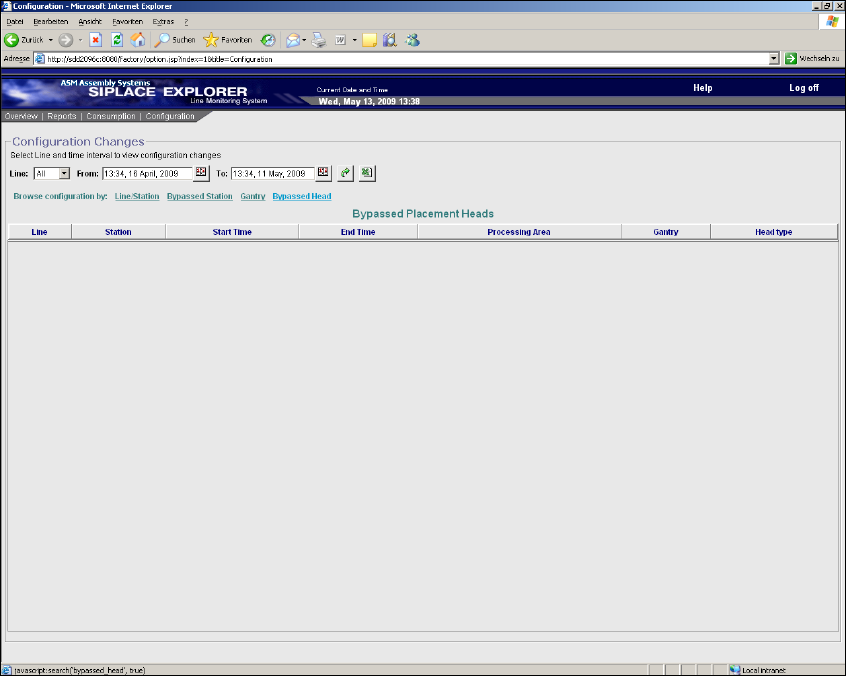
Fig. 3 - 8 Factory Website - Configuration Tab - Bypassed Head
Table 3
Line
Production line name.
Station
Station name from which a placement head has been set to the "PCB bypass" mode.
Start Time
Start date and time of the "PCB bypass" mode.
End Time
End date and time of the "PCB bypass" mode.
Processing Area
Processing area at which a placement head has been set to the "PCB bypass" mode.
Gantry
Gantry at which a placement head has been set to the "PCB bypass" mode.
SMA Guide SIPLACE Explorer 3 Getting Started with the SMA
from 3.11 (R20-2) Edition 11/2020 EN
21
Head type
Type of the placement head which has been set to the "PCB bypass" mode.
3.2 General Information Applicable to all Pages and Topics
3
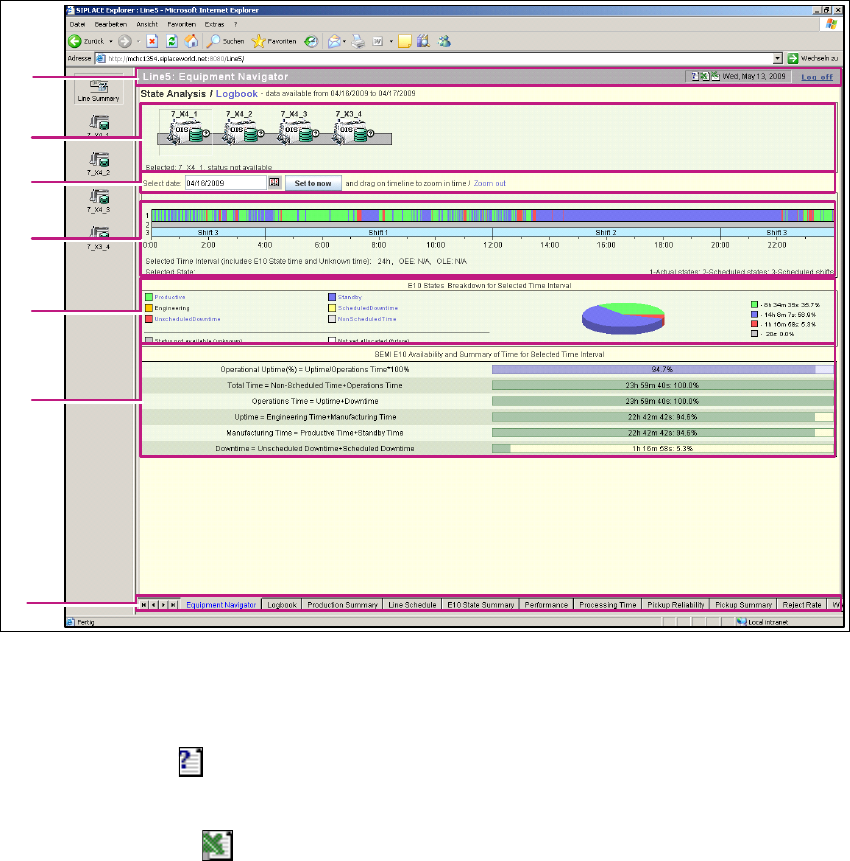
Fig. 3 - 9 General Information
(1) Title bar
Displays the website title, current date, log off and a tool bar which is available for all websites.3
– Help function
Click on the Help icon, on the relevant page, to open the Online Help function.
– Excel download
Click on the download icon, on the relevant page. The data for the page concerned will
be saved as an Excel file.
1
2
3
4
5
6
7

3 Getting Started with the SMA SMA Guide SIPLACE Explorer
Edition 11/2020 EN from 3.11 (R20-2)
22
– Extended reporting features
Use the extended reporting features to define the automatic generation of reports. Reports
can be generated for each production line and page. This generation can be performed
daily, weekly, monthly and for individual shifts. Simply specify the details and the generated
reports will be sent to you per e-mail, as Excel files. 3
Line reports
“How to Specify the Generation of Line Reports” on page 90
Factory reports
“Factory Website - Reports Tab” on page 14
– Logout
Click on Log off to log out of the system. The login page will be opened again.
(2) Machine Icons/Current State/Machine Selection
The overall arrangement of the production line is illustrated within this area. The machine name
as well as the current state of the machine is illustrated within this area. The current state,
according to SEMI E10 is illustrated by color as well as in text. The defined sub states are also
displayed (Example - Unscheduled Down/Interrupted) Upon selection of the machine icon - the
timeline display below also changes to display the state over for this machine. It is also possible
to access the logbook and add entries related to the machine. By default the first machine in
the line is selected when the page is first loaded. 3
(3) Date Selection Area
By default the current time and date are in view. 24 hours are displayed for the selected date.
It is possible to select other dates by clicking on the calendar icon, and select the date interest.
The date will stay selected for all machines until another date is selected. It is possible to reset
the view to the current date by clicking on the Set to now button. Current date is then
displayed. 3
(4) Timeline View
Select the starting time on timeline, click and drag to the ending time to zoom into a specific
time interval. The timeline will zoom and expand the view for the time interval of interest. The
duration of the time interval is displayed on the screen (Overall length of the timeline in view).
It is possible to further zoom into the selected time - useful to view events of short duration.
Clicking on the Zoom Out hyperlink returns the view to the 24-hour view for the currently
selected date. It is possible to view other machines while retaining the current time zoom
interval. The E10 summary pie chart as well as the SEMI E10 Availability summary will update
according to the time interval within view. 3
As an example, if the interval in view is 20 minutes, these charts are applicable to that time
frame. 3