00197723-12_UG_SE3.11_EN.pdf - 第43页
SMA Guide SIPLACE Explorer 4 Functions Overview from 3.11 (R20-2) Edition 11/2020 EN 4 3 – E10 St ate Summary - St acked Bar Chart : – This chart provides the time in st at e, by Machine for the Eval uation Interval. – D…
4 Functions Overview SMA Guide SIPLACE Explorer
Edition 11/2020 EN from 3.11 (R20-2)
42
4.1.5 E10 State Summary
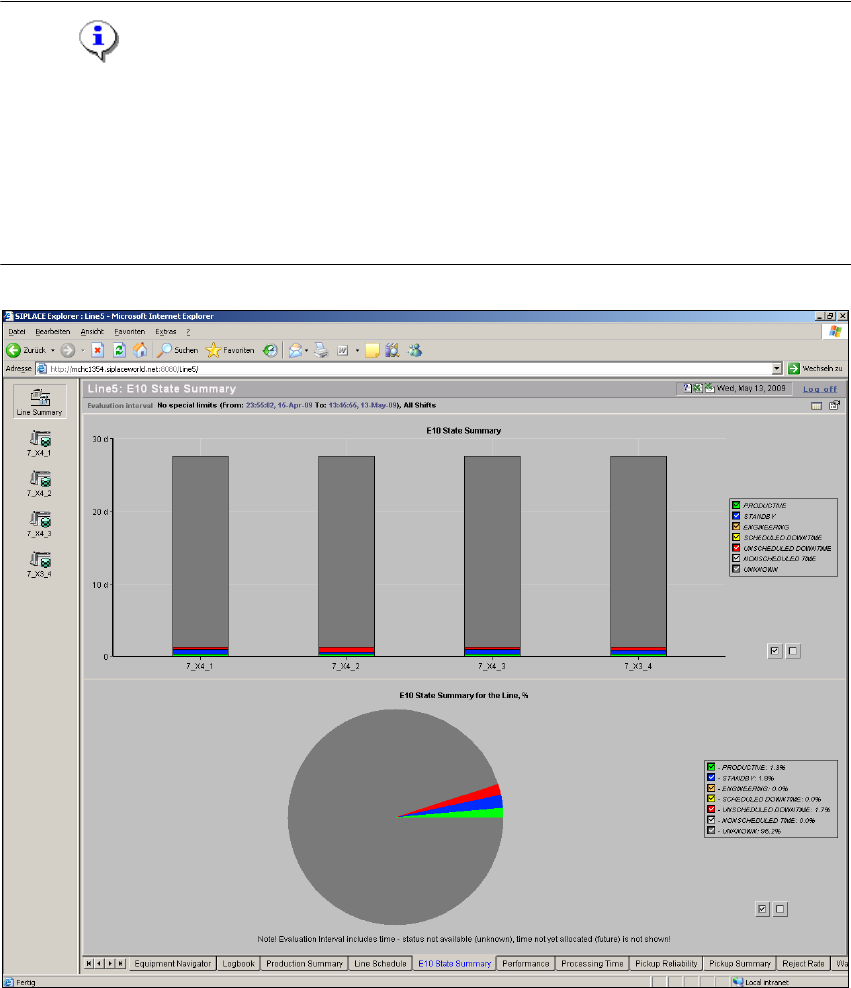
From this page a Stacked Bar Chart is shown providing the E10 State summary for each machine
within the line, as well as the Overall E10 State summary for the complete line, for the selected
duration. 4
Unknown Time is also included (System - Turned off/Disconnected). 4
NOTE
There is a special OIS status module realized in SIPLACE OIS. This OIS status module is shown
in the SIPLACE Explorer status module which matches the SEMI E10 status module. This may
lead to deviations in the states and status times shown between OIS and SIPLACE Explorer. A
direct comparison is therefore not possible. For further details, please refer to the Software
Version Description SIPLACE Explorer. See also “Relationship Between E10 State Summary and
Performance” on page 26. 4
4
Fig. 4 - 6 E10 state summary
SMA Guide SIPLACE Explorer 4 Functions Overview
from 3.11 (R20-2) Edition 11/2020 EN
43
– E10 State Summary - Stacked Bar Chart:
– This chart provides the time in state, by Machine for the Evaluation Interval.
– Definition of the States are according to E10 and for the specific machine are according to
the definition within the Machine Descriptor.
– The scale values on the left will change according to the interval selected. If the interval
selected is "Last Hour" the scale displays in Minutes. Larger time intervals result in a
different scaling.
– Bar Chart Segments - holding the mouse over a segment of the bar chart will display in a
tool tip the value of the segment.
– Scaling Zoom In/Out - by clicking and dragging - it is possible to zoom the scale of the bar
chart for viewing of smaller values. This is especially useful if a large value is displayed
elsewhere on the chart and you wish to view a smaller value. Double clicking near the top
of the chart will return the Zoom Factor to the original.
– E10 State Summary for the Line - Pie Chart:
– This chart provides the E10 time in state, for the Overall Line for the Evaluation Interval.
– The Calculation for the time in state for the entire line is based on the summation of ALL
time of EVERY connected machine within the line, by State. Percentage of each State for
the summed time of the line is displayed.
– As a typical example, if the last Hour is in view for a 4 machine line, with Machine 1 (A
Printer) in Standby for 50 Minutes and the last machine in Standby for 10 minutes, the chart
would display 25% Standby, in addition to the other states.
The following procedures can be performed on this page and are described in this SMA
User Guide:
“How to Specify the Generation of Line Reports” on page 90
“How to Sort Tables” on page 96
“How to Enable Legends” on page 96
4 Functions Overview SMA Guide SIPLACE Explorer
Edition 11/2020 EN from 3.11 (R20-2)
44
4.1.6 Performance
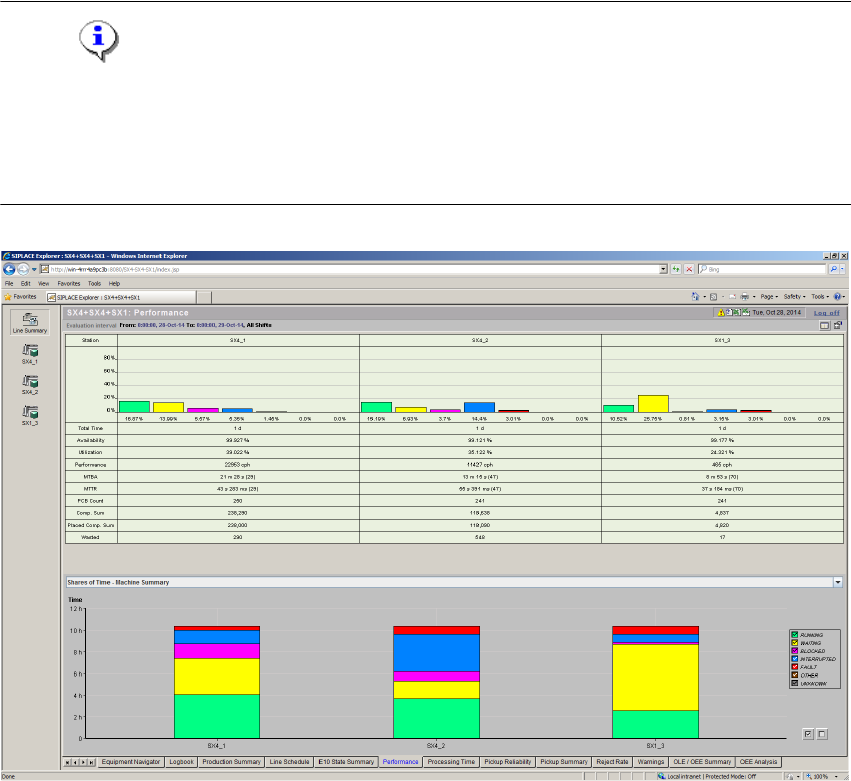
From this page an overall summary of production line, for the evaluation interval is provided. Sum-
mary data for several Additionally "Shares of Time" as a Machine or Line summary is provided. 4
NOTE
The data provided on this page is MaDaMas data and does not show the E10 status module. Use
the displayed information to compare a Line Computer Unix production line with a SIPLACE
Explorer production line. See also “Relationship Between E10 State Summary and Performance”
on page 26. 4
4
Fig. 4 - 7 Performance
– Shares of Time - Line Summary
Shows an overview of all machines and another overview of each individual machine.
– Running:
The station is carrying out placement operations and performing position and ink spot
recognition. (For other equipment - Printers/Ovens, processing of a PCB is occurring). 4
– Blocked:
Waiting until output conveyor/center conveyor is clear. 4