00197723-12_UG_SE3.11_EN.pdf - 第15页
SMA Guide SIPLACE Explorer 3 Getting Started with the SMA from 3.11 (R20-2) Edition 11/2020 EN 1 5 3.1.3 Factory Web site - Consumption T ab The following functions are available on this page : 3 – View component consump…
3 Getting Started with the SMA SMA Guide SIPLACE Explorer
Edition 11/2020 EN from 3.11 (R20-2)
14
The columns Lot Size (number of boards in a recipe) and Lot Progress (percentage progress
bar for boards already produced in a recipe) will only display values, if the user has previously
specified the recipe size on the page ”Production Summary”. If the recipe size has not been
specified, the columns will display N/A.
Average Takt Time
Average Takt time of the last station in the production line. 3
3.1.2 Factory Website - Reports Tab
3
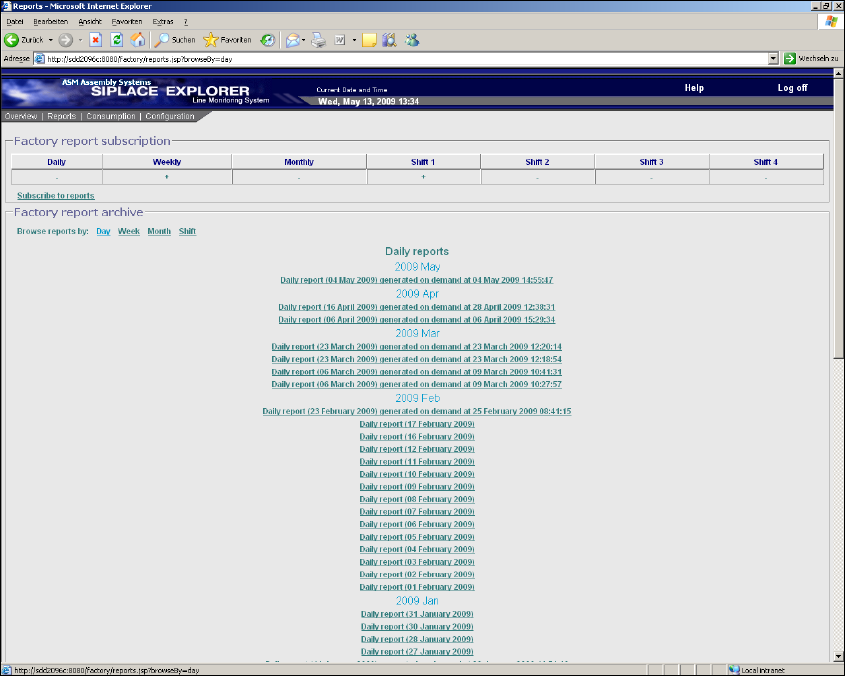
Fig. 3 - 3 Factory website - reports
The generation of reports is set here for a factory level. This page lists the reports currently de-
fined. 3
The following procedure can be performed on this page and is described in this SMA User
Guide:
“How to Subscribe the Generation of Line Reports” on page 93
SMA Guide SIPLACE Explorer 3 Getting Started with the SMA
from 3.11 (R20-2) Edition 11/2020 EN
15
3.1.3 Factory Website - Consumption Tab
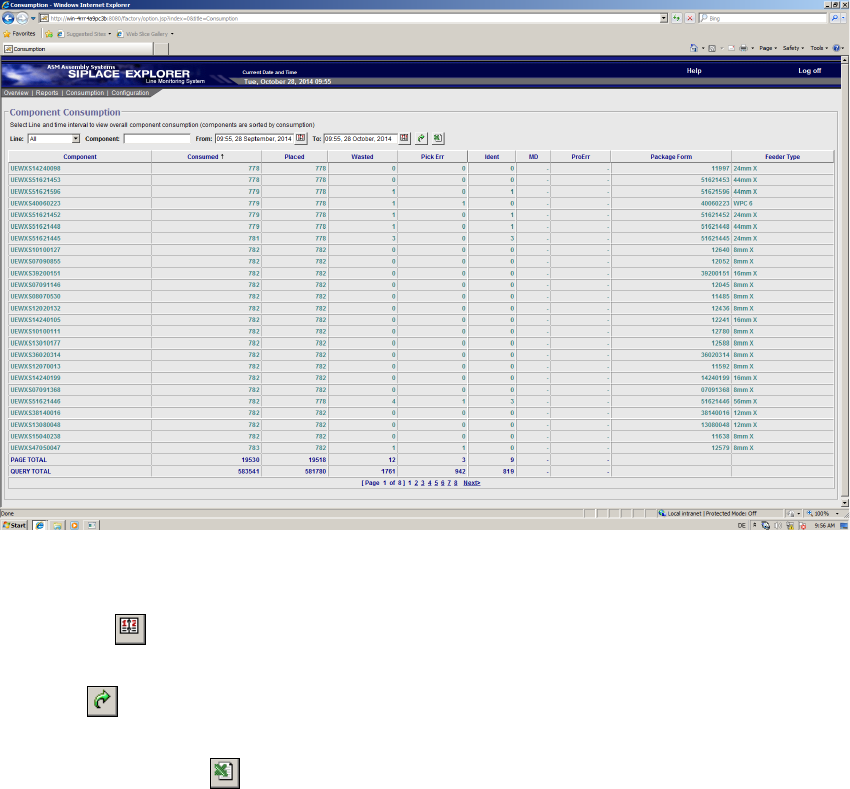
The following functions are available on this page: 3
– View component consumption data for all lines or specific lines
– Filter component consumption data to locate a certain component
– View component consumption data for a certain period
– Export component consumption data as MS Excel file
3
Fig. 3 - 4 Factory website - consumption
Icons 3
– Calendar
Click here to open the calendar function and set a period for data display.
– Views
Click here to update the table with the component consumption data.
– MS Excel download
Click here to download the table on this page as an Excel file.
3 Getting Started with the SMA SMA Guide SIPLACE Explorer
Edition 11/2020 EN from 3.11 (R20-2)
16
3.1.4 Factory Website - Configuration Tab
This page shows configuration changes for all production lines, that were newly configured in
SIPLACE Explorer or imported from OIS. 3
If stations or placement heads are set in SIPLACE Pro to the "PCB bypass" mode, this is shown
as well on this page. 3
The factory website Configuration Changes has the following tabs: 3
– Line/Station (page 17)
This page shows a table with the following changes: 3
– Addition or removal of a station
– Addition or removal of a production line
– Bypassed Station (page 18)
This page shows a table with details of the station which was set to the "PCB bypass" mode.3
– Gantry (page 19)
This page shows a table with the following changes: 3
– Addition or removal of a gantry of a SIPLACE SX
– Bypassed Head (page 20)
This page shows a table with details of the placement head which was set to the "PCB bypass"
mode. 3
Icons 3
– Calendar
Click here to open the calendar function and set a period for data display.
–Views
Click here to update the table with the component consumption data.
– MS Excel download
Click here to download the table on this page as an Excel file.