00197723-12_UG_SE3.11_EN.pdf - 第32页
4 Functions Overview SMA Guide SIPLACE Explorer Edition 11/2020 EN from 3.11 (R20-2) 32 4.1.1.2 Equipment Navigator - Logbook 4 Fig. 4 - 2 Equipment navigator - logbook – Y ou can hide or display a particula r period on …
SMA Guide SIPLACE Explorer 4 Functions Overview
from 3.11 (R20-2) Edition 11/2020 EN
31
This page gives you a 24 hour view and an overview of the current state for the selected machine
in the production line. 4
– Overview of the current state for the machines in the production line.
– Colored status indicator/state text on each machine icon.
– Arrangement of the machines in the production line.
– Date selector allows you to view other days or the current day.
– Select any machine to show its details.
– Timeline chart for the current selected day (see Fig. 6 - 20):
(1) shows the actual states of the selected machine
(2) shows the scheduled states of the selected machine
(3) shows the scheduled (defined) shifts
– Click on the timeline and drag to zoom into the selected time period.
–A
legend displays the time period at the bottom of the screen.
– When a machine is selected, color-coded states are displayed for the selected machine.
– The states of the selected machine can be clicked on to show the corresponding substates.
– A drill down to substates is available if the text is displayed in blue – a hyperlink.
– A pie chart summarizes the percentage of time in each selected state, for the chosen day.
The following procedure can be performed on this page and is described in this SMA User
Guide:
“How to Specify the Generation of Line Reports” on page 90
4 Functions Overview SMA Guide SIPLACE Explorer
Edition 11/2020 EN from 3.11 (R20-2)
32
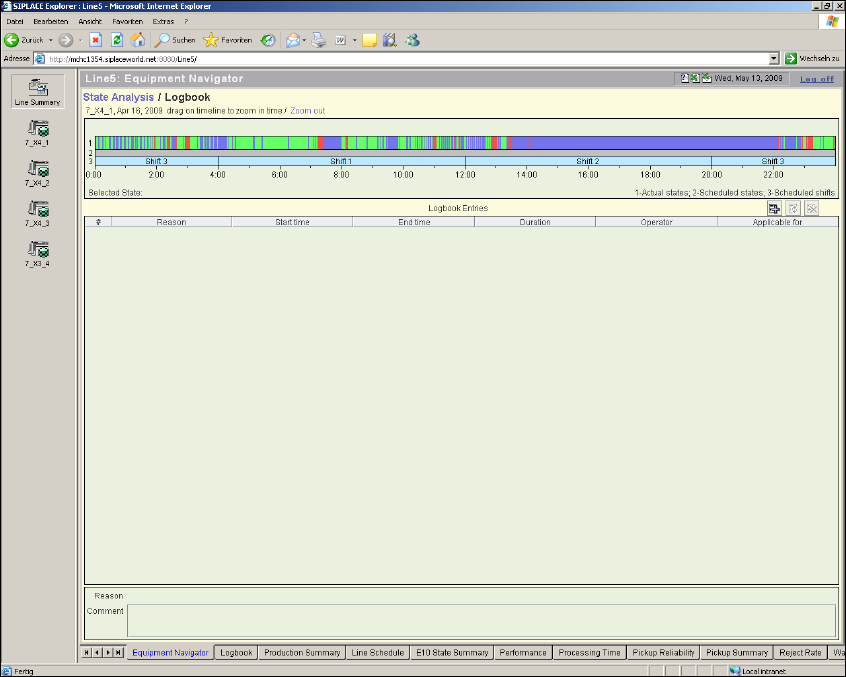
4.1.1.2 Equipment Navigator - Logbook
4
Fig. 4 - 2 Equipment navigator - logbook
– You can hide or display a particular period on this page
– Select a special period from the diagram shown, in which the start and end of the selected state
will be displayed, together with the status code and name.
– Once you have selected a period, and provided this period is one minute or longer, you can
enter a reference line and an additional description text.
– Once you have completed the logbook entry, a "flag" will be added to the specified period.
– The flag will be displayed on the timeline view of the Equipment Navigator page.
– The flag is added according to user rights.
The following procedures can be performed on this page and are described in this SMA
User Guide:
“How to Make a Logbook Entry” on page 98
“How to Specify the Generation of Line Reports” on page 90
SMA Guide SIPLACE Explorer 4 Functions Overview
from 3.11 (R20-2) Edition 11/2020 EN
33
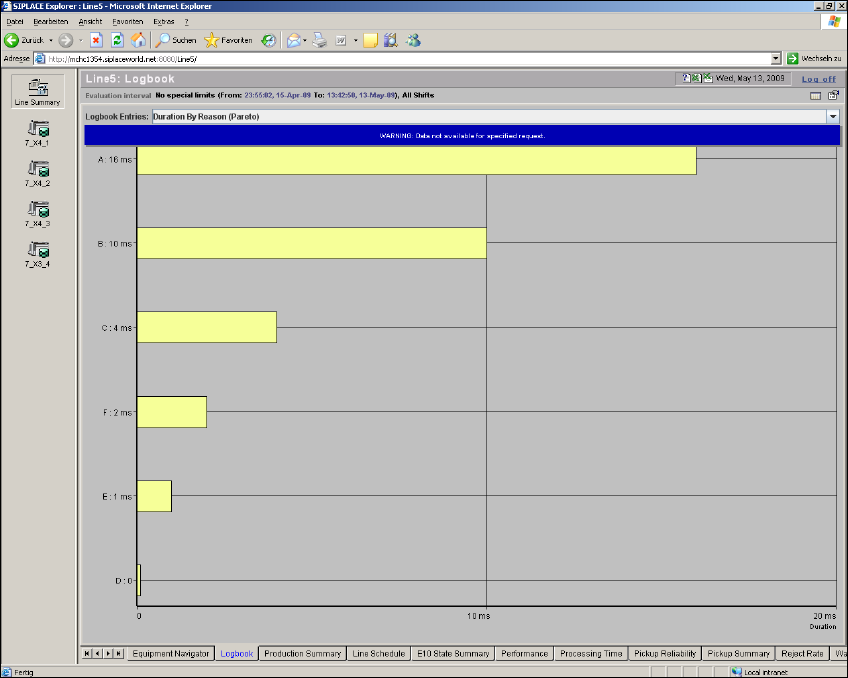
4.1.2 Logbook
This is a report page with bar chart, which you can use to display logbook entries for specific pe-
riods. 4
The logbook page displays the data in Pareto form and table views. There is a current and histor-
ical bottleneck summary. 4
4
Fig. 4 - 3 Logbook, SMA
Select the items you wish to view from the drop-down menu list: 4
– All Logbook Entries (Tabular View):
A table is displayed showing the following information: 4
– line/machine
– the selected reason
– the Start/End time of the entry
– the overall duration specific to the entry
– the user that made the entry