00197723-12_UG_SE3.11_EN.pdf - 第94页
5 Using the SMA SMA Guide SIPLACE Explorer Edition 11/2020 EN from 3.11 (R20-2) 94 5 Fig. 5 - 5 Factory website - reports Click on Close . Y ou will receive the specified re ports as Excel files per e-m ail, at the tim…
SMA Guide SIPLACE Explorer 5 Using the SMA
from 3.11 (R20-2) Edition 11/2020 EN
93
5.1.2 How to Subscribe the Generation of Line Reports
Select the Factory Website - Overview Tab.
Click on the Subscribe to Reports button. A new browser window - Factory Report
Subscription - will open.
5
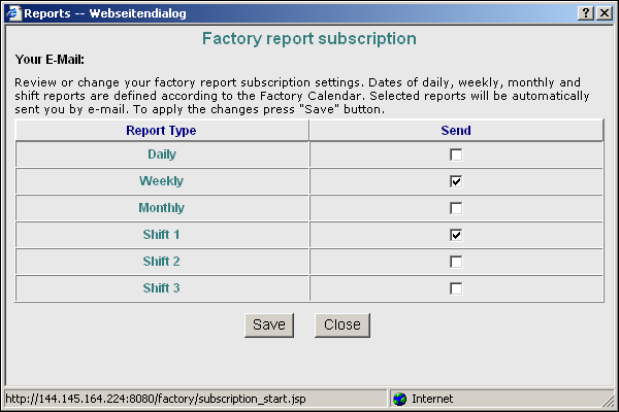
Fig. 5 - 4 Factory website - factory report subscription
Your e-mail address will be shown in the Your E-Mail field.
Select the period for which the report is to be generated: daily, weekly, monthly and/or for
individual shifts. Then enable the corresponding checkboxes. The selected reports will be
generated for all existing lines.
Check your entries and confirm with Save. Click Close if you want to leave this window without
saving your entries.
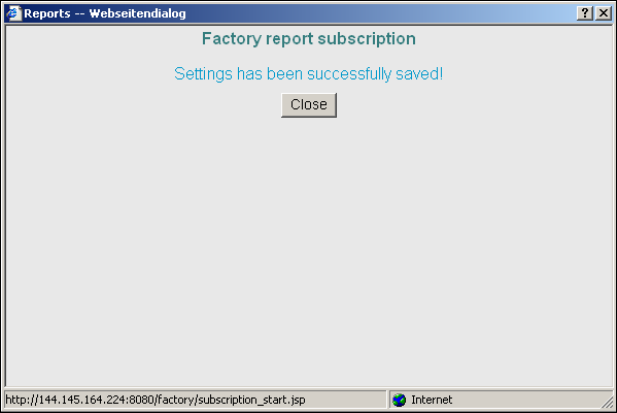
Once you have saved your entries, another notification box will open.
5 Using the SMA SMA Guide SIPLACE Explorer
Edition 11/2020 EN from 3.11 (R20-2)
94
5
Fig. 5 - 5 Factory website - reports
Click on Close. You will receive the specified reports as Excel files per e-mail, at the time of
issuance.
5.2 Displaying Component Consumption Data
Select the Factory Website - Consumption Tab.
Select the required entry from the Line drop down menu:
–All
The component consumption data will be displayed as an overview for all lines set for this
factory.
– Line x
The component consumption data will be shown for the selected line.
If you want to view component consumption data for a certain component, specify the required
component in the Component field. The data will then be filtered as specified. As a default,
this field is empty and the data is shown for all components.
The period for which component consumption data is displayed can be set in the From and To
fields. You can specify the exact time and date. As a default, the From field shows a period of
one month before the current time, while the To field shows the current time.
Once you have specified all display filter parameters, click on the View icon. You will then see
a table with an overview of the required component consumption data.
SMA Guide SIPLACE Explorer 5 Using the SMA
from 3.11 (R20-2) Edition 11/2020 EN
95
Table 5
The table shows the components in ascending order of consumption. The component with the
lowest consumption is displayed in the first line of the table. 5
The table has the following columns: 5
– Component
Component name
– Placed
Number of components placed.
– Consumed
Total from placed + reject vacuum + reject ident.
–Wasted
Number of components that are not used.
–Pickup Error
– Number of component rejects caused by pickup errors.
– Ident
Number of component rejects caused by ident. errors.
–MD
Number of coplan or material errors detected by the vision system.
– Process Error
Number of process errors that occurred.
The table has the following rows (lines): 5
– One line of consumption data for each component
– Page Total:
Shows the total amount for the columns Placed, Consumed, Vacuum, Ident. This total amount
will be calculated for each page and shown at the bottom of the page.
– Query Total:
Shows the total amount for each column, on all pages. This line is displayed at the end of each
page.