00197723-12_UG_SE3.11_EN.pdf - 第98页
5 Using the SMA SMA Guide SIPLACE Explorer Edition 11/2020 EN from 3.11 (R20-2) 98 NOTE Y ou ca n use this function as an e lectronic log book, in order f or users to enter comments about long machine downtimes. Experien…
SMA Guide SIPLACE Explorer 5 Using the SMA
from 3.11 (R20-2) Edition 11/2020 EN
97
5
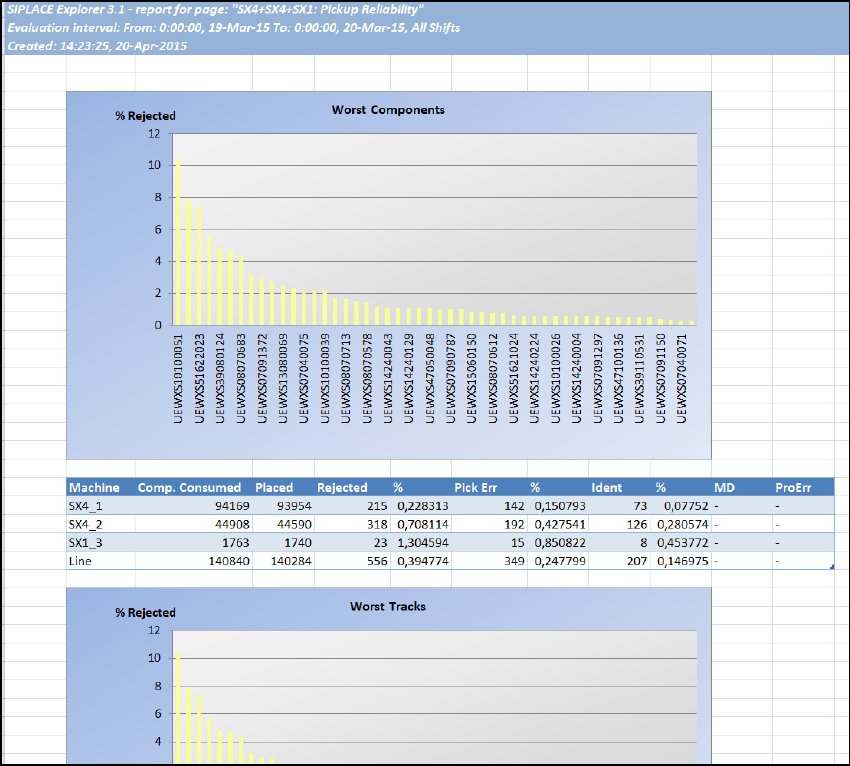
Fig. 5 - 6 MS-Excel-Export
The Excel file shows data of the Pickup Reliability website.
You can save this file or just close the window to return to the previous view.
5.6 Making Logbook Entries
The logbook provides a method to enter notes and causes related to line disruptions or events of
interest. Logbook entries consist of a reason, a start/end time, as well as additional detail notes.
The entry can be in relation to the entire line or a specific machine. Entry is possible via the web
browser if the user has defined rights to allow an entry. 5
5 Using the SMA SMA Guide SIPLACE Explorer
Edition 11/2020 EN from 3.11 (R20-2)
98
NOTE
You can use this function as an electronic log book, in order for users to enter comments about
long machine downtimes.
Experience has shown that it is practical to enter comments about machine downtimes which are
longer than 2 minutes.
You should regularly analyze the contents of the log book. It contents can often help you to
eliminate some of the causes of machine downtime. 5
5.6.1 How to Make a Logbook Entry
Select the Equipment Navigator - State Analysis website.
Select the date and machine of interest. Click on the hyperlink Logbook. The screen changes
to the Logbook Entry screen.
Zoom into the interval of interest on the time line. To allow the entry of the start/end times - you
may either select the state of interest, followed by the Add Entry the start/end times are filled
by the selection of this state. You may also enter the start/end times manually.
The reason for the entry can be selected from the reason dropdown. The list of reasons can
be fully customized for your line/factory.
After selection of a reason, you may enter additional comments up to 256 characters.
Click on Apply and the logbook entry is added to the timeline. It is possible to update/delete
entries that the logged in user has made. Entries are visible in the timeline view within the
Equipment Navigator.
5.7 Specifying Line Takt
The line Takt (maximum cycle value for all machines of a particular production line, in one recipe)
can be entered here. If dual conveyor mode is being used and if two different recipes are being
processed on the two lanes, a separate line Takt can be specified for each lane. The line Takt en-
tered here will be shown on the page ”Processing Time”. If no line Takt is entered, the value taken
from SIPLACE Pro will be displayed on this page and on the page "Processing Time". 5
The Takt time is the period between the completion of two boards i.e. the time from completion of
"board 1" production to the completion of "board 2". 5
This period is calculated as follows:
Takt time = time of completion of board 2 - time of completion of board 1 5
To see a diagram of the Takt time at an equipment level, refer to the "Takt Time" page. 5
SMA Guide SIPLACE Explorer 5 Using the SMA
from 3.11 (R20-2) Edition 11/2020 EN
99
NOTE
Users need "operator" privileges to enter the line Takt. 5
5.7.1 How to Specify the Line Takt
Select the Production Summary website.
The value must be entered in the Lot Progress table.
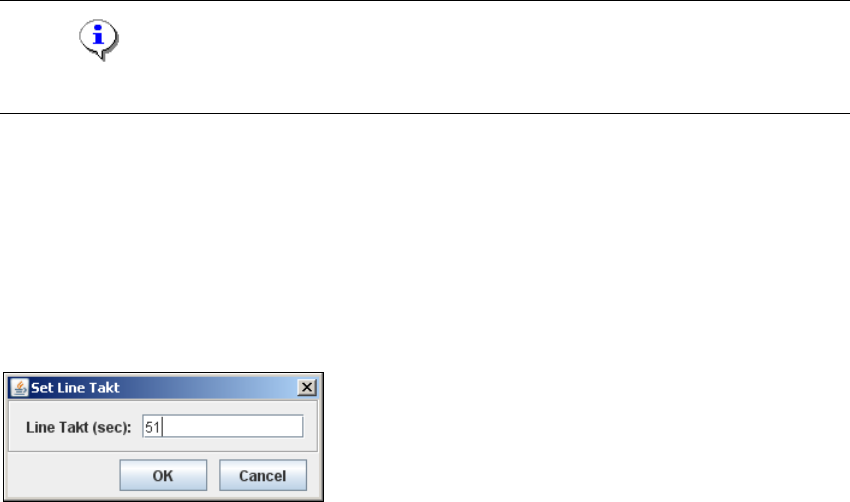
In the row for the relevant conveyor, click on the Set Line Takt button in the Set Line Takt
column. The Set Line Takt dialog box will open.
5
Fig. 5 - 7 Set line Takt
Enter the maximum build time value for all machines of a particular production line, in one
recipe, in the Line Takt (sec) field (in secs.). Confirm your entry with OK.
The line for the relevant conveyor, in the Line Takt column, will now be updated to reflect the
specified value.
If different recipes are to be produced on the individual lanes, repeat this procedure for each
conveyor lane.
The average Takt time values for each recipe are shown in the Average Takt Time column of
the Current Recipe List and Production History - Recipe Lists tables.
In addition, the placement time for each recipe is shown in the Duration column of the
Production History - Recipe Lists table.