00197723-12_UG_SE3.11_EN.pdf - 第64页
4 Functions Overview SMA Guide SIPLACE Explorer Edition 11/2020 EN from 3.11 (R20-2) 64 – Bar Chart Segment s Holding the mouse over a segme nt of the bar chart will display in a tool tip the value of the segment. 4 – Sc…
SMA Guide SIPLACE Explorer 4 Functions Overview
from 3.11 (R20-2) Edition 11/2020 EN
63
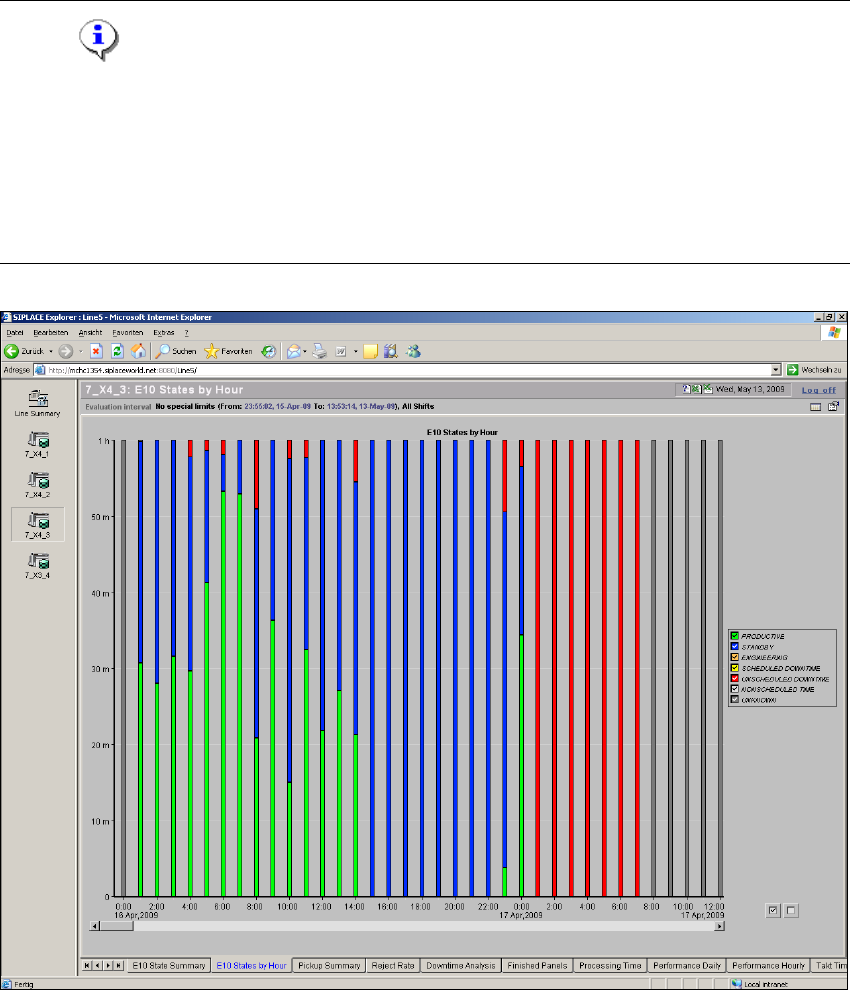
4.2.1.2 E10 State by the Hour
This page provides a stacked bar chart view, showing overall time in State according to E10 for
each hour within the evaluation interval. Time and date of each hour is shown for the bar label. 4
NOTE
There is a special OIS status module realized in SIPLACE OIS. This OIS status module is shown
in the SIPLACE Explorer status module which matches the SEMI E10 status module. This may
lead to deviations in the states and status times shown between OIS and SIPLACE Explorer. A
direct comparison is therefore not possible. For further details, please refer to the Software
Version Description SIPLACE Explorer. See also “Relationship Between E10 State Summary and
Performance” on page 26. 4
4
Fig. 4 - 16 Topic: 7_X4_3 - E10 state by hour
4 Functions Overview SMA Guide SIPLACE Explorer
Edition 11/2020 EN from 3.11 (R20-2)
64
– Bar Chart Segments
Holding the mouse over a segment of the bar chart will display in a tool tip the value of the
segment. 4
– Scaling Zoom In/Out
By clicking and dragging - it is possible to zoom the scale of the bar chart for viewing of smaller
values. This is especially useful if a large value is displayed elsewhere on the chart and you
wish to view a smaller value. Double clicking near the top of the chart will return the Zoom
Factor to the original. 4
The following procedure can be performed on this page and is described in this SMA User
Guide:
“How to Enable Legends” on page 96
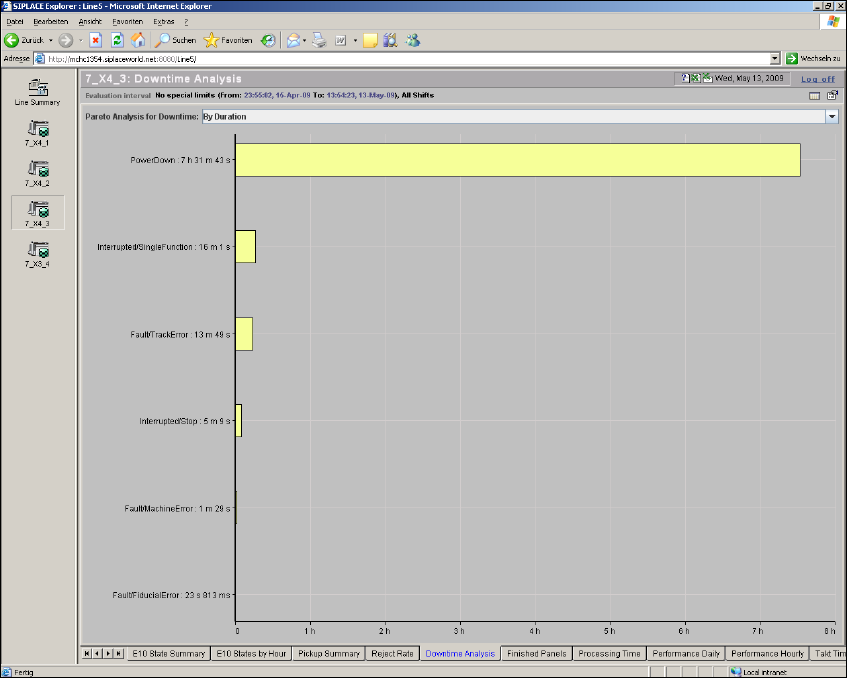
4.2.1.3 Downtime Analysis
4
Fig. 4 - 17 Topic: 7_X4_3 - downtime analysis
SMA Guide SIPLACE Explorer 4 Functions Overview
from 3.11 (R20-2) Edition 11/2020 EN
65
This page gives you a pareto chart with the causes of unscheduled downtime: The downtime is
shown separately for the following two evaluations: 4
– By Duration:
Shows the time needed to remove the source of downtime.
– By event:
Shows the events which caused the downtime.
Both evaluations are shown for the selected machine and for the active evaluation period. 4
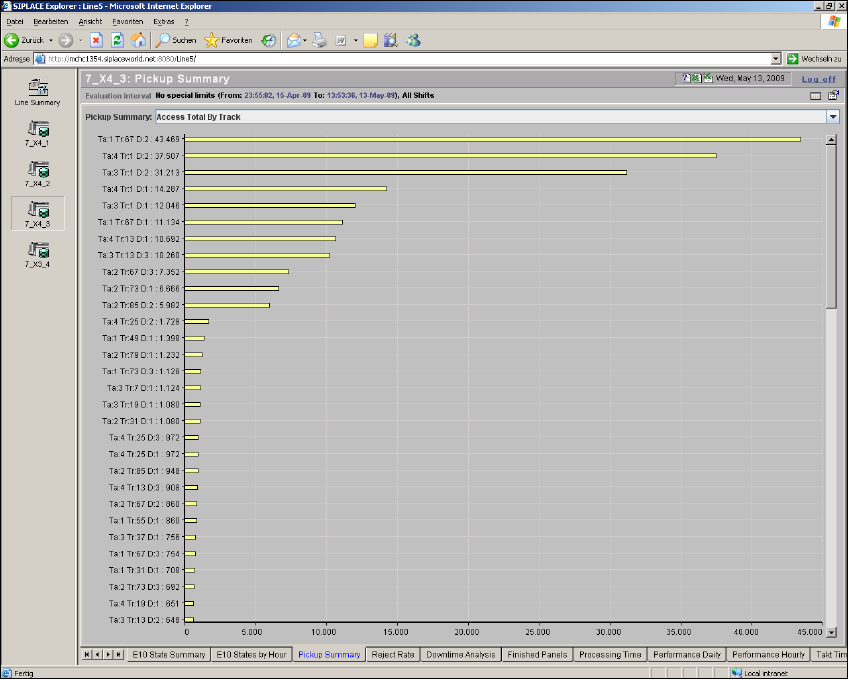
4.2.2 Pickup Summary
From this page it is possible to view Consumption (Access Totals) as well as errors, by multiple
category Pareto view for the evaluation interval. Selection of category views is by drop down se-
lection. 4
4
Fig. 4 - 18 Topic: 7_X4_3 - pickup summary