00197723-12_UG_SE3.11_EN.pdf - 第87页
SMA Guide SIPLACE Explorer 4 Functions Overview from 3.11 (R20-2) Edition 11/2020 EN 8 7 However , this is no t always the case. If b oard 9 is placed (in place ment area 1 in the diagram) , SIPLACE Explorer will not cou…
4 Functions Overview SMA Guide SIPLACE Explorer
Edition 11/2020 EN from 3.11 (R20-2)
86
SIPLACE Explorer assigns the components to the boards on which these have been placed. If a
query is sent to SIPLACE Explorer for the consumption within a certain period, it will return the
number of components which were placed on the boards produced during the specified period.
This difference is most obvious in production runs using 2 placement areas. 4
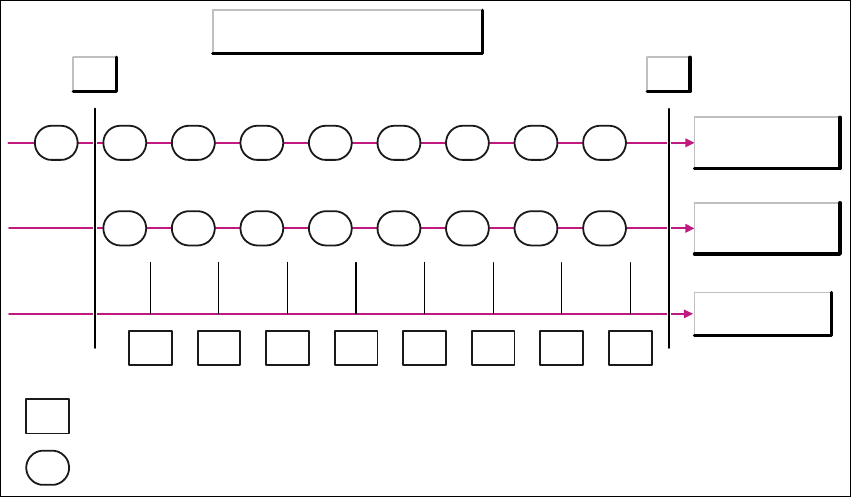
The following diagram illustrates the difference. 4
Example: 8 boards are produced by a machine with 2 placement areas. The diagram shows three
timelines: 4
– Components for placement area 1
– Components for placement area 2
–Boards
The components X, on the timeline for placement area 1, show the possible timestamps for com-
ponents which have been placed on board X. 4
4
Fig. 4 - 24 Possible discrepancy between SIPLACE Explorer and OIS placement data
If an OIS query is started via SQL Query for the period between T1 and T2, this will return the total
number of components which have been placed on all 8 boards, minus the number of compo-
nents, which were placed on board 1 in placement area 1. 4
If you start the same query via SIPLACE Explorer, this will return the total number of components
which were placed on all 8 boards. 4
In this example, the quantity returned by SIPLACE Explorer will be higher than that from OIS. 4
Timestamp of the placement data
Components
Placement area 1
Components
Placement area 2
Boards
1 2 3 4 5 6 7 8
1 2 3 4 5 6 7 8
T1 T2
1 2 3 4 5 6 7 8 9
X
X
= Board
= Component record
SMA Guide SIPLACE Explorer 4 Functions Overview
from 3.11 (R20-2) Edition 11/2020 EN
87
However, this is not always the case. If board 9 is placed (in placement area 1 in the diagram),
SIPLACE Explorer will not count the components placed on this board and will return less than
OIS. 4
For the same reason, deviations between OIS and SIPLACE Explorer can also occur during the
determination of component reject quantities. 4
The following procedures can be performed on this page and are described in this SMA
User Guide:
“How to Sort Tables” on page 96
“How to Enable Legends” on page 96
4.2.4 Takt Time
4
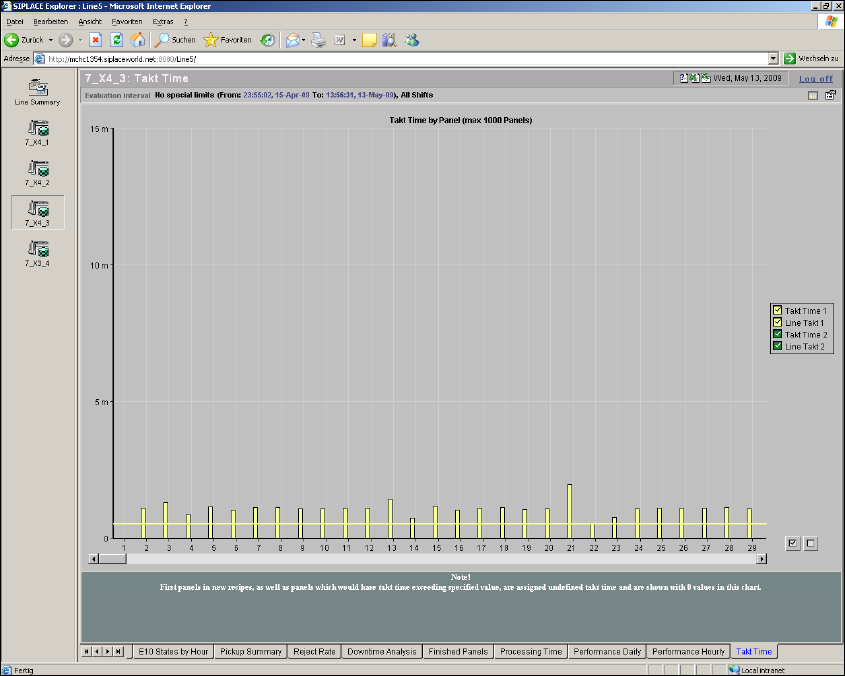
Fig. 4 - 25 Topic 7_X4_3 - Takt time
This page shows the Takt times actually achieved and the set Takt times. If dual conveyor mode
is being used and if different recipes are being processed on lanes 1 and 2, the Takt time will be
shown in a different color for each lane.The example shows green and yellow. 4
4 Functions Overview SMA Guide SIPLACE Explorer
Edition 11/2020 EN from 3.11 (R20-2)
88
– Takt time actually achieved:
This is shown as a bar in the chart.
– Set Takt time
This is shown as a line in the chart. If the set Takt time is the same for both conveyor lanes,
this will be shown as a broken line.
The Takt time can be set on the page Production Summary. For a detailed description, refer to
“Specifying Line Takt” on page 98. 4
The Takt time is also shown on further SMA pages: 4
– Production Summary
This shows an average Takt time for each machine.
– Factory Website - Overview Tab
This shows an average Takt time for the last station in the production line.
The following procedure can be performed on this page and is described in this SMA User
Guide:
“How to Enable Legends” on page 96
4
4