00197723-12_UG_SE3.11_EN.pdf - 第11页
SMA Guide SIPLACE Explorer 3 Getting Started with the SMA from 3.11 (R20-2) Edition 11/2020 EN 1 1 3 Getting S t arted with the SMA This chapter pro vide s you with the following description s: 3 – “How to S tart the Fac…
2 Overview of the SIPLACE Explorer SMA SMA Guide SIPLACE Explorer
Edition 11/2020 EN from 3.11 (R20-2)
10
MS-Excel download to web client
A very important and useful feature of the SMA is the MS-Excel download to web client. Select
the data of interest using time/product/setup/shift based filtering. With one click the data is now on
your PC – for printing or other uses. 2
SMA Guide SIPLACE Explorer 3 Getting Started with the SMA
from 3.11 (R20-2) Edition 11/2020 EN
11
3 Getting Started with the SMA
This chapter provides you with the following descriptions: 3
– “How to Start the Factory Website” on page 11
– “General Information Applicable to all Pages and Topics” on page 21
3.1 How to Start the Factory Website
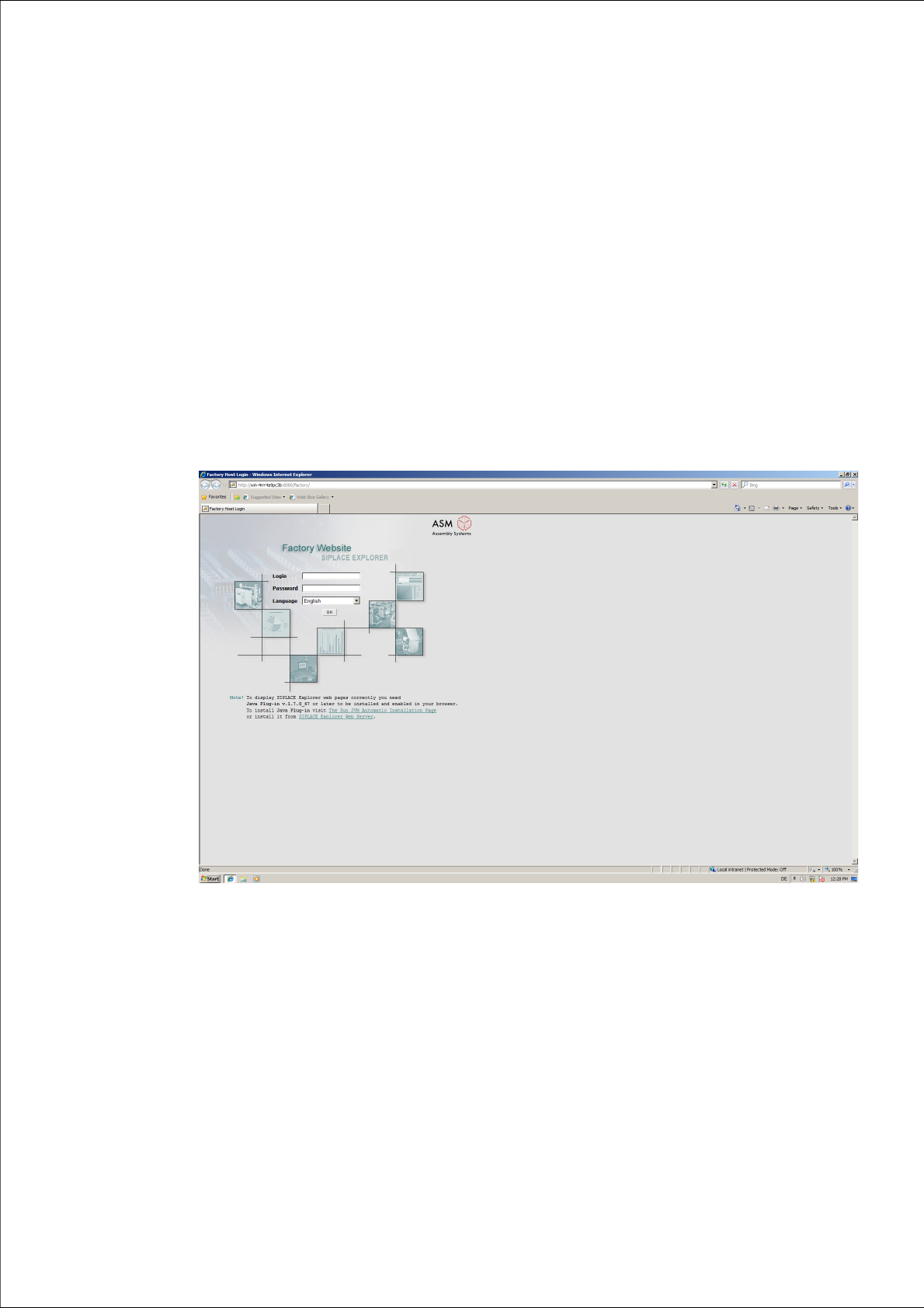
Start the Microsoft Internet Explorer. Enter the HTTP address of the factory website in the
Address field.
The login page will open.
3
Fig. 3 - 1 Factory website - login
Enter your login data here and set the required language.
Check your entries and confirm with OK.
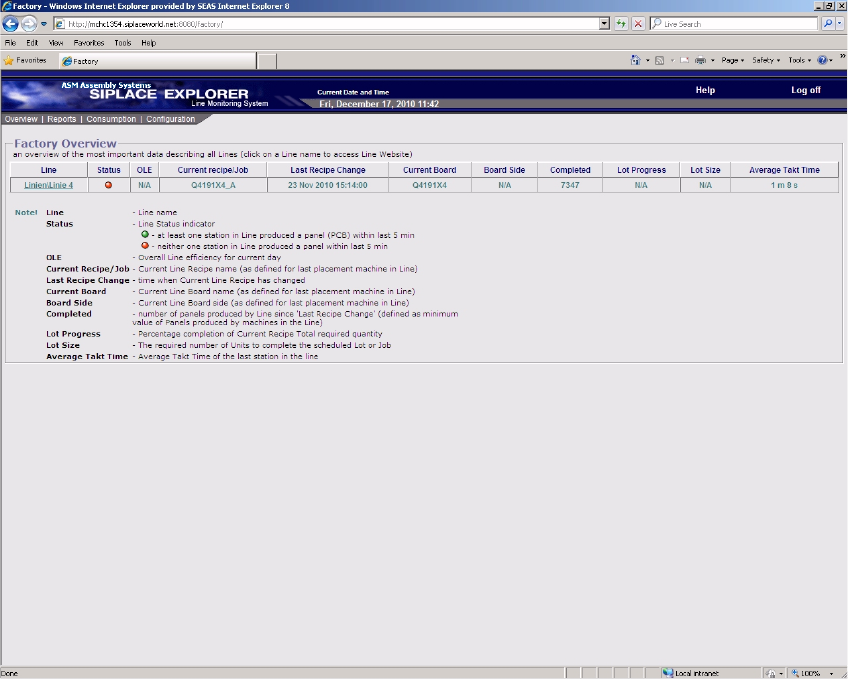
The factory overview page will open. This page has the following tabs:
– Overview (page 12)
Provides an overview of all the production lines which have been configured with Factory
Configuration Utility.
– Reports (page 14)
Enables each user to individually define the automatic generation of reports, as required.
3 Getting Started with the SMA SMA Guide SIPLACE Explorer
Edition 11/2020 EN from 3.11 (R20-2)
12
– Consumption (page 14)
Shows the user the component consumption data. Users can choose to view all lines or one
specific line.
– Configuration (page 16)
Shows addition or removal of a production line / station.
For stations with station software version SW 703, stations or placement heads are shown
if they are set in SIPLACE Pro to the "PCB bypass" mode.
For SIPLACE SX machines addition or removal of the gantry is shown.
3.1.1 Factory Website - Overview Tab
3
Fig. 3 - 2 Factory website - overview
The factory website enables you to view the data from a production line which is processing
two different jobs in dual conveyor mode.
– If a line in dual conveyor mode processes a recipe on both conveyor lanes, the table will
show just one line for both lanes used in this production line. The table will display the total
number of boards produced.