00197723-12_UG_SE3.11_EN.pdf - 第90页
5 Using the SMA SMA Guide SIPLACE Explorer Edition 11/2020 EN from 3.11 (R20-2) 90 5.1.1 How to Sp ecify the Generation of Line Report s Open the required line webs ite an d select any p age. 5 Fig. 5 - 1 Equipment nav…

SMA Guide SIPLACE Explorer 5 Using the SMA
from 3.11 (R20-2) Edition 11/2020 EN
89
5 Using the SMA
The following procedures are described in this chapter: 5
– “Generating Reports” on page 89
– “Displaying Component Consumption Data” on page 94
– “How to Sort Tables” on page 96
– “How to Enable Legends” on page 96
– “How to Export the Data Shown as an MS Excel File” on page 96
– “Making Logbook Entries” on page 97
– “Specifying Line Takt” on page 98
– “Specifying Lot Size” on page 100
– “View Further Details by Using the Tracks with the Most Pickup Errors as an Example” on
page 101
– “How to define a quality factor in SIPLACE Explorer” on page 102
– “How to import a quality factor from an xml file” on page 103
– “Defining Target Value” on page 103
– “Calculating the Reject Rate” on page 105
5.1 Generating Reports
Use the extended reporting features to define the automatic generation of reports. Reports can be
generated for each production line and page. This generation can be performed daily, weekly,
monthly and for individual shifts. Simply specify the details and the generated reports will be sent
to you per e-mail, as Excel files. 5
– Line reports
“How to Specify the Generation of Line Reports” on page 90
– Factory reports
“How to Subscribe the Generation of Line Reports” on page 93
5 Using the SMA SMA Guide SIPLACE Explorer
Edition 11/2020 EN from 3.11 (R20-2)
90
5.1.1 How to Specify the Generation of Line Reports
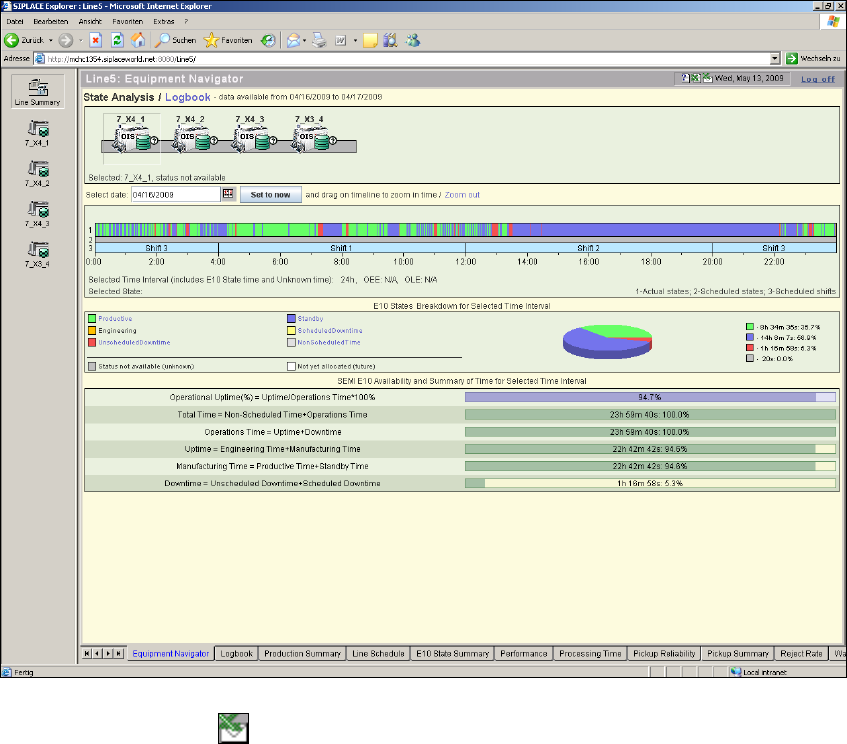
Open the required line website and select any page.
5
Fig. 5 - 1 Equipment navigator - state analysis
Click on the Reports icon.
SMA Guide SIPLACE Explorer 5 Using the SMA
from 3.11 (R20-2) Edition 11/2020 EN
91
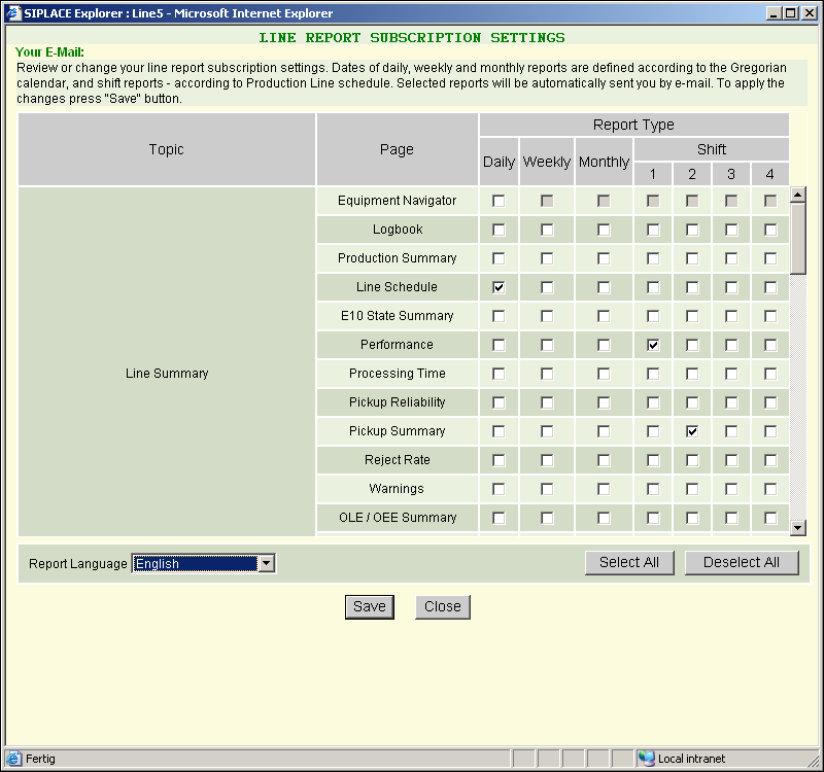
A new browser window Line Report Subscription Settings will open. 5
5
Fig. 5 - 2 Line report
Your e-mail address will be shown in the Your E-Mail field.
Select the topics and pages for which the report is to be generated: You must also specify the
period for which the report is to be generated: daily, weekly, monthly and/or for individual shifts.
Enable the corresponding checkboxes.
Set the report language at Report Language. German and English are available.
Check your entries and confirm with Save. Click Close if you want to leave this window without
saving your entries.
Once you have saved your entries, another notification box will open.