00197001-04_UM_Smart_Pin_Support_X-Series-S_SX12V2_DE_EN.pdf - 第108页
5 Sample Applications 5.2 Smart Pin Support and Long Board Option - (LBO) 108 User Manual / Bedienungsanleitung SIPLACE X-Series S, SX1/SX2 V2 Smart Pin Support Operation and Configura- tion 05/2019 5.2 Smart Pin Support…
5 Sample Applications
5.1 Support pin placement
User Manual / Bedienungsanleitung SIPLACE X-Series S, SX1/SX2 V2 Smart Pin Support Operation and Configura-
tion 05/2019
107
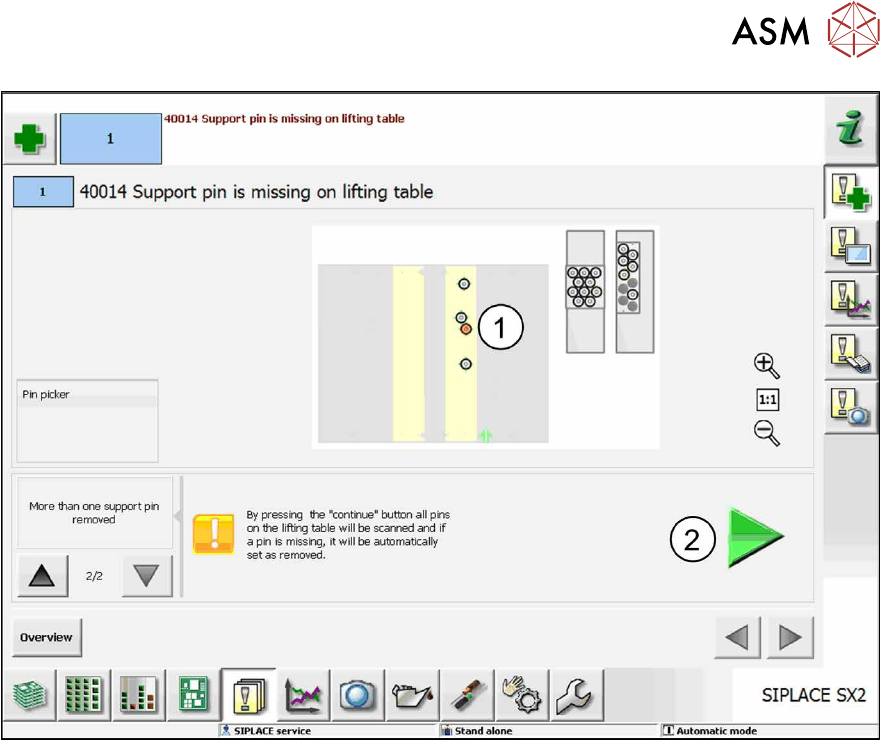
Fig.48: Remove support pin manually (sample SX2)
► Click on the Continue button (2).
This confirms that all support pin positions are scanned and if support pins cannot be found they
will be set to automatically removed without any further confirmation requests.
5 Sample Applications
5.2 Smart Pin Support and Long Board Option - (LBO)
108 User Manual / Bedienungsanleitung SIPLACE X-Series S, SX1/SX2 V2 Smart Pin Support Operation and Configura-
tion 05/2019
5.2 Smart Pin Support and Long Board Option - (LBO)
The following example displays how to combine Smart Pin Support and the Long Board Option
(LBO) with each other.
Requirements:
●
A setup in which stations with configured LBO support are present.
●
A support pin list with support pins is assigned to the board.
●
The Long Board Option must be enabled in the Line Editor. After that, the offset for the LBO
stopper may be corrected in the Setup Editor under the Long Board tab.
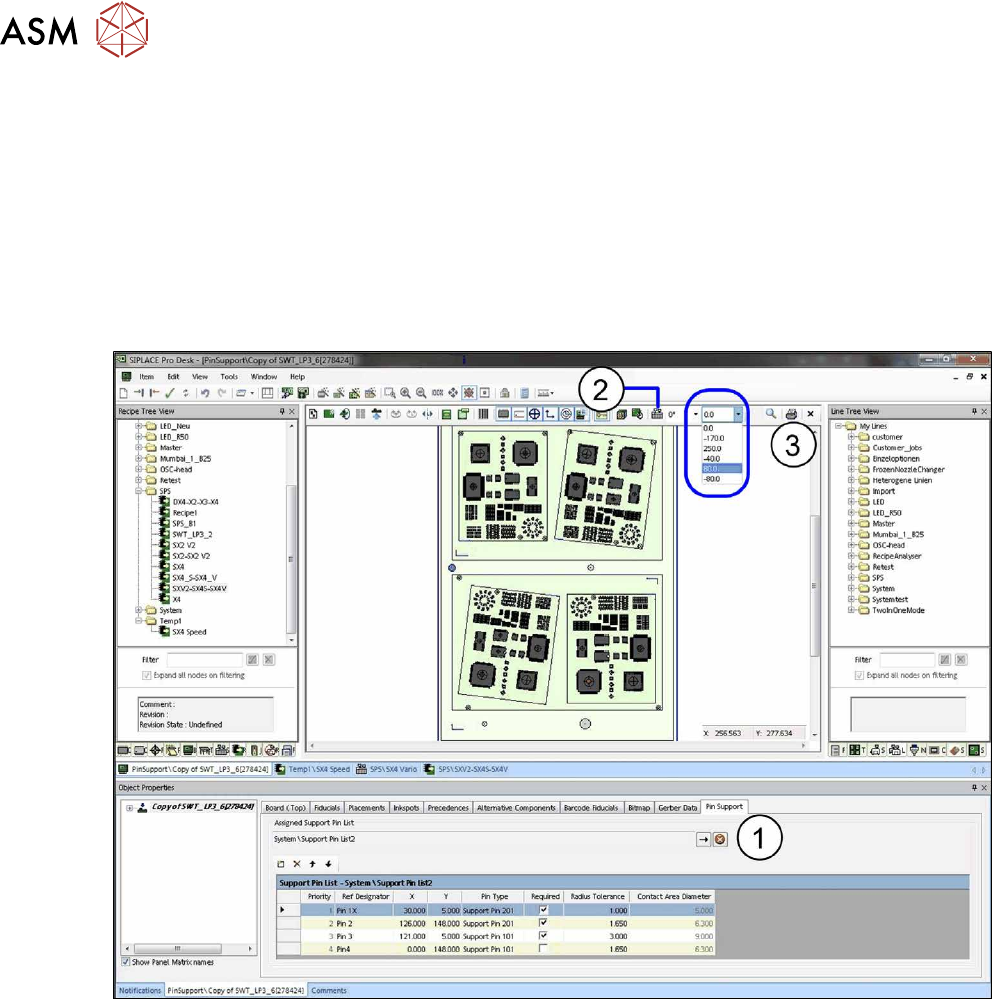
Fig.49: Board Editor: LBO setup
► Open the Board Editor and select the Pin Support tab(1).
► Click on the Setup icon(2).
The stopper positions that have been defined in the setup will be displayed in a drop down list(3).
► Select the desired stopper positions in relation to the board from the drop down list.
The support pins will be adjusted accordingly.
► Make sure that the support pins at the different support pin positions do not collide with the
components.
If the board is moved into the machine with a different than 0°, another angle value may be set in
the tool bar and the offset checked with other angle values.
5 Sample Applications
5.2 Smart Pin Support and Long Board Option - (LBO)
User Manual / Bedienungsanleitung SIPLACE X-Series S, SX1/SX2 V2 Smart Pin Support Operation and Configura-
tion 05/2019
109
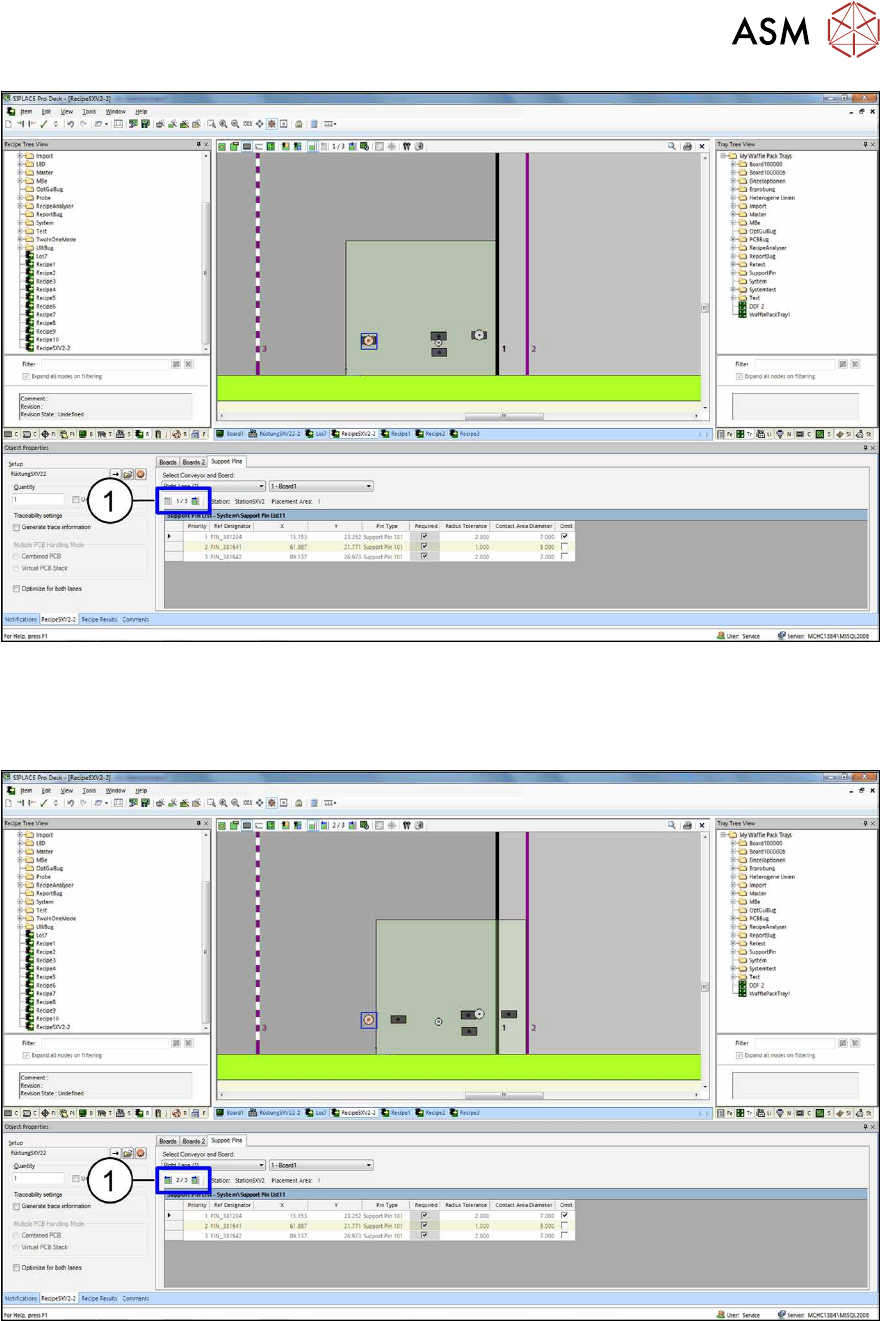
Fig.50: Recipe Editor: board in stopper position 1
In the Recipe Editor, the support pin positions will be displayed in the different stopper positions.
By clicking on the (1) icons (back and forwards) all stopper positions of the board within the line
can be displayed and visually checked.
Fig.51: Recipe Editor: board in stopper position 2
After the job has been downloaded at the station, the long board will be moved in and placed at the
first stopper position. After that, it will be moved to the second stopper position and placed again.
During positioning from the first to the second stopper position, no support pins can be placed or
adjusted on the lifting table.