00197001-04_UM_Smart_Pin_Support_X-Series-S_SX12V2_DE_EN.pdf - 第71页
2 Starting Hardware and Software 2.1 Performing Calibration User Manual / Bedienungsanleitung SIPLACE X-Series S, SX1/SX2 V2 Smart Pin Support Operation and Configura- tion 05/2019 71 The following dialog box will appear…
2 Starting Hardware and Software
2.1 Performing Calibration
70 User Manual / Bedienungsanleitung SIPLACE X-Series S, SX1/SX2 V2 Smart Pin Support Operation and Configura-
tion 05/2019
2.1.1 Calibrating Pin Picker, Lifting Table(s) and Pin Magazine(s)
► Start the Automatic Calibration in the Service view of the station software.
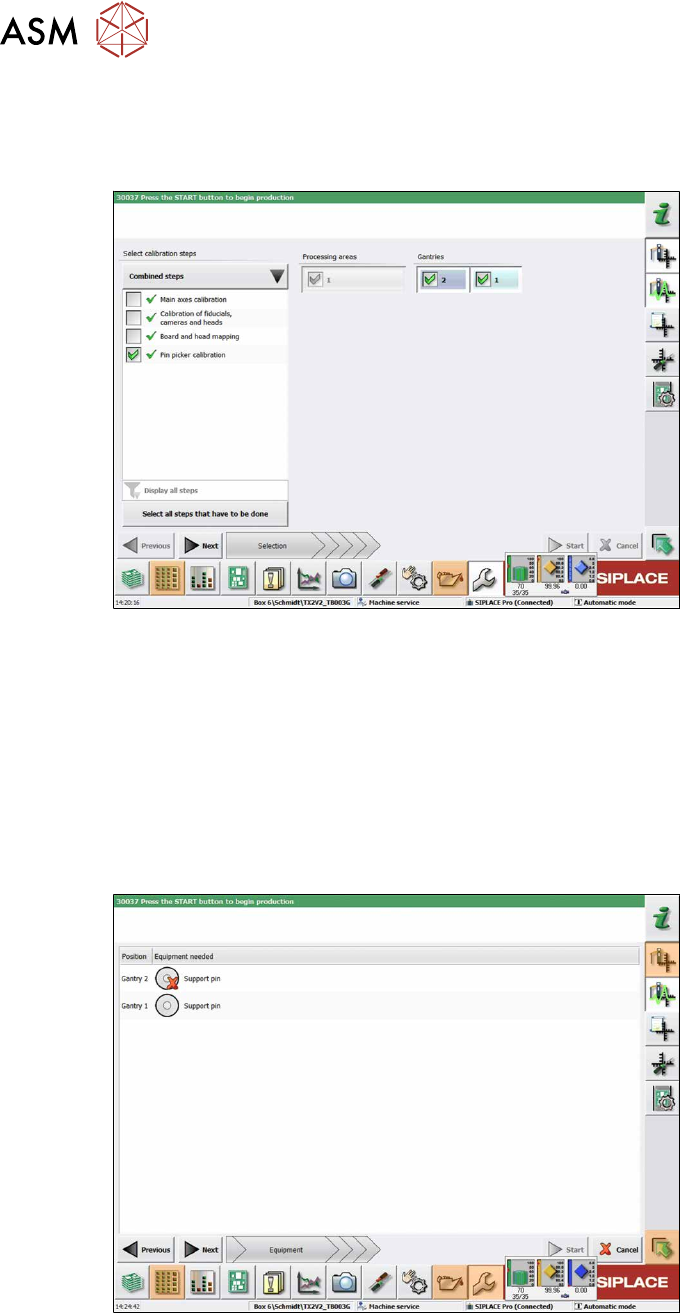
In the following dialog box you are prompted to select the required calibration steps.
Fig.8: Selecting the pin picker
► Select Select all steps that have to be done.
or
► Select Select calibration steps → Combined steps → Pin picker calibration.
► Select Gantries.
► Click Next.
ð The conveyor width is automatically set correctly, i.e. so that at least one support pin can
be placed on every lifting table.
The following dialog box will appear if a support pin is missing:
Fig.9: Notification: Support pin missing
► Open the cover.
► Put the support pin into the pin picker.
► Close the cover.
► Click on the Continue button.
2 Starting Hardware and Software
2.1 Performing Calibration
User Manual / Bedienungsanleitung SIPLACE X-Series S, SX1/SX2 V2 Smart Pin Support Operation and Configura-
tion 05/2019
71
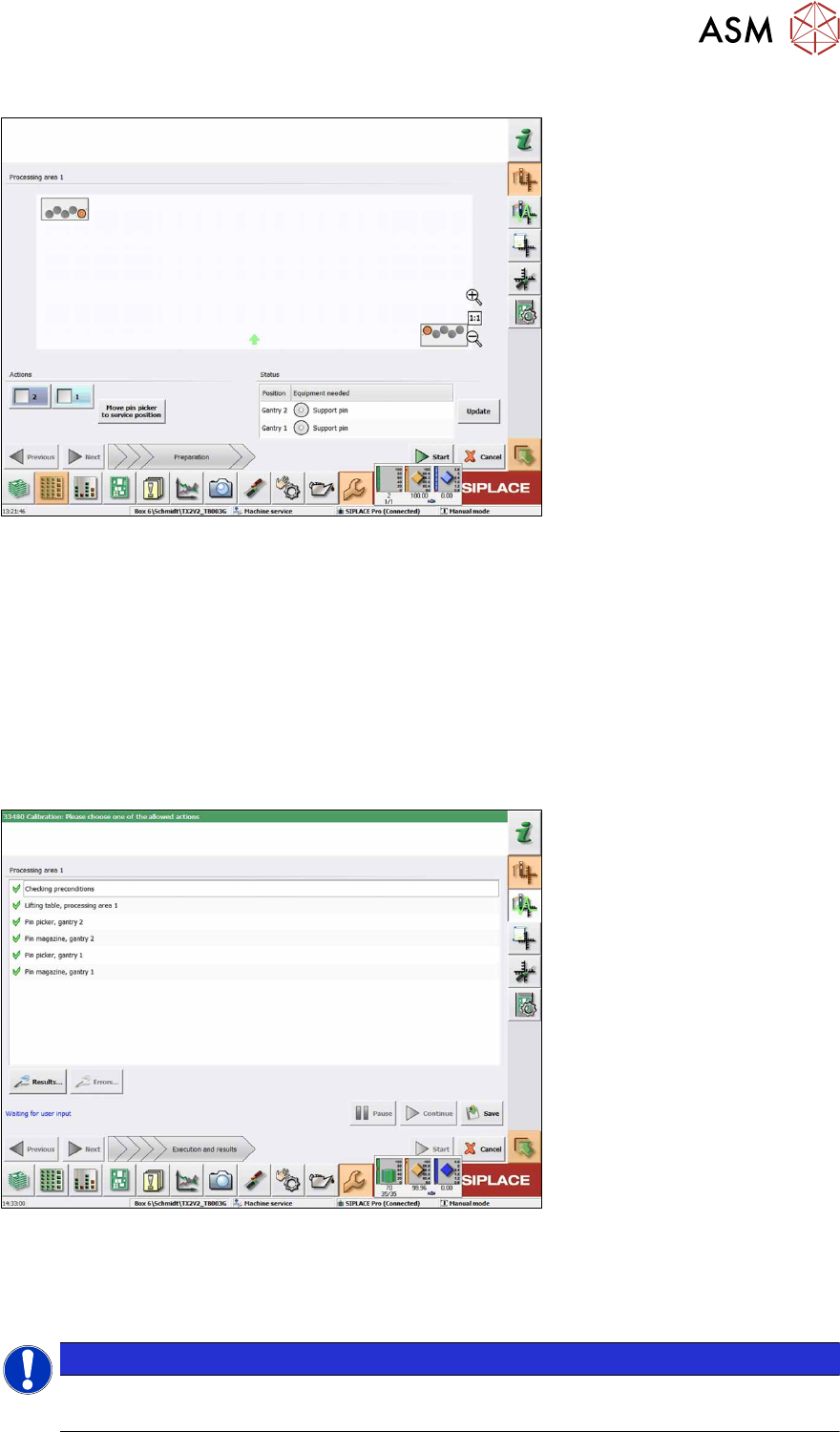
The following dialog box will appear if a calibration garage is occupied:
Fig.10: Notification: Calibration garage occupied
► Click on the Move pin picker to service position button.
The gantry moves to the service position for Smart Pin Support and you are prompted to remove
the support pin from the garage and put it into the pin picker.
► Open the cover.
► Remove the support pin from the calibration garage.
► Close the cover.
► Click on the Continue button.
► Once all preconditions have been fulfilled, click on the Start button.
In the following dialog box the calibration result is displayed.
Fig.11: Saving the calibration
► Click on the Results… for details button.
► Click on the Save button to apply the calibration data.
► Click on the Close button to exit the calibration.
NOTICE
Filling the magazines
After having been successfully calibrated, the magazines may be filled with support pins.

2 Starting Hardware and Software
2.1 Performing Calibration
72 User Manual / Bedienungsanleitung SIPLACE X-Series S, SX1/SX2 V2 Smart Pin Support Operation and Configura-
tion 05/2019
2.1.2 Handling Error Cases
Error message for support pin
If the support pin cannot be found (i.e. because it has slipped) or a fiducial for the support pin can-
not be detected (i.e. because soiled) you will be asked to confirm that the support pin has been
manually removed.
► Fix the error and restart the measurement.
The support pin is measured, the position is saved and the support pin is picked up again.
If you remove the support pin manually instead and confirm this, the calibrating procedure is can-
celed.
Error message for pin magazine(s)
If the station detects that a support pin is present in the garage, you are prompted to remove the
support pin.
► Remove the support pin from the garage.
► Confirm the message.
After that, the pin magazine calibration continues.
Error message for lifting table(s)
If other calibration steps than those for the Smart Pin Support function are performed and a map-
ping plate is required, a general message will be displayed that prompts you to remove support
pins from the lifting table. If support pins should be present on the lifting table, the calibration will be
canceled with a corresponding message.
► Remove the support pins from the lifting table.
► Confirm via the appropriate button that the support pins were removed and then restart the
measurement.