00197001-04_UM_Smart_Pin_Support_X-Series-S_SX12V2_DE_EN.pdf - 第78页
3 Configuring Smart Pin Support in SIPLACE Pro 3.2 Defining Support Pin Positions in the Board Editor 78 User Manual / Bedienungsanleitung SIPLACE X-Series S, SX1/SX2 V2 Smart Pin Support Operation and Configura- tion 05…
3 Configuring Smart Pin Support in SIPLACE Pro
3.2 Defining Support Pin Positions in the Board Editor
User Manual / Bedienungsanleitung SIPLACE X-Series S, SX1/SX2 V2 Smart Pin Support Operation and Configura-
tion 05/2019
77
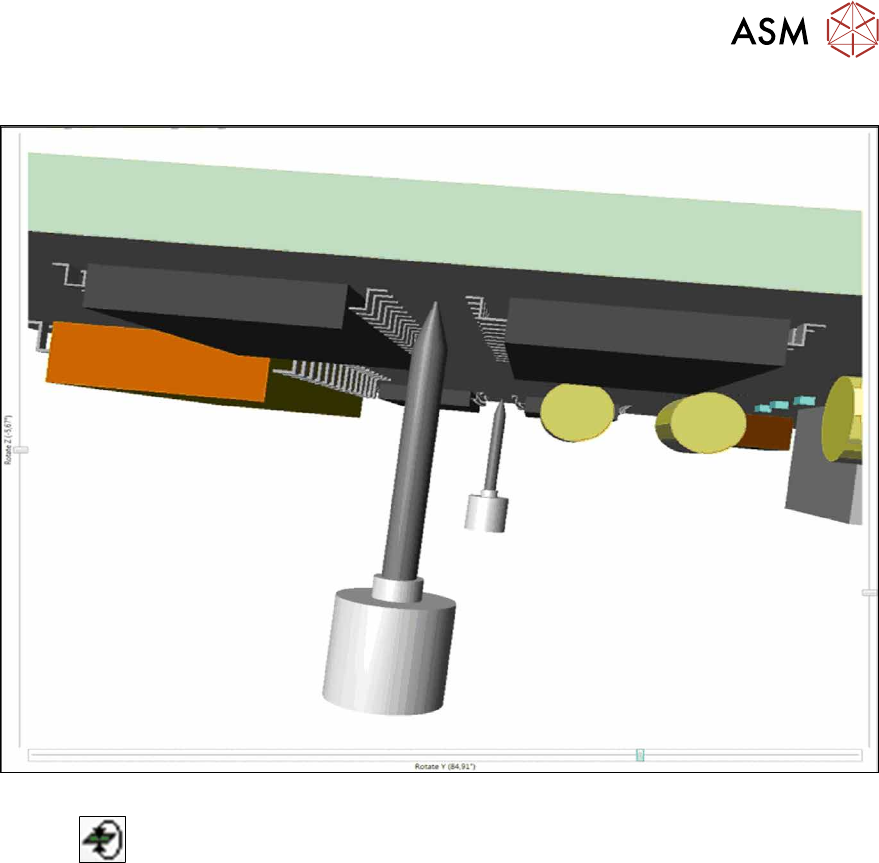
Sample: Zoom View
Fig.17: Sample: Zoom View
With the
button you can switch to a transparent view of the board to check defined support
pin positions on the board underside.
3 Configuring Smart Pin Support in SIPLACE Pro
3.2 Defining Support Pin Positions in the Board Editor
78 User Manual / Bedienungsanleitung SIPLACE X-Series S, SX1/SX2 V2 Smart Pin Support Operation and Configura-
tion 05/2019
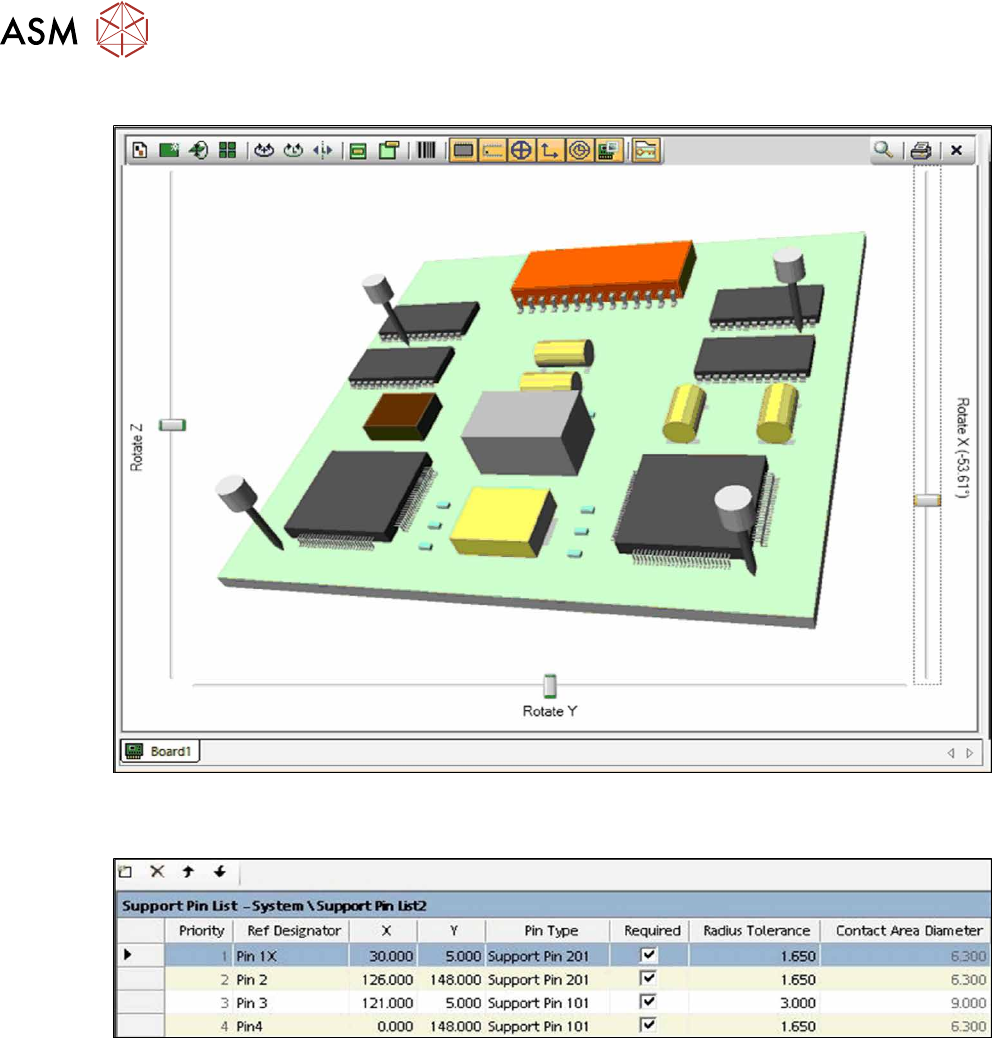
Sample: Board Underside View
Fig.18: Sample: Board Underside View
Sample: Support Pin List
Fig.19: Sample: Support Pin List
3 Configuring Smart Pin Support in SIPLACE Pro
3.2 Defining Support Pin Positions in the Board Editor
User Manual / Bedienungsanleitung SIPLACE X-Series S, SX1/SX2 V2 Smart Pin Support Operation and Configura-
tion 05/2019
79
3.2.2 Defining Support Pin Positions
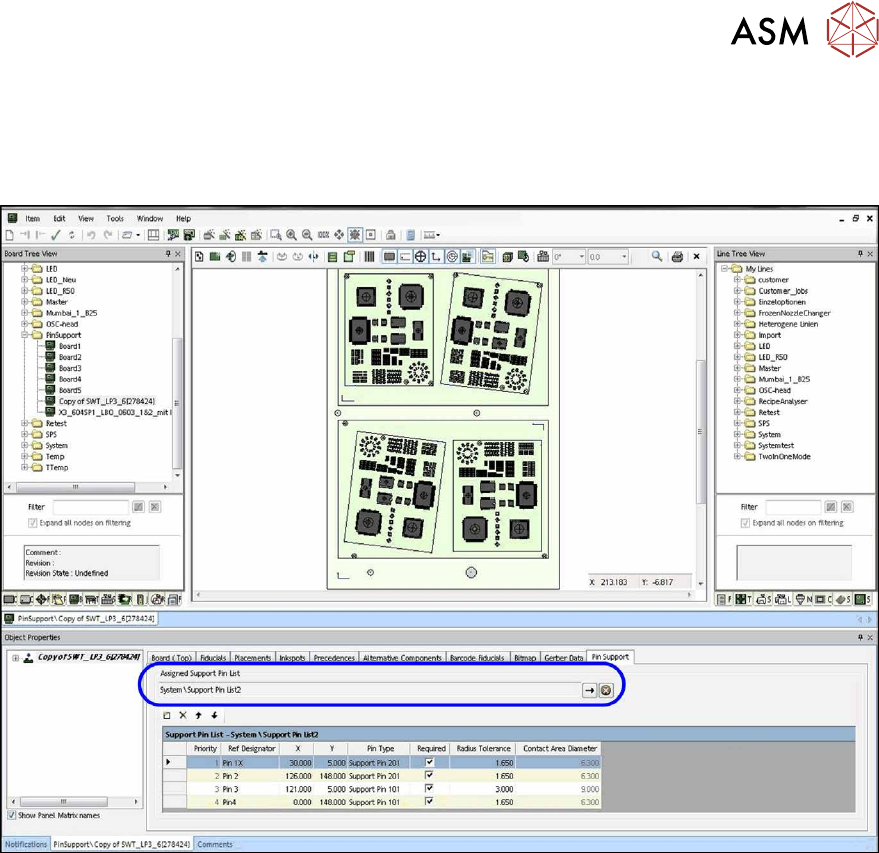
You can choose to link an existing support pin list with the selected board or create a new support
pin list for the board. The support pins are placed in the sort order of the support pin list. Via the ar-
row up/down buttons, the support pin positions can be sorted within the support pin list.
Fig.20: Defining Support pin positions
► Click in the Pin Support tab on the Add button to create a new support pin list or select an
existing support pin list. Here the existing support pin list Support Pin List2 was selected.
► Define the support pin positions.