00197001-04_UM_Smart_Pin_Support_X-Series-S_SX12V2_DE_EN.pdf - 第98页
4 Working with Smart Pin Support at the Station 4.3 Handling Error Cases 98 User Manual / Bedienungsanleitung SIPLACE X-Series S, SX1/SX2 V2 Smart Pin Support Operation and Configura- tion 05/2019 4.3 Handling Error Case…
4 Working with Smart Pin Support at the Station
4.2 Checking the Support Pin Positions – Setting Time Interval
User Manual / Bedienungsanleitung SIPLACE X-Series S, SX1/SX2 V2 Smart Pin Support Operation and Configura-
tion 05/2019
97
4.2 Checking the Support Pin Positions – Setting Time
Interval
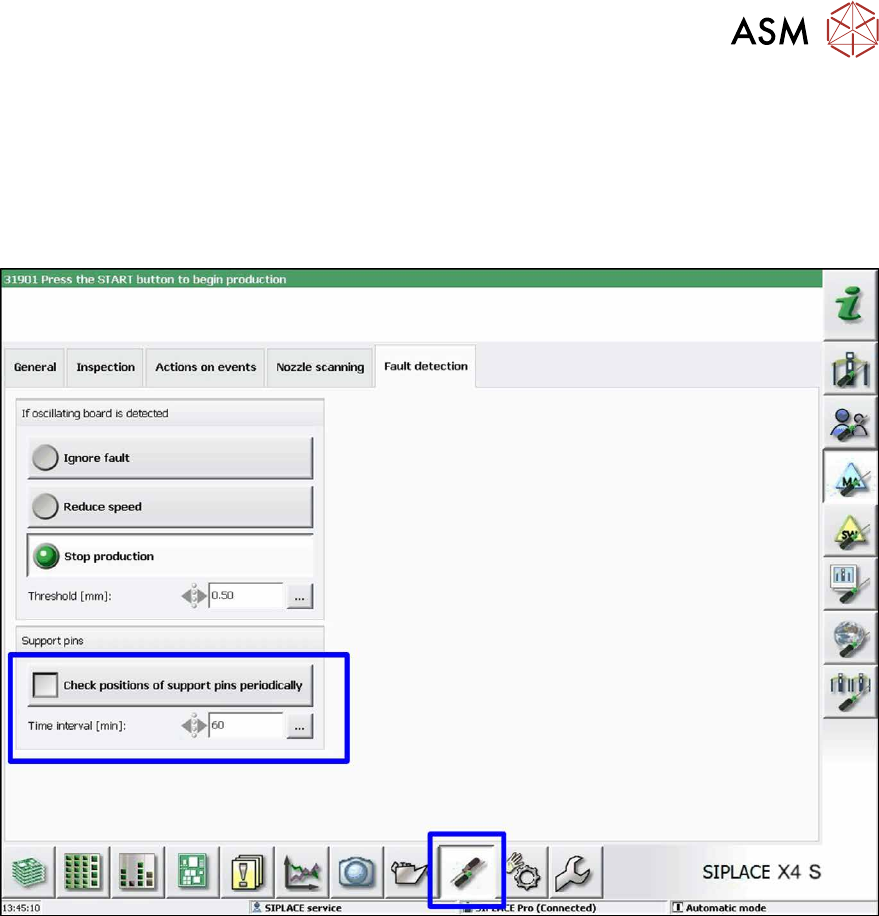
► Navigate to the Settings – Machine options dialog box.
► Select the Fault detection tab.
The following dialog box is opened.
Fig.39: Checking positions of support pins periodically
► Activate the Check positions of support pins periodically option to use the function.
► Set the lapse of time in minutes after which the support pin positions have to be checked
under Time interval [min].
After the set time interval has elapsed, the conveyor interface will be locked. All boards in the
machine will be completed and moved out of the machine. As soon as the machine is empty, the
support pin positions will be checked and corrected, if necessary.
If an existing support pin was not found, a corresponding error message is displayed.
► Remove this support pin manually and confirm the error message.
The support pin will then be automatically reset.
The check will be performed before the set time interval has elapsed if the station is empty.
4 Working with Smart Pin Support at the Station
4.3 Handling Error Cases
98 User Manual / Bedienungsanleitung SIPLACE X-Series S, SX1/SX2 V2 Smart Pin Support Operation and Configura-
tion 05/2019
4.3 Handling Error Cases
If some conditions are not met, to perform a Smart Pin Support job at the station, the operator must
decide how to continue. For example, this applies in the following cases:
●
The Smart Pin Support function is not installed at this station or is installed but deactivated.
●
Not enough support pins are available in the pin magazines
(see chapter 5 "Sample Applications" [}105]).
●
A support pin is missing at the expected position on the lifting table
(see chapter 5 "Sample Applications" [}105]).
●
A support pin is missing in a garage.
●
There are more support pins available in the machine than available garages (i.e. on lifting
table + in the pin magazines + in the pin picker).
●
A support pin can not be picked up.
●
A support pin can not be placed.
●
The support pin type is incorrect.
In these cases, detailed error messages with the appropriate guidance will be displayed on the GUI
of the station software. More information can be found in the Online Help for the station software.
4.3.1 Pin Picker Defective
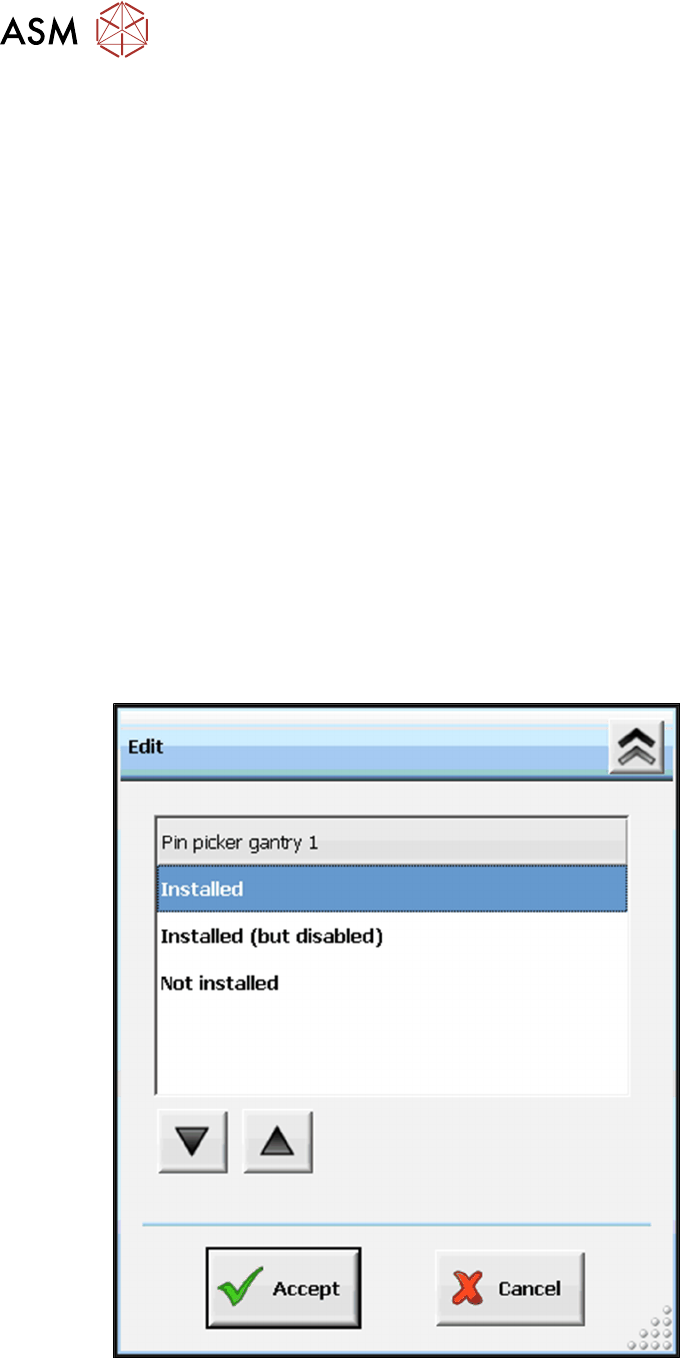
If the pin picker is defective, it has to be deactivated in the Machine configuration.
► Highlight the installed pin picker in the Machine configuration (see chapter 2 "Starting Hard-
ware and Software" [}67]) and click on the Edit button.
Fig.40: Deactivating defective pin picker
► Select Installed (but disabled).
► Click on the Accept button.
4 Working with Smart Pin Support at the Station
4.3 Handling Error Cases
User Manual / Bedienungsanleitung SIPLACE X-Series S, SX1/SX2 V2 Smart Pin Support Operation and Configura-
tion 05/2019
99
4.3.2 Support Pin outside the Tolerance Radius
If the support pin is present outside the tolerance radius, a corresponding message is displayed
and an inspection has to be performed.
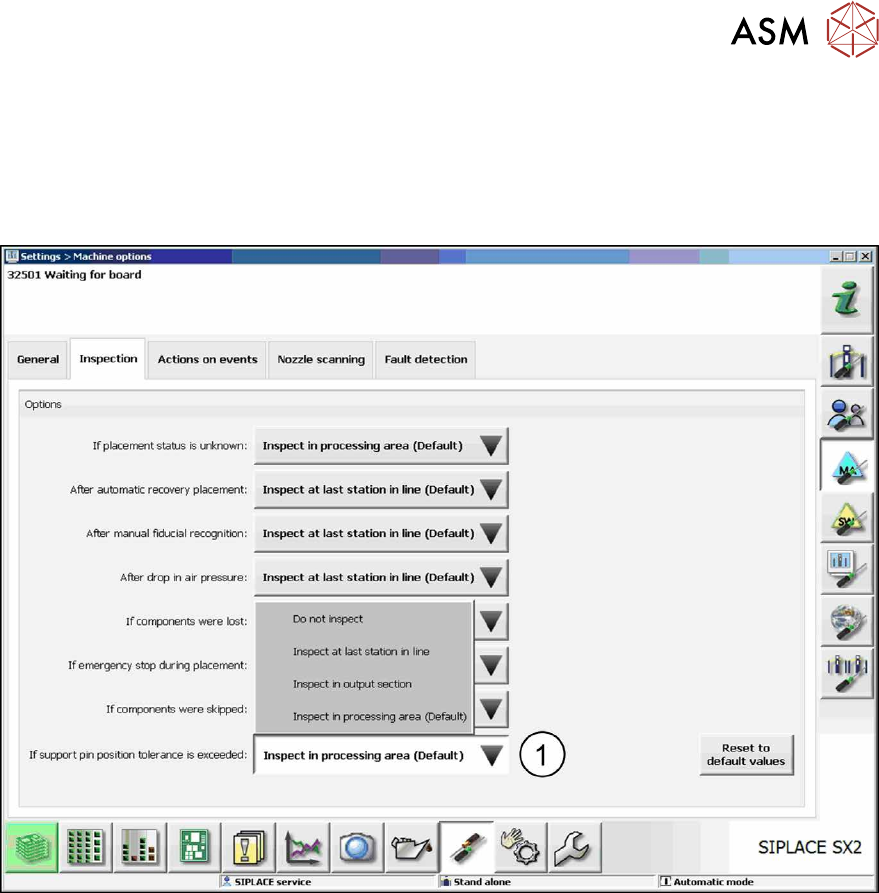
► Navigate to Settings – Machine options – Inspection.
The following dialog box is displayed:
Fig.41: Inspection - Tolerance radius exceeded
► Click on the Inspect in processing area (Default) button (1) beside the If support pin toler-
ance is exceeded: field.
The boards remain at the corresponding position in the line for inspection.