00197001-04_UM_Smart_Pin_Support_X-Series-S_SX12V2_DE_EN.pdf - 第86页
3 Configuring Smart Pin Support in SIPLACE Pro 3.2 Defining Support Pin Positions in the Board Editor 86 User Manual / Bedienungsanleitung SIPLACE X-Series S, SX1/SX2 V2 Smart Pin Support Operation and Configura- tion 05…
3 Configuring Smart Pin Support in SIPLACE Pro
3.2 Defining Support Pin Positions in the Board Editor
User Manual / Bedienungsanleitung SIPLACE X-Series S, SX1/SX2 V2 Smart Pin Support Operation and Configura-
tion 05/2019
85
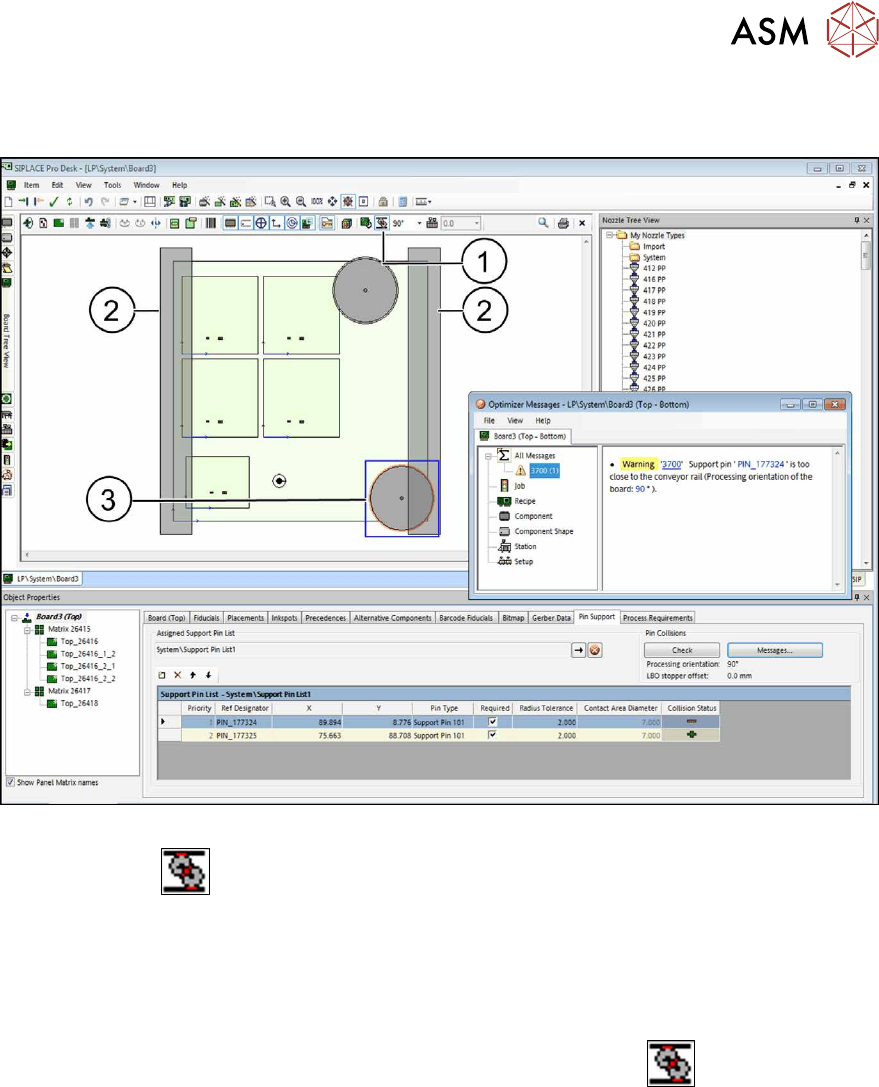
Visual Collision Check
The collision events are displayed in red in the graphic.
Fig.27: Support pin: Visual collision check – it should NOT look like that
By clicking on the
button (1), the conveyor rails(2), the pin bases and the components are
displayed. In the figure above it is visible that a pin base(3) collides with a conveyor rail to the
right.
► Move the support pins so that the pin bases do not collide with other pin bases, components
or conveyor rails.
If necessary, you may change the processing orientation of the board for the collision check.
► Select the desired rotation from the drop down list to the right of the
button (1).
Thereafter, the board and the conveyor rails (2) are displayed in the selected direction.
3 Configuring Smart Pin Support in SIPLACE Pro
3.2 Defining Support Pin Positions in the Board Editor
86 User Manual / Bedienungsanleitung SIPLACE X-Series S, SX1/SX2 V2 Smart Pin Support Operation and Configura-
tion 05/2019
3.2.2.6 Defining Production Parameters
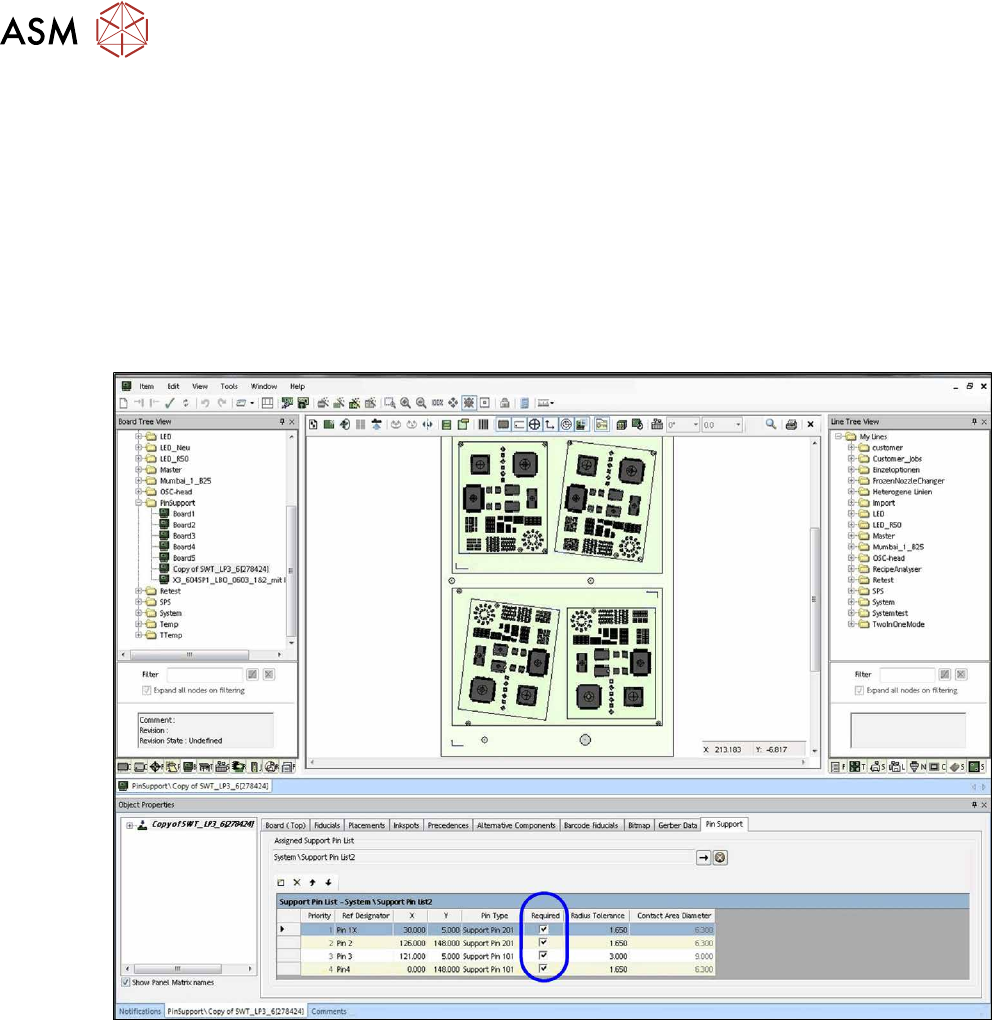
You can define whether a support pin position is required or not. When a new support pin position
is created, the Required property is activated by default. If a support pin cannot be placed at this
support pin position at the station, production is stopped with an error message. If Required is
deactivated for a support pin position (i.e. the support pin position is optional), the machine will try
to place a support pin at this support pin position. If this is not possible, an error message will not
be displayed at the station and the machine will try to place a support pin at the next support pin
position. The support pins that are not required will be displayed in blue in the graphic.
The order of the support pins to be placed is displayed in the Priority column. All required support
pins will be placed first, followed by all optional support pins in the order shown. In dual conveyor
mode this priority is considered for both lanes.
Fig.28: Defining production parameters
3 Configuring Smart Pin Support in SIPLACE Pro
3.2 Defining Support Pin Positions in the Board Editor
User Manual / Bedienungsanleitung SIPLACE X-Series S, SX1/SX2 V2 Smart Pin Support Operation and Configura-
tion 05/2019
87
3.2.2.7 Defining Tolerance Radius
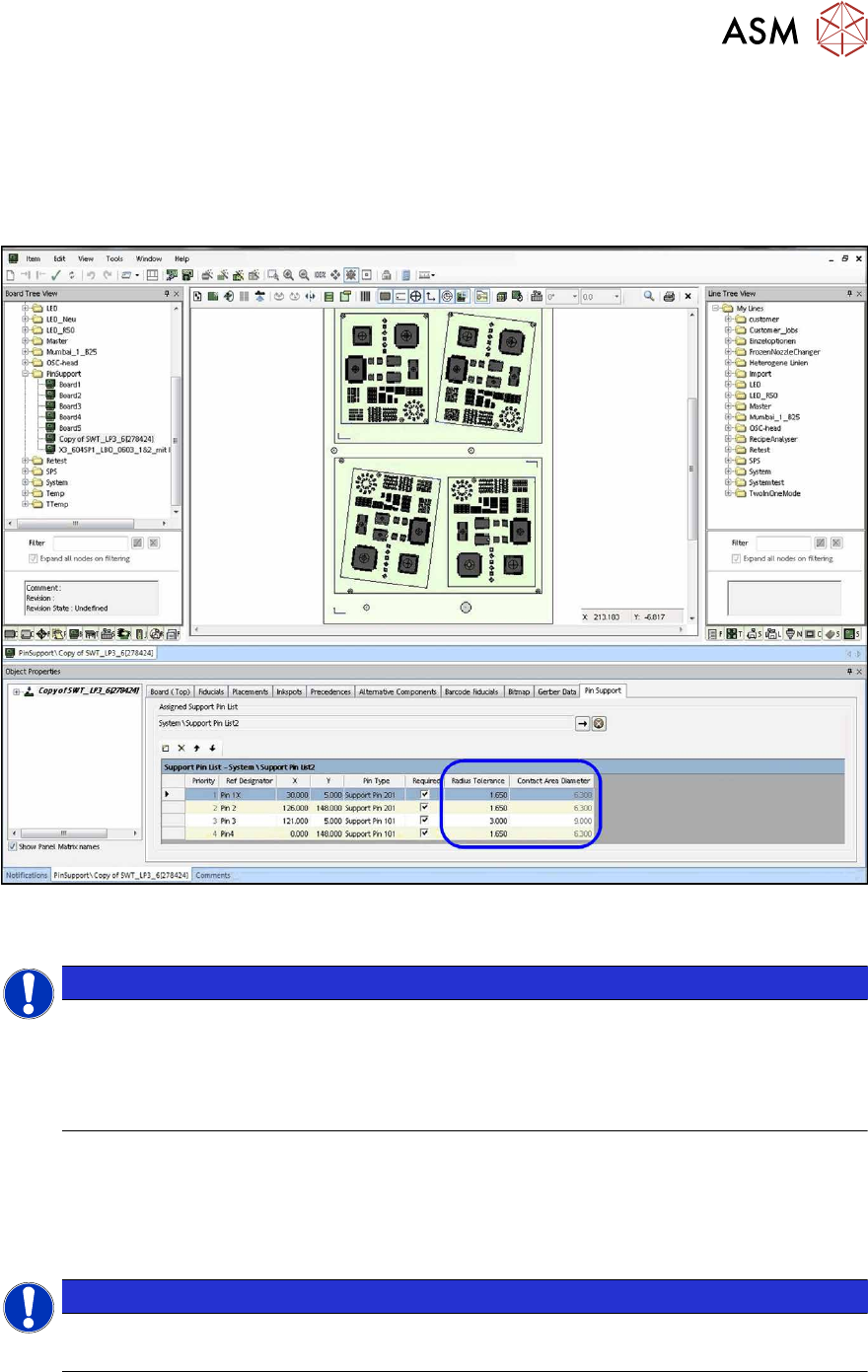
The defined tolerance radius determines the contact area within which the support pin may touch
the board. If zero is defined as tolerance radius, a minimum contact area remains. This is displayed
in the Contact Area Diameter field. The tolerance radius is displayed as a circle around the pin
position and is used by the station to mark a board for inspection if the board was clamped and
measured with a larger tolerance.
Fig.29: Defining tolerance radius
► Define the tolerance radius.
NOTICE
Tolerance size
The tolerance size should be carefully set and checked.
If the tolerance is set too small, it is probable that the board gets marked for inspection.
However, as a minimum tolerance is always warranted to make sure that the support pins
can be placed smoothly, no processing errors will be caused by possible collisions.
3.2.2.8 Saving Support Pin List
After you have defined all desired support pin positions for the board, these are automatically
saved in a support pin list.
► Accept the proposed name for the support pin list or enter a new name.
NOTICE
Using the support pin list
The saved support pin list can also be assigned to other boards.