00197001-04_UM_Smart_Pin_Support_X-Series-S_SX12V2_DE_EN.pdf - 第67页
2 Starting Hardware and Software User Manual / Bedienungsanleitung SIPLACE X-Series S, SX1/SX2 V2 Smart Pin Support Operation and Configura- tion 05/2019 67 2 Starting Hardware and Software The following requirements m…

1 Introduction
1.7 SIPLACE on the World Wide Web (WWW)
66 User Manual / Bedienungsanleitung SIPLACE X-Series S, SX1/SX2 V2 Smart Pin Support Operation and Configura-
tion 05/2019
1.7 SIPLACE on the World Wide Web (WWW)
Log into our SIPLACE
®
homepage at http://www.siplace.com.
► You can choose between the German and English versions.
The different sections contain information about our products, services and contact persons.
In addition, registered customers can also access the SIPLACE User Group. Here you can call up
special information about our placement systems e.g.
●
Technical documentation,
●
Technical information,
●
Spare parts lists etc.
Registration for the user group is very simple:
► Click on the Register link.
► Fill in the registration form and send it off to us.
Soon afterwards, you will receive your access authorization with USER ID and password.
2 Starting Hardware and Software
User Manual / Bedienungsanleitung SIPLACE X-Series S, SX1/SX2 V2 Smart Pin Support Operation and Configura-
tion 05/2019
67
2 Starting Hardware and Software
The following requirements must be met before the hardware and software can be started:
Requirements
●
The pin magazine has been installed and correctly adjusted at the designated location in the
placement machine.
●
The pin picker has been installed at the gantry and is connected to the head board.
Detailed information can be found in the Smart Pin Support Assembly Instructions, item no.
[00197002-xx].
► Ensure that the calibration garage is empty.
► Put a support pin into the pin picker.
► Switch the placement machine on.
These steps and what has to be considered are described in detail in the User Manual for the
placement machines.
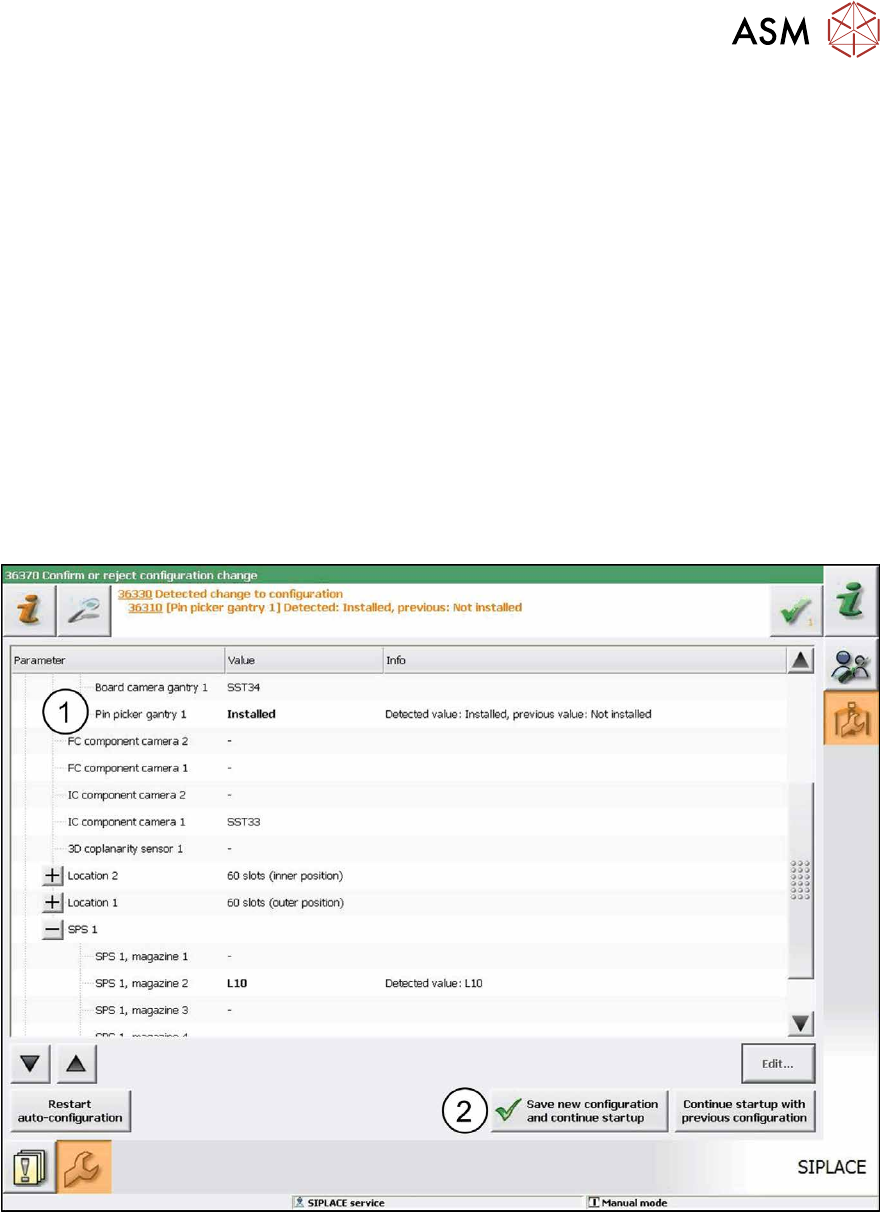
The pin picker is automatically detected in the Autoconfiguration (1). The reference run is being
executed. After the reference run has been completed the station is ready for operation.
Fig.6: Saving configuration
► Click on the Save new configuration and continue startup button (2) to save the new con-
figuration.
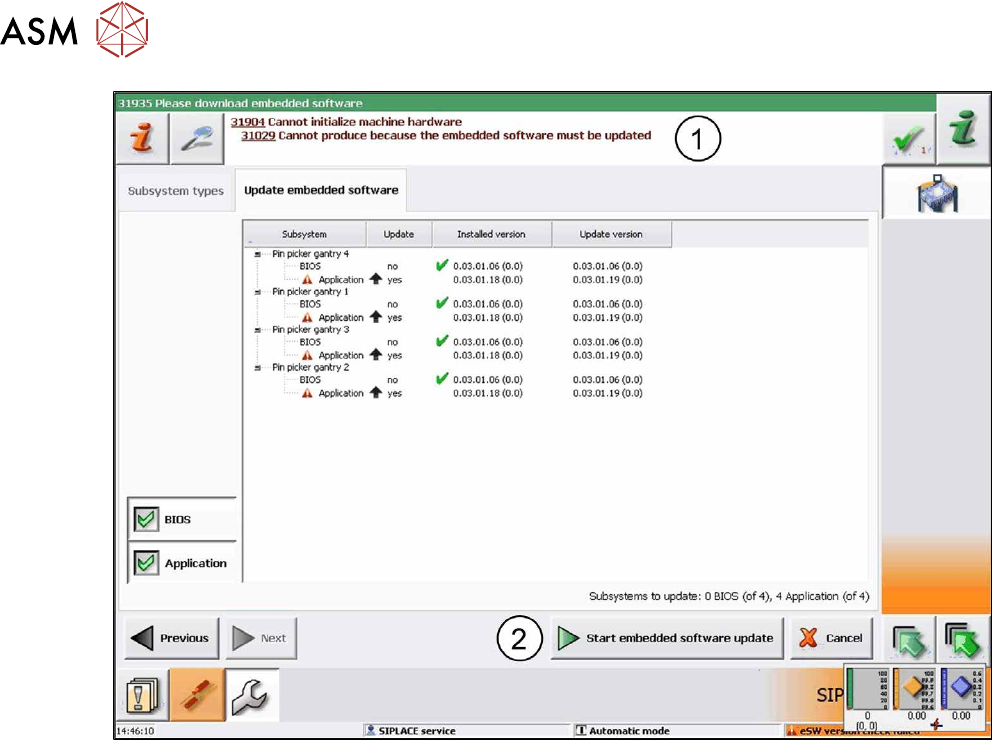
If the embedded software is not up-do-date a corresponding hint(1) informs you that the embed-
ded software has to be updated and downloaded.
2 Starting Hardware and Software
68 User Manual / Bedienungsanleitung SIPLACE X-Series S, SX1/SX2 V2 Smart Pin Support Operation and Configura-
tion 05/2019
Fig.7: Update embedded software
► In this case, click on the Start embedded software update button (2)to download and up-
date the embedded software.
► Restart the machine.