00191369-01.pdf - 第125页
User’s Manual SIPLACE HS-50 3 Introduction and Basic Concepts Software Version S R.501.xx Edition 01/99 3.3 User Interface - Views and M enus 123 6HWWLQJV0HQX The "Setti ngs" men u is only a vailabl …

3 Introduction and Basic Concepts User’s Manual SIPLACE HS-50
3.3 User Interface - Views and Menus Software Version SR.501.xx Edition 01/99
122
Å Click the 'HOHWHOLVW button if you want to delete all the entries in the list.
Å Click the &ORVH button to close the dialog box.
NOTE
The current status of barcode operation is displayed below the "Delete list" button. Barcode
operation is activated or deactivated in the LC program.
/DQJXDJH0HQX
You can use the "Language" menu to select between the language versions which are
integrated in the SC software.
You can chose between the languages "German", "English", "French", "Italian", "Simplified
Chinese", "Traditional Chinese", "Korean" and "Japanese".
Å Click the menu item corresponding to the required language.
The user interface texts are displayed in the selected language.
User’s Manual SIPLACE HS-50 3 Introduction and Basic Concepts
Software Version SR.501.xx Edition 01/99 3.3 User Interface - Views and Menus
123
6HWWLQJV0HQX
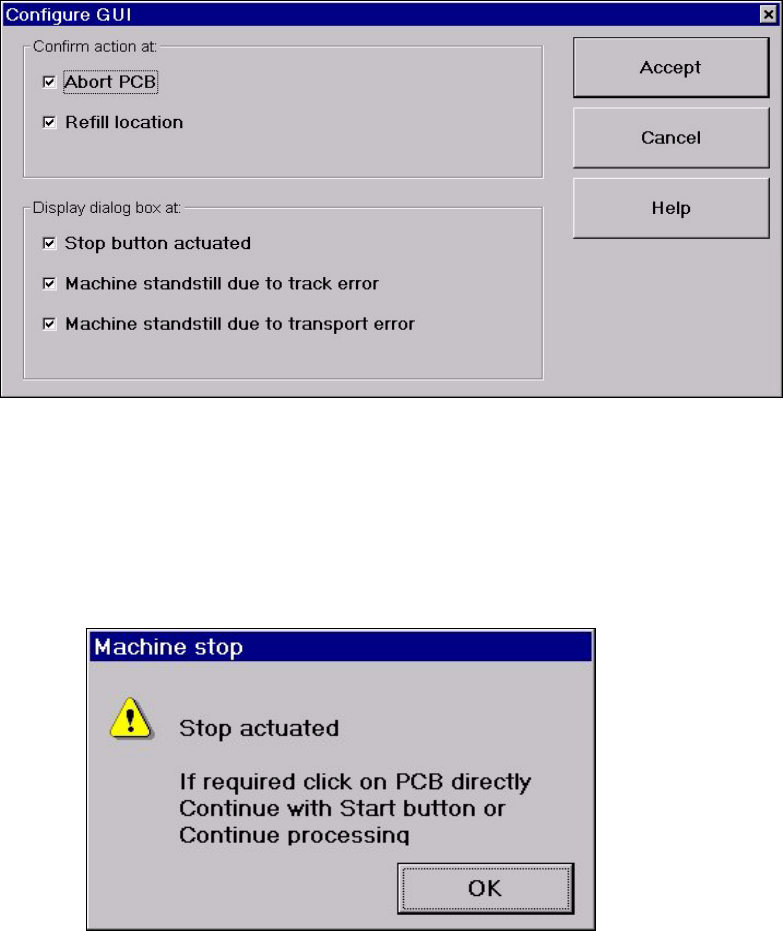
The "Settings" menu is only available in the main view. The options in this menu can be used
to set whether a particular action must be confirmed again before it is executed. Or whether,
when a particular event occurs, a dialog box containing the relevant information is to be dis-
played and then, similiarly, confirmed by the user.
Å Click the menu item &RQILJXUH*8, .
This displays the following window.
Å Activate/deactivate the check box for the required options.
Å Click $FFHSW to save the settings.
([DPSOH If the stop button is activated and the "Stop button actuated" box is checked,
the following dialog box is displayed and must be confirmed.
If the box is not checked, the dialog box does not appear.

3 Introduction and Basic Concepts User’s Manual SIPLACE HS-50
3.3 User Interface - Views and Menus Software Version SR.501.xx Edition 01/99
124
+HOS0HQX
This menu gives you access to all the functions required to call the help system and general
information concerning the station computer or the software.
&RQWHQW &WUO)
This calls on-line help.
+HOS $OW)
Help information relating to the current view is displayed.
8VHKHOS
Information on how to use Help is displayed.
,QIR
This displays information on the currently installed software version (SC , MC, WPC, GEM
version) together with general information on the station computer.
NOTE
You can use the key combination &75/+)to call the on-line Help function from within any
view in the user interface.
You can use the key combination $OW+) to call up help on the current view and the key combi-
nation 6KLIW+) to access help on menu items, icons and buttons.
For a detailed description of the functions in the Help menu, refer to Chapter 9.
Å Click the required menu item in the "Help" menu or press the corresponding key combi-
nation.
r