00191369-01.pdf - 第217页
User Manual HS-50 6 Vision functions Software-Version 5.01Edition 01/99 6.5 Teach Fiducial 215 'HILQH1 HZ )LGXFL DO 2SWLRQ With this option y ou ca n generat e a new f iducial . – Click o n the 'H…
6 Vision functions User Manual HS-50
6.5 Teach Fiducial Software-Version 5.01 Edition 01/99
214
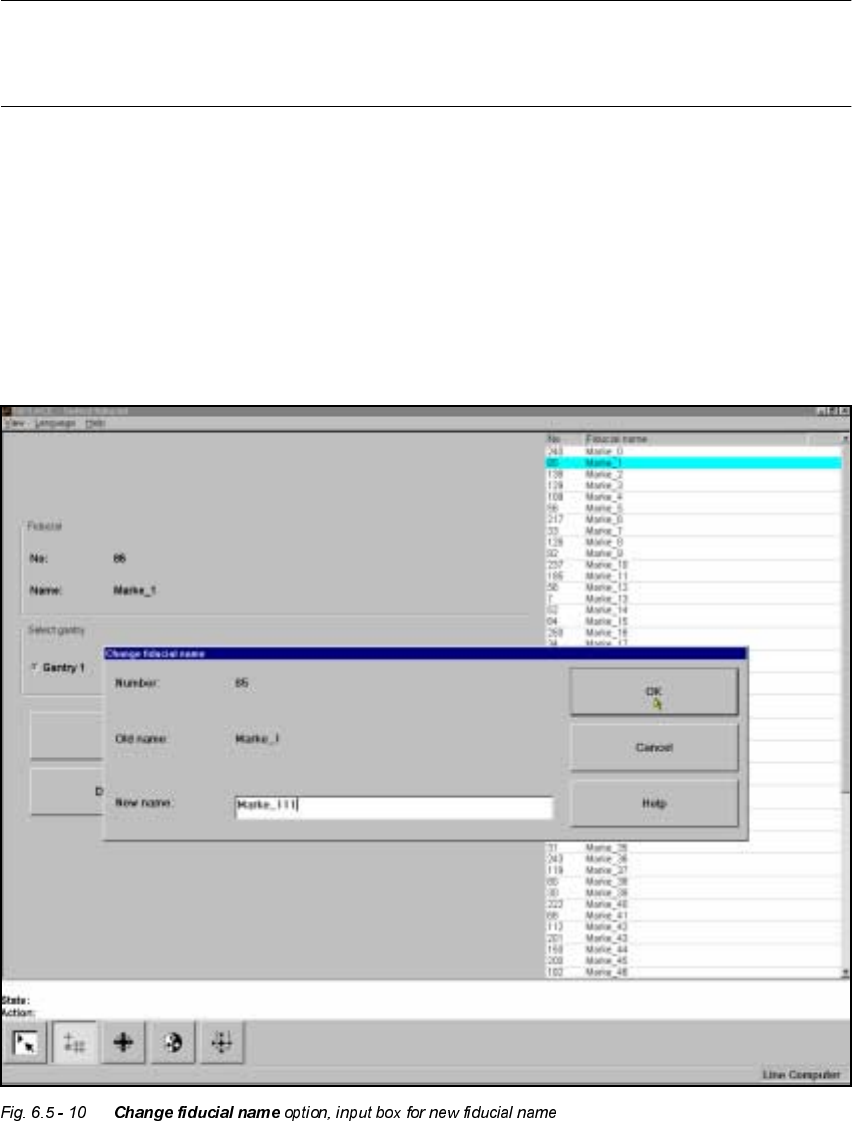
&KDQJH)L GXFLDO1DPH2SWLRQ
NOTE
This option can only be activated if you have already loaded a fiducial. If this is not the case, the
&KDQJHILGXFLDOQDPH button will be inactive. The grayed-out text on the button indicates this.
– Load the desired fiducial, as described in Section 6.5.3.2 on page 6 - 213.
– Click on the &KDQJHILGXFLDOQDPH button.
The input box will appear on the screen.
– Input the new fiducial name into the 1HZQDPHfield.
–Click on 2. if you wish the change to go ahead. The fiducial list will now be updated.
–Click on &DQFHO if you wish to discard the change.
User Manual HS-50 6 Vision functions
Software-Version 5.01Edition 01/99 6.5 Teach Fiducial
215
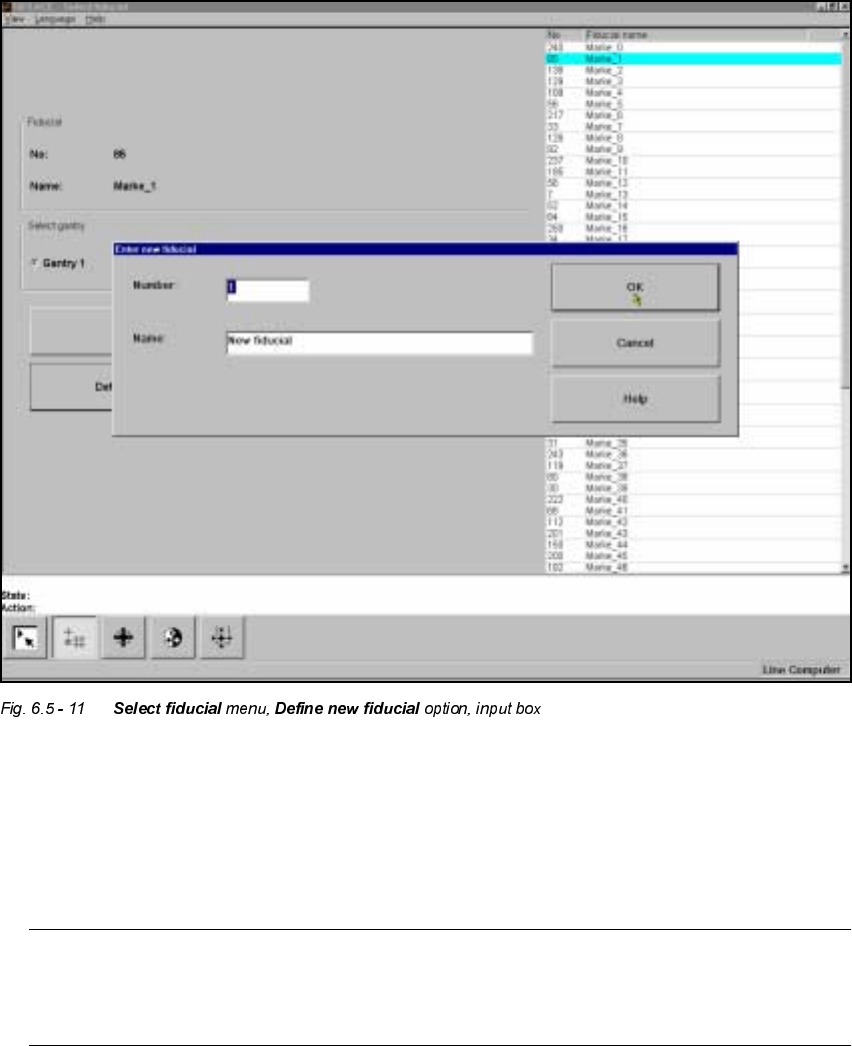
'HILQH1 HZ)LGXFL DO2SWLRQ
With this option you can generate a new fiducial.
– Click on the 'HILQHQHZILGXFLDO button.
The input box for the fiducial number and the fiducial name will appear on the screen.
– Input a fiducial number and the fiducial name.
– Conclude your input with 2. or discard your input with &DQFHO.
– The new fiducial can also be taught with standard values and further processed.
– When finished save the fiducial by clicking on the 6DYHILGXF LDO button.
NOTE
If a fiducial number already exists after clicking on 2. you will be asked if you want to over-
write the existing fiducial.
6 Vision functions User Manual HS-50
6.5 Teach Fiducial Software-Version 5.01 Edition 01/99
216
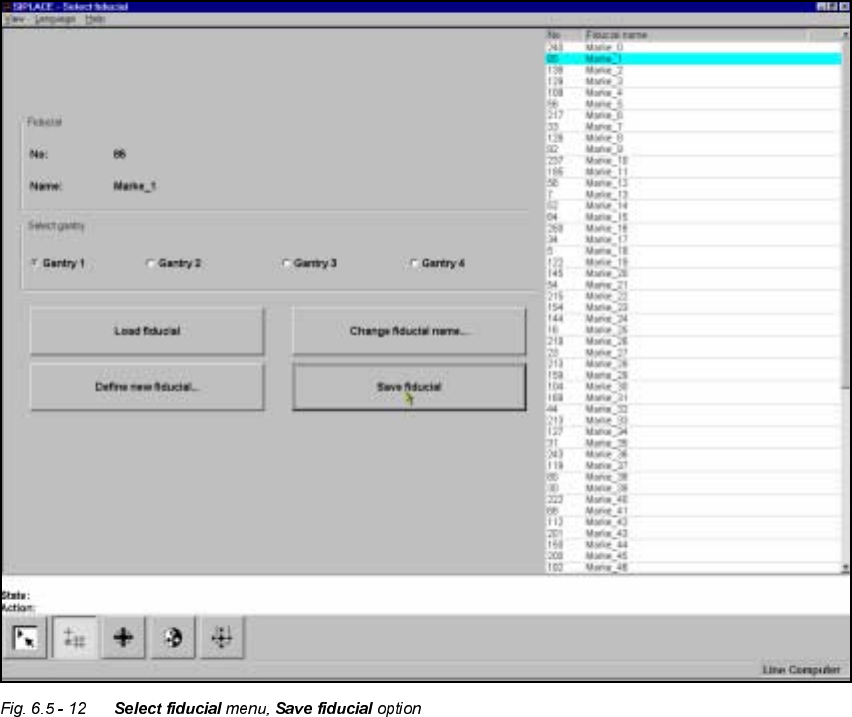
6DYH)LGXFLDO2SWLRQ
With this option you can save fiducials together with their modified parameters. The button will
only become activated if you have
– changed the fiducial name or
– generated a new fiducial.