00191369-01.pdf - 第279页
User Manual HS-50 6 Vision functions Software-Version 5.01Edition 01/99 6.6 Test Component 277 7 UDQ VIRU P 2SWL RQ When you activat e this option, th e 6HOHFWFRQW UDVWVHQVLWLYLW\ option box will op en.…
6 Vision functions User Manual HS-50
6.6 Test Component Software-Version 5.01 Edition 01/99
276
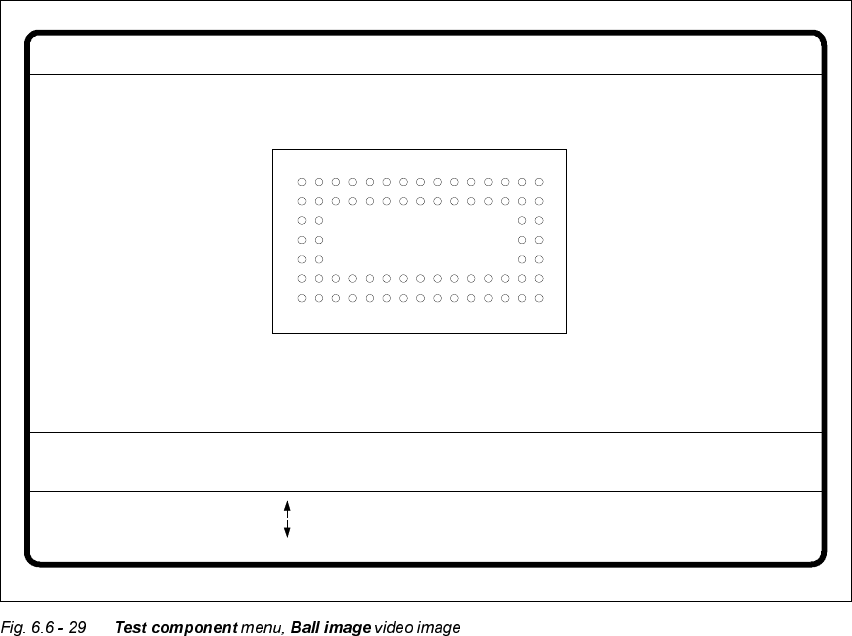
%DO O,PDJH2S WLRQ
With this option you can change the ball model description.
Å Use the tabulator key to select the ball model.
Å With the spacebar select the radius type - inner or outer radius.
Å Use the arrow keys to enlarge or reduce the internal or external radius of the ball. The balls will
be displayed in their geometric dimensions as a pixel image on the lefthand edge of the video
image.
The value of the inner radius the ball shape:
– If the inner radius is equal to 0, the ball will take the form of a circle.
– If the inner radius is greater than 0, the ball will take the form of a doughnut.
Å Use the or keys to increase or reduce the ball contrast.
Select ball contrast > 0, if the ball is lighter than the background.
Select ball contrast < 0, if the ball is darker than the background.
Å With the 5HWXUQkey you can trigger the individual measurement steps which are specified in
the measurement conditions for the specified component.
Å Press (VFto cancel the option, even if not all measurement steps have been carried out. You
will then be returned to the 7HVWFRPSRQHQW menu.
GF no. = 5Ball image
RET: Test comp.
Tab: Ball model
Rad. i.[mm]
Ball model = 1
Rad. e.[mm]
Rad. type: intern./extern.
= 0.500
= 1.500
+ : Contrast +
- : Contrast -
Contrast a.
Contrast i.
= 10
= 20
: larger
: smaller
Blank: Radius type
User Manual HS-50 6 Vision functions
Software-Version 5.01Edition 01/99 6.6 Test Component
277
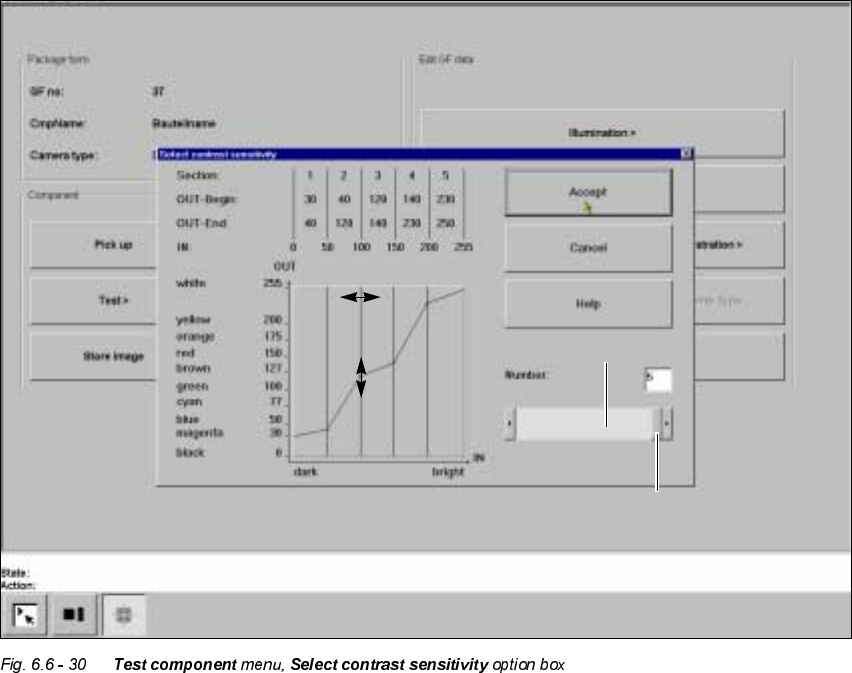
7UDQVIRUP2SWLRQ
When you activate this option, the 6HOHFWFRQWUDVWVHQVLWLYLW\option box will open.
You can select the following parameters:
– Number of sections which contain the transformation table: number between 1 and 5
– Selection of value pairs: with 5 sections 10 pairs of values are permitted.
/D\RXWRIWKH6HOHFWFRQWUDVWVHQVLWLYLW\RSWLRQER[
1XPHULFDOSUHVHQWDWLRQRIWKHWDEOH
The numerical values are indicated in the upper part of the option box. These are:
Section: Number of sections
OUT Begin: OUT End: Ranges of values for the transformation of the individual sections
IN: Range limits of the individual sections
Scroll bar
Scroll field
6 Vision functions User Manual HS-50
6.6 Test Component Software-Version 5.01 Edition 01/99
278
*UDSKLFSUHVHQWDWLRQ RIWKHWDE OH
In the diagram
– the abscissae (x axis) represent the input values range, subdivided into sections.
– the ordinates (y axis) represent the output values with their color allocation.
%XWWRQV
Å $FFHSW
Click on the $FFHSW button to save the settings. The option box will then close.
Å &DQFH O
With &DQFHO you can discard the settings. The option box will then close.
Å +HOS
With the +HOS button you can access explanatory material regarding the on-screen presenta-
tion.
Å 1XPEHUinput field
You can choose the number of sections
Å by entering the numerical value directly into the display field, or
Å by moving the scroll field in the scroll bar to the right or left using the mouse. In this way you
can run back and forth through the values range (1 - 5), or
Å by clicking on the lefthand or right-hand arrow on the scroll bar. In this way you can increase
or decrease the number of selections.
3URJUDPPLQJWKHWUDQVIRUPDWLRQWDEOH
Å Specifying the output values
Position the mouse pointer over the ends of the transformation lines of each section. The ends
are marked with small horizontal lines. A vertical double arrow will then appear on the screen.
Click on the lefthand mouse key and move the arrow upwards or downwards. This will move
the selected end of the transformation line and the numerical value will be displayed at 287
%HJLQor 287(QG.
Å Selecting the section limits
The graphical representation in Fig. 6.6 - 30 on page 6 - 277 shows equidistant section limits
with the ranges 0 - 50, 51 - 100 and so on. You can change these section limits if you wish.
However limits 0 and 255 are permanently allocated and cannot therefore be moved.
Position the mouse pointer on a section limit (but not 0 and 255). A horizontal double arrow will
appear on the screen. Hold down the lefthand mouse pointer and use it to drag the section limit
in the direction you want. The corresponding numerical value will be displayed at ,1.
Å Once you have programmed your transformation table you can quit the option box by clicking
on $FFHSW or &DQFHO.