Oxford-100-Manual.pdf - 第71页
System Manual Oxford Instruments Plasma Technology PlasmalabSystem 100 5.3 System shut down and restart The situations, which necessitate system shut down, are given in sub-sections 5.3.1 to 5.3.4. 5.3.1 5.3.2 5.3.3 5.3.…
PiasmaiabSystem100
Oxford
Instruments
Plasma Technology
System
Manual
5.2
System
power-up
This sub-section describes
the
initial
power-up
(switch on)
of
the
system.
It
assumes
that
the
system
is
switched
OFF
at
the
wall-mounted
safety isolation box.
WARNING
BEFORE
POWERING
THE
SYSTEM UP, CHECK THAT:
A)
THE
'ONoSITE' MAINTENANCE
LOG
SHOWS THAT
THE
SYSTEM IS
IN
A FIT
STATE FOR CUSTOMER OPERATION.
B)
ALL DOORS ARE CLOSED
AND
ALL COVERS ARE IN PLACE.
C)
THERE
IS
NO
VISIBLE
DAMAGE
TO
THE
SYSTEM.
CAUTION
Always
ensure
that
any
heater/chiller
units
provided
are
switched
on
when
the
system
is
powered
up.
To
power
up
the
system, proceed
as
follows:
1) Ensure
that
all
manually
operated
cooling
water
taps are
turned
ON.
2)
Check
that
the
'Slit Valve Lockout'
control
is
unlocked and pushed home.
3)
Set all Remote/Local switches
on
the
electronics modules
to
REMOTE.
4)
Switch ON all
the
electronics modules located in
the
console.
5)
Ensure
that
the
compressed air supply
is
ON.
CAUTION
If
the
gas lines
may
contain
air,
do
not
open
any
gas
taps.
Continue
with
the
start
up
procedure,
and
then
use
the
system
to
evacuate
the
lines
one
at
a
time.
When
it
is
certain
that
the
air
has
been
removed
and
there
are
no
leaks,
open
the
gas
taps.
6)
If
you
are certain
that
the
gas lines
do
not
contain air,
turn
all
the
manually
operated
gas taps (on gas cylinders etc.)
to
ON.
7)
Check
that
the
Emergency Stop
buttons
are OUT.
8)
Set
the
wall-mounted
safety isolation box switch
to
ON (I).
9)
Operate
SYSTEM
ON
button
(coloured green
or
with
the
'I'
legend), located
on
the
console.
10) Switch
the
remote
PC
operator
terminal
ON.
UC
Davis 94-721001
Issue
1:
March 06
Operating
Instructions
Page 5-4
of
52
Printed: 22-Mar-06, 10:42
System
Manual
Oxford
Instruments
Plasma
Technology
PlasmalabSystem
100
5.3
System
shut
down
and
restart
The situations,
which
necessitate system
shut
down,
are given in sub-sections
5.3.1
to
5.3.4.
5.3.1
5.3.2
5.3.3
5.3.4
Emergency
shut
down
In an emergency, e.g. risk
of
physical injury, fire, etc.,
shut
the
system
down
by pressing an
Emergency
Off
(EMO)
button.
This
will
disable all
power
outputs
from
the
power
box
(except
for
low
voltage
supplies).
When
any faults have been cleared and
the
system
is
safe
to
operate, restart
the
system using
the
procedure given
in
sub-section 5.3.6.
Routine
shut
down
When
all processing operations are
completed
and
the
system
is
to
be
shut
down
for
maintenance and repair, use
the
shut
down
procedure given
in
sub-section 5.3.5. On
completion
of
maintenance
and/or
repair, restart
the
system using
the
System
power
up
procedure, given in sub-section 5.2.
Mains
Power
failure
A mains
power
failure
will
halt
all system functions.
When
power
is
restored, restart
the
system using
the
procedure given in sub-section 5.3.6.
Software
abort
To
halt
processing and
wafer
transfers, click
on
the
STOP ALL AUTO
PROCESSES
button
which
is
displayed
at
the
top
of
the
page
on
all screens. Clicking on this
button
will
halt
the
current
process and any
further
wafer
transfers. (Any
wafer
transfers
currently
in
progress
will
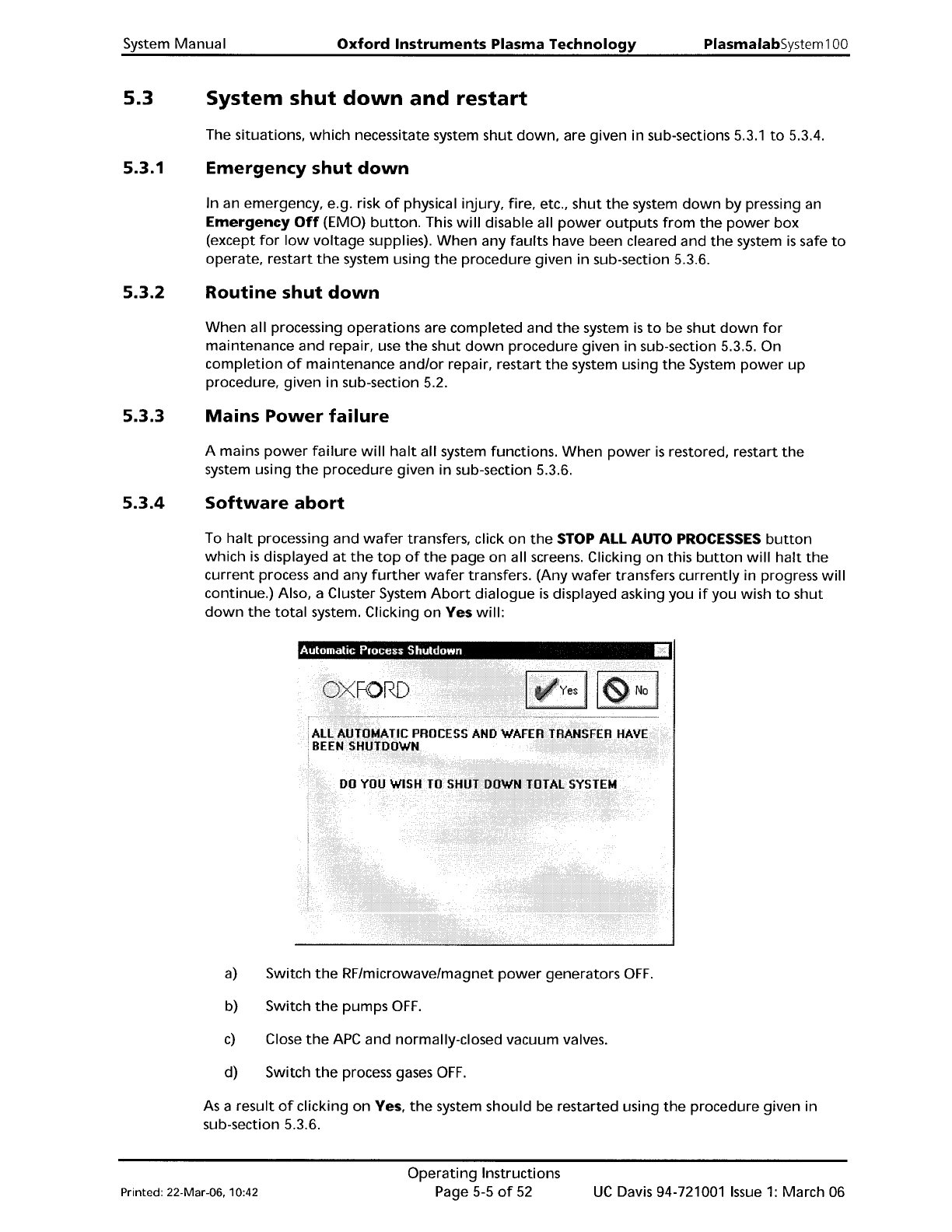
continue.) Also, a Cluster System
Abort
dialogue
is
displayed asking you
if
you wish
to
shut
down
the
total
system. Clicking
on
Yes
will:
a)
Switch
the
RF/microwave/magnet
power
generators
OFF.
b) Switch
the
pumps
OFF.
c)
Close
the
APC
and normally-closed vacuum valves.
d) Switch
the
process gases
OFF.
As
a result
of
clicking
on
Yes,
the
system should be restarted using
the
procedure given in
sub-section 5.3.6.
Printed: 22-Mar-06. 10:42
Operating
Instructions
Page 5-5
of
52
UC
Davis 94-721001
Issue
1:
March 06
PlasmalabSystem100
Oxford
Instruments Plasma Technology
System Manual
5.3.5
Clicking
on
the
No
button
in
the
Cluster System
Abort
dialogue
will
limit
the
abort
to
the
actions already done, i.e. stop all
automatic
recipes. Further processing operations
(automatic
or
manual) can
then
be carried
out
after
ensuring
that
the
system
controller
is
aware
of
the
current
wafer
locations.
System
shut-down
procedure
CAUTION
If
your
system
is
fitted
with
a
turbomolecular
pump
ensure
that
you
read
and
understand
Appendix
B
before
shutting
the
system
down.
This procedure assumes
that
the
process run
is
finished and
that
the
system
is
to
be
shut
down
for
maintenance
or
repair.
1)
Ensure
that
the
system has been vented, and all pumps are switched
off.
2)
Exit
from
the
PC
2000
software
by
clicking on
the
System
button,
then
on
the
Exit
option.
3)
Exit
from
Windows.
4)
Turn
the
PC
controller
OFF.
5)
At
the
Main
Console, press
the
OFF
button
(coloured red
or
with
a
'0'
legend).
6)
Switch
off
and lock
off
the
wall-mounted
safety isolation box.
7)
Turn all manual gas taps
on
the
Main
Console, gas
pod
and compressed gas cylinders
OFF.
8)
At
the
Main
Console, set
the
SLIT
VALVE
LOCKOUT
valve
to
its
OFF
position (pUll
the
red
control
knob
fUlly outwards). Fit
the
adjacent padlock
to
the
slit valve
lockout
valve's spindle
then
lock
it
to
prevent
any compressed air
operated
valve
movement.
9)
Turn
off
the
compressed air supply.
10) Ensure
that
all heated components have cooled
to
ambient
temperature,
then
turn
off
the
cooling
water.
WARNING
PART
OF
THE
SYSTEM
IS
ELECTRICALLY
ENERGISED
IF
THE
CUSTOMER'S
SUPPLY
IS
TURNED ON. UNLIT INDICATOR LAMPS DO NOT
MEAN
THAT IT
IS
SAFE
TO
WORK ON
THE
SYSTEM.
5.3.6 System
restart
following
an
emergency
stop,
power
failure,
or
software
abort
A
power
failure,
or
emergency stop
will
halt
all system functions. A
software
abort, (by
clicking
on
the
STOP
ALL
AUTO
PROCESSES
button,
then
clicking
on
Yes in
the
Cluster
System
Abort
dialogue), also halts
the
machine quickly.
UC
Davis 94-721001
Issue
1:
March 06
Operating
Instructions
Page 5-6
of
52
Printed: 22-Mar-06. 10:42