Oxford-100-Manual.pdf - 第94页
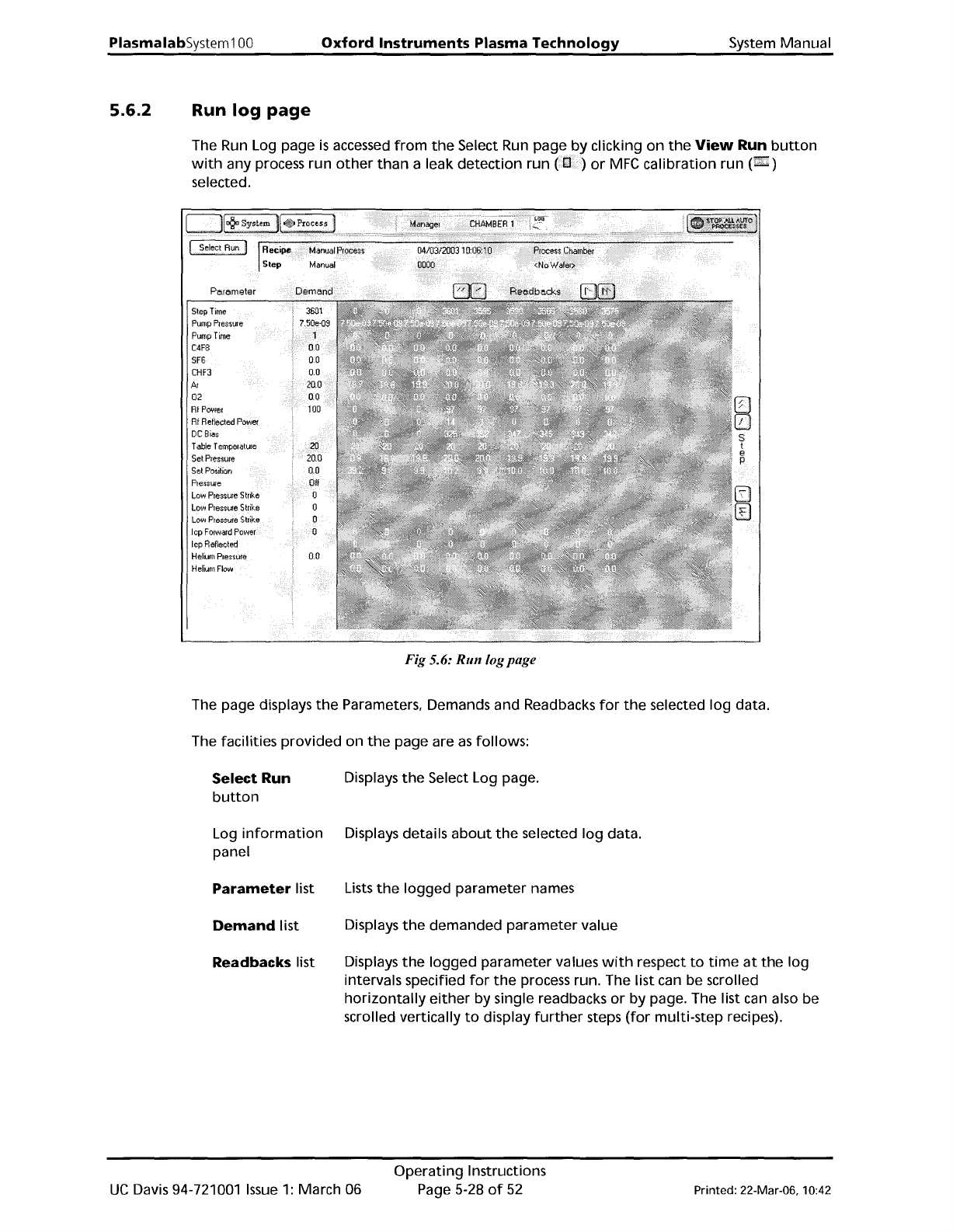
PiasmaiabSystem100 Oxford Instruments Plasma Technology System Manual 5.6.2 Run log page The Run Log page is accessed from the Select Run page by clicking on the View Run button with any process run other than a leak det…
System
Manual
Oxford
Instruments
Plasma Technology
PlasmalabSystem
100
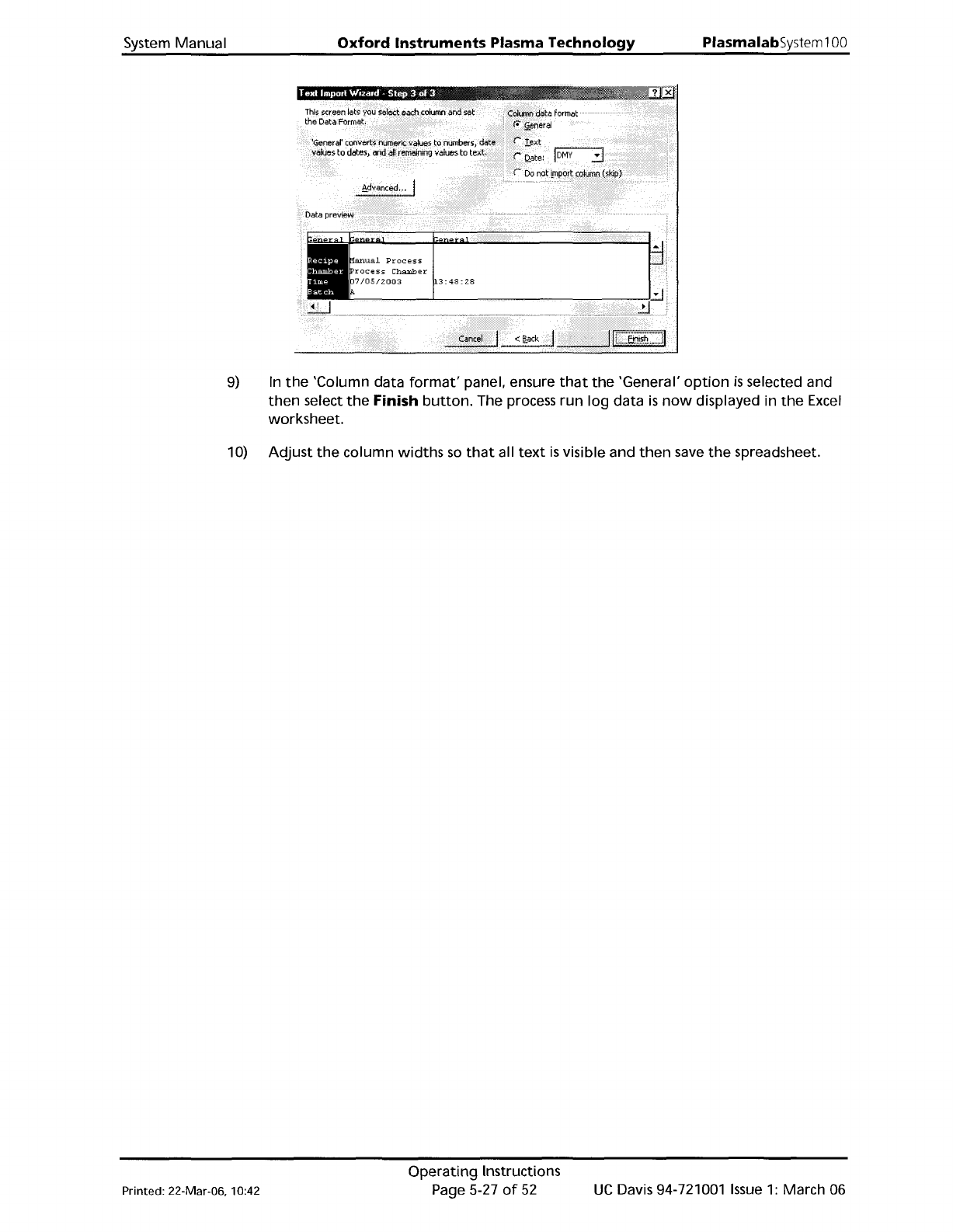
9)
In
the
'Column data
format'
panel, ensure
that
the
'General'
option
is
selected and
then
select
the
Finish
button.
The process
run
log
data
is
now
displayed in
the
Excel
worksheet.
10)
Adjust
the
column
widths
so
that
all
text
is
visible and
then
save
the
spreadsheet.
Printed: 22-Mar-06, 10:42
Operating
Instructions
Page 5-27
of
52
UC
Davis 94-721001
Issue
1:
March 06
PiasmaiabSystem100
Oxford
Instruments
Plasma
Technology
System Manual
5.6.2
Run
log
page
The Run Log page
is
accessed
from
the
Select Run page
by
clicking
on
the
View
Run
button
with
any process run
other
than
a leak
detection
run
(tll )
or
MFC
calibration
run
(:Jj)
selected.
Parameter
Slep
Time
Pump
Pressure
Pump
Time
C4F3
SF6
CHF3
Ar
02
RI
Power
RI
Rellecled
Power
DCBias
Table
Temperature
Set
Pressure
S
at
Position
Pres:sure
Low
Pressure
Strike
Low
Pressure
Strike
Icp
Forward
Power
Icp
R.f1ecled
Helium
Pre~ure
Helium
Flow
Fig 5.6:
Run
logpage
The page displays
the
Parameters, Demands and Readbacks
for
the
selected
log
data.
The facilities
provided
on
the
page are
as
follows:
Select Run Displays
the
Select Log page.
button
Log
information
Displays details
about
the
selected
log
data.
panel
Parameter
list Lists
the
logged
parameter
names
Demand
list Displays
the
demanded
parameter
value
Readbacks list Displays
the
logged
parameter
values
with
respect
to
time
at
the
log
intervals specified
for
the
process run. The list can be scrolled
horizontally
either
by single readbacks
or
by page. The list can also be
scrolled vertically
to
display
further
steps
(for
multi-step
recipes).
UC
Davis 94-721001
Issue
1:
March 06
Operating
Instructions
Page 5-28
of
52
Printed: 22-Mar-06, 10:42
System
Manual
Oxford
Instruments
Plasma
Technology
PlasmalabSystem
100
5.6.3
Leak
detection
and
MFC
calibration
log
page
The leak
detection
and
MFC
calibration
log
page
is
accessed
from
the
Select Run page by
selecting
either
a leak
detection
run
(Il!]
)
or
MFC
calibration
run
(.)
and
then
clicking
on
the
View
Run
button.
MFC
calibration
trace
(Blue)
Leak
detection
trace
fRej
Pressure axis scale
controls
Time axIs
scale
contmls
~
~
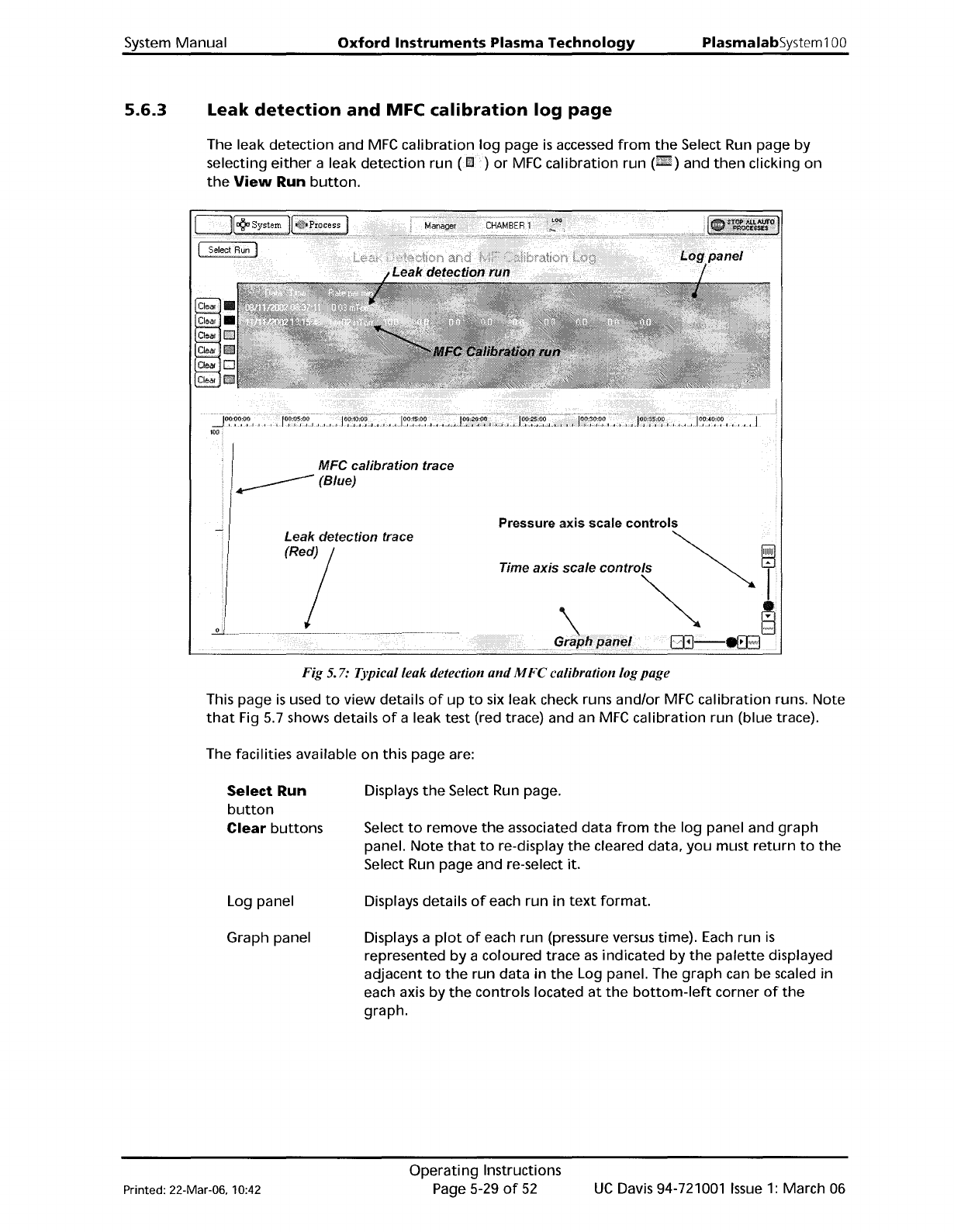
Fig 5. 7: Typical leak detection
and
M
Fe
calibration logpage
This page
is
used
to
view
details
of
up
to
six leak check runs
and/or
MFC
calibration
runs.
Note
that
Fig 5.7 shows details
of
a leak test (red trace) and an
MFC
calibration
run (blue trace).
The facilities available on this page are:
Select Run
button
Clear
buttons
Log panel
Graph panel
Displays
the
Select Run page.
Select
to
remove
the
associated data
from
the
log
panel and
graph
panel.
Note
that
to
re-display
the
cleared data,
you
must
return
to
the
Select Run page and re-select it.
Displays details
of
each run in
text
format.
Displays a
plot
of
each run (pressure versus time).
Each
run
is
represented
by
a coloured trace
as
indicated by
the
palette
displayed
adjacent
to
the
run data in
the
Log panel. The
graph
can be scaled in
each axis by
the
controls located
at
the
bottom-left
corner
of
the
graph.
Printed: 22-Mar-06. 10:42
Operating
Instructions
Page 5-29
of
52
UC
Davis 94-721001
Issue
1:
March 06