2OM-1011-002.pdf - 第134页
0305-001 Tg0858-PM-PM • Magazine Alternate This function is activated for both upper and lower magazines in the same tray unit. Components of the types required for the production model must be set fully for both upper a…
0305-001 Tg0858-PM-PM2-114
4.5 COMPONENT DATA Display
4.5.4 Editing of Tray Operation Data (Option)
Operation Procedure
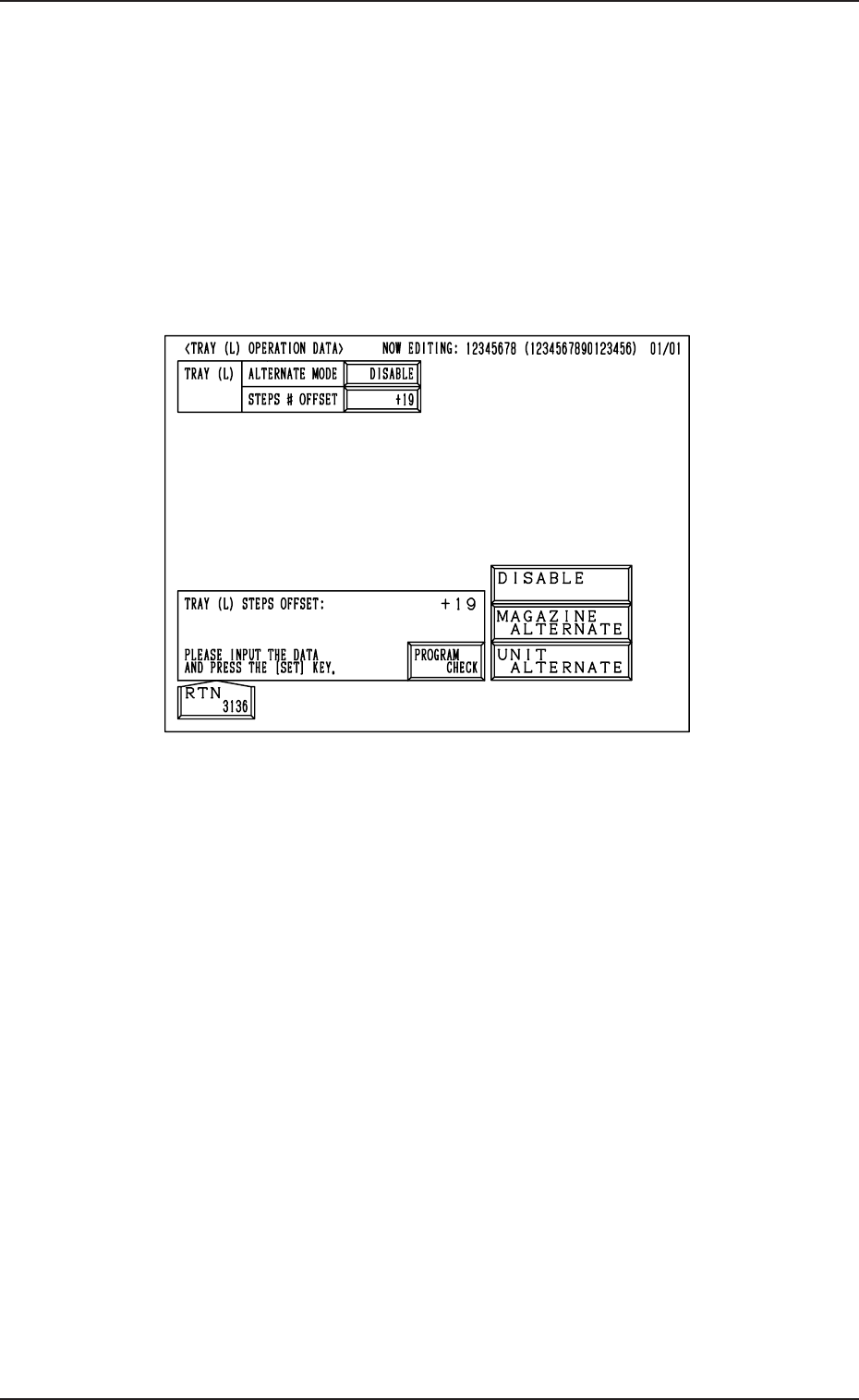
(1) When the [TRAY (L) OPN DATA] key is pressed at the “TRAY (L) STEPS
INFORMATION” display (Fig. 2B163), the following display appears on
the screen.
When the [TRAY (R) OPN DATA] key is pressed at the “TRAY (R) STEPS
INFORMATION” display, the “TRAY (R) OPERATION DATA” display
appears on the screen.
Fig. 2B166
(2) • Set the magazine alternate function.
Press the “MAGAZINE ALTN” key and select [DISABLE], [MAGA-
ZINE ALTERNATE] or [UNIT ALTERNATE] and then press the
[SET] key.
• Enter an offset value in the “STEPS # OFFSET” data box and press
the [SET] key.
(3) Press the [RTN] key to open the “TRAY (L) STEPS INFORMATION”
display.
What is Alternate Function?
This function reduces the downtime of the system when any component short-
age error occurs, by shifting the component pick-up position to the designated
position in due order and without stopping the system.

0305-001 Tg0858-PM-PM
• Magazine Alternate
This function is activated for both upper and lower magazines in the same
tray unit.
Components of the types required for the production model must be set
fully for both upper and lower magazines.
In this case, it is not necessary to allocate the components equally with
regard to component arrangement (step and block Nos.), the need for
spare steps and blocks, etc., for both upper and lower magazines. The
components can be allocated freely for each individual magazines.
When [MAGAZINE ALTERNATE] is set in the “MAGAZINE ALTN”
data box, then the machine automatically operates with either one of the
upper or lower magazines being connected. The connected magazine is
automatically changed to the other one, automatically set ready for use as
soon as the connected magazine becomes empty of the components re-
quired by the machine: that makes it possible for the machine to operate
continuously.
As a result, the efficiency of mass production (model for mass produced
P.C.B.’s) will be boosted by this function which makes it possible to sup-
ply components to the retired magazine during automatic operation and
avoid downtime of the machine due to a material shortage error or for
component replenishment.
The magazine alternate function is activated only when the connected
magazine gets empty of components (required type of components). When
components of the same type are set in several steps, the pallet alternate
function works prior to this function.
• Sample Application of Magazine Alternate Function (Based
on the assumption (specifications) that two tray units are
connected to the right and left sides of the main body)
As an example, the machine can perform its normal operation (operation
without the magazine alternate function) under the condition that as for a
group of components used frequently among the component types allo-
cated for production P.C.B.’s, a stock of such components can be pro-
cured in the tray unit located on one side, using the magazine alternate
function together to improve the efficiency of component supply and as
for a group of components which are not used frequently, such a stock of
components can be gathered together in the tray unit on the opposite side.
4.5 COMPONENT DATA Display
2-115
0305-001 Tg0858-PM-PM
4.5 COMPONENT DATA Display
4.5.5 OFFSET X AUTO SETTING Display (Option)
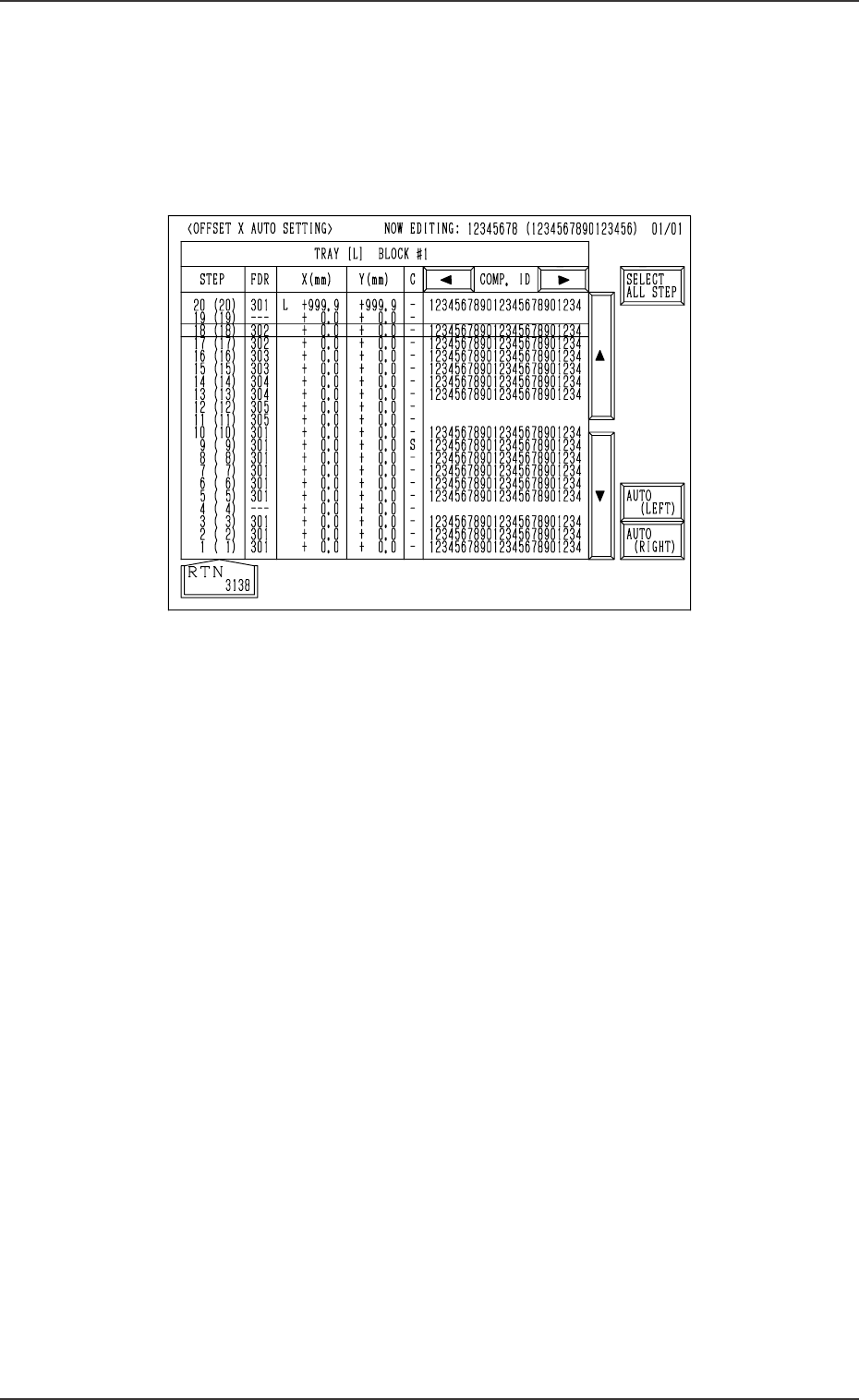
Press the [OFFSET X AUTO SET] key at the “TRAY (L) STEPS INFOR-
MATION” display (Fig. 2B163). The following display appears on the screen.
When the [OFFSET X AUTO SET] key is pressed at the “TRAY (R) STEPS
INFORMATION” display, the “OFFSET X AUTO SETTING” display for
Tray R appears on the screen.
2-116
Fig. 2B167
Operation Procedure
• Batch Setting
(1) Press the [SELECT ALL STEP] key.
All steps are selected and the background color turns blue.
(To cancel the selection of all steps, press the [SELECT ALL STEP]
key again.)
(2) Press the [AUTO (LEFT)] or the [AUTO (RIGHT)] key.
All X offset parameters are set at a time.
• Individual Selection
(1) Move the line cursor to the step No. for parameters to be set.
(2) Press the [AUTO (LEFT)] or the [AUTO (RIGHT)] key.
(3) X offset parameters are set for the step No. where the line cursor was
located.
After the above operation, “L” or “R” appears before the X offset parameter.